
If you’re not familiar with what WordPress block patterns are and how to use them in your site, this article is here to help.
Block patterns are useful design tools you’ll frequently use alongside the WordPress site editor and block themes to create, edit, and design unique websites. It lets you insert structured content into your pages and customize it.
In this guide, we’ll cover:
- What WordPress block patterns are
- How they differ from reusable blocks and templates
- How block themes change the way patterns work
- How to use block patterns in Ollie
But first, it helps to know where to find blocks and what they do.
Where do blocks live in WordPress?
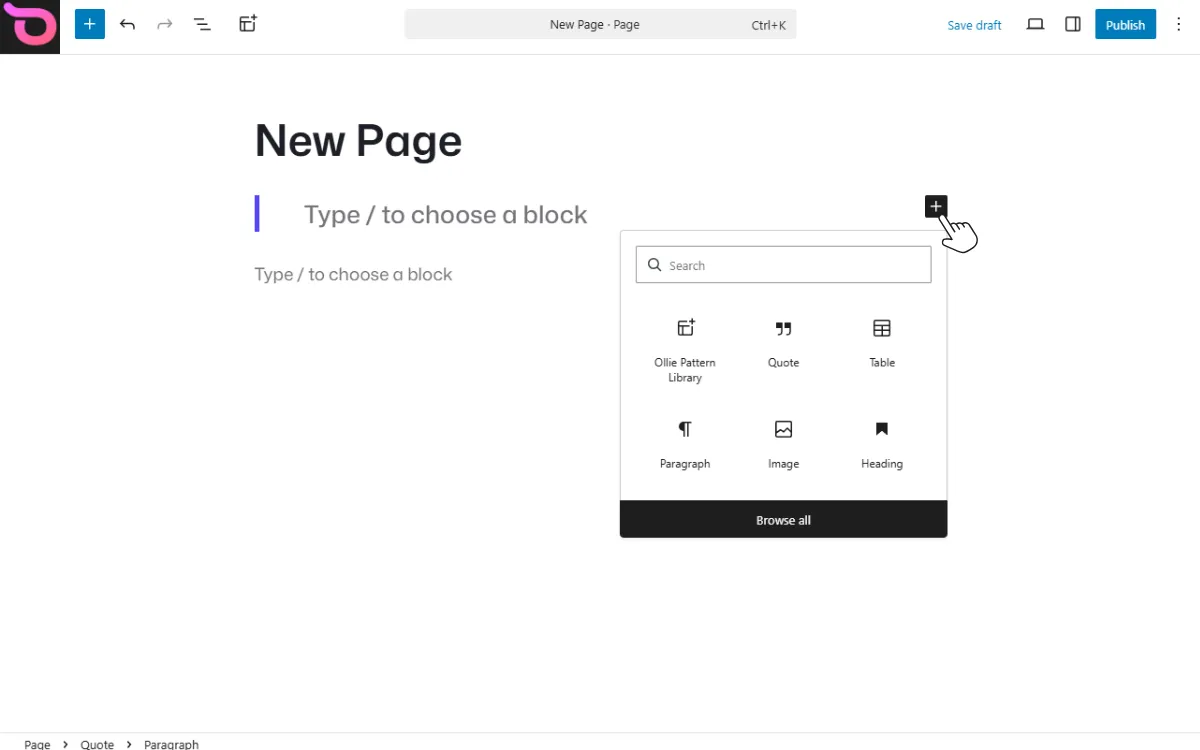
Blocks live in your pages, posts, templates, and patterns as content elements. When you edit any page, you’ll see a blue block inserter icon in the top-left corner of the WordPress block editor. This is where you can search, browse, and add different types of blocks to your page.
What are blocks?
Blocks are the individual pieces of content you add to or build a WordPress page or post with. A block could be a title, paragraph, audio or video file, table, image, gallery, buttons, or more.
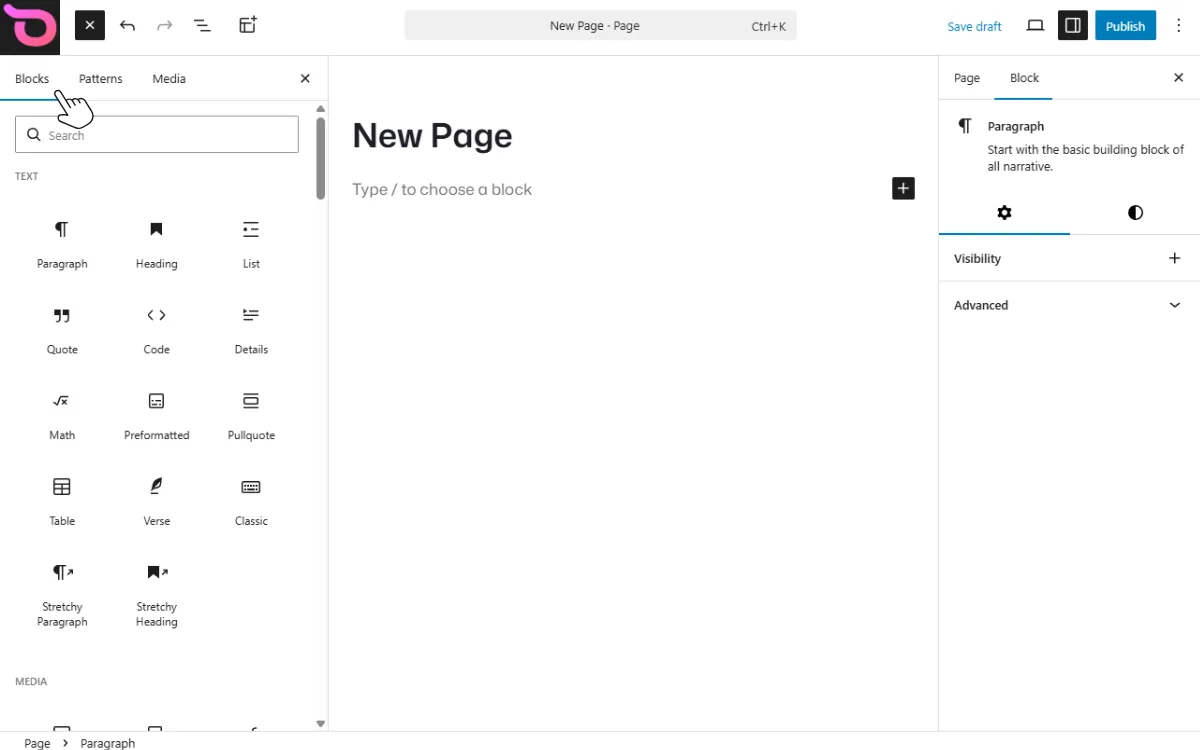
They are generally grouped into categories, including:
- Text
- Media
- Design
- Themes
- Embeds
- Forms
Each block also has its own content, toolbar, and settings. These controls allow you to build every aspect of your WordPress site from scratch.
Where the WordPress block editor comes in
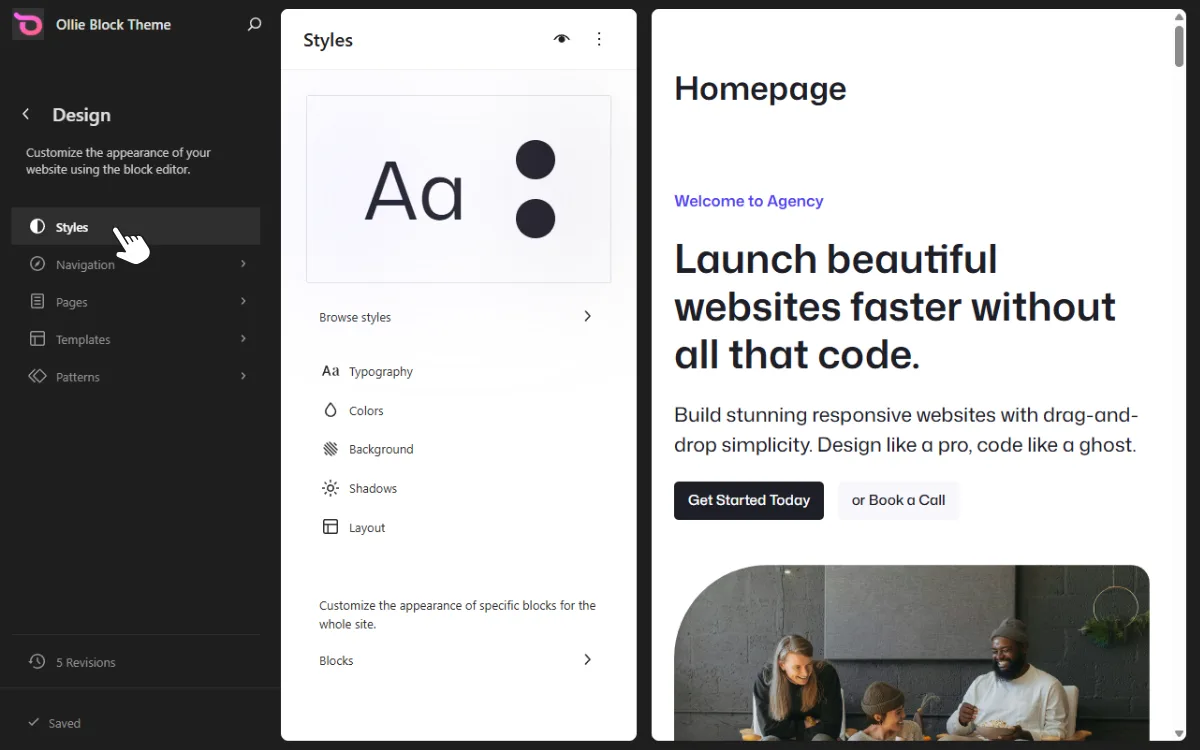
The WordPress block editor is where you write and build your posts and pages by adding titles, headings, paragraphs, images, and more. But its role doesn’t stop at content. WordPress also has a Site Editor, which uses the same block-based interface but is designed for editing your entire site’s design, like headers, footers, templates, and layouts. You can access it from your dashboard under Appearance → Editor.
The key point is that the Site Editor only unlocks its full potential when you’re using a block theme. That’s what ties everything together.
Why block themes are more flexible than classic themes
With a classic theme, your site’s design is largely set by the theme developer. You can tweak certain things through the Customizer, but meaningful changes to layouts, headers, or footers typically require editing code.
Block themes take a different approach. Every part of your site, from the header to the footer, is built from blocks you can move, restyle, and customize directly in the Site Editor. No code required. This makes designing and editing your site much more intuitive, whether you’re a developer or a complete beginner.
Three main building layers:
Generally speaking, you’ll have three main building layers in WordPress at your disposal:
- Blocks.
- Block patterns.
- Templates.
Here’s a quick comparison table to help:
| Element | What it is | Can you edit it? | Best for |
|---|---|---|---|
| Block | A single content element you can use to add or edit a WordPress page or post. | Yes | Adding one specific item, like a paragraph, image, or button. |
| Block pattern | It’s a predefined group of blocks or a pre-made design. Note: You can use block patterns in the block editor even if you aren’t using a block theme. | Yes | Building a section of a page quickly. |
| Template | A full-page layout made from a collection of blocks stacked together and patterns. | Yes (But in block themes) | Setting the look and feel of every page in your site. |
The Big Picture: Blocks are the smallest building pieces in WordPress. Block patterns upgrade page building using pre-made designs to help you build faster, while templates define the overall structure of an entire page.
In this post, we’ll focus on WordPress block patterns.
What are WordPress block patterns?
WordPress block patterns are predesigned page components you can insert onto your page to design it quickly. These patterns can be as small as a few lines of text or as large as a full-page layout.
For example, a pattern could be a header, footer, query, button, columns, gallery, or a page. It may represent the types of sections you frequently add to build a page:
- Hero sections.
- Feature or services sections.
- Testimonials.
- Team sections.
- Pricing tables.
- Call-to-action sections.
- FAQ sections.
- Contact sections.
Having these different pattern types makes it super easy to design pages and posts. You can quickly insert a ready-made section or a full page layout (using the block inserter) and customize it to match your design and brand.
Is a pattern the same as a template or a custom block? Not really. A custom block has to be built from scratch, whereas a pattern is a ready-made collection of blocks you can use to create your own.
Which brings us to the next question: how are standard WordPress block patterns different from reusable blocks or synced patterns?
How are block patterns different from reusable blocks and templates?
So far, we know that a block pattern can be as large as a full-page layout, which is also called a template in WordPress.
Similarly, when you insert a pattern in a page, it belongs to that specific page. Updating that particular block pattern won’t affect other pages where you use the same pattern unless the pattern is synced. Syncing a pattern makes it a reusable block.
Block patterns, synced patterns, templates, and template parts all work differently. So, what are the key differences?
| Feature | What it is | How it behaves | When to use it |
|---|---|---|---|
| Block pattern | A block pattern is a predefined group of blocks or a pre-made design. | Insert a pattern that can be edited independently (without affecting other instances where the same pattern is used). | When you want to quickly add design sections like hero areas, testimonials, or feature grids. |
| Synced pattern (formerly reusable block) | Changes made to a synced pattern are updated everywhere it is used on the website. | Use it for content blocks that need to stay consistent across multiple pages. You can use synced patterns for site-wide elements such as social icons, a call to action, a thank-you note, feedback forms, tables, and promotional banners. | It is a full page layout structure. It includes template components such as headers, footers, and sidebars. |
| Template | It is a full-page layout structure. It includes template components such as headers, footers, and sidebars. | It controls the layout of an entire page. | When you want to assign a different template to a page or post. You can also create and edit a custom template for landing pages, homepages, and so on. |
| Template parts | This is the reusable areas within a template. | These parts appear in multiple areas with a template. | When you need shared layout sections like headers, footers, or sidebars. |
How block themes change the way patterns work
Block patterns as a feature came with the block editor, but they reach their full potential with block themes. Rather than being limited to content within posts and pages, patterns in block themes can handle entire site layouts, headers, footers, sidebars, and full-page templates.
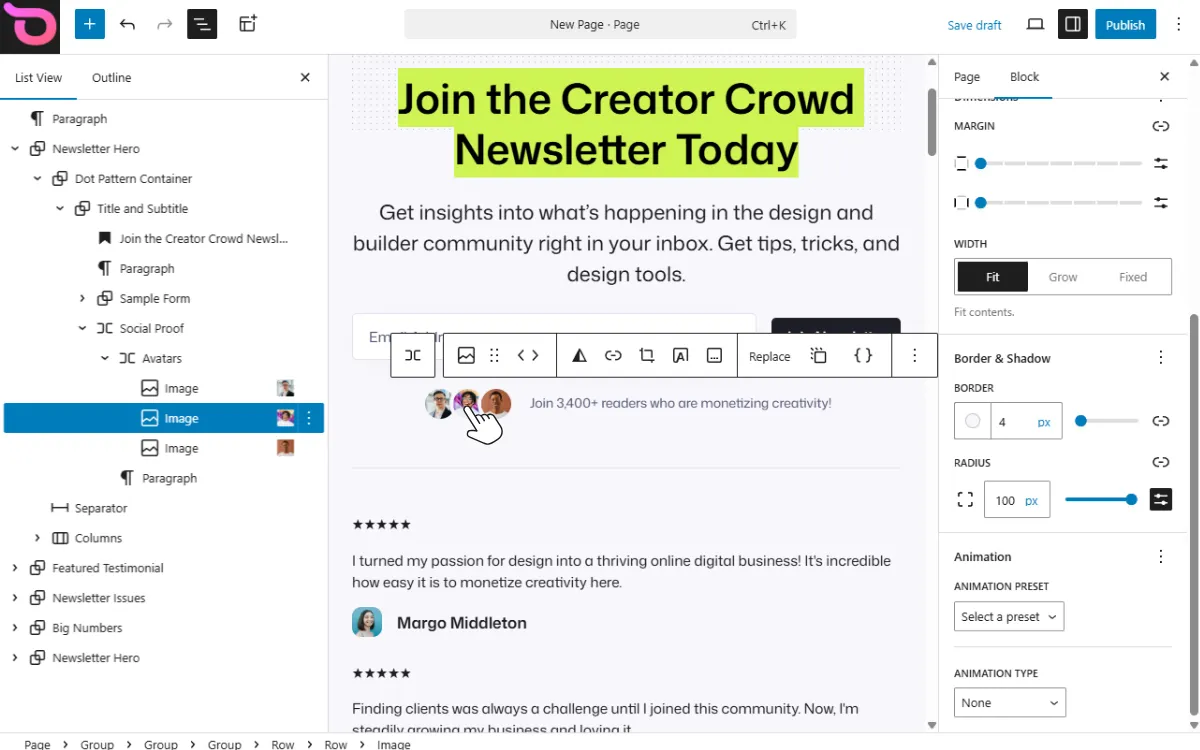
To make page building even easier, most block themes come with:
- Their own curated pattern libraries organized into categories for common page sections.
- Prebuilt templates and template parts like headers, footers, and sidebars.
- One-click global style variations that let you apply a set of colors, fonts, and typography across your entire site.
- Visual editing for all designs and sections directly inside the Site Editor.
The result is that block themes give site owners much more direct control over their site’s design. In most cases, you can build and customize your entire site using blocks, patterns, templates, and the Site Editor. All without needing extra plugins or writing any code.
How do block themes improve patterns in WordPress?
| Core WordPress | WordPress block themes |
|---|---|
| You’ll find generic patterns in the default pattern directory. | Offers curated pattern libraries designed for the theme. |
| The pattern categories are too basic. | The block patterns are organized into various categories for common page sections. With this design flexibility, you won’t have to fully switch back to the block architecture. |
| Styling depends on manual adjustments. | You can change colors, typography, and spacing through global styles. |
Takeaway: Block themes change the classic way of building a site by turning everything into blocks. These blocks aren’t used only in pages or posts. They’re used in headers, footers, and templates too, to give you a full site editing experience. In fact, WordPress is now steering the future towards block themes.
How block patterns work in Ollie
Picture a WordPress site where every element, from the header to the footer, is made of blocks you can move, style, and reuse.
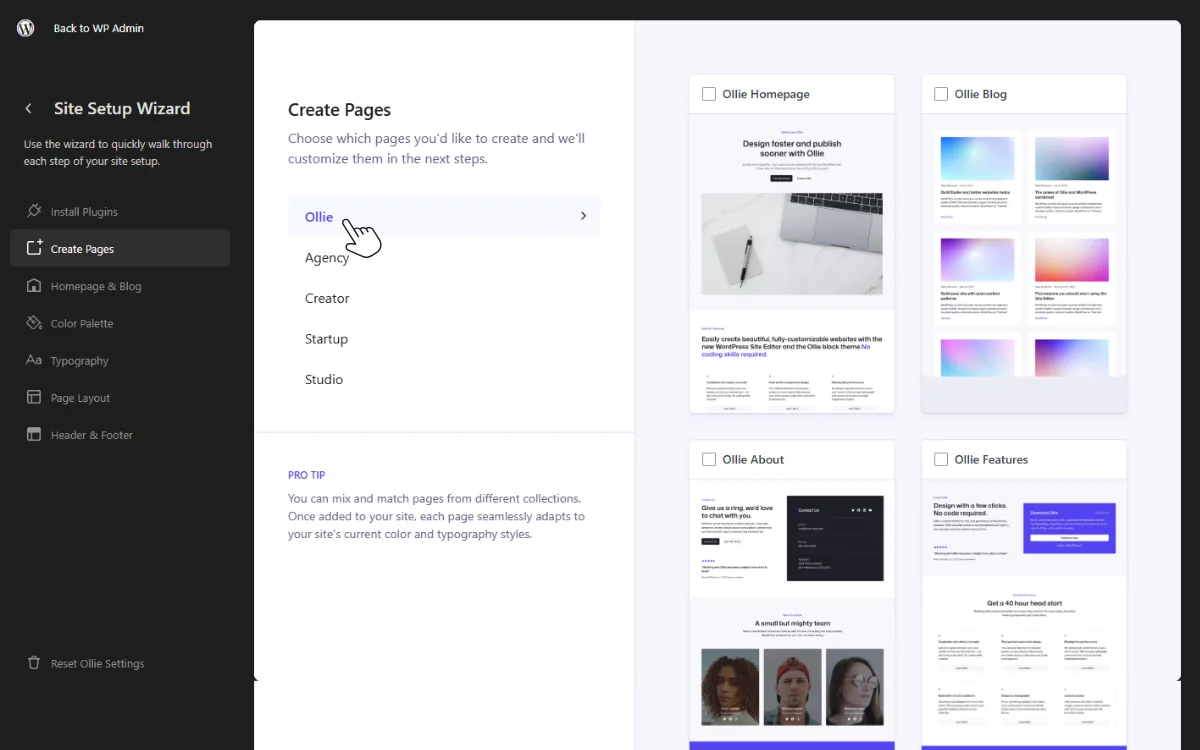
This is exactly how Ollie works. It’s a WordPress block theme that lets you use blocks to edit all areas of your site using patterns, templates, and template parts like headers, footers, and more.
This full site editing experience enables you to design and customize your websites faster and smarter in one place. Once activated, Ollie ships over 50 well-designed, fully customizable block patterns.
You’ll find patterns for:
- Common page sections like hero, feature, testimonials, cards, etc.
- Smaller pre-made components, such as a call-to-action button, forms, or contact details.
- Various full-page layout patterns, such as a cohesive blog layout.
These patterns offer a versatile starting point for building your site. You can find Ollie patterns via the block inserter when editing posts or pages, or in the Site Editor.
The Ollie Pro pattern library
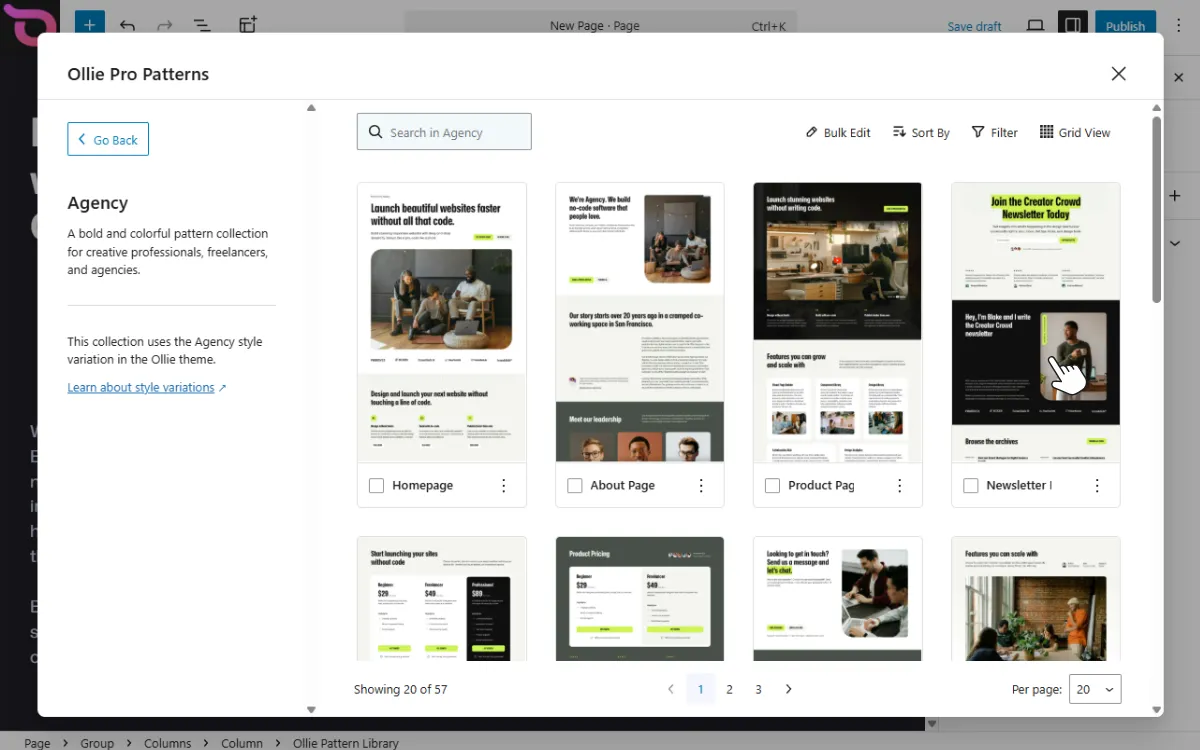
Ollie has a growing library of WordPress block patterns in the Pro version.
When you buy Ollie Pro, you get access to a cloud-based pattern library. This library is regularly updated with new patterns and collections that you can use on any page or post.
Inside this cloud library, you can:
- Browse patterns and click any pattern to see a full preview.
- Download a pattern to your WordPress pattern library so you can modify, duplicate, and customize it.
- Insert a pattern directly into the current page where you added the Ollie Pattern Library block.
- Copy and paste pattern blocks into your pages or posts.
- Save favorite patterns for quick access later.
All of this takes place inside the WordPress site editor, so you can quickly find and use patterns while building your pages or posts.
How to use block patterns with Ollie (step-by-step)
In this short tutorial section, we’ll show you specifically how to add the Ollie Pro Pattern Library block, browse the patterns available, and work with them.
Quick tip: You can purchase Ollie Pro from the official website: Ollie theme. The free version is also available on the WordPress.org theme directory, where you can install and activate the Ollie block theme.
Once you activate the Ollie theme, there are two quick ways to see all available patterns and start building.
Step 1: Add the Ollie Pattern Library block
This first method adds the Ollie Pro Pattern Library block to your page or post.
To do this:
- Go to Pages → Add new from your WordPress dashboard.
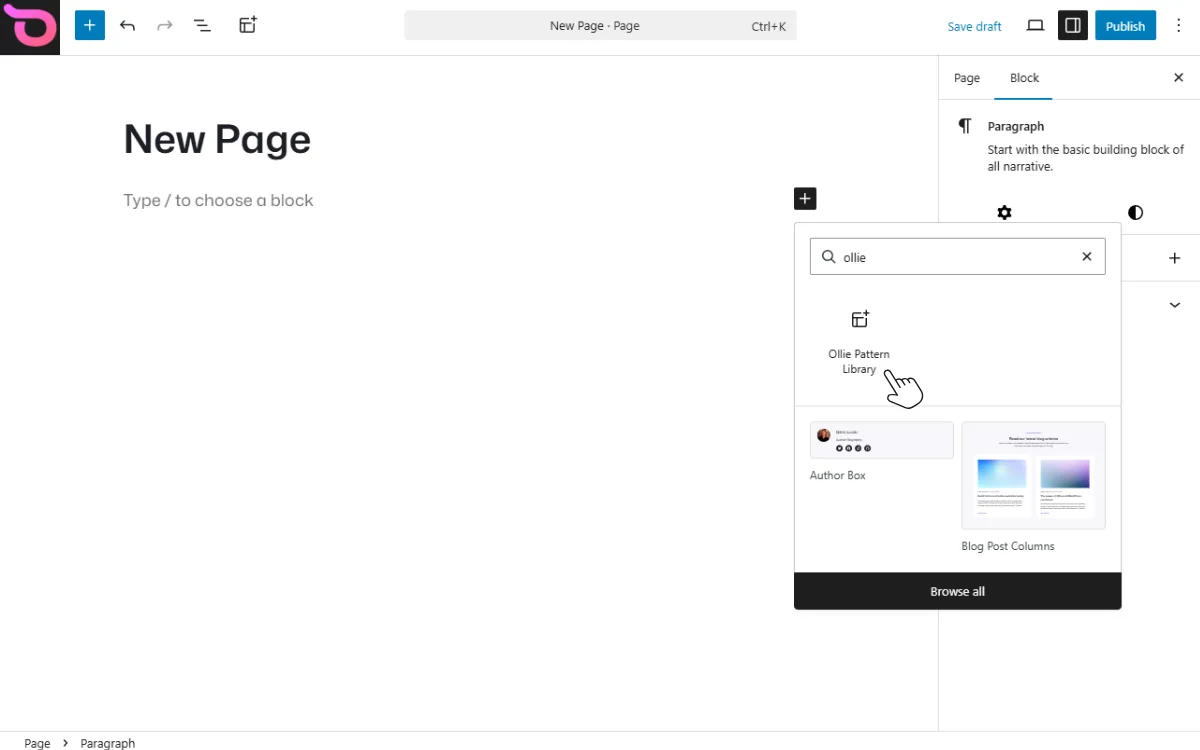
- Then, click the block inserter (+) icon and type Ollie in the search bar, and click Ollie Pattern Library.
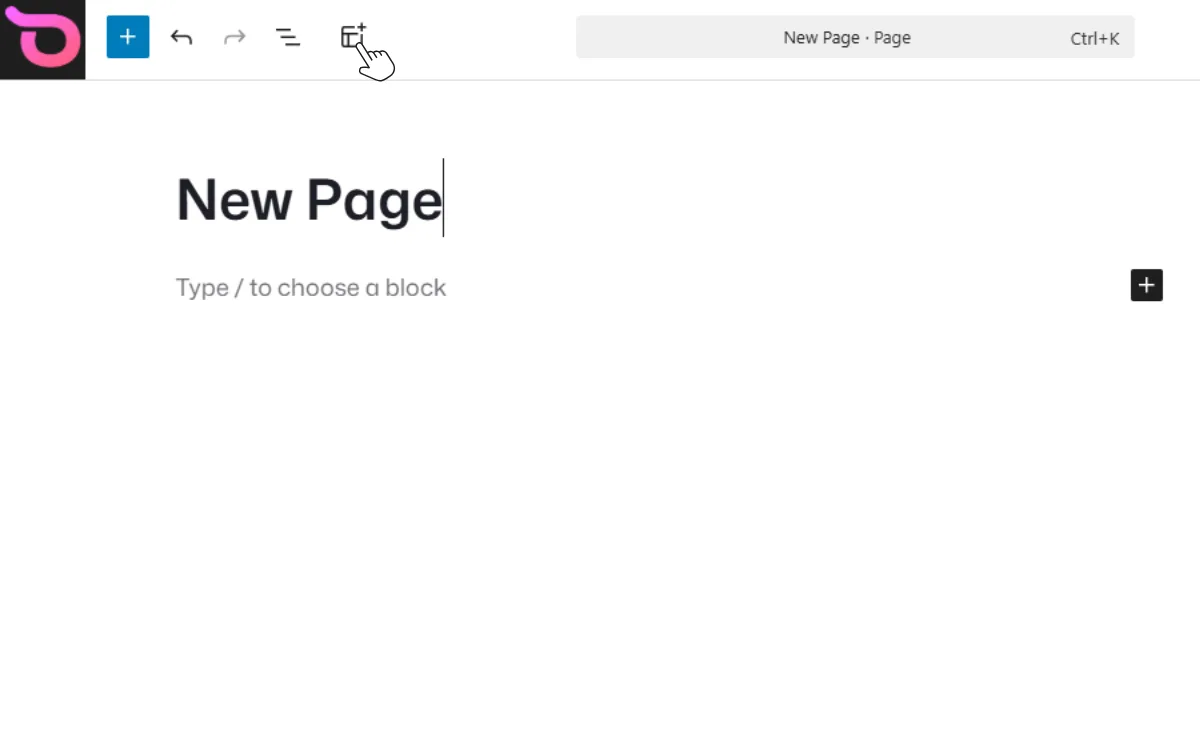
- Alternatively, you can type /ollie on a blank line to add the library. Or click the Ollie Pattern Library icon at the top of the page.
- Once the block is clicked, you’ll see the pattern library pop up and a search field where you can quickly find and insert patterns.
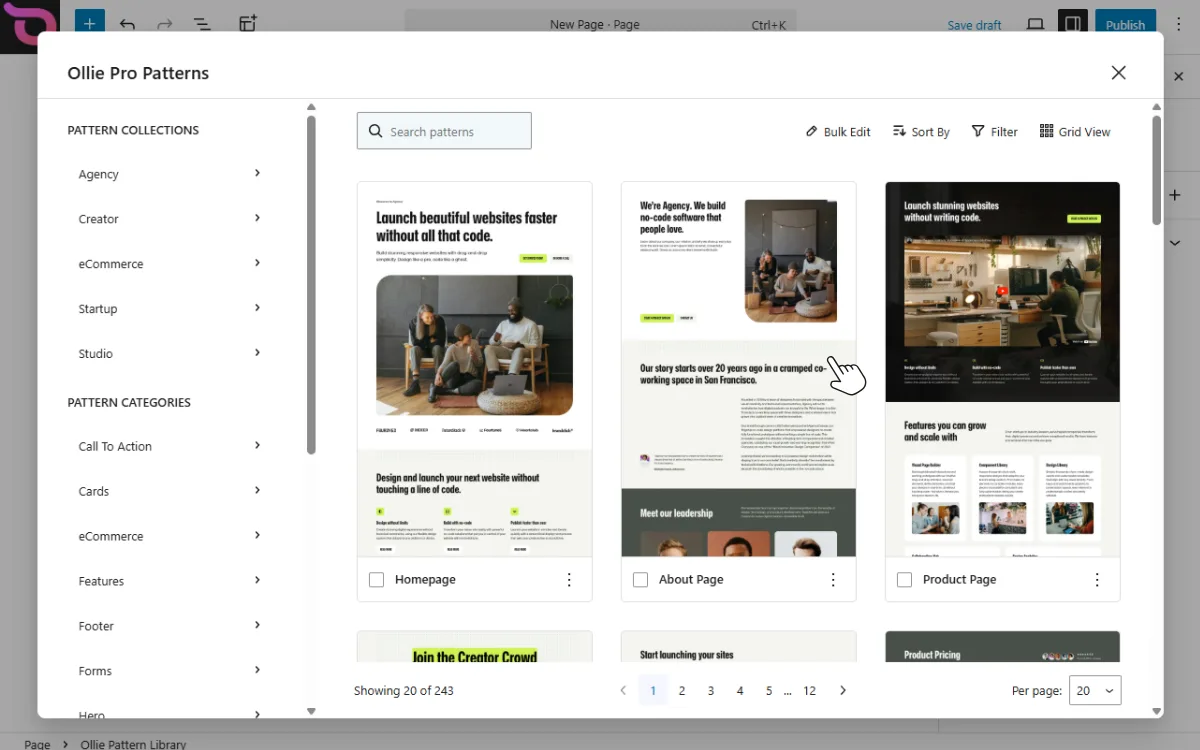
Adding the Ollie Pro pattern library this way unlocks a full pattern browser that lets you browse available pattern collections.
The browser has a very similar interface to the default WordPress pattern browser, so the experience will feel familiar. It just adds a few helpful features designed to help you get the most out of the library and build pages faster.
Step 2: Browse patterns
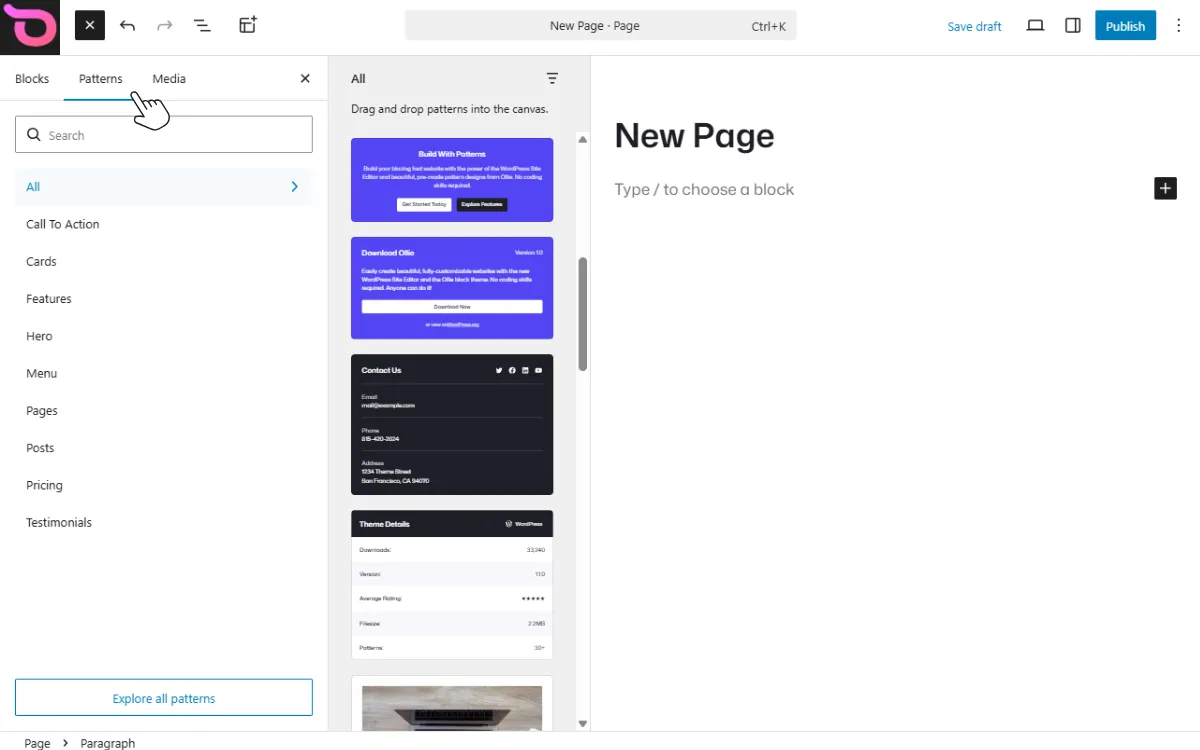
Another quick method to browse available patterns is to go to Appearance → Editor from your WordPress dashboard. Then, click the Patterns tab to see available pattern collections.
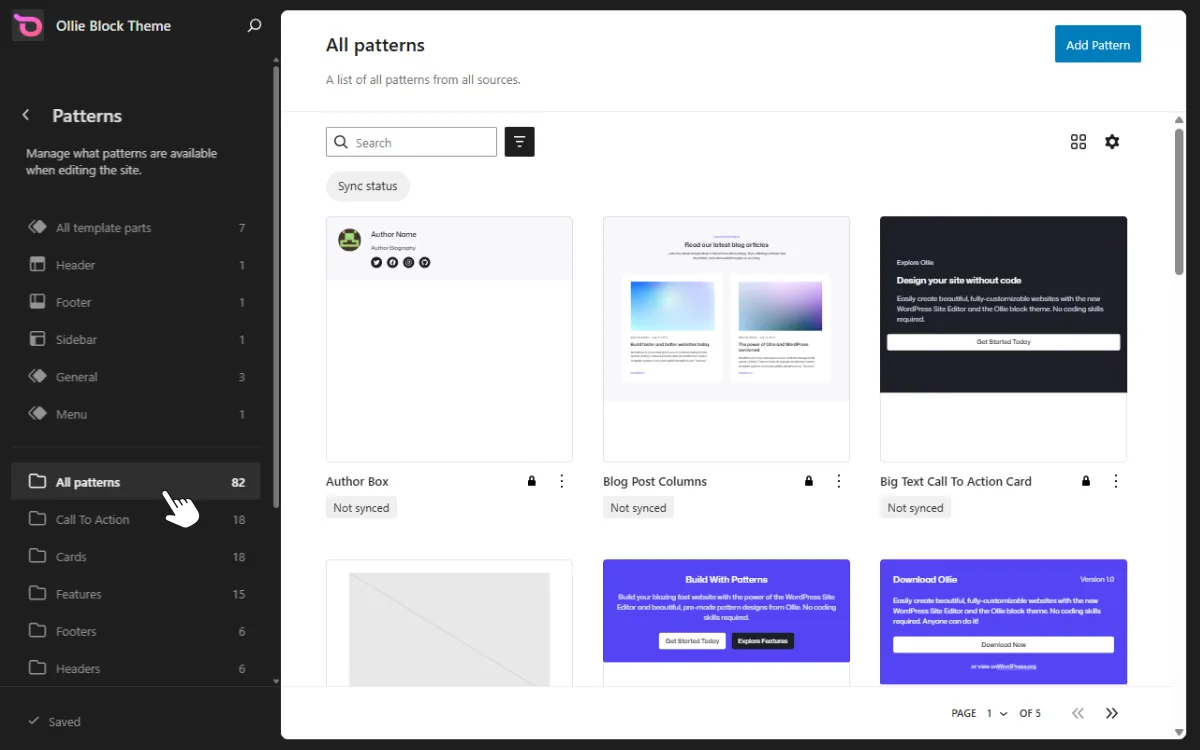
In the left sidebar, you’ll see options to browse patterns by:
- Collections. Collections group patterns that share the same style, like colors, typography, spacing, etc.
- Categories. Categories group similar sections, such as call to action, features, cards, testimonials, etc.
On the right side, you’ll see a grid of available patterns when you click on any collection or category option. Scroll through the grid to explore different designs you can edit or use to build pages and posts.
Step 3: Preview and insert
When editing a page and looking at the Ollie pattern library, clicking any pattern opens a pattern details view that lets you see a full preview of the layout before adding it to your page.
This preview also includes a responsive view, so you can check how the pattern looks on desktop, tablet, and mobile screens.
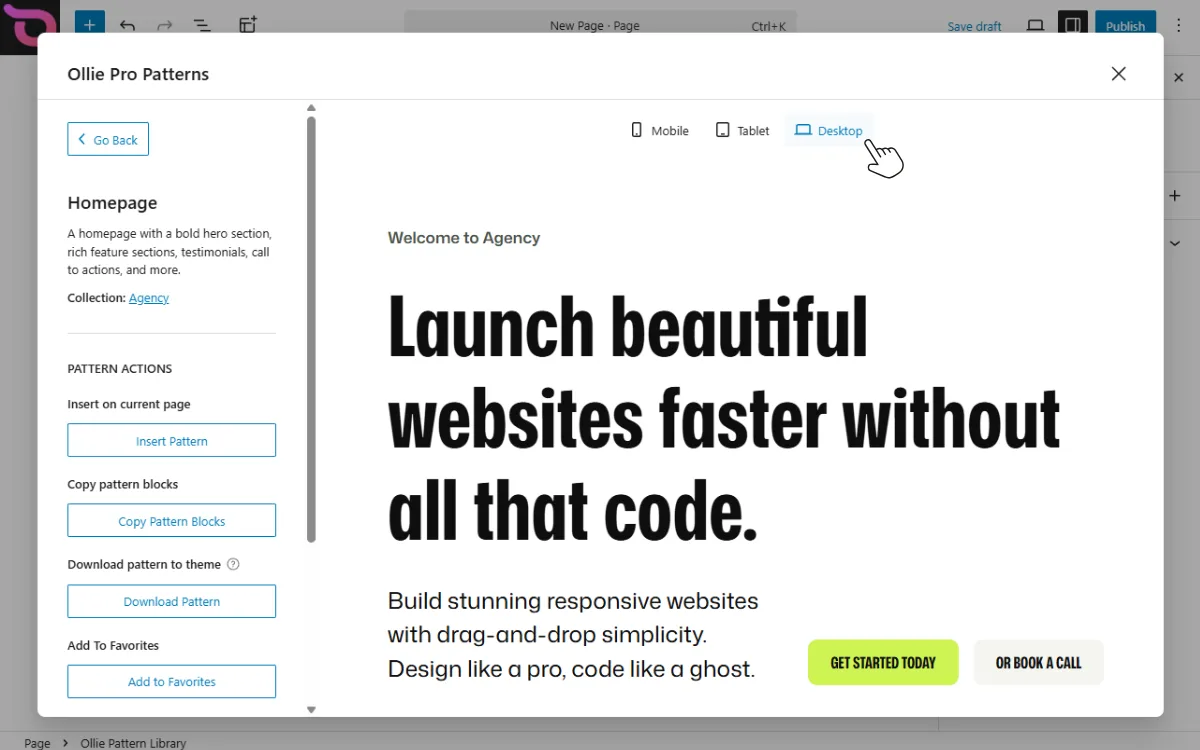
From here, you perform a few actions:
- Insert Into Page. This adds a pattern directly to the page you’re editing.
- Download Pattern. You can download a copy of the pattern to your theme and save it to your WordPress pattern library under ‘My patterns.’
- Copy Pattern Blocks. Copy the pattern markup and paste it anywhere in your pages or posts.
- Add to Favorites. You can save a favorite pattern for quick access in the future.
Step 4: Customize the pattern
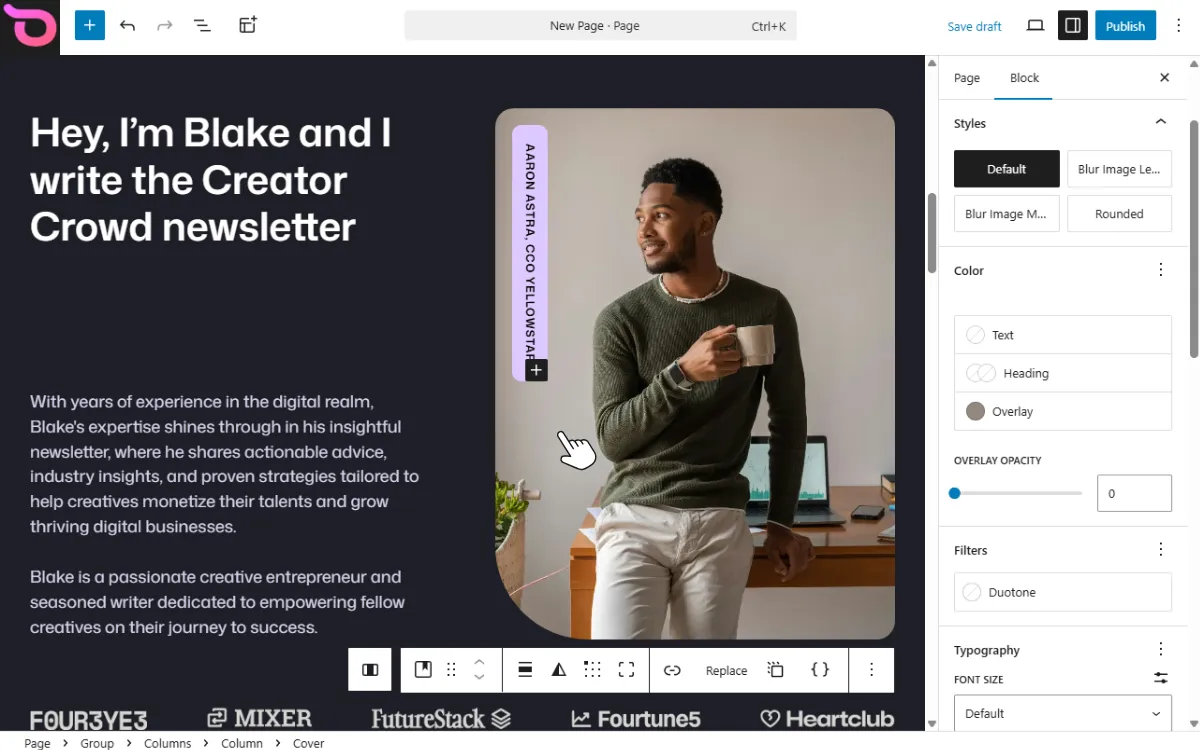
Once you insert a pattern, it becomes a normal group of blocks inside the editor. You can edit it the same way you edit any other content in WordPress.
For example, you can:
- Replace the text, images, or icons.
- Adjust spacing, fonts, background colors, and other styles.
- Move blocks around or reorder sections.
- Duplicate blocks to reuse parts of the layout
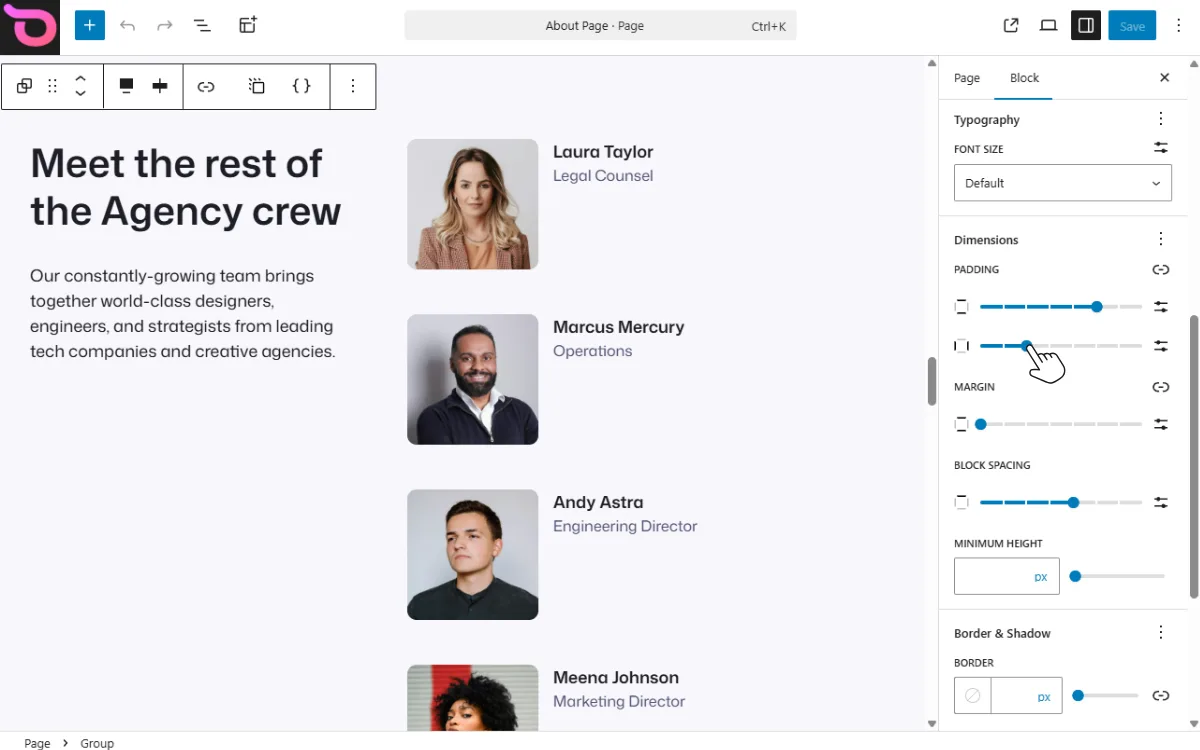
You can also change the overall look of the pattern using Global Styles, which control site-wide settings like typography, colors, and spacing. This helps keep your design consistent across pages.
The key thing to remember is that once a pattern is added to a page, it behaves like regular blocks. You are free to customize it however you like without affecting other patterns on your site.
Common questions about WordPress block patterns
What are WordPress block patterns?
WordPress block patterns are pre-made designs, layouts, or block templates. They allow you to quickly start building your pages or posts by adding structured sections like hero areas, testimonials, or feature grids without starting from scratch.
How do you add block patterns in WordPress?
To add block patterns, edit your pages or posts, click the block inserter, and switch to the Patterns tab. From there, you can browse available patterns by category and insert them into your page.
If you are using a block theme like Ollie, you may also have access to additional curated pattern libraries designed specifically for that theme.
What is the WordPress Block Pattern Directory?
The WordPress Block Pattern Directory is an online collection of publicly available patterns managed by WordPress. However, these patterns are created by different designers with different styles. Because of this, they may not always match your site’s colors, fonts, or layout. That’s why many users prefer a block theme with its own curated pattern library.
Most of the time, you’ll need a block theme with its own curated library. This makes it easier for you to find layouts that closely match your design.
Can I create my own patterns in WordPress?
Yes, WordPress allows you to create your own patterns from any group of blocks. Creating one is as easy as selecting a block pattern. Then, pick the Create Pattern option from the block toolbar, and give your pattern a name. You can also enable the Synced option. This turns your pattern into a reusable block.
This is useful for sections that need to stay consistent, such as promotional banners or signup forms.
What is the difference between block patterns and reusable blocks?
When a block pattern is added to a page, its content belongs to that page. That means if you modify it, those changes will not affect other pages where you’ve used the same pattern.
In contrast, synced patterns (formerly reusable blocks) allow you to update a pattern in one place. Then, those changes will update automatically everywhere the pattern is used.
Do block patterns work with all WordPress themes?
Yes, WordPress allows you to create your own patterns from any group of blocks. Creating one is as easy as selecting a block pattern. Then, pick the Create Pattern option from the block toolbar, and give your pattern a name. You can also enable the Synced option. This turns your pattern into a reusable block.
This is useful for sections that need to stay consistent, such as promotional banners or signup forms.
Should you use block patterns on your WordPress site?
Using WordPress block patterns quickly speeds up how you build pages in WordPress. You can drop in a header, footer, and other pre-made sections in between and start editing the text and media in place.
When you build every section block by block, you can easily lose your way. It is very common to end up with inconsistent spacing, mismatched fonts, or layouts that just don’t feel right together. Block patterns improve this. Even if you aren’t a pro designer, you can start with pre-built sections that are already well-crafted and polished, instead of struggling to align everything yourself.
If you want to get the most out of this type of experience, it helps to use a block theme designed around patterns. Ollie is built with patterns in mind. They use patterns as one of the main ways to design pages and layouts across your site.
