
WordPress 7.0 is here, and if you build sites with Ollie, there’s a lot in this release worth looking at.
This new version of WordPress ships with numerous exciting updates to the platform. As someone who builds sites with Ollie, you might be wondering about the updates you should be aware of or focus on.
In this guide, we’ll highlight the new features in WordPress 7.0 that matter most for Ollie users. We’ll break down what’s actually changing for anyone building sites with Ollie and what it means moving forward.
What is WordPress 7.0?
WordPress 7.0 is a major release, the first to carry a whole number increment since 2022. It was originally scheduled for release on April 9th, 2026. However, the project leadership decided to push the release date to May 20th to have more time to stabilize a key feature.
“It was announced earlier this week that the final release has been delayed specifically to allow more time to address testing feedback about the implementation of real-time collaboration”
– Jonathan Desrosiers, WordPress Core Committer.
This version is getting deeper into ‘Phase 3: Collaboration’ of the Gutenberg project roadmap. A long-term initiative aimed at modernizing how WordPress sites are built. So, it introduces several new major and minor features to support this.
In this guide, we’ll only cover the features that matter most to Ollie users. But if you want to explore them all, check out the WordPress 7.0 Source of Truth article from the Gutenberg Times.
The WordPress 7.0 features that matter most for Ollie users
Rather than walking through every change in WordPress 7.0, we’ll focus on the updates that affect how you, as an Ollie user, build and manage sites. Here’s what’s waiting for you in the new WordPress version.
Pattern editing improvements
The main change coming to patterns is that edits will default to content-only. When you click to edit a pattern or template part on a page, the sidebar only shows controls for editing the content by default.
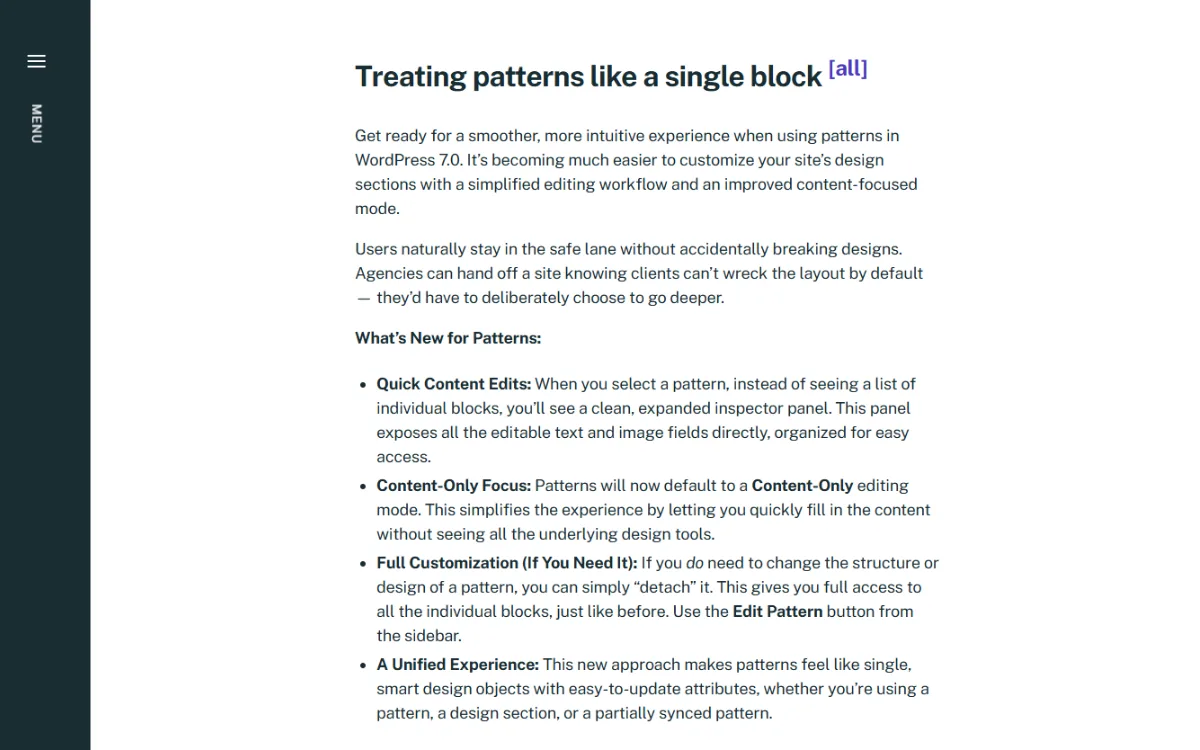
In this setup, you’ll be able to:
- Change the text (including the text inside a button).
- Replace images, edit alt text, and change captions.
- Edit the links added to the content.
WordPress hides the controls for changing the pattern’s design. For example, drag handles, the block toolbar (for changing alignment, spacing, etc.), and sidebar settings for margins, layouts, etc.
If you need to change a pattern’s structure and design, you can simply click on Edit Pattern and get full access to individual blocks just like in WordPress 6.9.
How does this relate to Ollie?
Ollie allows you to create templates for your site’s pages using patterns from its pattern library. So any improvement in pattern editing also improves how you edit your sites using Ollie.
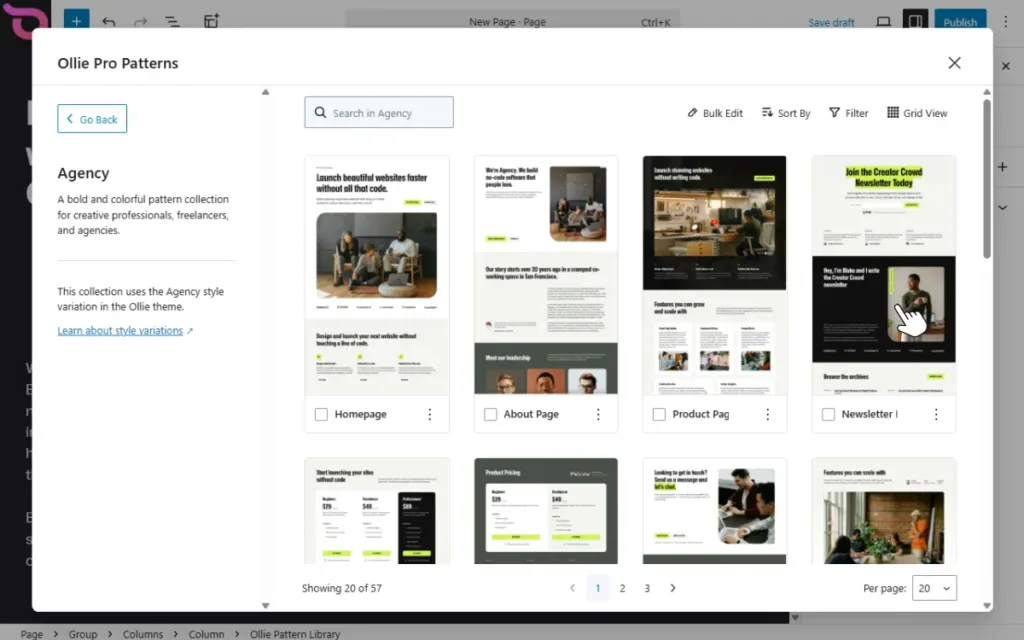
This improvement in particular makes content editing simpler and safer. You can safely edit your site’s content without accidentally breaking the design. This means you can hand off the site to the content team or clients without worrying about them accidentally messing with the design. To change the design, they’ll have to choose to do so.
Block visibility by screen size
You can now choose to show or hide any block depending on the site visitor’s screen size. This is something you previously needed a plugin for. You could also get it in your page builder if you were using a classic theme.
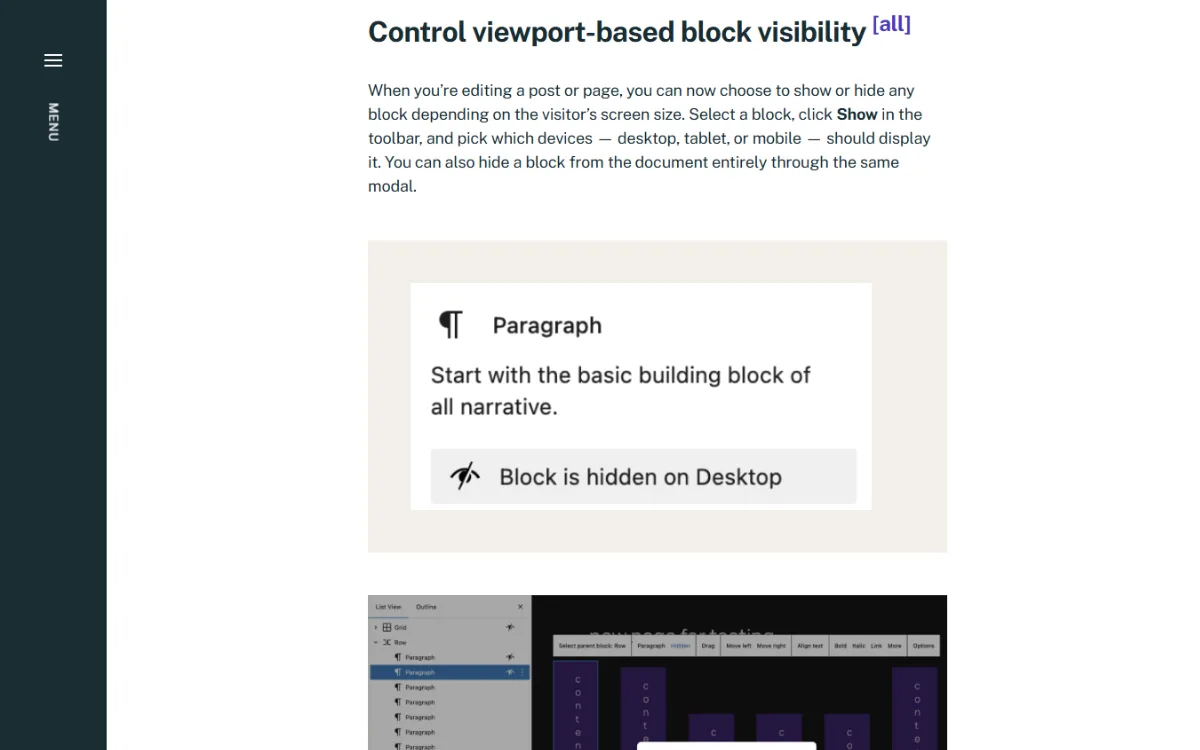
When editing your site and you realize a specific block takes up too much space in tablet or mobile views, you can click it to hide it on those devices. Users on mobile and tablet devices won’t see this block, but those on desktops will.
This is a big step in helping users build responsive websites natively in WordPress. And for Ollie, it complements the responsive design extensions available in Ollie Pro.
Get more responsive design control with Ollie’s advanced layout control extensions
Hiding blocks on smaller screens is only one piece of responsive design. You’ll often want to control how columns and grids behave on mobile, too. Ollie Pro has several advanced layout control extensions that handle design-level responsiveness.
These include:
- Advanced Column Controls. You can use this extension to determine the order in which columns stack up on mobile devices.
- Advanced Grid Controls. This allows you to set a breakpoint (a screen size limit) and specify how your grid should behave at each breakpoint.
- Advanced Group Controls. With this extension, you can hide sticky elements (for example, headers) when scrolling on mobile phones. Since sticky headers usually don’t look good on mobile phones.
To summarize: You’ll use Ollie’s extensions to edit your designs for mobile screens. But where this doesn’t work, you can hide the entire block using the Block Visibility by Screen Size feature.
Custom CSS per block
Sometimes you need custom styles beyond what blocks offer by default. Previously, to add custom styles, you would need to add CSS classes in the Advanced panel. Then define the styles to associate with the class in the Global Styles panel.
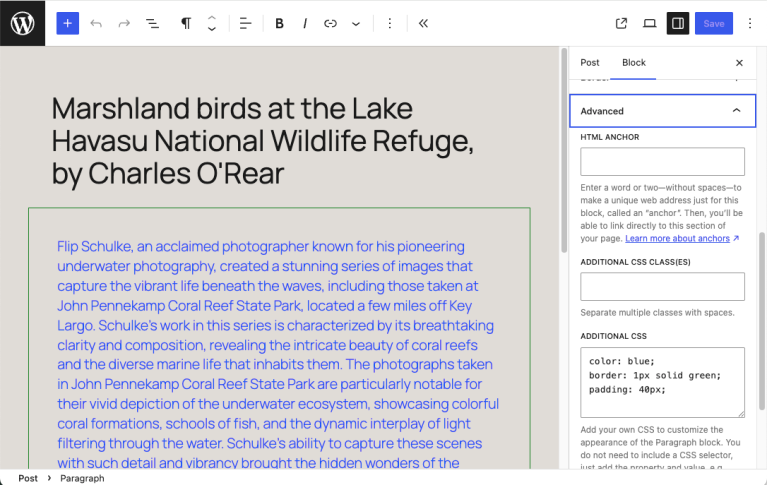
Now, you can add custom CSS for a specific block in the Additional CSS field in the Advanced panel, right within the block editor. You don’t have to create classes and then switch to Global Styles to define styles.
Manage custom CSS classes with Ollie’s Class Manager extension
You’ll still add classes and define styles as you did before. But working with CSS in this way can be difficult and unsustainable.
Ollie’s Class Manager extension offers a much better way to do it:
- It unifies where you create classes and define styles. You do it all in the Class Manager’s interface.
- It gives you an intuitive interface for managing all your classes. There’s so much you can do here, including:
- Creating, editing, and deleting classes.
- Seeing where your classes are applied.
- Adding pseudo-styles such as hover, focus, active, and disabled.
- Searching for your classes, etc.
In WordPress 7.0, you’ll be able to use the custom CSS per block feature to add one-off styling. Then use the class manager to manage classes for styles you want to reuse in your site.
This solves a huge problem many WordPress users have had for a long time: losing track of styles created. “I have defined CSS code to… but I’m worried I forget it’s there”, Michelle Pace, via the WordPress forum.
Visual revisions
A much-needed change coming to WordPress 7.0 is visual revisions. You can now see how your site looked before and after the changes during a revision. If an editor added an image, deleted text, or changed the layout, you’ll be able to see this visually on the same screen where you’re editing.
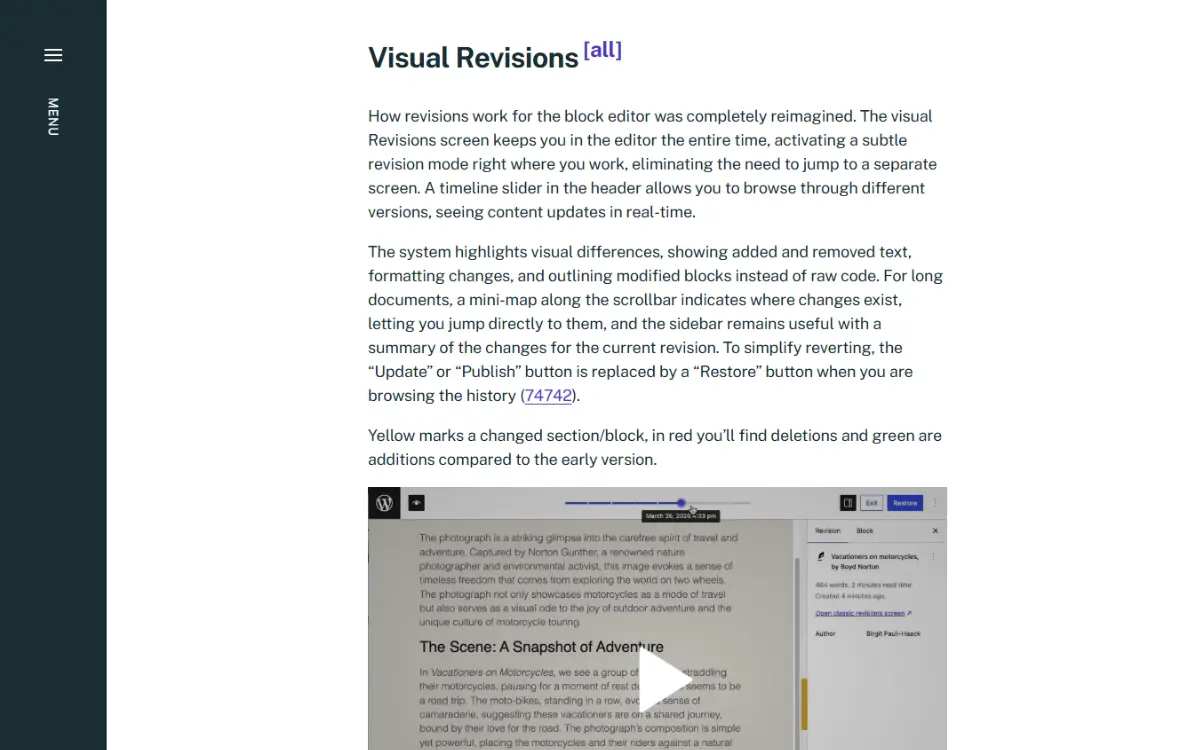
WordPress 6.9 and older versions represented revisions in raw code. You couldn’t understand what changed if you don’t know any HTML. And even if you do, tracking the changes was difficult.
But now, you get a timeline slider in the header that lets you browse different versions of the page or post.
With colors used to mark changes like:
- Yellow marks the selected block.
- Green marks additions.
- Red shows deletions compared to an earlier version.
This way, it will be easier for you, as a site owner, or your clients, to follow changes made to the site.
Two new blocks: Icon and Breadcrumbs
In addition to improving the block editor, WordPress 7.0 adds new blocks: Icon and Breadcrumb.
Icon block
You’ll get native icon support in the WordPress core, seeing as icons are now available as a block. There’s no need to download or import an external SVG icon library because WordPress now has a built-in icon library.
To add an icon, add the Icon block, then search for the icon you want in the library. You can then customize it by changing the colors, background, and size.
Keep in mind that the initial release doesn’t yet allow registering third-party icon collections. But this is planned for a future release in WordPress 7.1.
Breadcrumbs block
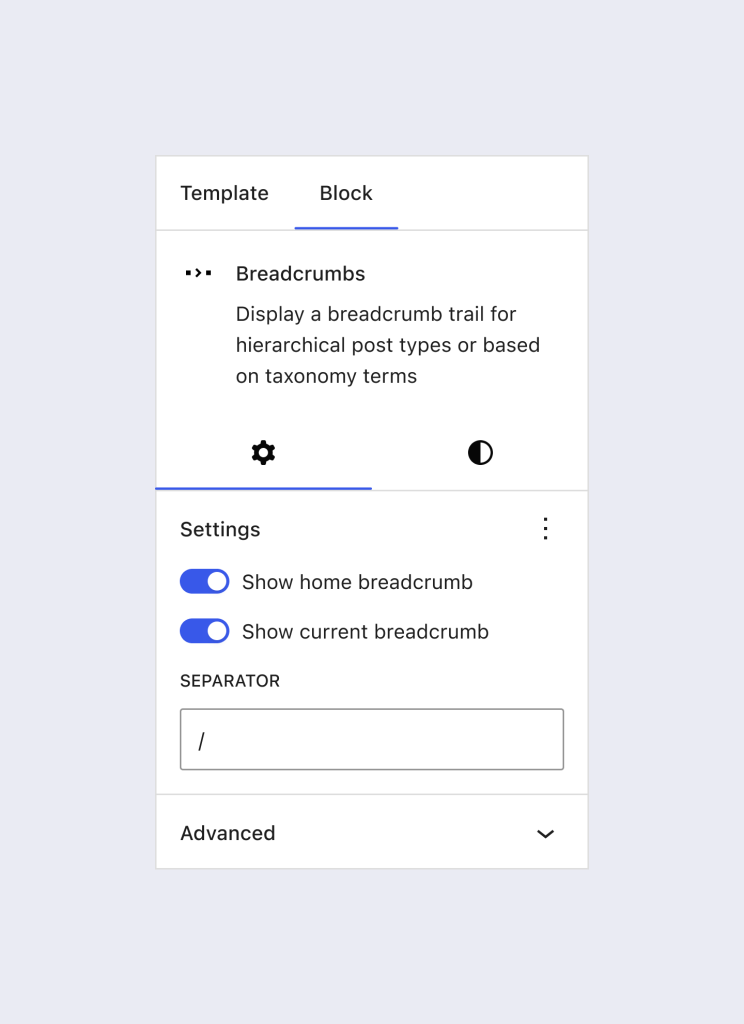
Like icons, WordPress will now support breadcrumbs as a block. This block automatically generates paths from the homepage to the current page. The path to the current page will be displayed according to the page hierarchy. For example, ‘Home/Categories/Women/Handbags’. If it’s a blog post, it includes your post title at the end.
This block handles paths for archive pages, search results, 404 errors, and simple pages. For styling, you can edit the separator and align items in addition to the usual styles you have with blocks.
These two blocks are important because, without them, you would need to install a third-party plugin or build it yourself to get this functionality.
Font management
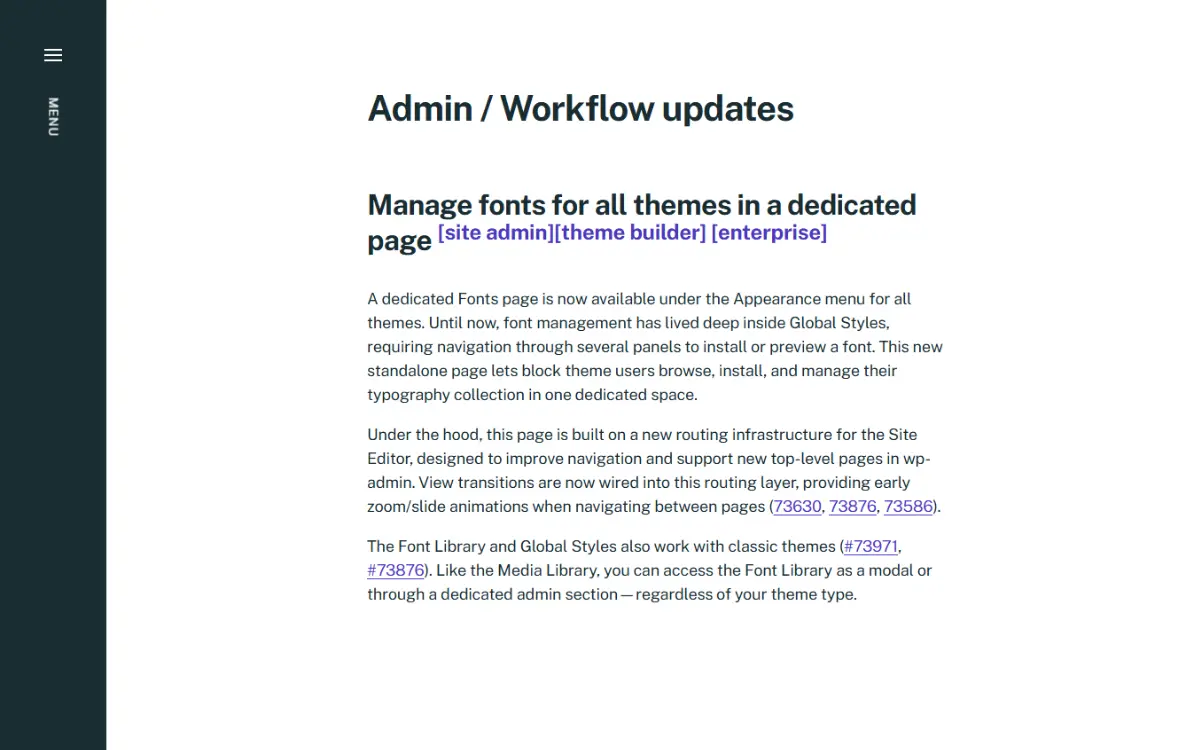
WordPress has added a dedicated Fonts page where you’ll manage the fonts you use in your site. This page is available under the Appearance menu on your WordPress dashboard for all themes.
From this page, you’ll be able to:
- Access your font library to select different font variants for your site.
- Upload fonts to add them to your font library.
- Install fonts from Google Fonts.
This feature is important because previously, font management lived deep inside Global Styles. You would need to go through several panels to install and preview fonts. But now you can browse, install, and manage your fonts in one dedicated Fonts page.
How does this relate to Ollie?
You can choose where you manage your fonts. Ollie has a built-in font manager where you can do all of the above. You can access it inside the block editor in the Typography section under Styles.
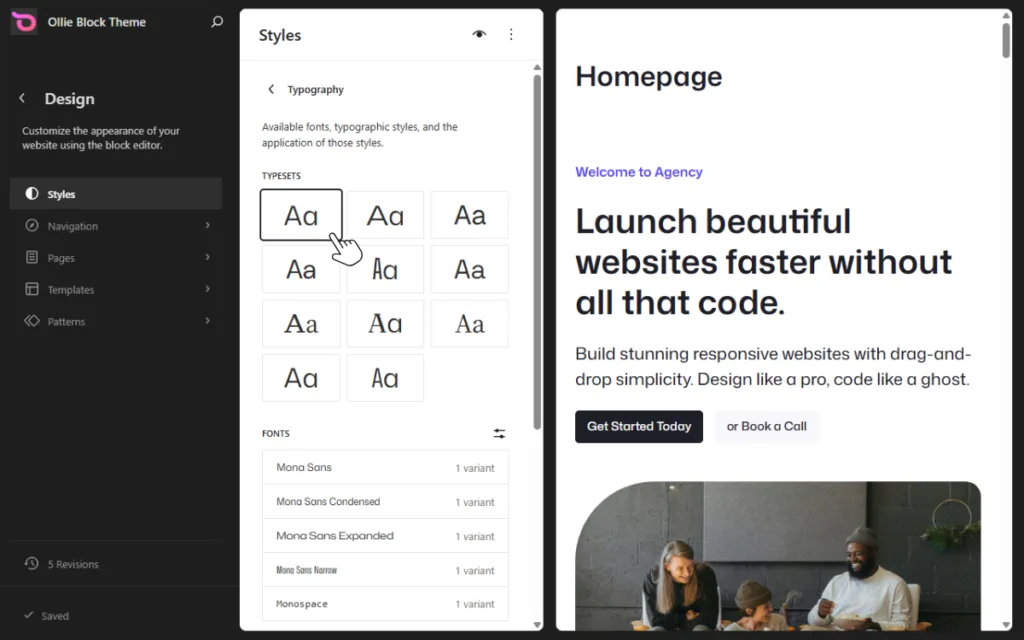
So you can decide to manage your fonts inside Ollie or WordPress. In this new setup, Ollie will still manage how the fonts are applied in your site. You can select typesets and font families along with their variants, and set font sizes within Ollie.
Here’s a recommendation: To avoid complicating your workflow, you might want to do everything inside Ollie.
Admin visual refresh
The admin area is getting a visual, CSS-only (no JavaScript or functional changes) refresh. It is more of a UI polish to improve how it looks and feels as you manage your site, rather than a total redesign.
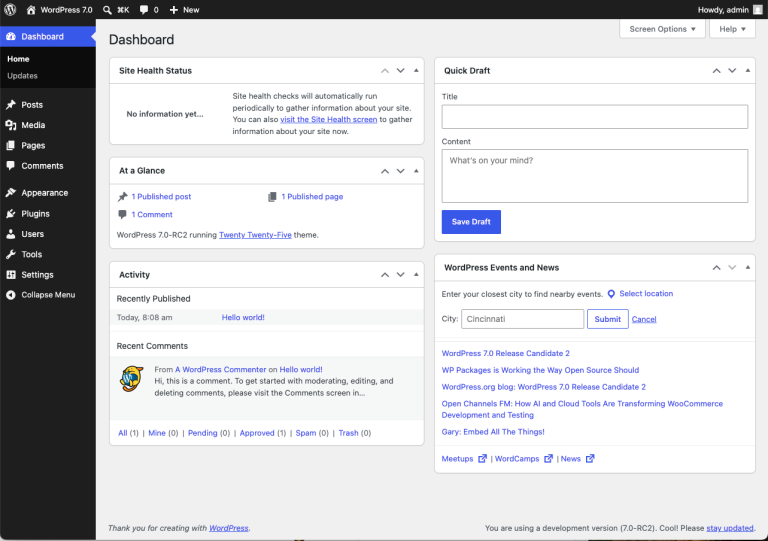
Here’s a summary of the key changes coming to the WordPress 7.0 admin dashboard:
- A new ‘Modern’ color scheme replaces the ‘Fresh’ color scheme in WordPress 6.9 and older versions.
- DataViews, a modern UI component introduced in WordPress 6.5 to improve how lists are displayed, is expanding across more admin screens. Specifically, it’s replacing the classic table views you see in the admin area for posts, pages, users, comments, etc. This means inline filtering without page reloads, cleaner typography, and more consistent spacing.
- View transitions between screens are smoother. For example, when moving between the posts and pages screens, the transition feels as if the page didn’t reload. A subtle change, but noticeable when you use WordPress daily.
Keep in mind that the admin area won’t look like a completely different product. But it will feel more polished as you use it.
Command palette in the admin bar
The command palette has a new shortcut right in the admin bar next to where you would see comments or other notifications. When you log in, you’ll see a field with a Command K or Ctrl K symbol in the upper admin bar.
The command palette pops up when you click on this shortcut. From there, you can choose to navigate to different parts of your site or open things directly in the editor.
Ollie’s Keyboard Shortcuts extension can work with this. While the command palette helps you navigate between pages, Ollie’s Keyboard Shortcuts enables you to move between blocks as you design your page.
This extension has shortcuts for things like:
- Selecting the parent block.
- Moving up and down the block list.
Together, these two ensure you have an easy way to move between designs and within them as you create your sites.
Real-time collaboration
Real-time collaboration was originally one of the highlight features of this release. The idea: multiple users can work on the same post or page at the same time and see each other’s changes happen in real time.
When editing a post or page, you’ll see who else is editing it via a live cursor. Changes on both sides will be updated as soon as they’re made. In other words, it’s like having Google Docs in your WordPress editor, especially if you’re editing a post.
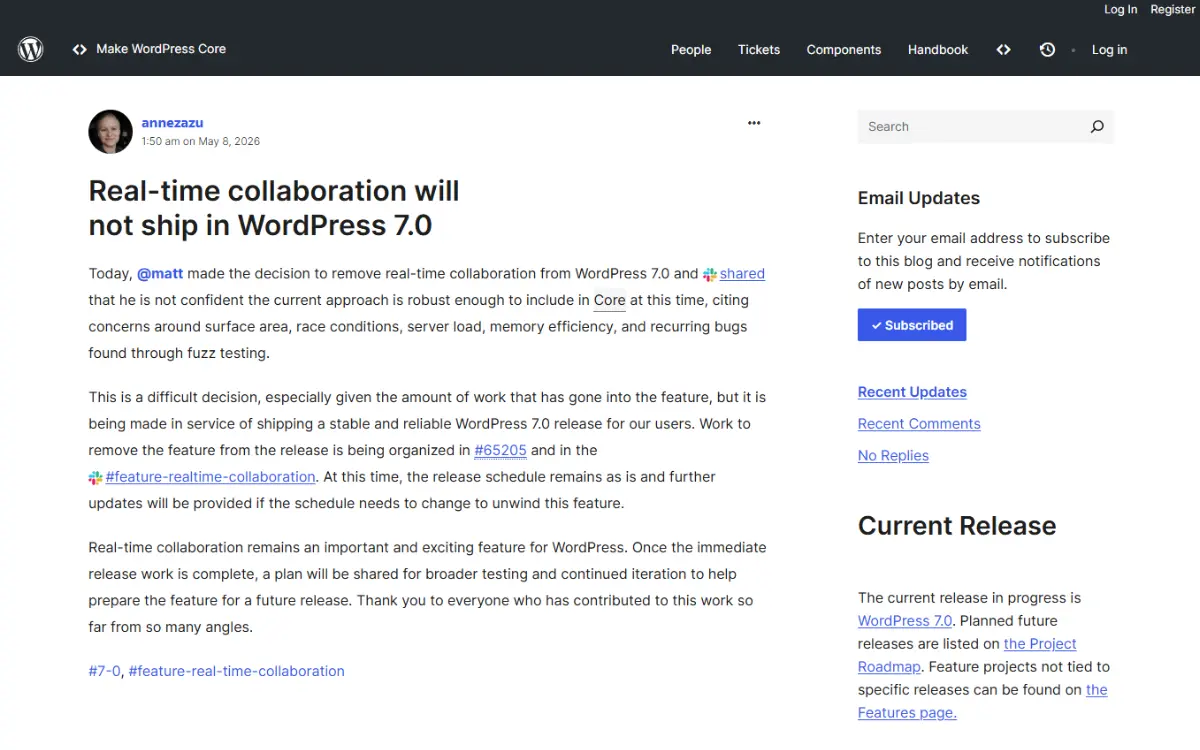
However, just under two weeks before the release date, Matt Mullenweg decided to pull the feature from 7.0. In a post on the Make WordPress Core blog, the team explained the decision came down to concerns around “surface area, race conditions, server load, memory efficiency, and recurring bugs found through fuzz testing.” In other words, the implementation wasn’t quite ready yet.
Who is it ideal for?
If you’re working in a content marketing team or co-editing with a client, you’ll love the new real-time collaboration feature. It allows you to work much faster, as you don’t need to wait for someone else to finish editing so that you can start.
On top of this, it eliminates two key problems you would previously have:
- Confusion over who changed what or what’s being edited. You can see this from everyone’s live cursor.
- Version conflicts. Changes sync in real time.
The feature will be re-evaluated during the 7.1 release cycle (currently targeting August 2026).
Navigation overlays and mobile menus
You can now customize the overlays for mobile hamburger menus using blocks. In 6.9 (and older versions), the mobile hamburger menu opened a default overlay which you couldn’t:
- Change its layout.
- Add elements to.
- Style properly.
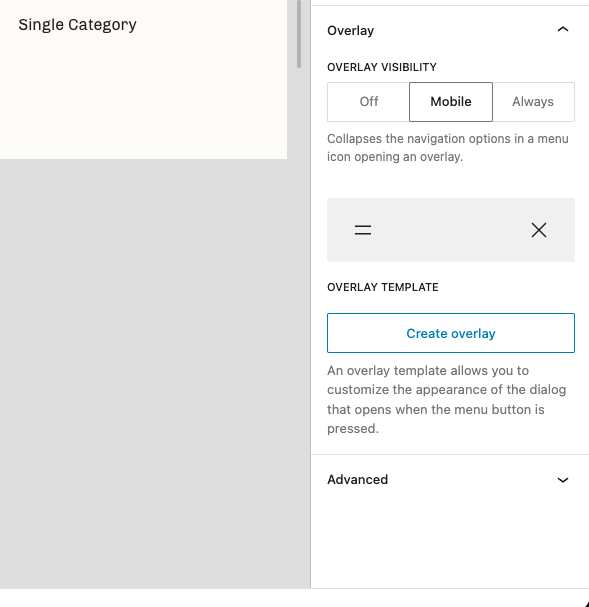
But in 7.0, you can customize mobile menus by clicking the Create Overlay button in the sidebar. It ships with several built-in patterns to get you started, including:
- Overlay with a black background.
- Over with accent background.
- Centered navigation with info.
- Centered navigation.
Also, you can add navigation blocks to your overlay and toggle whether you want submenus to be always visible.
Build better mobile menus with Ollie Pro’s Menu Designer
With this new feature, WordPress has made a great step in allowing users to customize mobile menus.
Ollie’s Menu Designer takes it further with:
- Ready-made template patterns. The mobile menu patterns WordPress 7.0 ships with are abstract. You’ll need to do a lot of customization to get them to look good and work well. Ollie’s mobile menus are more polished, with better design features such as images and CTAs. As a result, you won’t need to do too much customization.
- Smart customization settings. Which allow you to size your menus and determine their behavior, spacing, and so on.
- Intelligent edge detection. The Menu Designer uses smart positioning to ensure your menus stay perfectly in view across screen sizes, browsers, and devices.
- Accessibility features. Your menus will work even for those using keyboards or a screen reader.
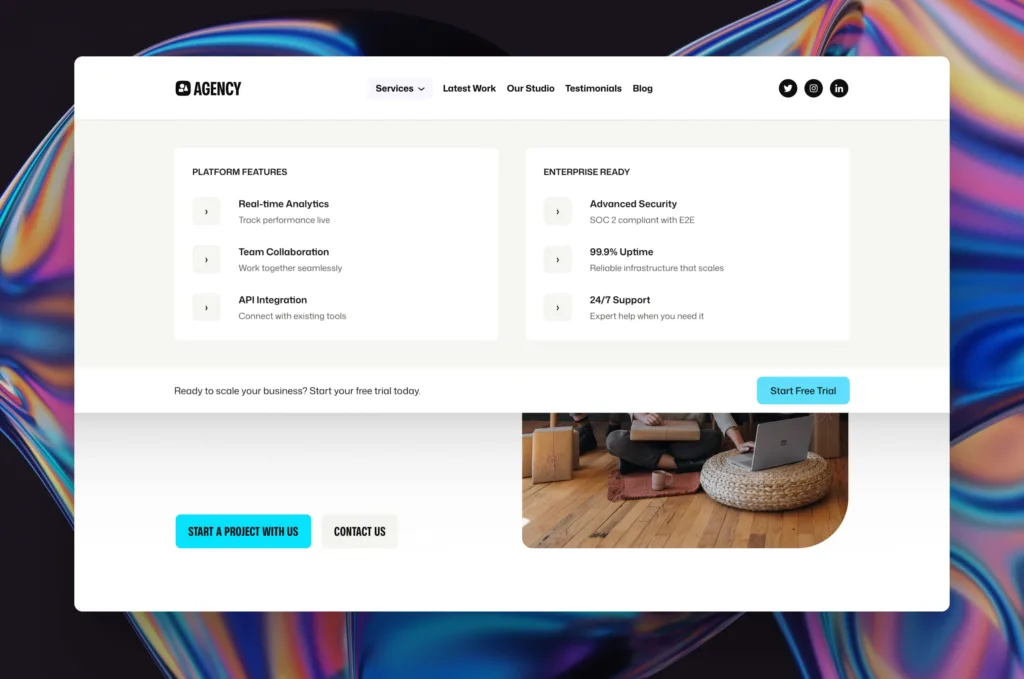
WordPress core has caught up a little, but the Menu Designer still improves it. Note that Ollie Free users will benefit most from this update.
AI in WordPress
Instead of adding AI tools, WordPress is building the infrastructure for AI to interact with WordPress sites from the outside. WordPress 7.0 ships with a WP AI client API and a built-in Connectors screen.
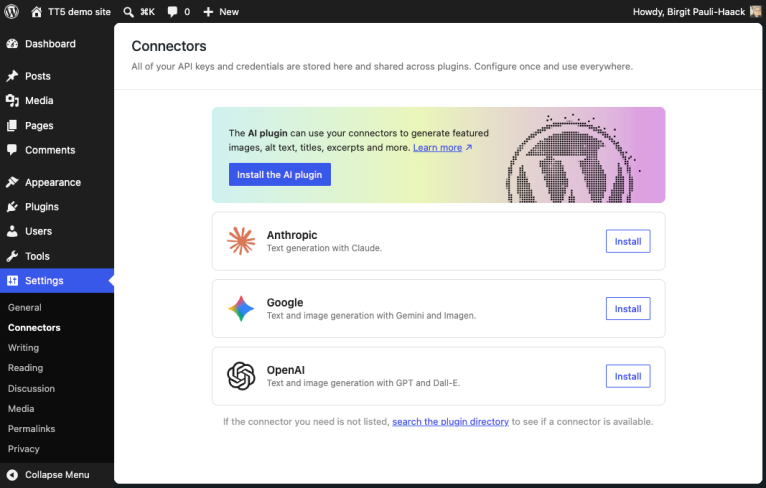
Together, these two allow you to connect and manage your favorite LLMs and use them to help you create your site. The Connectors screen is available under Settings. Here’s where you’ll be able to install the AI plugin from your desired AI provider (Anthropic, OpenAI, or Gemini) and configure what it controls.
Your AI plugin helps you generate excerpts, featured images, alt text, and review notes for SEO, readability, grammar, and more.
Ollie AI is coming soon
The Ollie team is working on bringing you Ollie AI. A feature that will let you build your websites using AI right within Ollie. Ollie AI taps into the Ollie ecosystem of ready-made patterns, styles, and extensions to give you great results as you build your site. This will allow you to jump quickly to customizing, skipping the slow design stage.
Here are some of the key features coming to Ollie AI:
- AI pattern discovery. You can describe the pattern you’re looking for in natural language, and Ollie AI will find the best matches for you. Then you can pick the one you like from the options it finds and start editing it. It comes with several pre-made prompts to get started. You can also use the ‘Inspire Me!’ action to random patterns to inspire your design.
- Ollie MCP server. This lets you connect your favorite AI agent to build pages and modify designs. You can use it to connect tools like Claude, Cursor, and VS Code to your site.
Ollie AI is built on WordPress’s emerging AI infrastructure. It works natively with the platform and will grow more powerful with every WordPress release.
So that’s it for the changes coming to WordPress 7.0 that you need to be aware of as an Ollie user. Now, let’s go over how you can update your WordPress version to 7.0 once it comes out.
How to update your site to WordPress 7.0
There are a few things you’ll need to do first before updating your WordPress version to 7.0.
- Check the PHP version. The minimum PHP version needed to run this new WordPress version is 7.4. PHP 8.3 or later offers the best performance and compatibility. You can check your PHP version by going to Tools → Site Health → Info. Then click on the Server dropdown.
- Check plugin compatibility. Go to Plugins and click View Details for the plugin you want to check compatibility. Look for ‘Compatible up to: xx’. The number here should be 7.0 or close to it.
- Back up and move to a staging site. Create a full backup of your site, then move it to a staging environment.
Once this is done, you’ll be ready to update your WordPress version to 7.0. Be sure to test it in the staging environment to ensure everything works as it should.
FAQs about WordPress 7.0
Is WordPress 7.0 faster?
Yes. There are some editor and backend performance improvements that should make it faster. But remember that your site’s speed depends on many other factors, such as your hosting and plugins.
What are the minimum requirements for WordPress 7.0?
The minimum PHP version is 7.4, but the recommended version is 8.3 or higher. If your version is below 7.4, you won’t be able to run this new update.
Should I upgrade to WordPress 7.0?
If you meet the system requirements, you should go for it. Remember that you’ll need to check plugin compatibility, back up your site, and move to a staging environment before you do.
Start building with WordPress 7.0
WordPress 7.0 comes with several new features worth knowing about as an Ollie user. The platform is adding more native block editor functionality, which means a better editing experience without relying too much on plugins.
On top of that, it’s adding more collaborative features and building the plumbing for working with AI in WordPress. As an Ollie user, you should be excited about what WordPress 7.0 has for you. Many of the features coming to WordPress 7.0 either support what Ollie already does or align with the direction it is taking.
So get ready to build better websites more easily using Ollie in WordPress 7.0.
