
Wondering whether it’s time to switch your WooCommerce store to using WooCommerce blocks and how to do it? This guide is for you.
WooCommerce is moving together with WordPress towards the block system. It’s releasing new ecommerce-specific blocks and improving existing ones for your online store.
Because of these developments, you might be wondering whether it’s time to switch to WooCommerce blocks. We think it is, and in this guide, we’ll walk you through why and how to do it.
In this guide, we’ll cover:
- What WooCommerce blocks are.
- Why it’s time to switch to them.
- How to make the switch.
- How a WordPress block theme makes the switch easy.
So let’s start by first understanding what WooCommerce blocks are.
What are WooCommerce blocks?
WooCommerce blocks are ready-made building pieces for the WordPress block editor, designed specifically for WooCommerce stores. They let you build and customize your store’s pages visually, without writing any code.
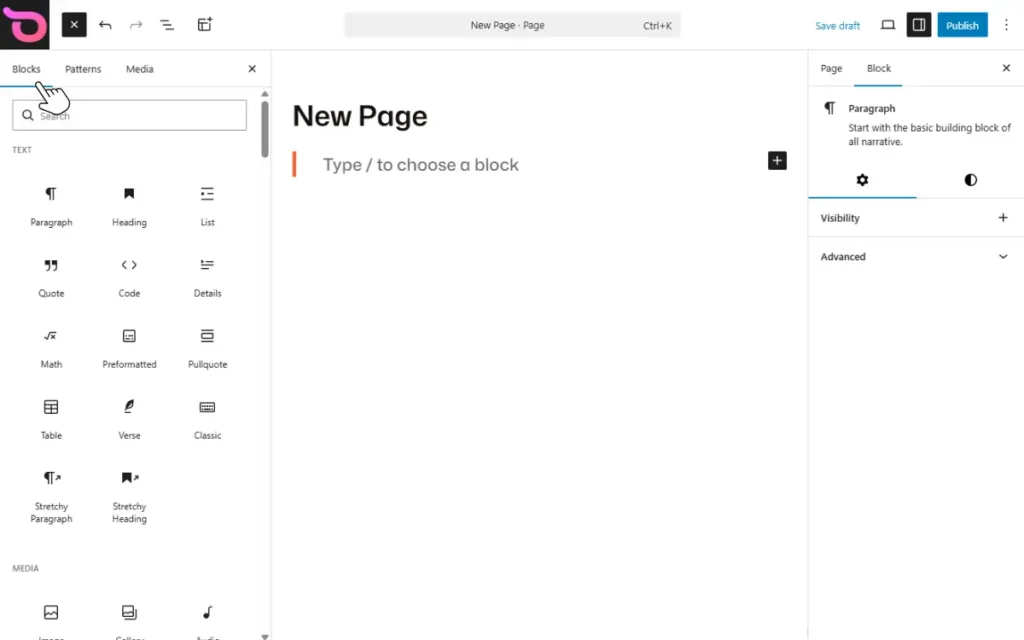
Let’s say you want to build a single product page. With WooCommerce blocks, you can select the single product block, which comes prebuilt with a product image, description, reviews, price, and an Add to Cart button.
You can use it as it is, or edit every element in this block using the WordPress block editor. To customize it, you can drag and drop elements, change the typography, and create custom layouts. As you make these changes, you’ll see them apply live.
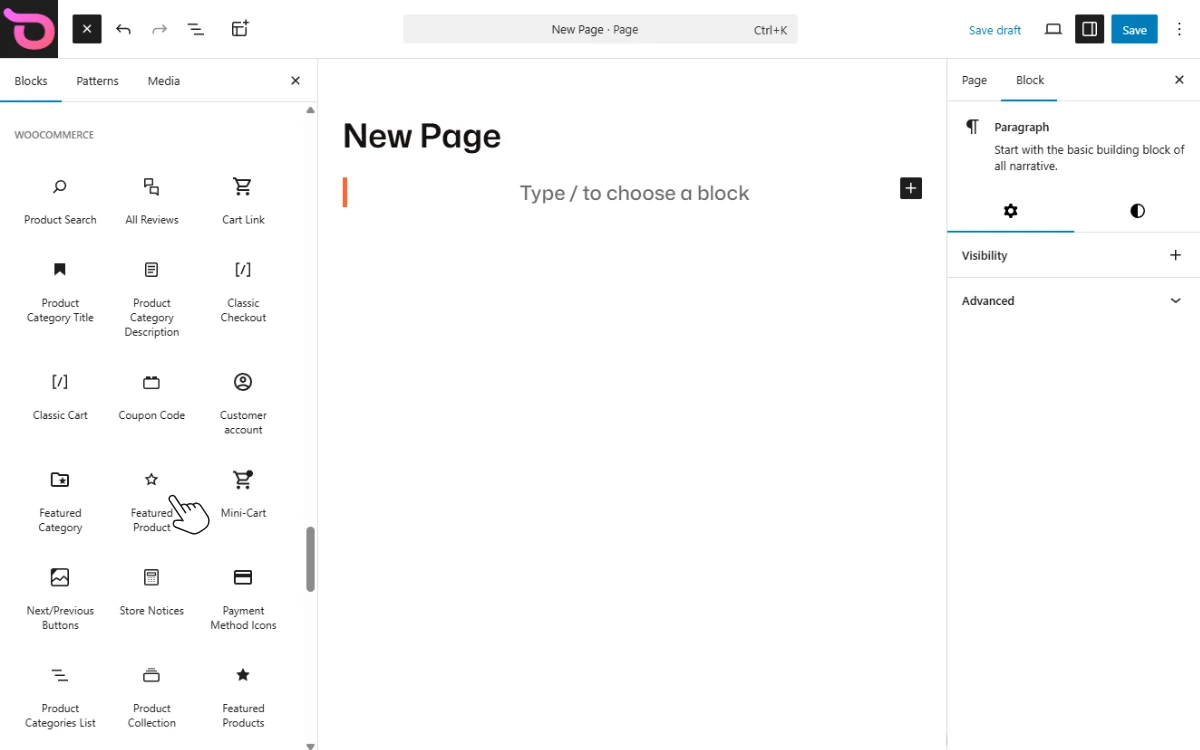
What types of WooCommerce blocks exist?
Apart from the single product block, there are many more WooCommerce blocks you can use to build your store. These are the blocks that come with the WooCommerce plugin by default.
We can broadly group them into:
- Product display blocks. These blocks are for showing products around your site. They include a product grid, featured products, product categories, etc.
- Checkout flow blocks. These handle everything from the moment a customer views products in their cart to the moment they complete their purchase. For example, the cart block, mini cart, and checkout blocks.
- Filter and search blocks. You can use these on your shop page to let customers search for products or filter by price, attributes, availability, etc.
- Review blocks. For displaying product reviews across your store.
Here’s a summary list of some of the default WooCommerce blocks available.
Summary of available WooCommerce blocks
| Available default WooCommerce blocks | |||
|---|---|---|---|
| Product display blocks | Checkout flow blocks | Search and filter blocks | Review blocks |
| Product card, Product categories, Product tags, Product collection, Featured product, Featured category. | Checkout, Cart, Mini cart, Accepted payments, Payment buttons. | Product search, Filter products by attribute, category, tag, price, stock, and rating. | Reviews by category, Reviews by product, Star rating, All reviews. |
There’s a block for pretty much everything you’ll need in your online store. Want to highlight an item in your shop page? Use the Featured Product block. Want to help shoppers find what they’re looking for easily? Use the Product Filters block to include different options for filtering your products.
You can mix these blocks however you want to create custom layouts for different pages in your store. Everything is editable directly in the WordPress Gutenberg editor.
Site creation with blocks is the direction WordPress and WooCommerce are moving to since 2022, when WordPress introduced Full Site Editing (FSE). Previously, you could only create pages in your online store (cart, product, and shop pages) using shortcodes.
Let’s compare the two approaches (WooCommerce blocks and shortcodes) to understand why WooCommerce is moving towards blocks.
WooCommerce blocks vs shortcodes: what’s the difference?
If you want to create your WooCommerce store’s pages or sections, there are two ways to do it:
- WooCommerce blocks.
- Shortcodes.
Here’s how these two compare.
Editing experience
With shortcodes, you don’t get a live preview of what you’re editing. Let’s say you want to display the four best-selling products on a page. You write the shortcode (which looks something like this: [products limit="4" orderby="popularity"]) and then save it.
From here, you have to visit the page on the front-end to see what the changes you’ve made look like. With WooCommerce blocks, you don’t have this back and forth because everything happens in the block editor.
You pick the Best Sellers block and edit everything, from the buttons, image, and fonts to the layout. The changes update live, as you make them.
Layout flexibility
With shortcodes, the layout is almost entirely dictated by your WordPress theme’s PHP templates. You can only edit what the theme allows, and most themes don’t allow you to edit sections like headers and footers.
If you want to customize beyond what the theme allows, you’ll need to edit code and/or change your theme’s settings (which are usually limited) to override what you see the shortcode put together.
Blocks are more flexible because you can build your own layouts in the editor. You can edit all sections, including headers and footers, without editing code or changing theme settings.
Checkout editing experience (How easily can you edit the checkout flow?)
The default WooCommerce checkout page with shortcodes is notoriously difficult to customize. Apart from enabling or disabling certain checkout fields and changing labels, there isn’t much that you can do. Page builders help, but you’re still limited to the settings they allow.
If you want to do things like rearranging sections or moving fields around, you’ll have to edit the PHP code responsible for the checkout flow.
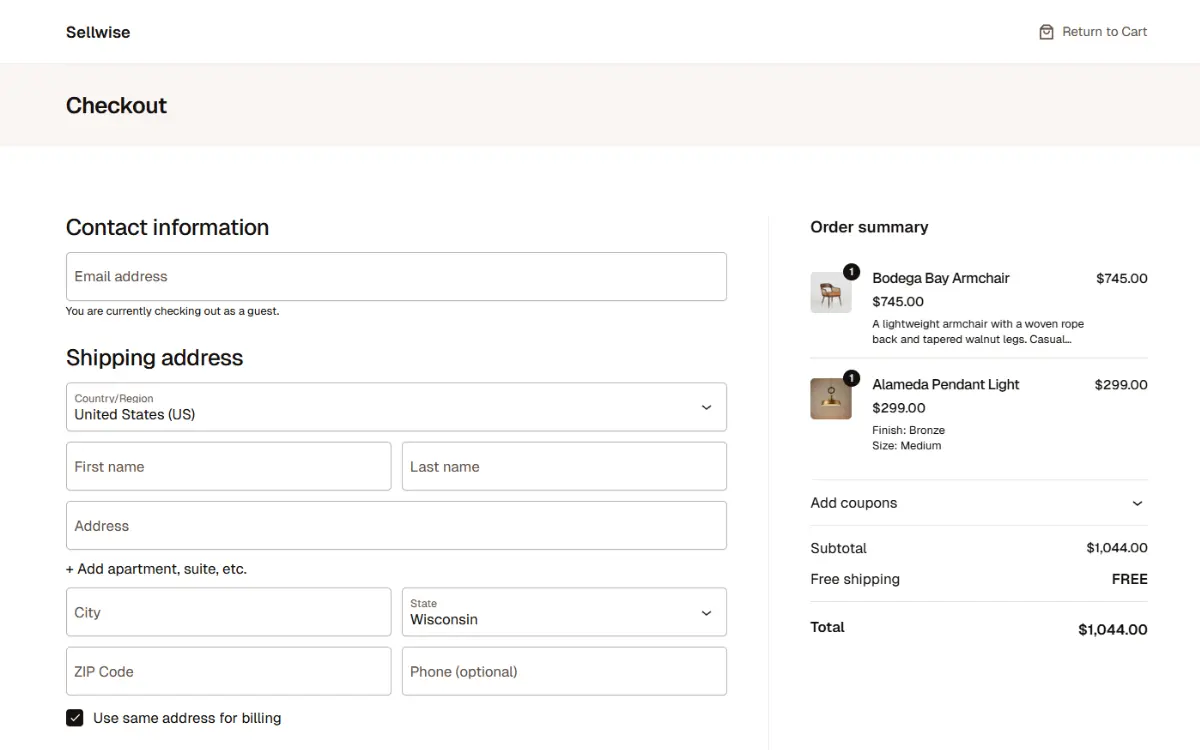
WooCommerce blocks, on the other hand, make the checkout flow easier to edit. First, you have a predesigned checkout block that is fully editable. You’ll be able to change how sections such as shipping address, order summary, accepted payment methods, etc., are arranged to create custom layouts.
On top of that, if you need to add extra information or showcase accepted payment gateways, there are additional blocks you can add here.
Compatibility
WooCommerce blocks work best with block themes and Full Site Editing (FSE). These are a set of features in WordPress that allow you to customize your entire website using blocks. Although they aren’t a natural fit, shortcodes can still work with FSE. But they’re suited to working with classic themes.
Performance
Because shortcodes rely on PHP templates, PHP must be rendered each time a web page in your store loads. In other words, more server-side processing is needed to load a page, which could make pages take longer to load.
If you’re using page builders, it could be even longer. This is because page builders add extra code, third-party scripts, and plugin dependencies that can slow your site down.
You largely won’t need a page builder when using WooCommerce blocks. So the performance overhead that page builders add to your site won’t be there. Also, since blocks don’t rely on PHP templates, there’s less server-side processing.
So that’s how creating your online store with WooCommerce blocks differs from using shortcodes. Here’s a summary of what we’ve covered.
WooCommerce blocks vs shortcodes
| Feature | WooCommerce blocks | Shortcodes |
| Editing experience | Visual preview available, allowing you to see changes update as you make them live. | No visual preview available, you have to switch between the front-end and backend to see your updates. |
| Layout flexibility | More flexible, allowing you to create custom layouts, block by block. | Mostly limited to the theme’s options. |
| How easily can you edit the checkout flow? | Easier as you can edit every part of the checkout flow without editing code. | Checkout editing options are limited, and if you want more customization, you have to edit code. |
| Compatibility | Works best with block themes and FSE. | Works best with classic themes. |
| Performance | Can be faster because of less server-side processing and reliance on page builders. | Can be slower because of more server-side processing and reliance on page builders. |
Note: Shortcodes have been the standard for years. But since WordPress is releasing more features around the block system each year, WooCommerce blocks are the future. This isn’t to say that shortcodes are now obsolete. They still power many WooCommerce stores today.
Let’s next take a look at why it’s time to switch to WooCommerce blocks.
Why it’s time to switch to WooCommerce blocks
If you’ve built your WooCommerce store using shortcodes or a classic theme, you’re not alone. However, now that WooCommerce blocks are here, why should you consider switching to them? More importantly, what do you actually gain by making the switch?
Let’s break down why it’s time to move to WooCommerce blocks and what it means for your store going forward.
Site creation with blocks is where WooCommerce is heading
WooCommerce looks to be moving away from the shortcode system and towards the block-based system (just like WordPress itself).
But what evidence shows this?
- Core features are now ‘block first’. Key WooCommerce features, such as Cart and Checkout, have been rebuilt specifically for blocks.
- The expansion of available blocks. The number of WooCommerce blocks keeps growing. WooCommerce regularly adds new blocks and new features to existing blocks.
- WooCommerce is looking to improve the adoption of blocks. Recently, WooCommerce called for participants to help with research on the checkout block adoption barriers.
Shortcodes are no longer the focus of innovation. WooCommerce isn’t building new capabilities around them. So if you want your store to be aligned with the future of WooCommerce, it only makes sense to switch to blocks.
What you see is what you build
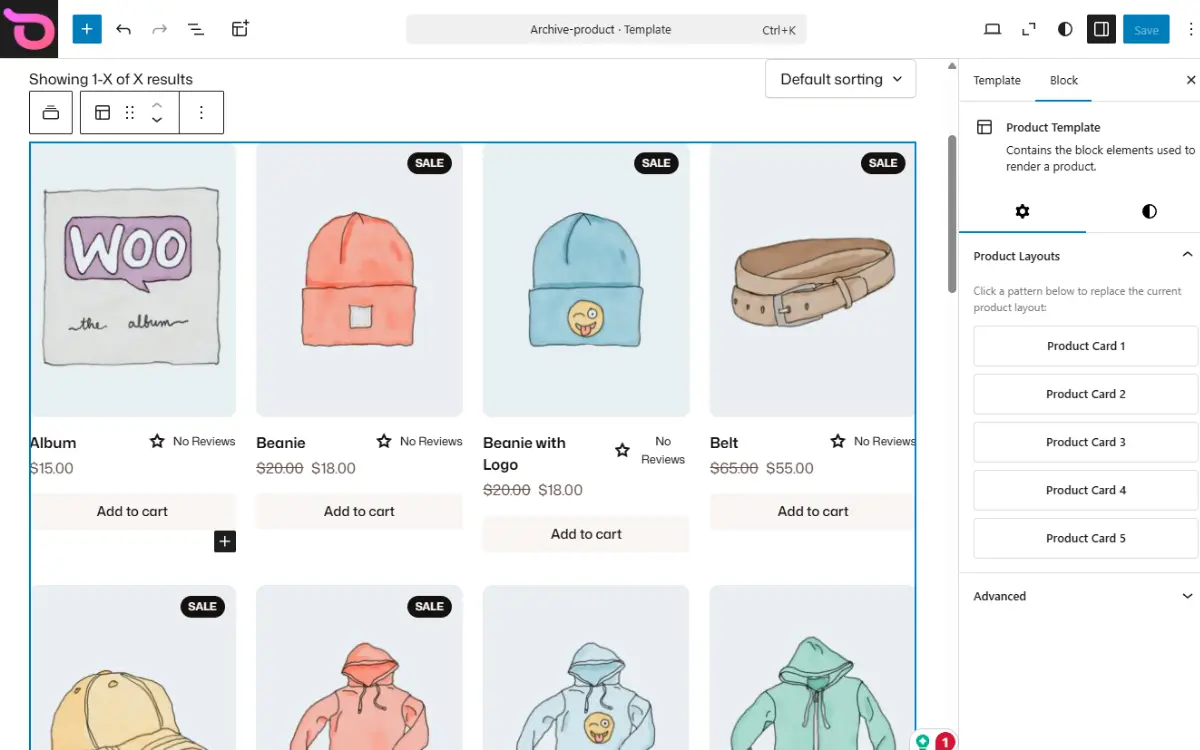
WooCommerce blocks let you edit and preview your store’s pages in the same place – inside the WordPress block editor. You don’t go through the hassle of switching between the editor and the front end to preview your changes. You also don’t guess how things look as you edit them. This makes the editing experience better.
Blocks offer more design control without touching code
Because WooCommerce blocks align with FSE, you can edit every part of your website visually. No coding is needed. Also, you can arrange blocks anyway you want to create custom layouts.
These are things you usually have to edit code for when using classic themes and shortcodes. With blocks, you have more control over what your site looks like without the complexity of editing its code.
A better checkout experience
When you build your checkout with blocks, it communicates with WooCommerce via the Store API. This API enables features like cart updates, address validation, and payments without full-page reloads.
Generally, this means a faster checkout experience for shoppers. This is important because cart abandonment studies show that 18% of customers abandon their carts when the checkout process takes too long.
Blocks are more accessible for non-developers
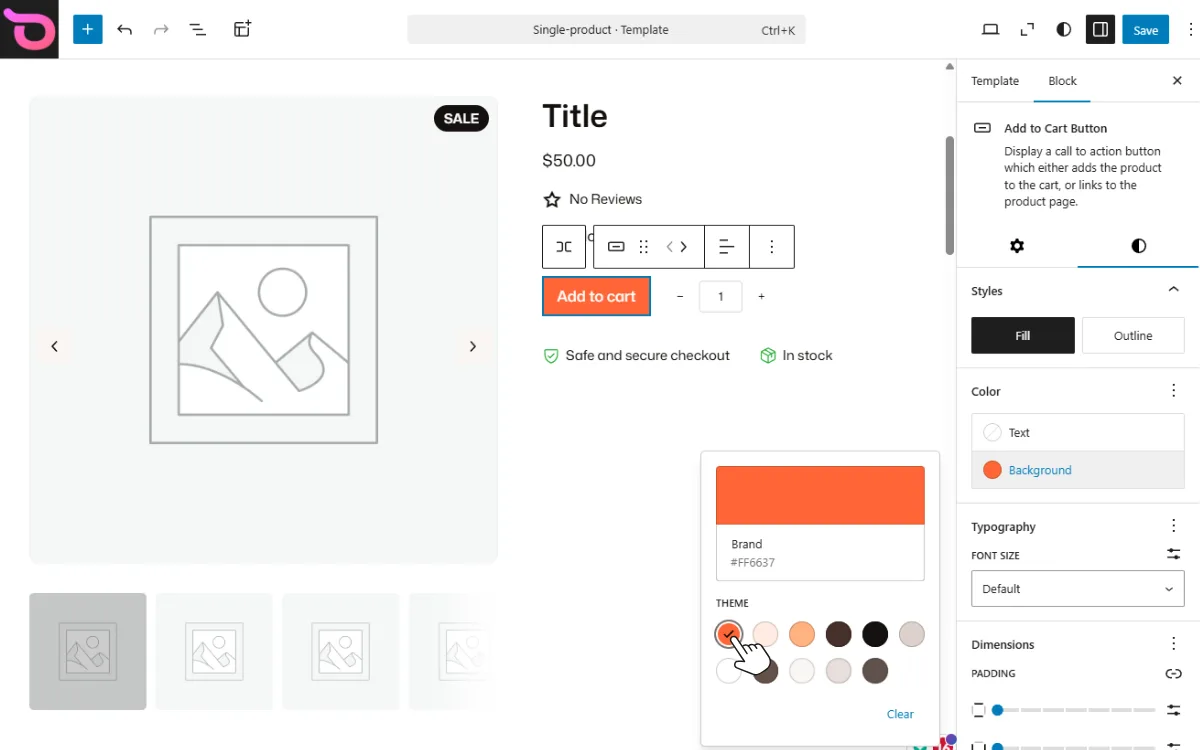
Want to customize your online store meaningfully, but you don’t have any PHP, HTML, or CSS knowledge? Blocks are ideal for you. You get to do everything visually, using simple drag-and-drop.
To summarize: WooCommerce blocks align with where WooCommerce and WordPress are heading: FSE with blocks. WooCommerce keeps releasing new blocks and improving the ones already available. On top of that, blocks offer more design control and a better checkout experience without needing you to edit code. As a result, there’s no better time to switch to WooCommerce blocks than now.
Feeling convinced? Here’s a practical guide to help you make the switch to WooCommerce blocks.
How to make the switch to WooCommerce blocks
Before switching to WooCommerce blocks, you’ll need to back up your website and set up a staging site.
This way:
- You have an unchanged version of your site to fall back on.
- You only go live after thoroughly testing your changes on the staging site.
Note: Check whether your hosting provider offers this. If not, there are plugins you can use to help you do this.
Once this is done, follow these steps to switch your WooCommerce store to using WooCommerce blocks.
Step 1: Check your current setup
Start by first understanding what you’re working with.
Focus on:
- Pages that use shortcodes. For example, cart, checkout, and shop. Also, note which of your plugins affect these pages. This tells you what might break or need replacing after you make the switch.
- Plugin compatibility. Look for plugins that add custom checkout fields, change shipping logic, or modify payment gateways. Then confirm whether they support the Cart and Checkout blocks. This is an important step because plugin incompatibility is one of the main reasons migrations to WooCommerce blocks struggle.
- The theme you’re using. Is it a block theme or a classic theme? This determines how much work you’ll have to do as you migrate. Of course, it will be easier if you already have a WooCommerce block theme like Ollie installed.
Once you have this information written down, we can move on to the next step.
Step 2: Update WooCommerce
The block features available to you depend on the WooCommerce version you’re running. Older versions may be missing some important blocks or behave differently from what the documentation describes.
This is why you should update WooCommerce before switching so that you’re working with blocks as they’re designed to work today. The latest versions have improved plugin compatibility, a better Store API, and, of course, better security, so this is worth doing regularly regardless.
Step 3: Choose the right block theme
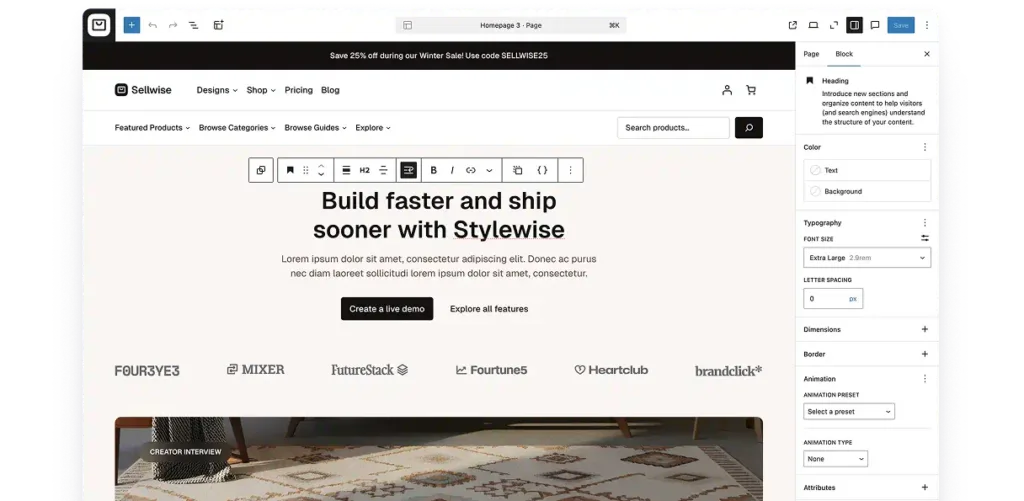
To get the best out of WooCommerce blocks, you’ll need a block theme. Luckily, there are block themes that you can use. Because there are so many, choosing the right one isn’t easy.
What should you look for in the right block theme?
To make it easier, here are some of the things you should look for in the right theme:
- Ecommerce starter sites. Starting to build your site from a blank page can be overwhelming and take too much time. You’ll want a theme with several ecommerce starter sites so you can pick one and customize it, rather than starting from scratch.
- An extensive block pattern library. Patterns are predesigned sections, such as WooCommerce product grids or product cards, which help to speed up site creation.
- Compatibility with core blocks like Checkout and Cart. These are two of the most important blocks in your ecommerce store. So the theme you pick must be compatible with them.
The WordPress block theme Ollie meets all of these requirements and offers so much more to make your switch to blocks easier. We’ll walk you through how it does this later in this guide.
Step 4: Replace shortcode pages with block versions
Earlier, we mentioned that you should take note of the pages that use shortcodes. Now it’s time to replace these shortcodes with blocks.
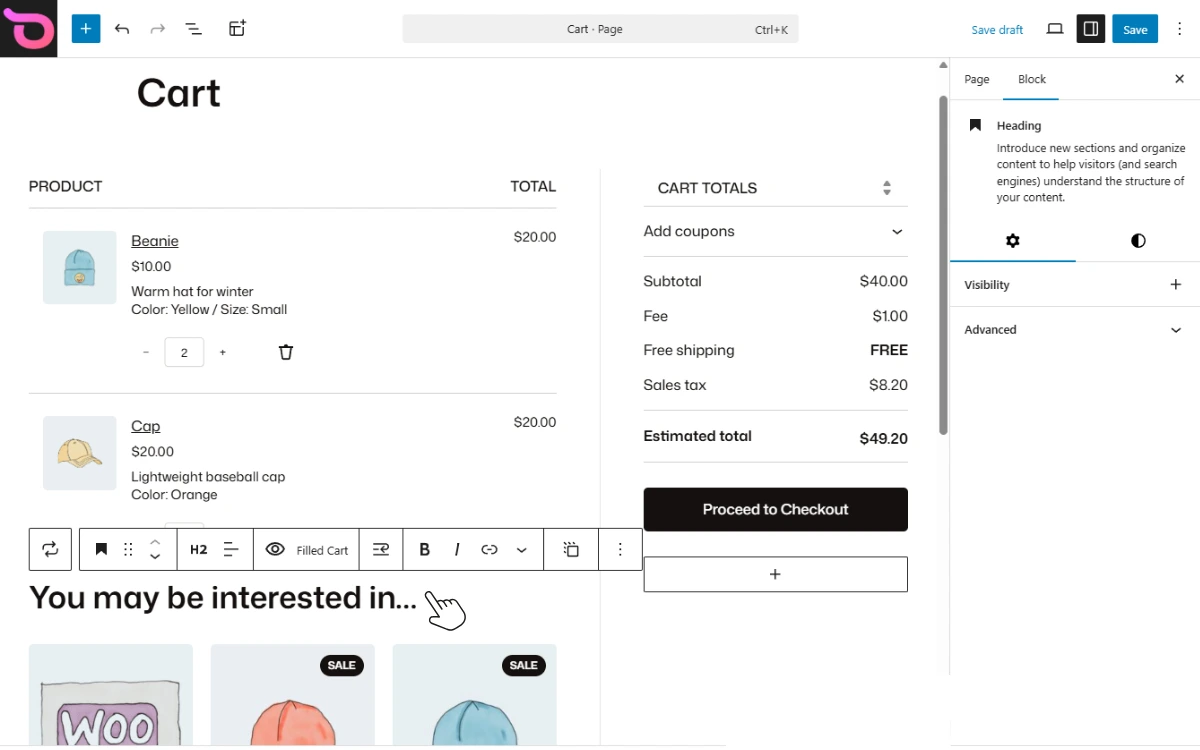
Let’s use the cart page as an example to see how you can do this:
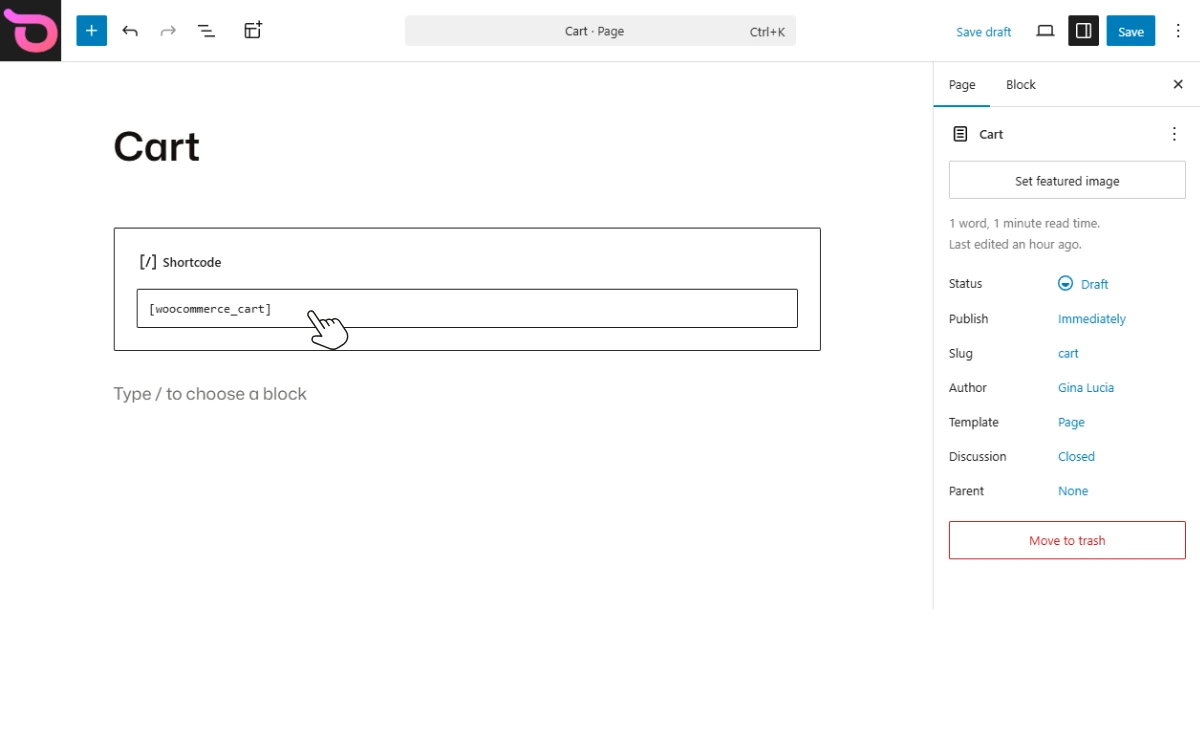
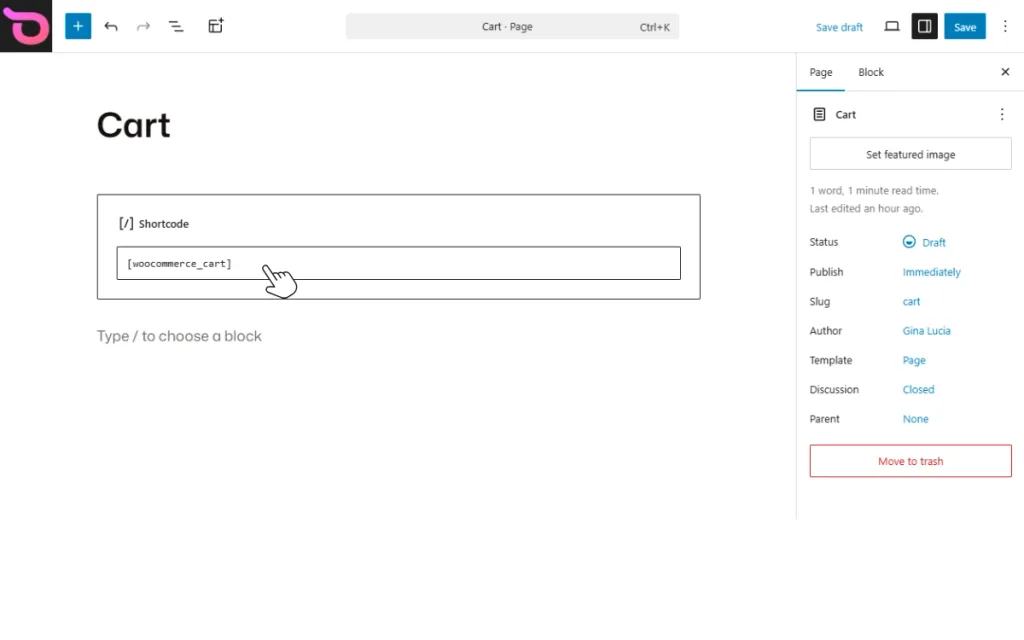
- In your WordPress dashboard, go to Pages, locate the cart page, and click Edit.
- You should see this shortcode on the page:
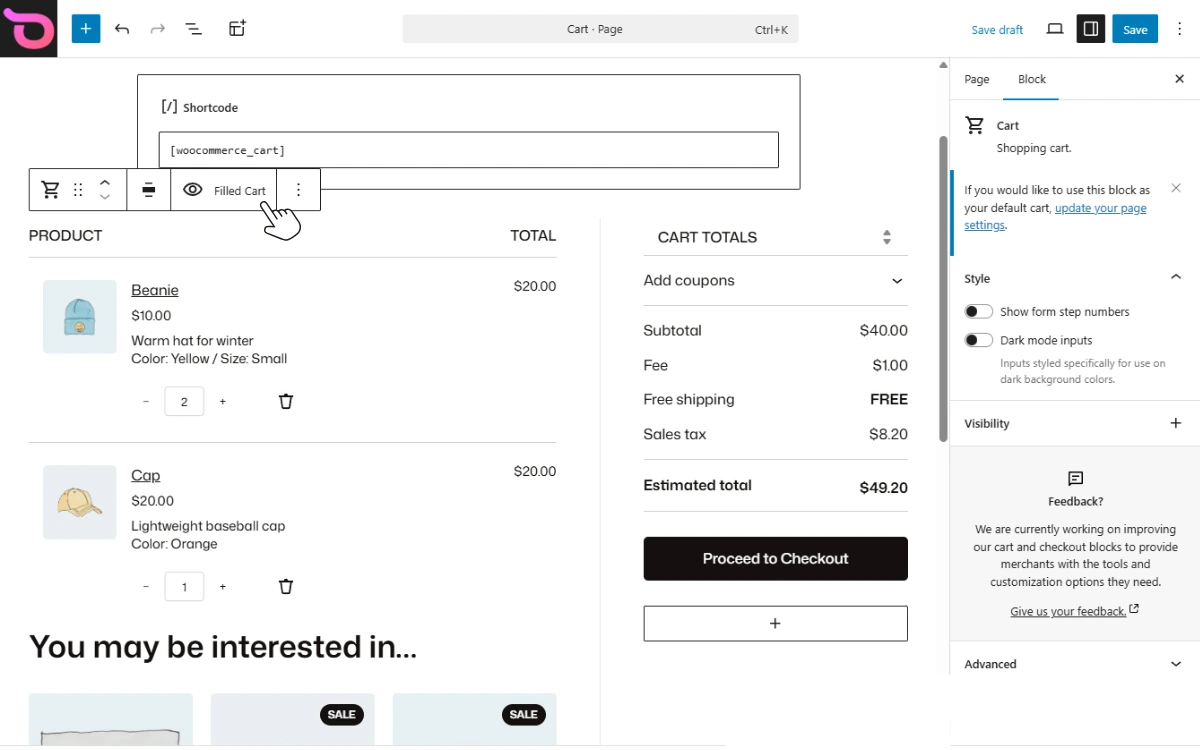
[woocommerce_cart]. - Delete this block, then click the plus (+) button to add a new block.
- Search for the Cart block and click on it. Once this block is added, you can start customizing it.
Step 5: Customize your blocks
When converting your WordPress site’s pages to blocks, you can add blocks to any page. How much you can customize each block will vary. It depends on your block theme and what WooCommerce allows by default.
For example, if you use the WooCommerce block theme Ollie, you can add a product collection block. This block can be customized in almost every way, from the block size to the padding around the image and the add-to-cart button styling.
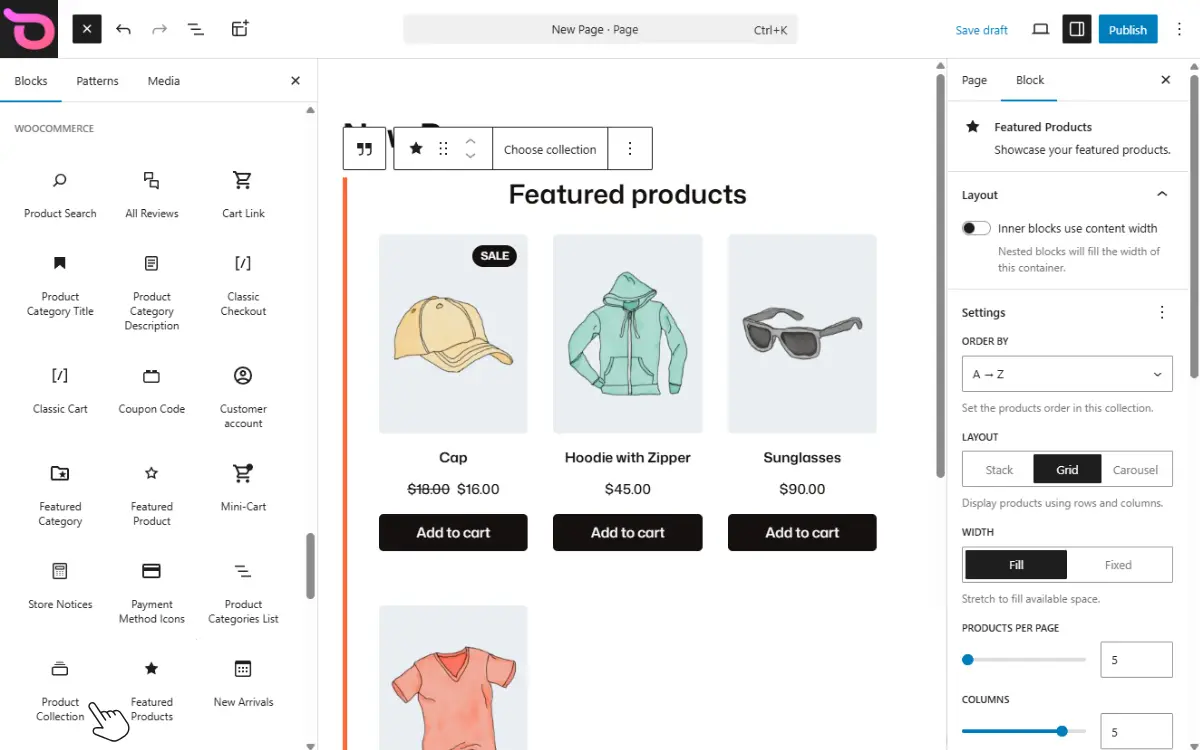
Here are some of the main things you can do with blocks in general:
- Arrange the layout structure.
- Change the colors, background, spacing, borders, etc.
- Add and combine different blocks.
- Set animations, mobile styling, visibility, and so much more.
This is only a handful; there’s so much more you can do. All of which is covered in the WooCommerce blocks documentation.
Step 6: Test your site thoroughly before going live
Before going live:
- Go through the entire checkout process to evaluate cart and checkout functionality.
- Check your design across desktop, tablet, and mobile.
- Use speed-testing tools like Google PageSpeed Insights to assess your site’s performance.
- Test different plugin functionalities to see if something isn’t working as expected.
If everything is good, you can now go live.
We mentioned that the Ollie WordPress block theme makes it easier for you to switch to block themes. Let’s see how next.
How Ollie makes the switch to WooCommerce blocks easy
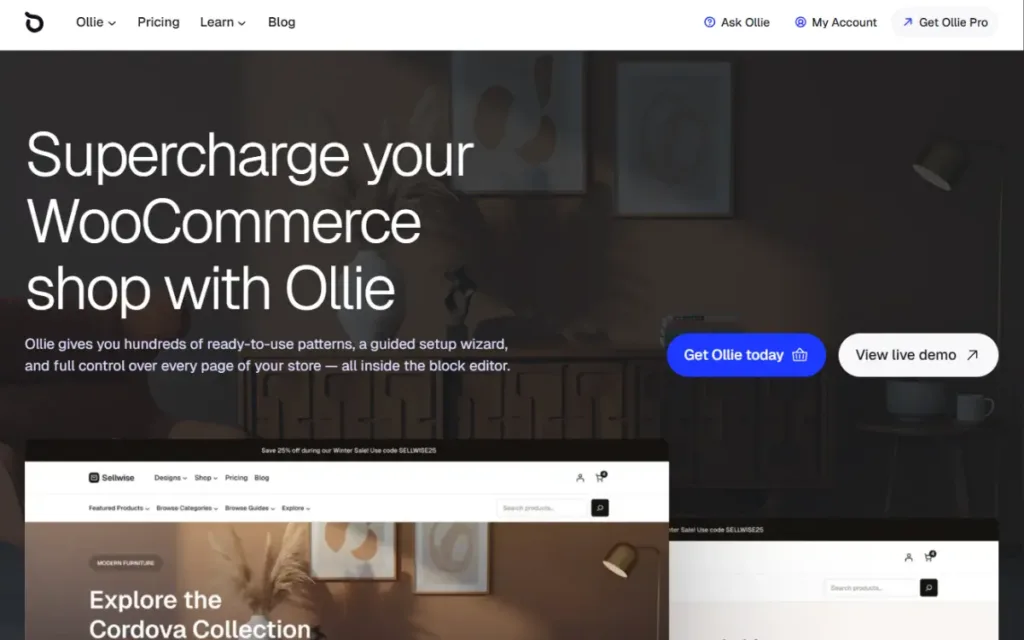
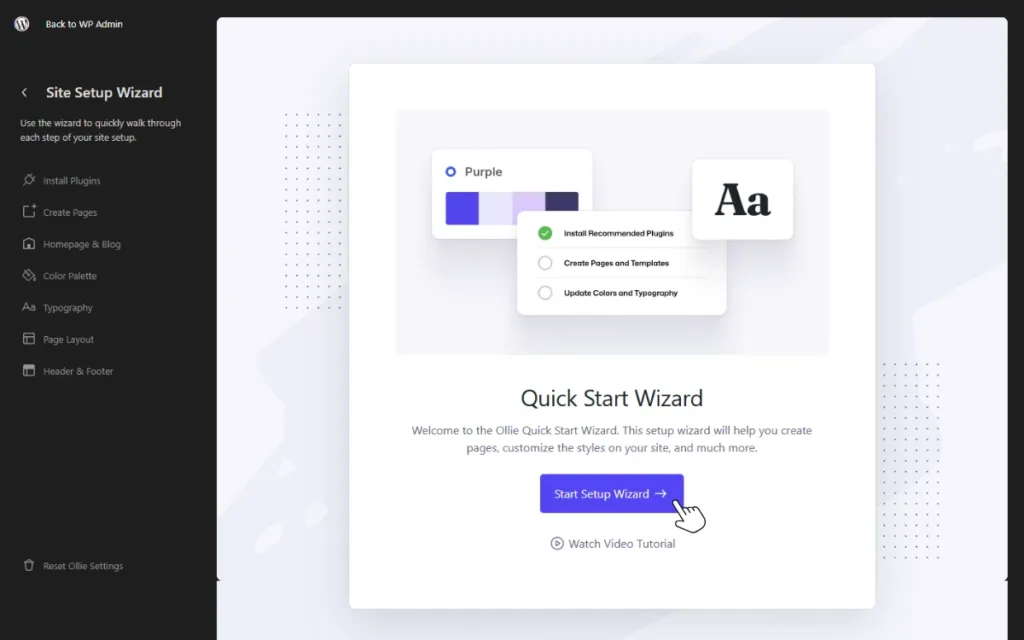
Ollie is a powerful block theme you can use to design and launch a fast, great-looking WooCommerce shop in WordPress. It gives you a complete visual editing experience without needing a page builder or developer to help get things done.
You can design every part of your WooCommerce shop, including standard pages like shop, cart, and checkout, as well as sections like menus. It combines a suite of tools and premade designs and patterns to help you achieve this.
Most block themes work with WooCommerce in a very basic form. But Ollie is different. This theme is built specifically to work well with WooCommerce blocks with more advanced tools.
Why should you use Ollie to switch to WooCommerce blocks?
But that’s not the only reason why you should use Ollie as the block theme to help you switch to WooCommerce blocks.
Ollie has features built specifically for WooCommerce, such as:
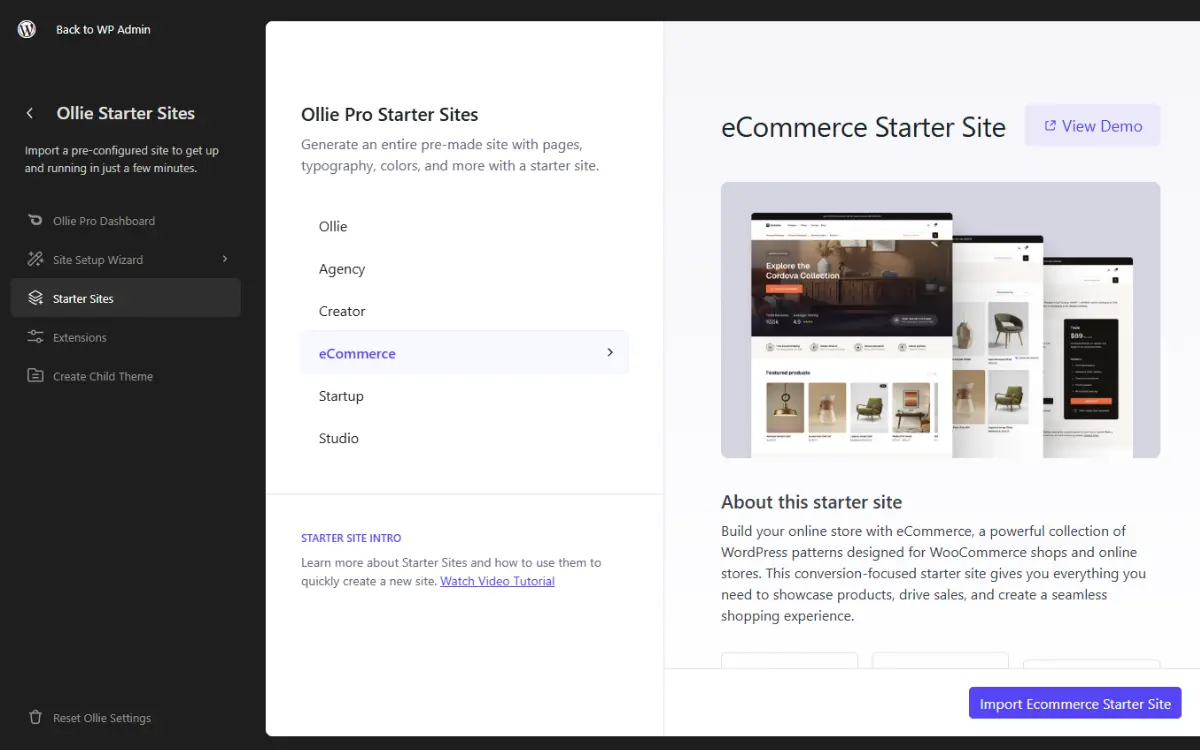
- Ready-to-use starter sites. Ollie has several pre-built ecommerce sites, which you can import and customize. These sites come ready-made with pages, styles, and templates applied, which saves you days of work.
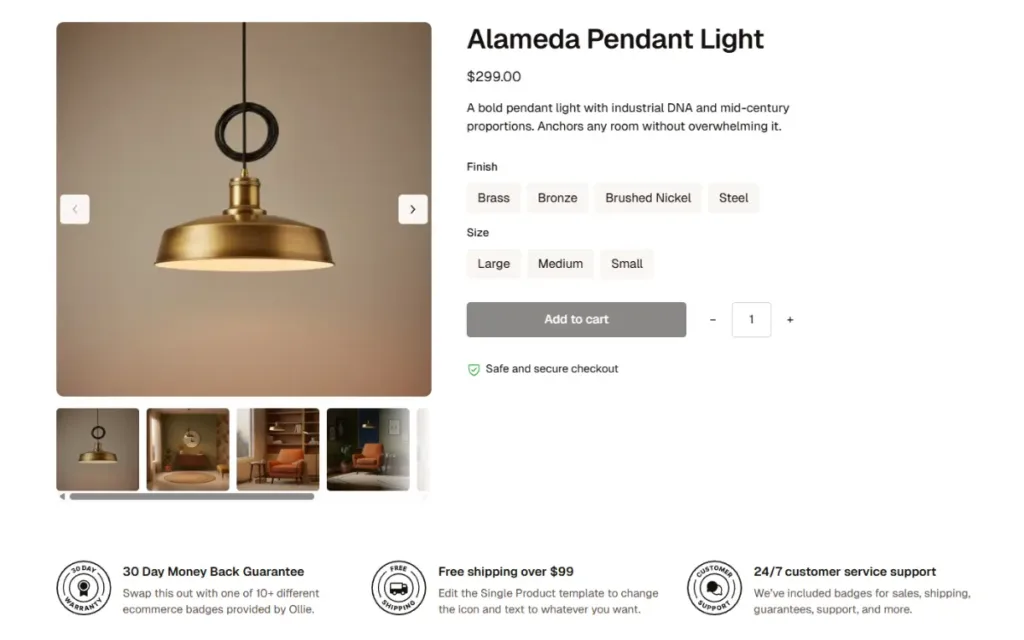
- Customizable WooCommerce templates. In Ollie, WooCommerce templates are built entirely with blocks, giving you full control over their design. Some, like the product archive template, have design variations. You can switch between these variations in one click.
- Ecommerce-specific design patterns. These are pages and page sections, like promotional banners and featured products blocks in Ollie Pro. You can select and drop them anywhere on your site to speed up the design process.
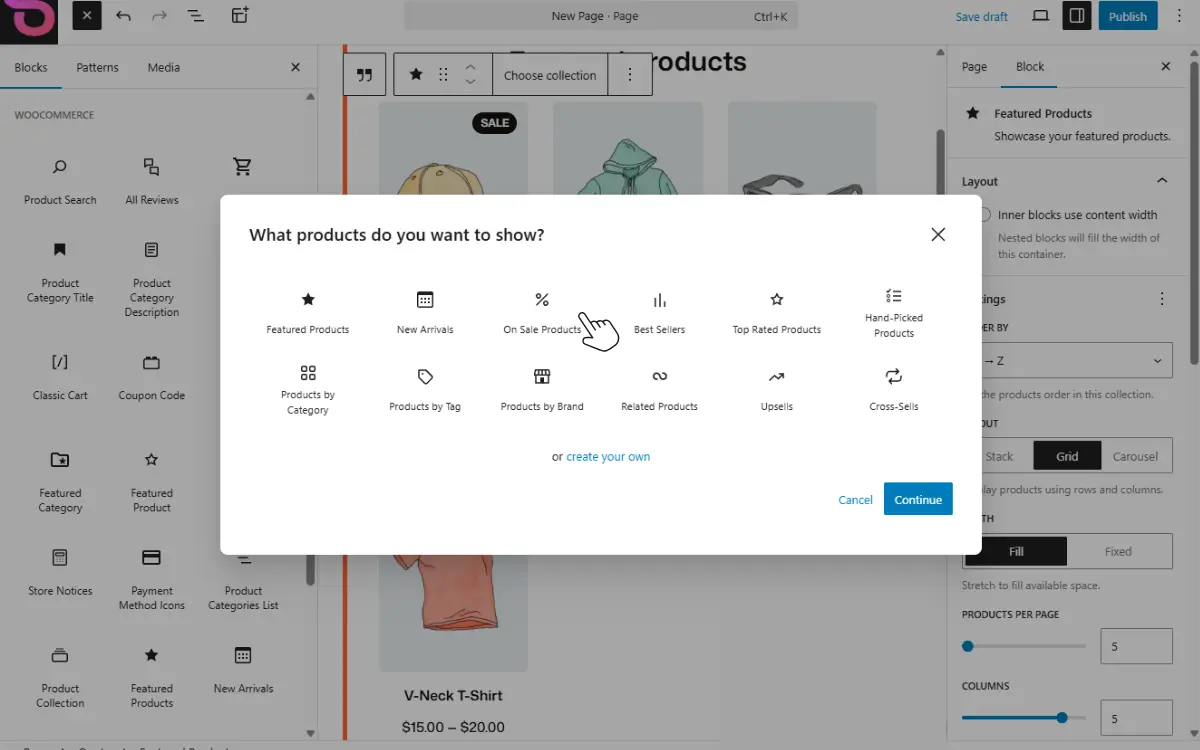
- Advanced design features in the product collection block. Including a carousel for featured product sections, different layouts for product cards, and hover effects. These options enable you to improve how your products are displayed.
- Content-rich menus. You can create a large expandable menu to help customers navigate your store with Ollie’s Menu Designer. You can include your store’s info, featured items, product categories, etc.
Switching to WooCommerce blocks shouldn’t be difficult. From well-designed patterns, ready-to-use store templates, and custom blocks, to content-rich menus, Ollie Pro provides you with everything you need to switch to WooCommerce blocks easily.
Make the switch to WooCommerce blocks today
There’s no better time to switch to WooCommerce blocks than now. This is because site creation and editing with blocks is the direction WooCommerce is heading. On top of that, blocks offer a better design experience than the shortcode system.
To make your switch to WooCommerce blocks easier, choose the right block theme. Ollie is the right block theme for this because it’s built to work well with WooCommerce blocks.
It’s built with native WordPress blocks, allowing it to effortlessly support WooCommerce block features. Also, from ready-made store templates and well-designed block patterns to custom blocks and content-rich menus, it ensures you have what you need to easily design a great-looking online store.
Get Ollie Pro today to take full advantage of WooCommerce blocks and build great ecommerce stores.
