
Are you looking to understand what a WordPress block template or template part is and how to use it? This guide will cover everything you need to know.
How WordPress block templates and template parts work can be confusing, especially if you’re new to the Site Editor. But they don’t have to be. And once you understand them, you can take full control of your site’s design using the Site Editor.
In this article, we’ll walk you through what WordPress block templates are and how they work to help you understand them.
Here’s an outline of what we’ll cover:
- What WordPress block templates are, including block template parts.
- How block templates differ from classic PHP templates.
- How to create and edit a block template in WordPress.
- How Ollie makes working with block templates easier.
Let’s get right into it by first understanding what WordPress block templates are.
What is a WordPress block template?
A block template in WordPress is a reusable page layout built with blocks that controls how content is displayed on your site. It is like a blueprint that tells WordPress where the header and footer go, where the content appears, whether a sidebar exists, etc. In other words, block templates control the structure of your web pages.
Because block templates control how your pages look, there are different templates for different pages.
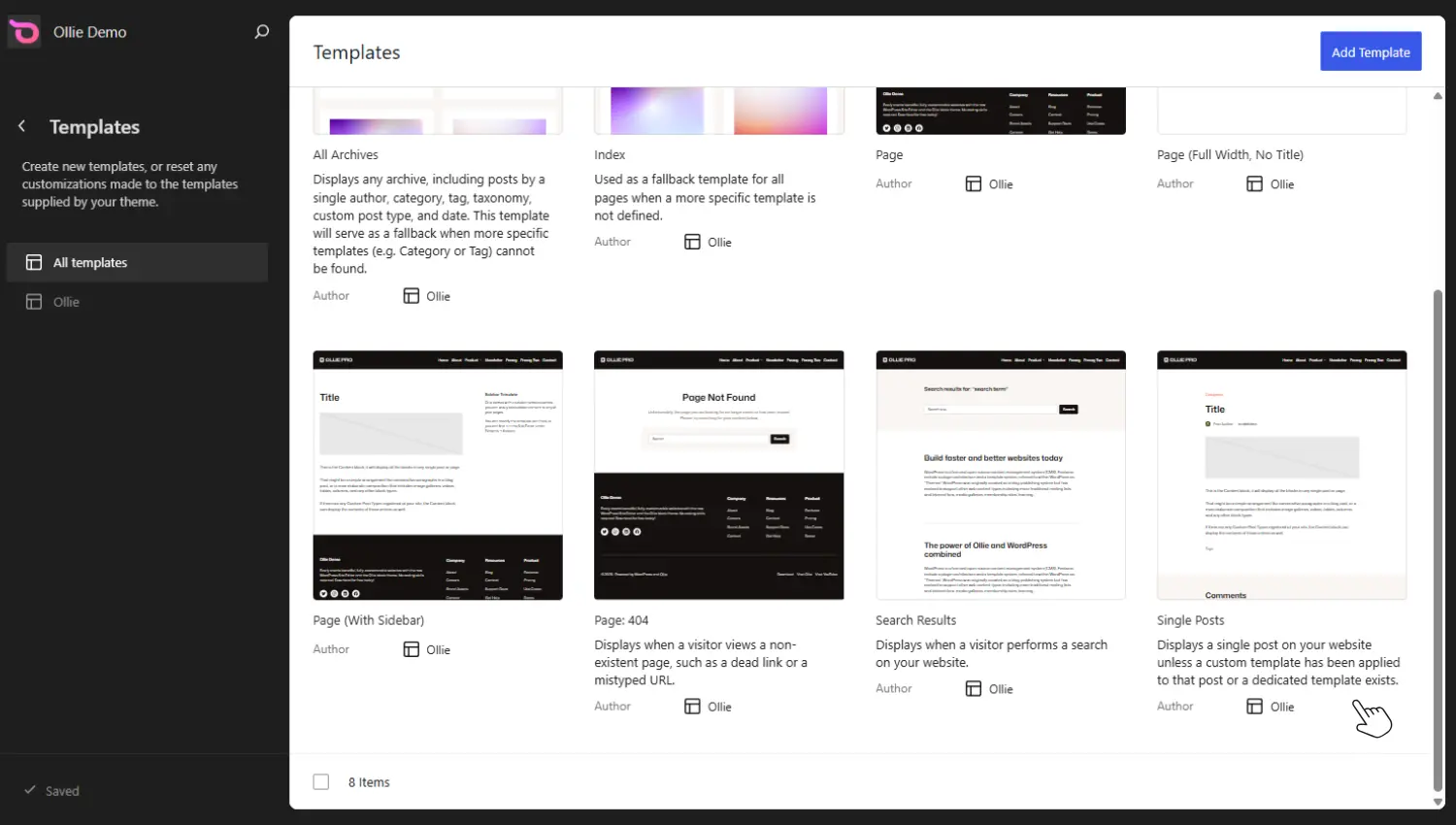
For example:
- Single post template for posts.
- The standard page template for pages like About Us.
- Archive template, which is used for category, author, and tag pages.
- A search results template.
- Ecommerce-specific templates, such as cart and checkout, if you’re building an ecommerce store with WooCommerce.
Block templates are built entirely with blocks
Block templates are made by combining different blocks. For example, a single post template will have the following blocks:
- Post Title.
- Featured Image.
- Post Content.
- Comments.
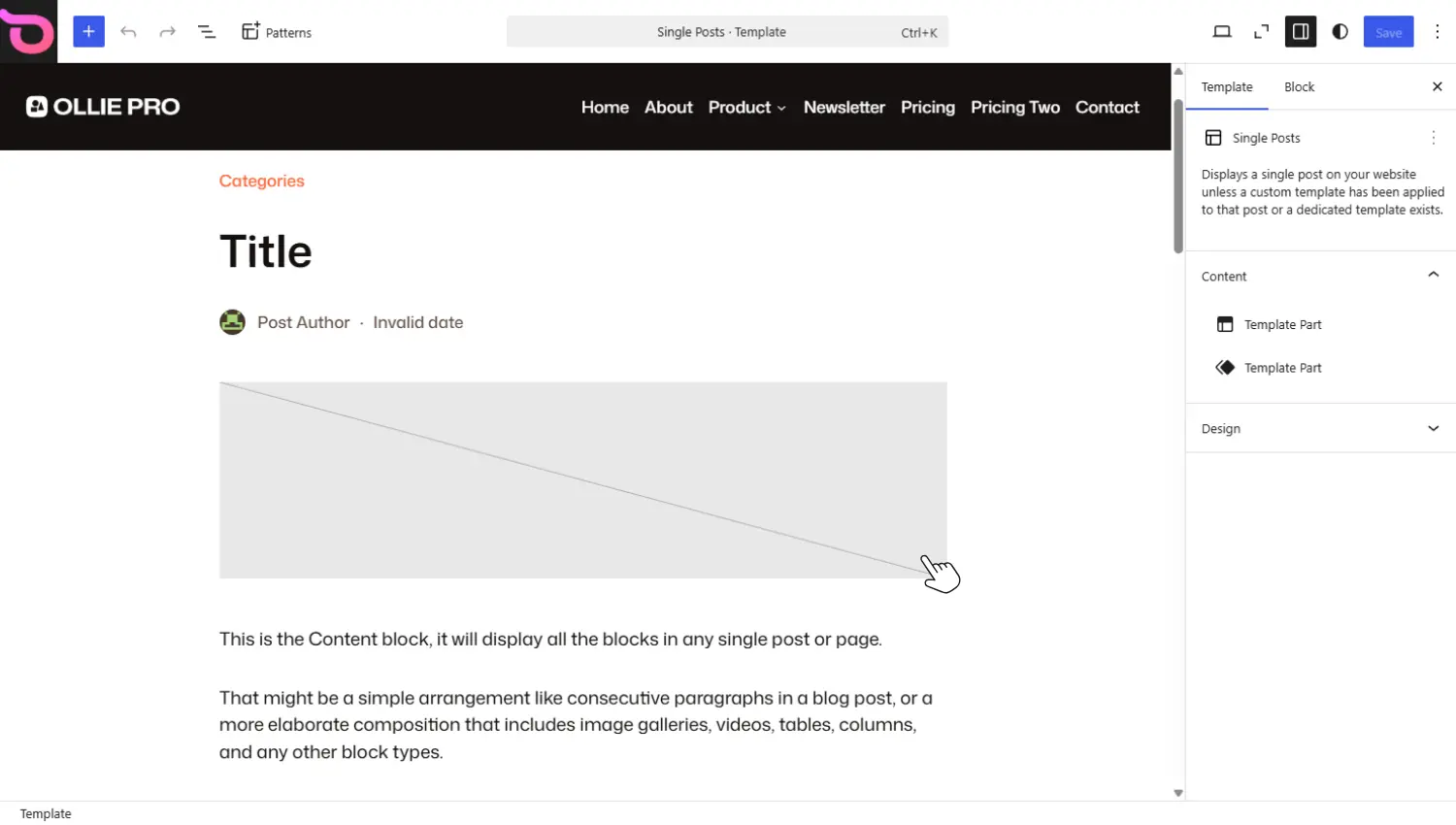
These are pretty standard blocks that can appear in any block template. There are others suitable only for specific templates, for example, the Query Loop and Pagination blocks for the search results template.
Since everything is built with blocks, block templates are fully editable inside the Block Editor. You can edit the templates that come with your block theme or create your own custom templates.
To access block templates in WordPress, you’ll go to Appearance → Editor → Templates. Then select the template to edit or create a new template.
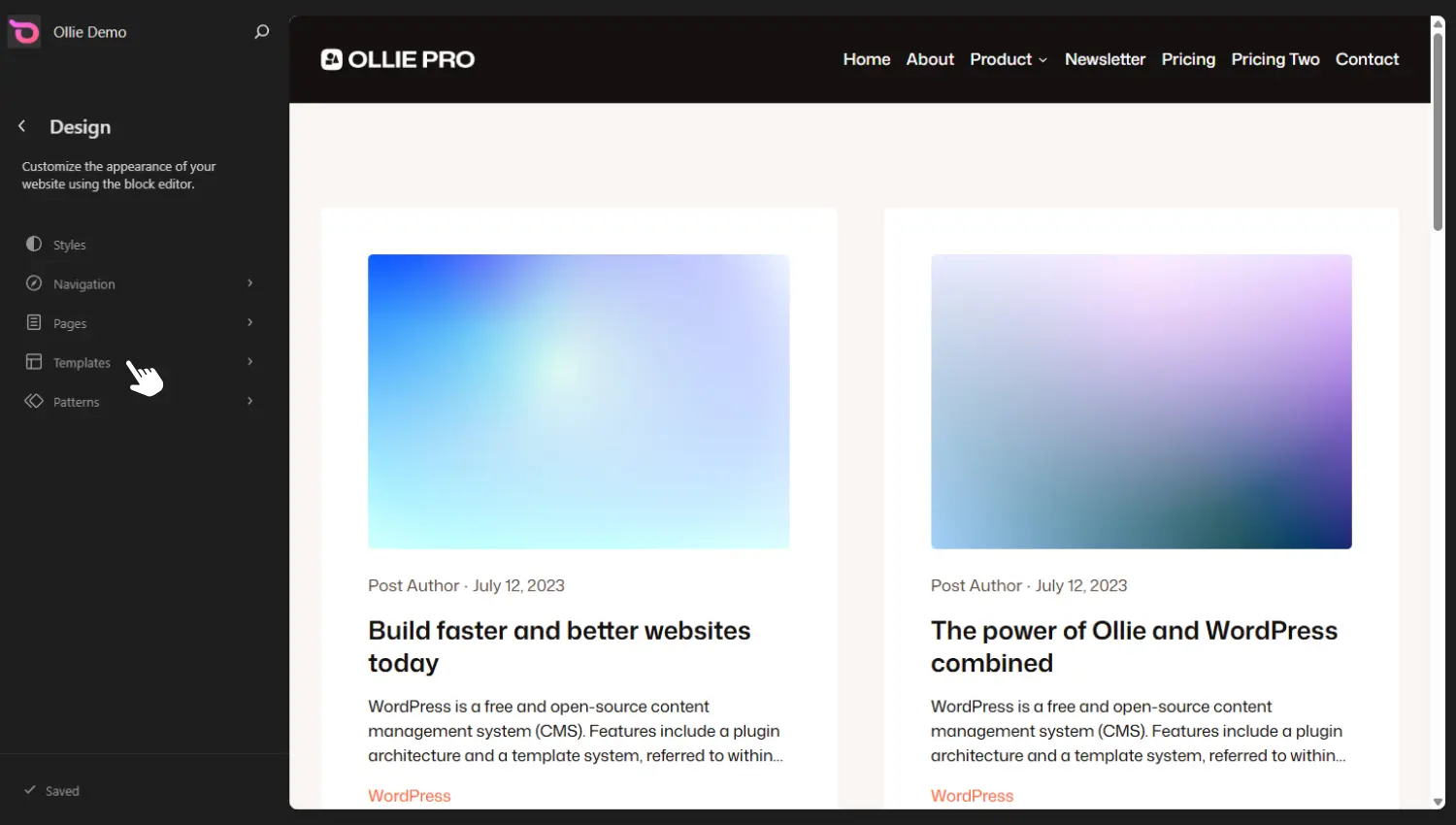
Note: The edits you make to a block template will be applied to every page that uses the template. For example, if you add a new block to an archive template, this new block will appear in the category or author pages that use the template.
What are WordPress block template parts?
Certain sections of a block template appear on pretty much every page and across every template. These reusable sections of a block template are what we call block template parts.
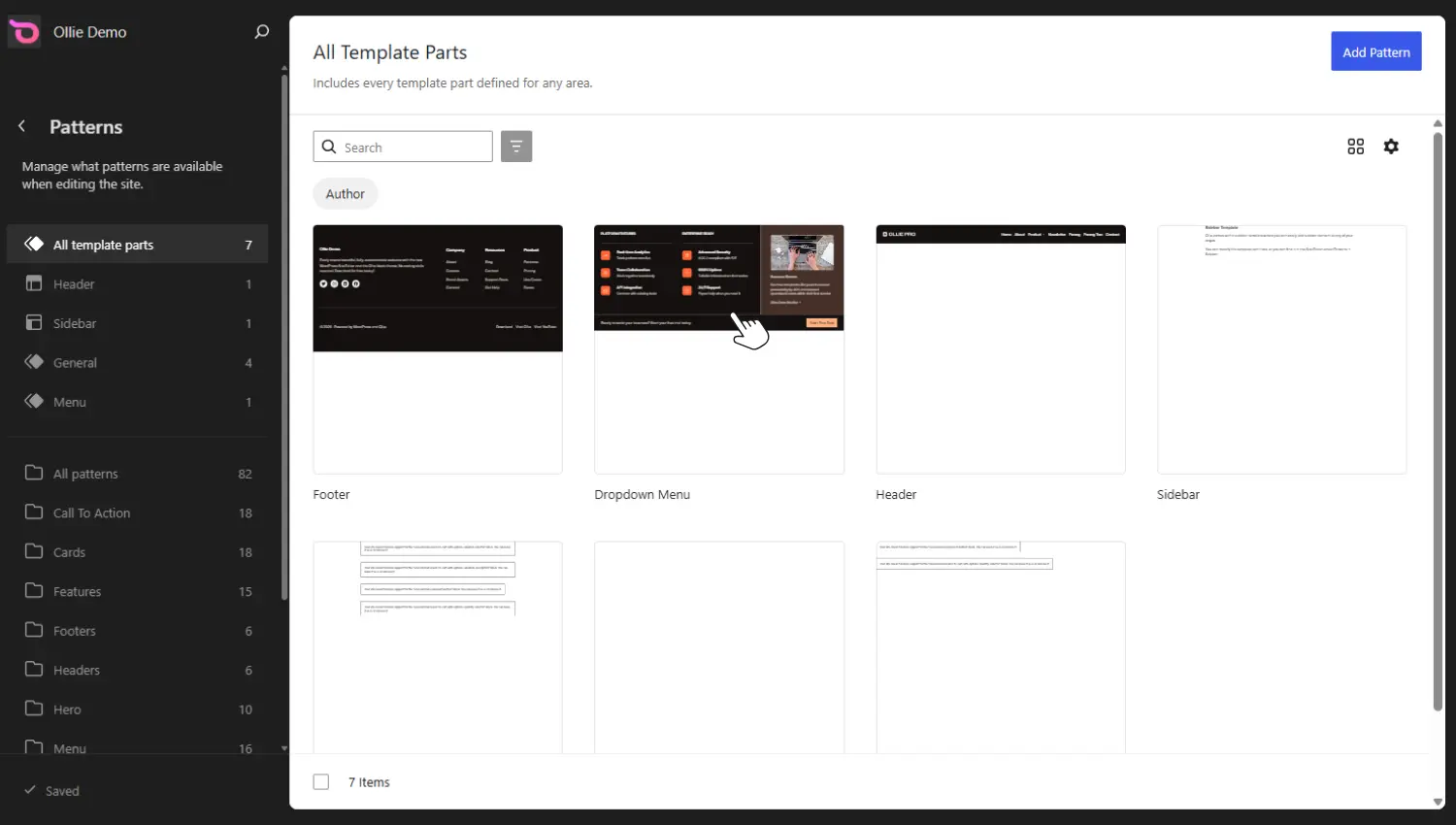
Headers and footers are the most common examples of template parts. These parts are shared across different templates, and editing one updates it across every template using the part. You don’t have to go into each template and make the same edit manually.
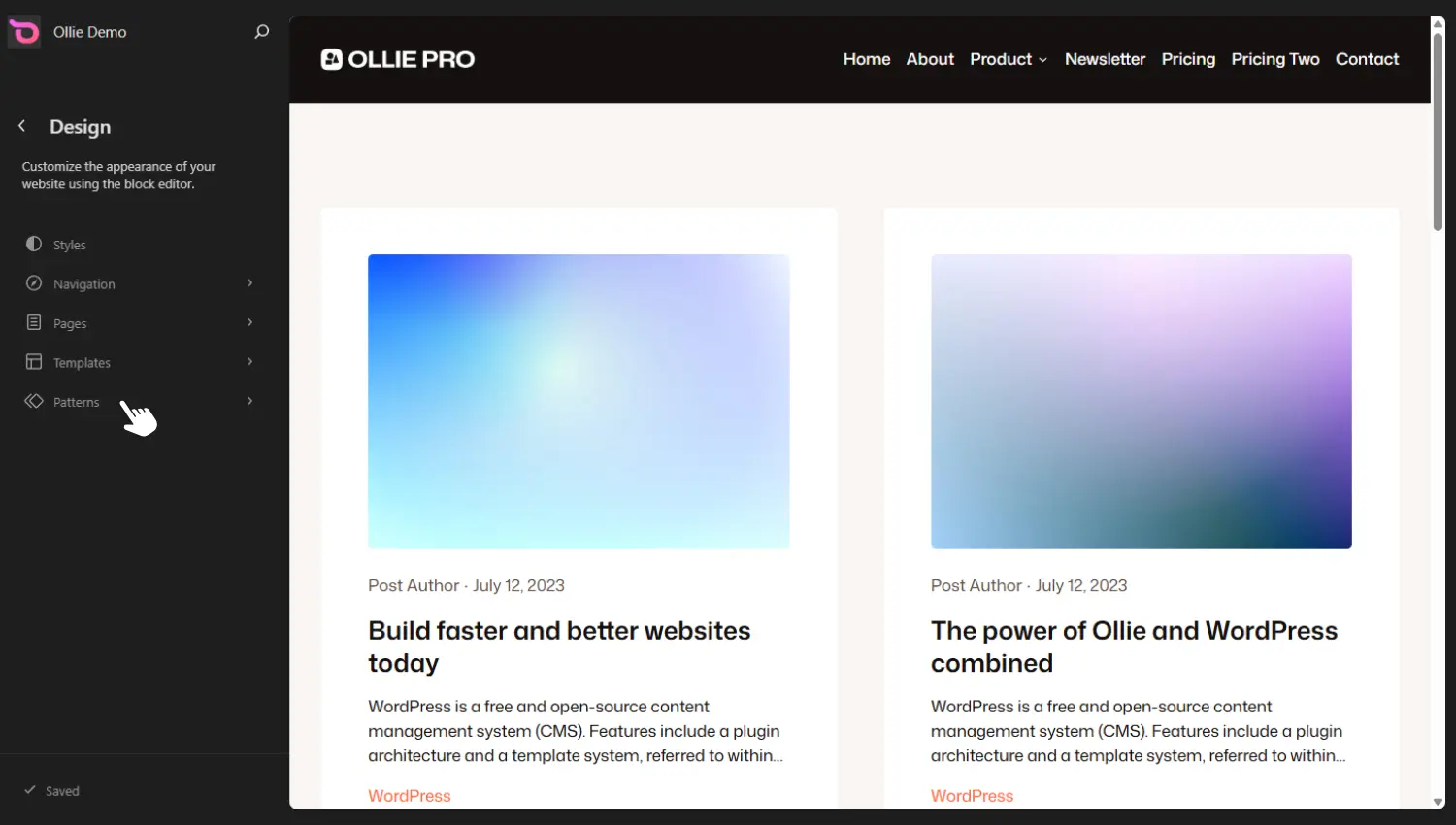
Like block templates themselves, template parts are fully editable inside the Block Editor. You’ll find template parts under Patterns in the Site Editor, not under Templates. Look for the Template Parts section within Patterns.
If you’ve been using WordPress to build websites for a while, you know that classic PHP templates have been the go-to WordPress templates. But this is changing with WordPress moving towards the block-based system.
So, let’s look at what’s changed if you’re coming from using classic PHP templates in a classic theme.
Block templates vs classic PHP templates: what changed?
Block templates and classic PHP templates in WordPress differ in the following ways:
How they’re edited
To make any significant changes to a classic PHP template, you’ll have to edit the code. Let’s say you want to add a new field to the contact form in your Contact Us template. You’ll have to edit the PHP, HTML, and CSS code responsible for this template.
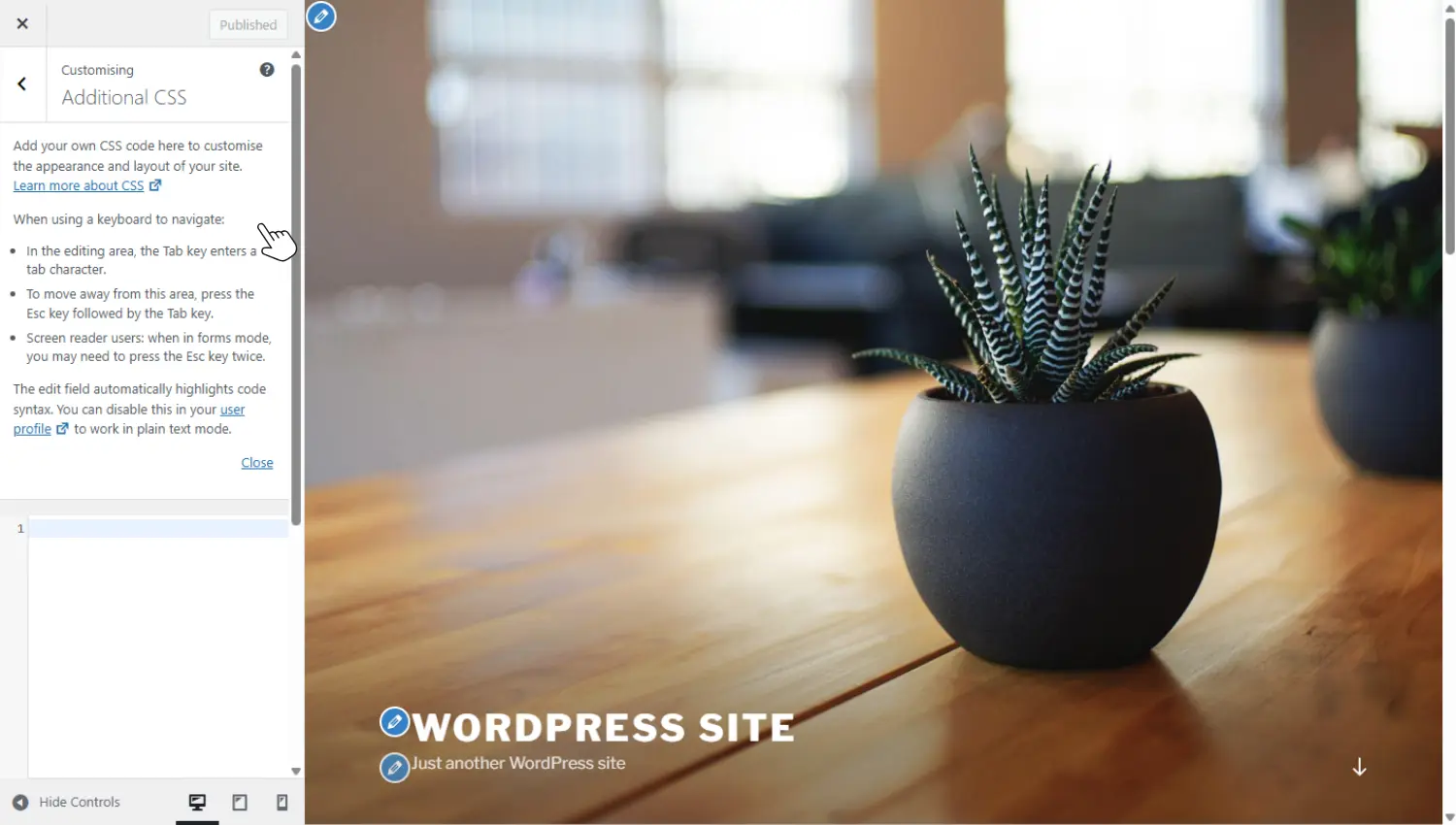
There’s no way to change layouts, add sections, or edit template parts without writing code. Otherwise, you’ll be stuck with what the theme developer allows you to edit in the theme Customizer.
Note: Although page builders like Elementor have theme builders that could help with certain template parts, areas such as WooCommerce templates or custom post types may not be compatible.
But with block themes, you edit everything in your template visually using the Site Editor. Thanks to full site editing (FSE), you can edit headers, footers, and any other template part using blocks alone, no coding is needed.
Who can edit them
To edit classic templates, you need to know PHP, CSS, and HTML. This means only developers or people with this knowledge can do it. It’s less accessible to non-technical users such as bloggers, content creators, or a marketing team.
Block templates, on the other hand, can be edited by anyone who is comfortable using the Block Editor. This makes it more accessible to non-technical users because editing is done visually using blocks.
How they’re structured
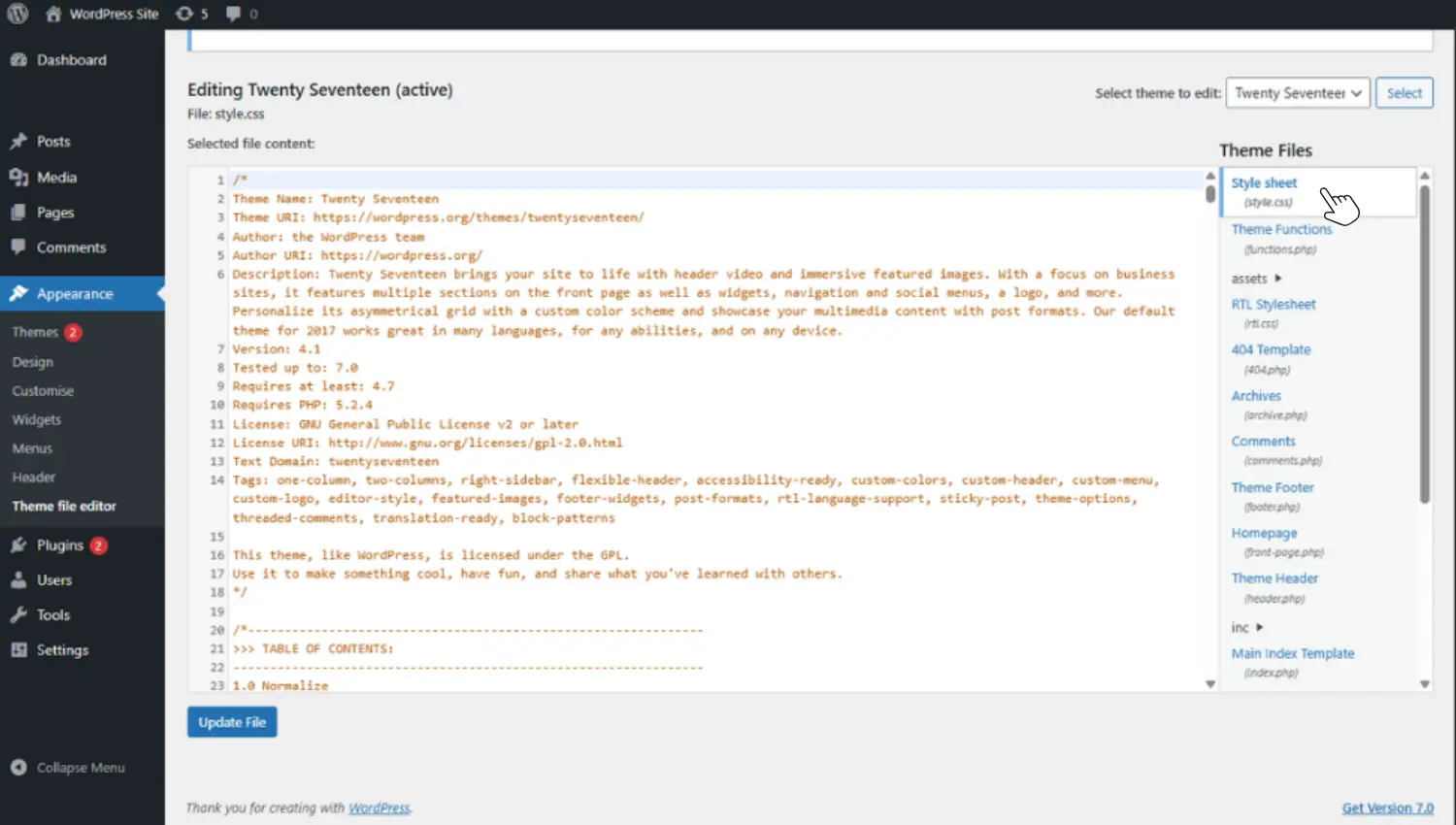
Classic PHP templates have a code-based structure. A typical classic template is a PHP file containing:
- PHP logic.
- HTML markup.
- Function calls.
- WordPress template tags.
To understand the layout, you have to be able to read and understand PHP code.
Block templates have a simpler structure. They’re made up of pure HTML and block markup, which is easier to read and understand.
Flexibility
Classic templates are flexible, but that flexibility is locked behind code. You need to know how to code to flexibly build different layouts for your templates. For non-developers, this flexibility is largely out of reach. You’re limited to whatever options the developer exposes in the Customizer, which are often very few.
Block templates offer you this flexibility without the code barrier. You can build any layout you want for your templates visually in the Site Editor.
Widgets vs blocks
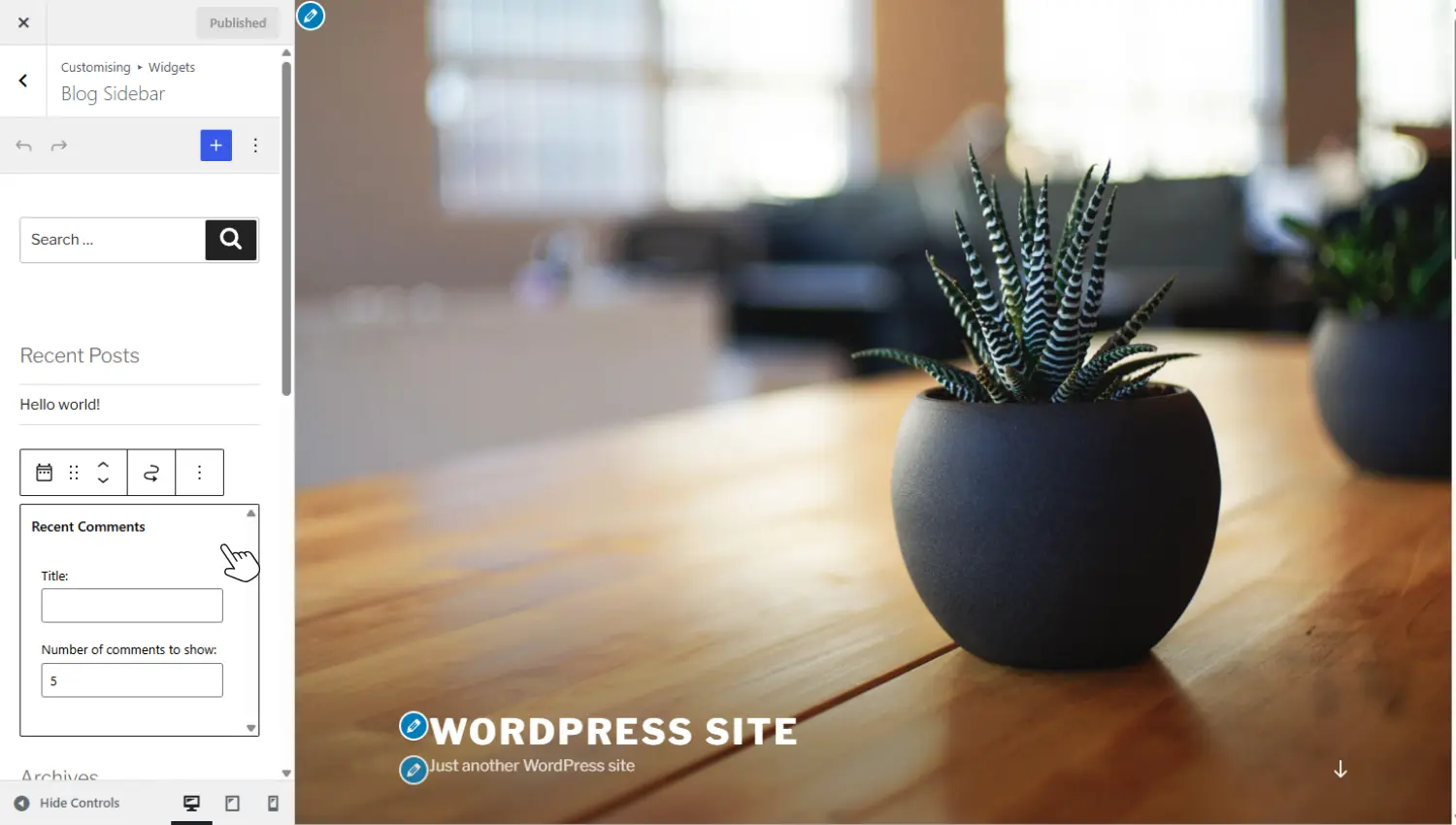
In classic themes, you add dynamic content such as a recent posts list or a search bar to your templates using widgets. Widgets live in designated widget areas, which are pre-defined by the theme developer.
If your theme doesn’t include a widget area where you want one, you’re out of luck, unless you edit the PHP code yourself.
Block templates replace widgets with blocks. Everything is a block. The recent posts list or search bar is a block that you can place anywhere on any template, not just on a designated widget area. You do it visually without editing code.
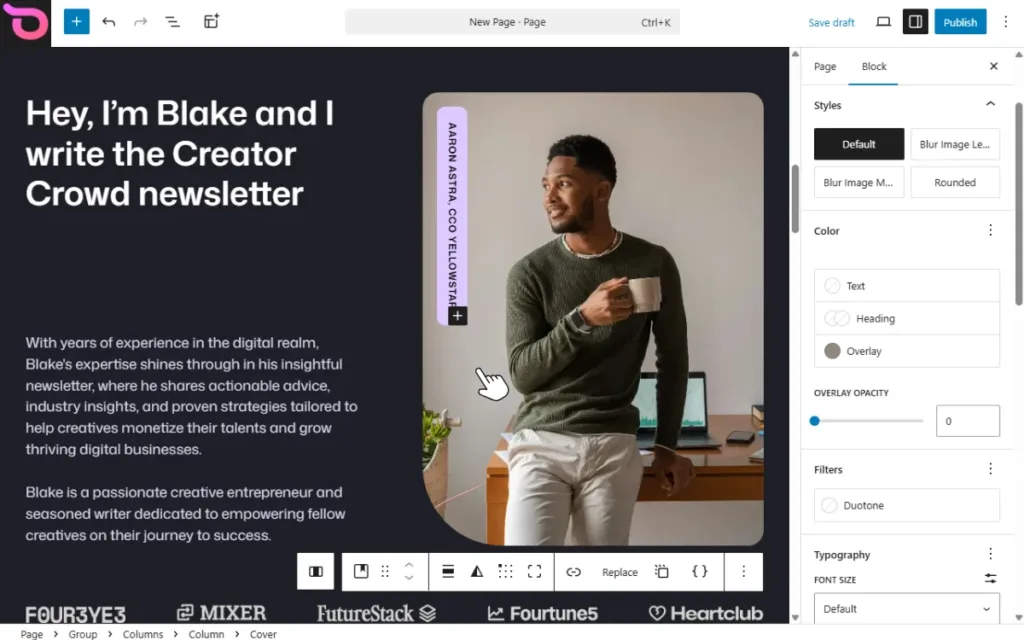
Key takeaway: If you’re coming from a classic template, you’ll appreciate how easy it is to work with block templates. You can visually edit every part of your template using the Site Editor, and you don’t have to write code or be limited to the widget areas the theme developer allows.
Here’s a summary of what’s changed if you’re coming from a classic template.
Block templates vs classic PHP templates
| Aspect | Classic PHP templates | Block templates |
|---|---|---|
| How they’re edited | To make significant changes to your templates, you have to edit code. Or be stuck with the settings the theme developer allows. | You can edit templates visually in the Site Editor using blocks. |
| Who can edit them | Primarily developers, because you need coding knowledge to edit PHP files. | Anyone (including beginners). Provided you’re comfortable working with the Site Editor. |
| How they’re structured | Follows a code-based structure that includes a PHP file with PHP code, HTML markup, and function calls. | Made up purely of HTML and block markup. |
| Flexibility | Flexible only to developers. | Flexible to anyone using the Site Editor. |
| Widgets vs blocks | Uses widgets and widget areas for dynamic content. You’re confined to the widget areas the theme developer allows. | Everything is a block. You can add dynamic content anywhere in the template provided there’s a block for it. |
Now that you know what block templates are and how they differ from classic PHP templates, let’s look at how to create and edit them.
How to create and edit a block template in WordPress
You need a block theme to create and edit block templates. A block theme allows you to access the Site Editor and the block system. One such block theme is Ollie. Later, we’ll discuss how this block theme makes working with block templates easier.
But for now, know that the first thing you’ll need to do is install a block theme (if you haven’t already).
Step 1: Install a block theme
To install a block theme, take the following steps:
- Go to Appearance → Themes and click the Add Theme button.
- Click the Block Themes tab to filter out other themes and remain with block themes alone.
- Use the search bar on the top right to search for the block theme you want to install. Ollie, in this case.
- Click Install once it appears.
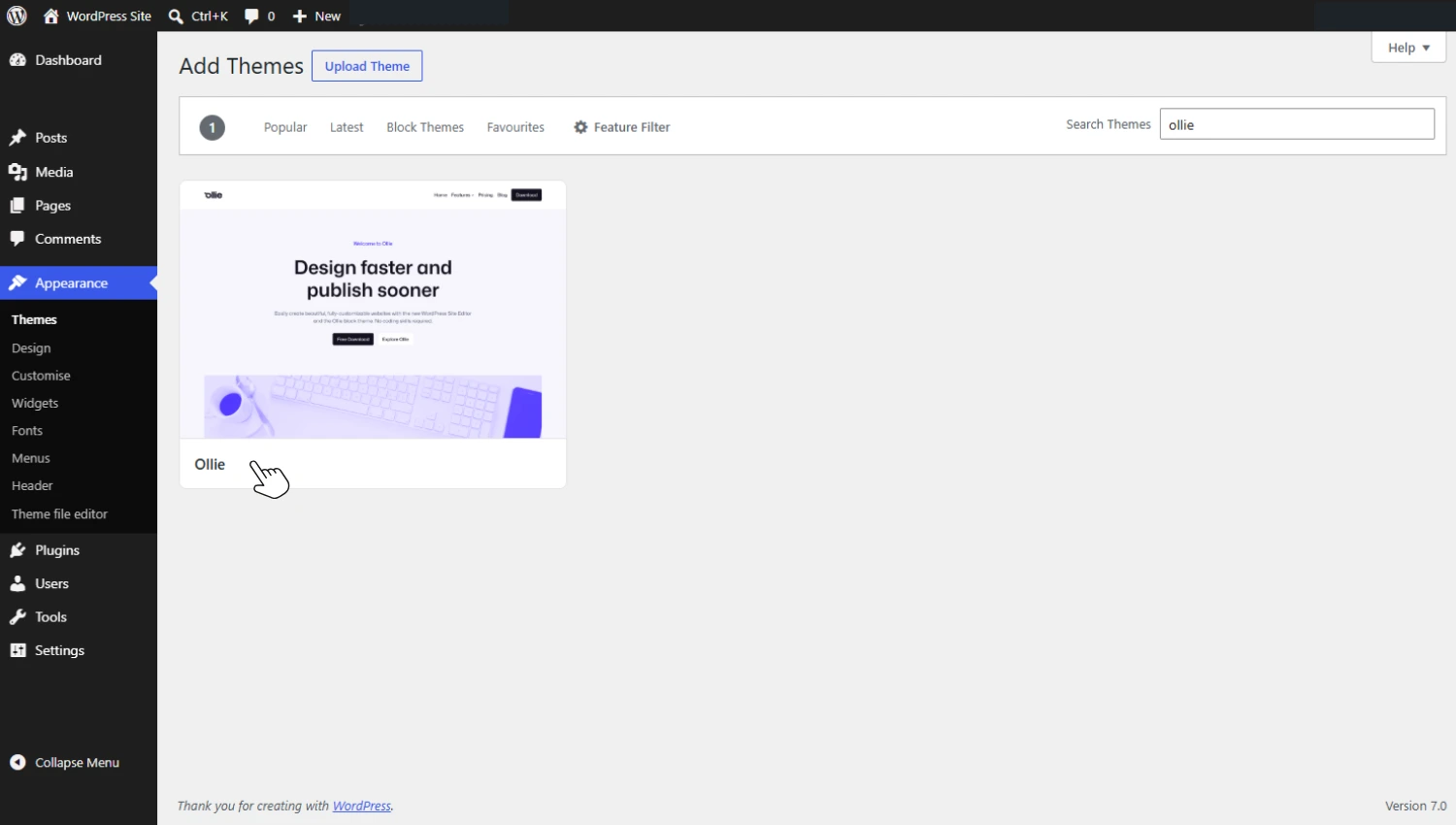
Installing Ollie gives you the free theme, which includes everything covered in this guide. Ollie Pro is a separate plugin that adds hundreds of additional block patterns, powerful editor extensions, and time-saving tools like a setup wizard and one-click starter sites. We’ll cover what it offers in more detail later in this article.
Step 2: Find your templates
After installing the block theme (Ollie), we’ll navigate to templates to start editing them.
To do this, take the following steps:
- From your WordPress dashboard, go to Appearance → Editor.
- Click on the Templates tab in the sidebar. Here’s where you’ll see the block templates you can edit and also where you can create one.
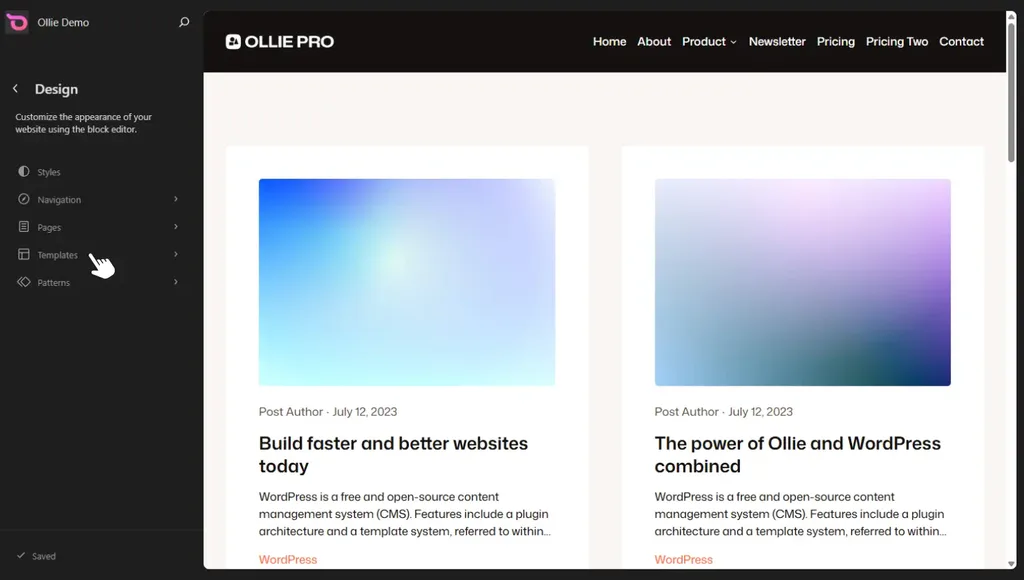
The templates in this section will be grouped into three:
- All templates. Every template on your site, including any custom templates you create, appears here with a Custom label.
- WooCommerce. If you’re building an online store, you’ll see ecommerce-specific templates here, such as cart and checkout page templates.
- Ollie (Your block theme). Templates that come packaged with the Ollie theme, ready to use or customize.
Step 3: Create/Edit a template
You can choose to edit an existing template from those you’ll see on this page or create a new one entirely.
If you want to create a new one:
- Click on the Add Template button on the top right.
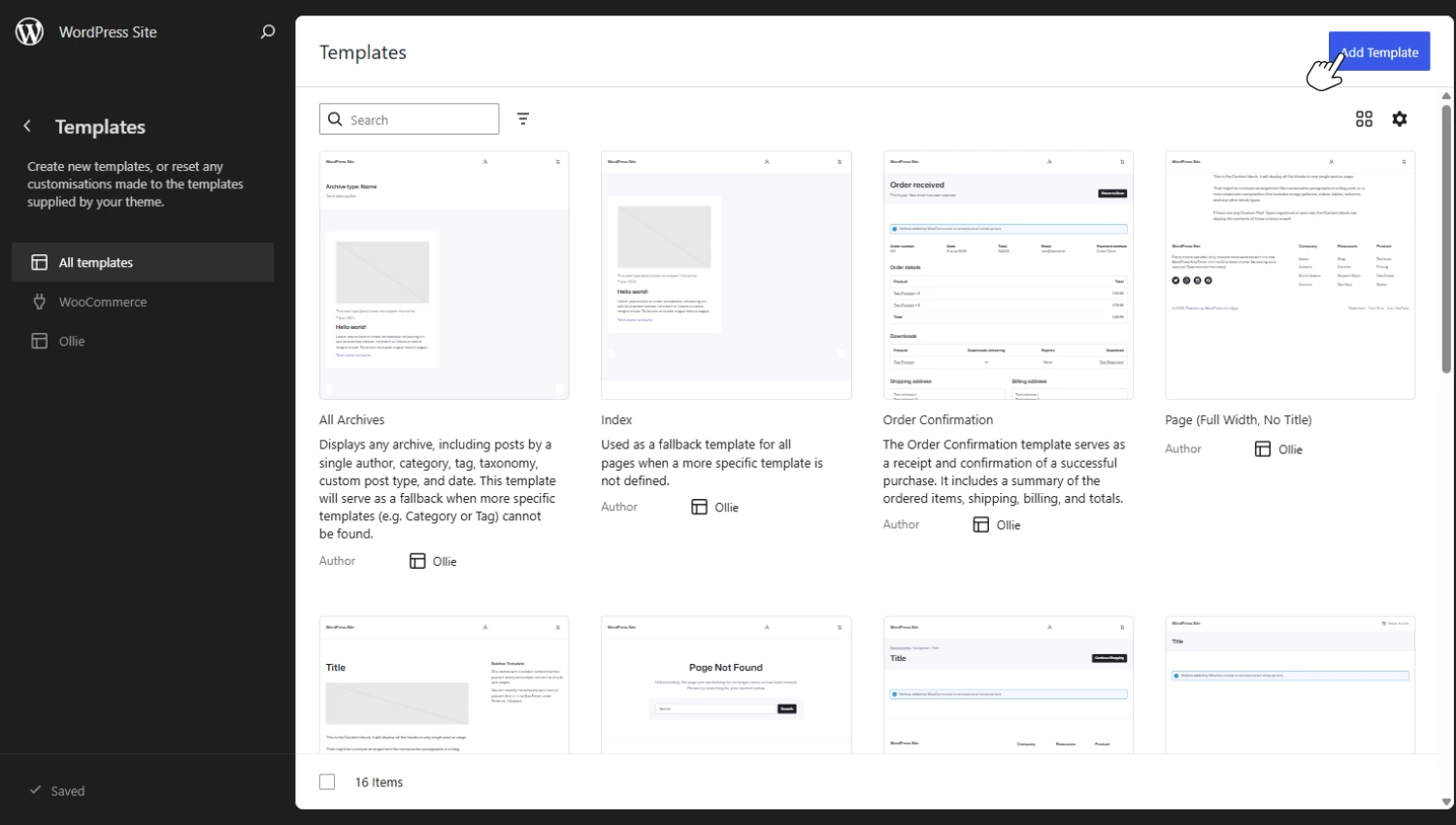
- You can choose to start from scratch by clicking on the Custom Template option or select a template (that comes with the block theme) to begin with.
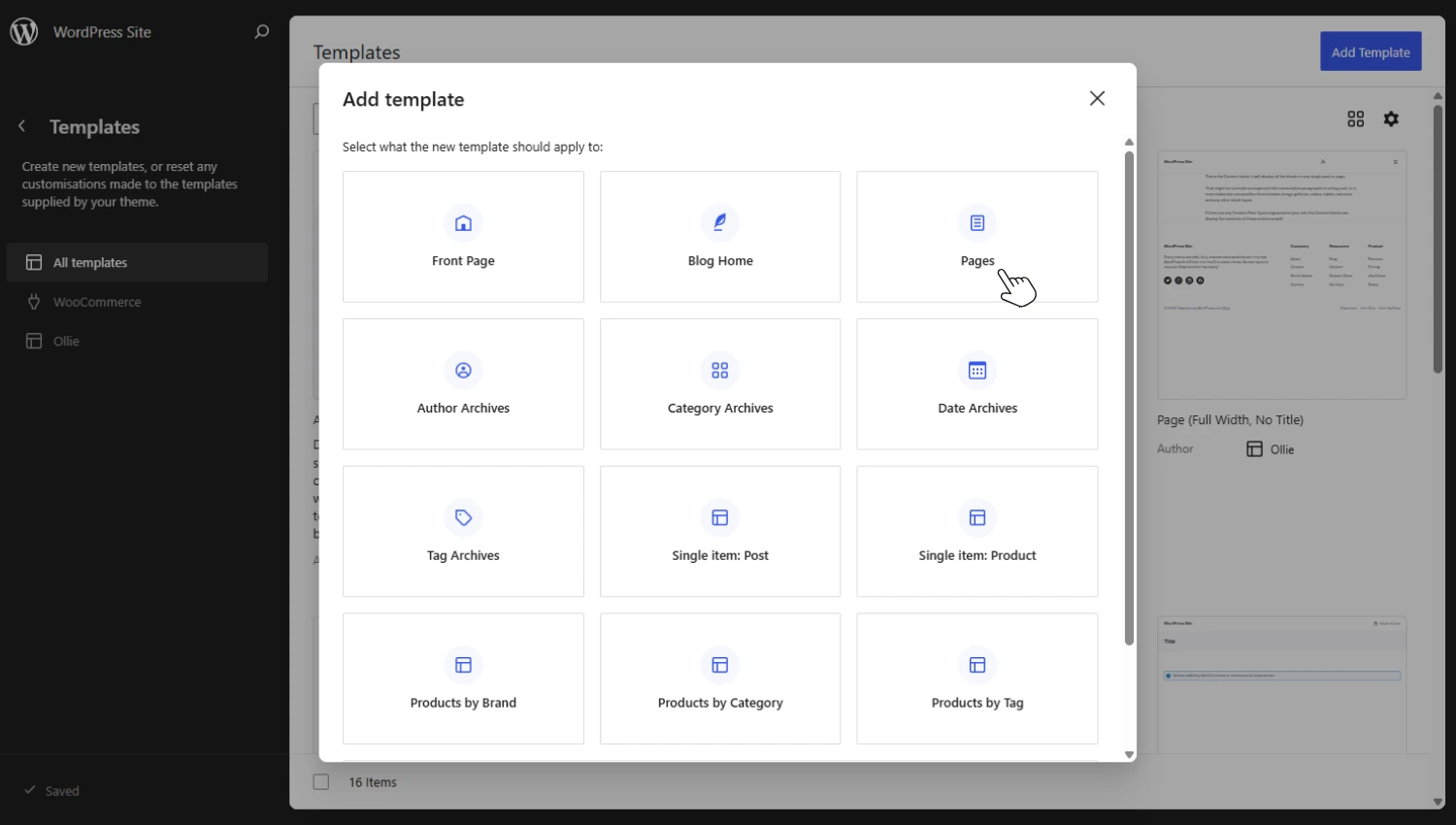
- Once this is done, you’ll be led to a blank page where you can start adding blocks.
Editing an existing template
If you want to edit an existing template:
- You can use the search bar to find the specific template under Templates. For example, if you want to edit the single post template, search for ‘single post’.
- Click on the template once it appears, and then start editing it.
- Editing your template here is like editing any other page on your site. If you’re comfortable using the Site Editor, this should be easy. You can:
- Add or remove blocks.
- Changes how different blocks are arranged.
- Style individual blocks and elements inside the block.
- Import patterns for specific sections of the template so that you don’t build everything yourself.
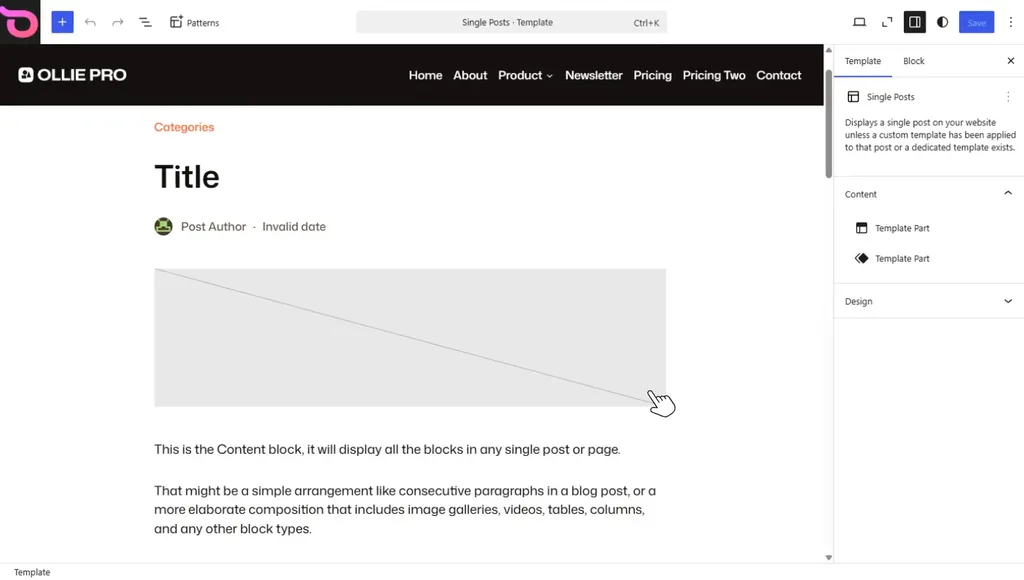
- For a single post template, here are some of the things you might want to add:
- A comments block below the main content where readers can leave their thoughts after reading a post.
- A sidebar or section featuring your recent posts.
- Social media icons for readers to share your posts on social platforms.
There are blocks for all of the above. All you have to do is add the blocks and style them how you like.
Once you’re done editing the template, click Save.
Step 4: Edit your template parts
Usually, you edit template parts such as the header or footer separately from the main template itself. Let’s use a footer as an example to see how you can edit a template part.
- Go to Appearance → Editor and then click on Patterns.
- Next, click on the All Template Parts tab. You should see the footer among your template parts. If you don’t, search for it, then click it to start editing.
- Again, here you’ll be able to edit everything like we’ve mentioned above to create a design that works for you.
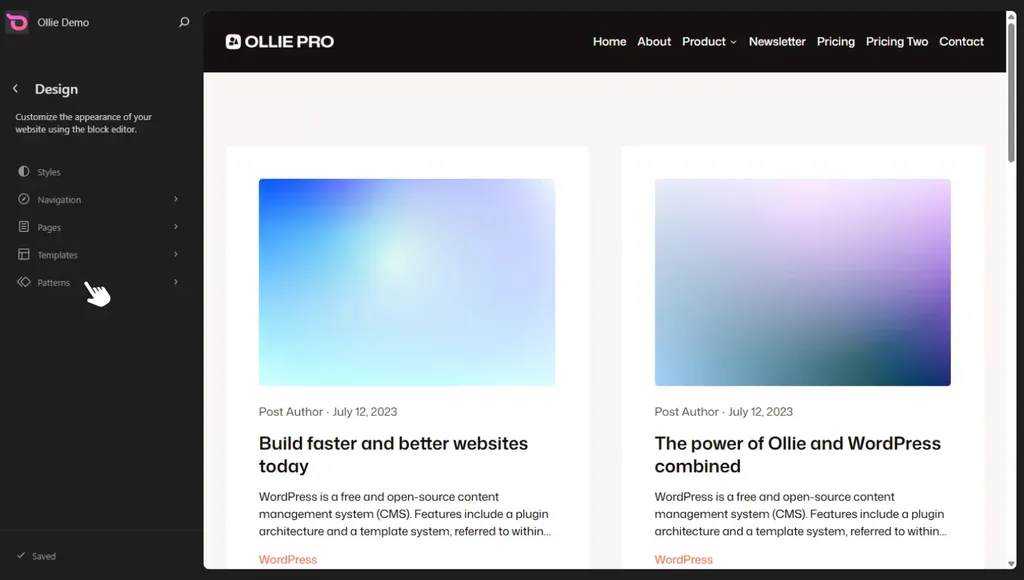
Want to learn more about how to edit the footer? Check out our guide on How to Edit the Footer in WordPress the Easy Way.
- Once done, click Save.
Keep in mind that the changes you make to the header or footer will apply site-wide.
Step 5: Apply your template
Let’s say you’ve created a landing page template. How do you use it on a page?
- Go to Pages and find the page on which you want to apply the template. Click on Edit. This takes you to the site editor.
- Locate the Template setting on the right sidebar of the Site Editor and click on the Template Options, then Change Template.
- Choose the template you want to apply here, click Save, and that’s it.
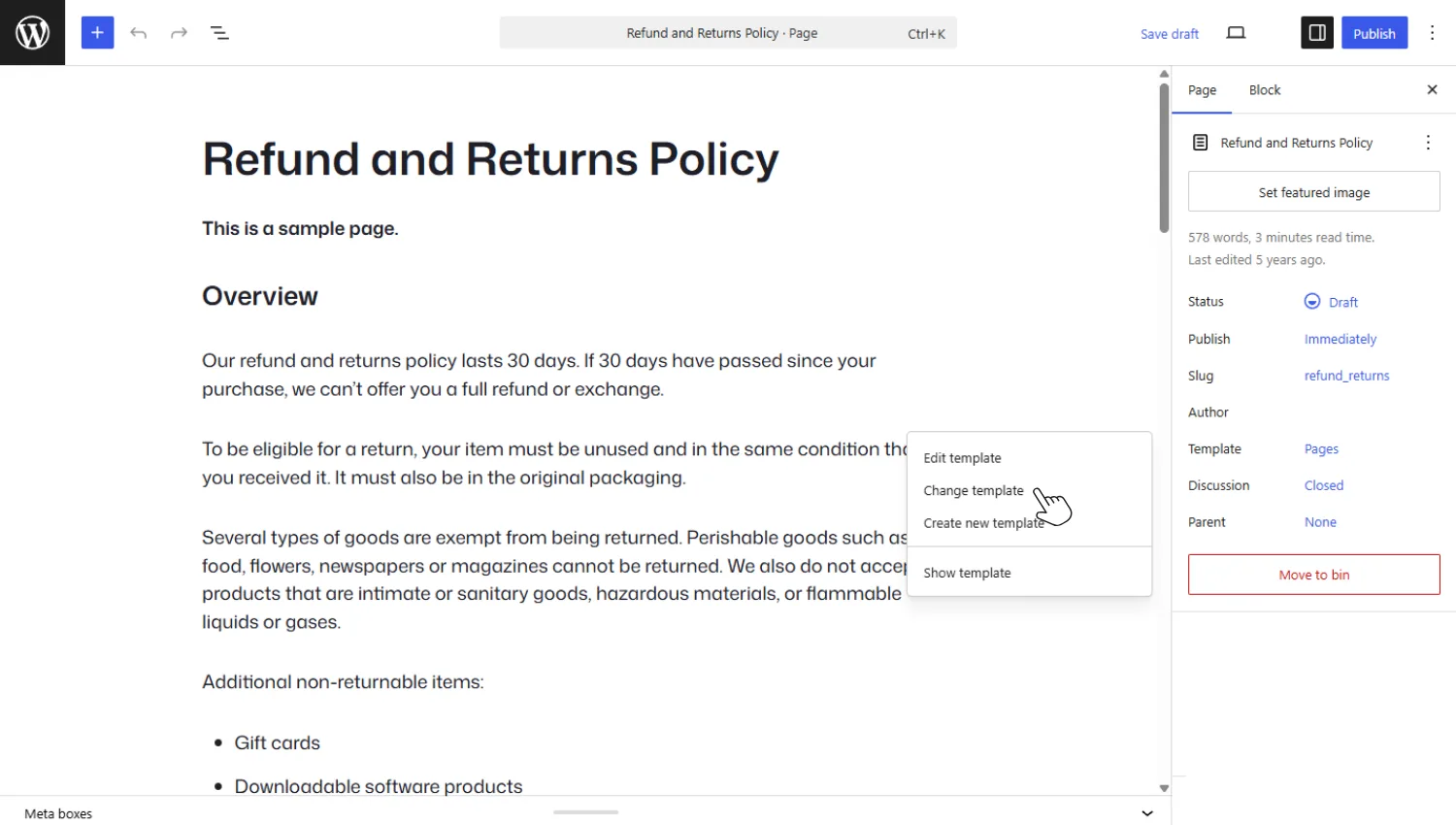
The template will now be applied to your page.
Compared with classic themes, block themes make it easy to create and edit block templates. But your experience will depend on the block theme you use. Not all block themes make this process as easy as possible.
With that in mind, let’s cover why Ollie is the right block theme if you want an easy time working with block templates.
How Ollie makes working with block templates easier
Ollie is a block-native WordPress theme built entirely with native WordPress blocks and APIs, which means you get full site editing out of the box. It supports every block in the WordPress Block Editor, so any new blocks WordPress releases will work with it automatically.
The free Ollie theme ships with a complete set of page templates for the standard pages of your site, so you don’t have to build them from scratch:
- Index. A fallback template that is used when no specific template matches a page.
- Single posts. For blog posts.
- Page. The default template for standard WordPress pages.
- Search. To display search results.
- 404. Which is used when a page can’t be found.
- Page (Full-width, No Title). This template removes the title and allows content to span the full width of the page. If you’ve worked with other themes, you know how challenging it can be to remove the page title. Ollie gives you a template that excludes it.
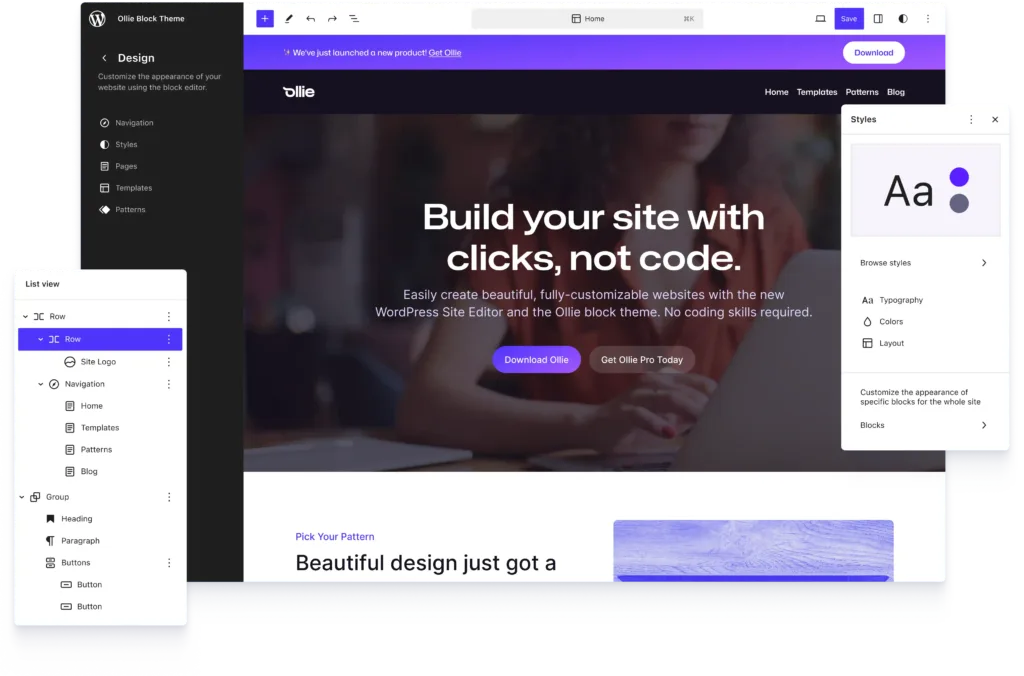
These templates ensure that you don’t have to start building templates for standard pages from scratch. You can simply import these and edit them.
Having pre-made templates isn’t the only way Ollie makes it easy for you to work with block templates. Here are some more.
A large block pattern library
The free Ollie theme includes 50+ patterns for common page sections like headers, footers, hero sections, and more. Ollie Pro’s pattern library increases this significantly, with 200+ responsive patterns and 30+ full-page designs you can use on your site.
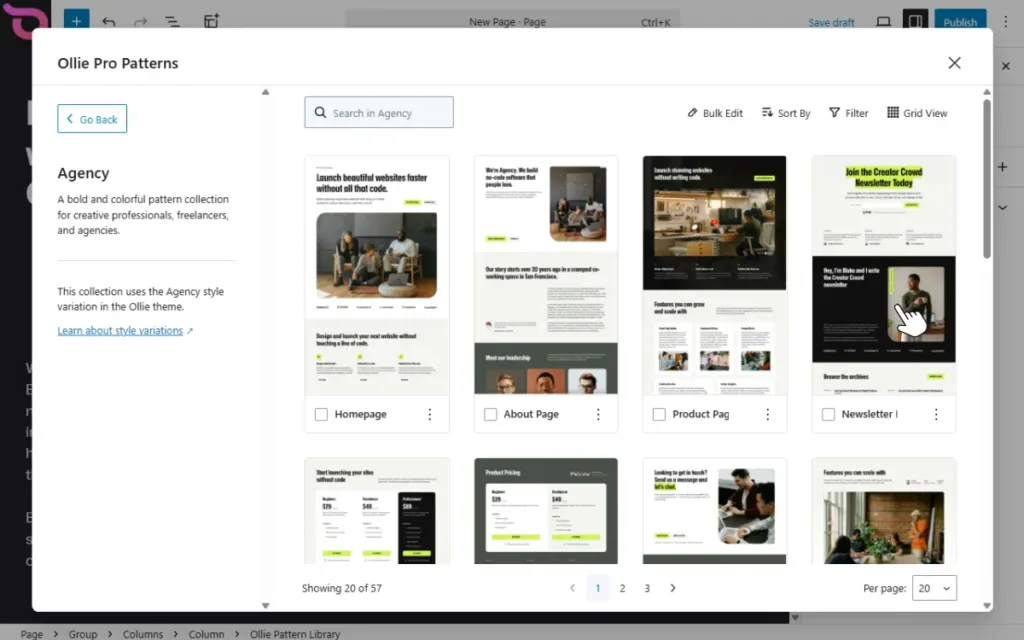
You can insert any pattern directly into your template and customize it, which makes building from scratch much faster.
Because the pattern library is cloud-based, it doesn’t add weight to your site, and new patterns are available instantly without needing to update the plugin.
Built-in design variations for templates and template parts
The free Ollie theme includes several design variations for its page templates. The single post template, for example, comes with the following options:
- Post centered.
- Post with left/right sidebar.
- Post with sticky sidebar, etc.
You can choose the template variation that works best for you so that you don’t have to change too many things when editing. Switching between these variations is easy; you can do it from the Design tab under Templates in the Site Editor.
Header and footer template parts also come with design variations that you can switch between when editing your templates.
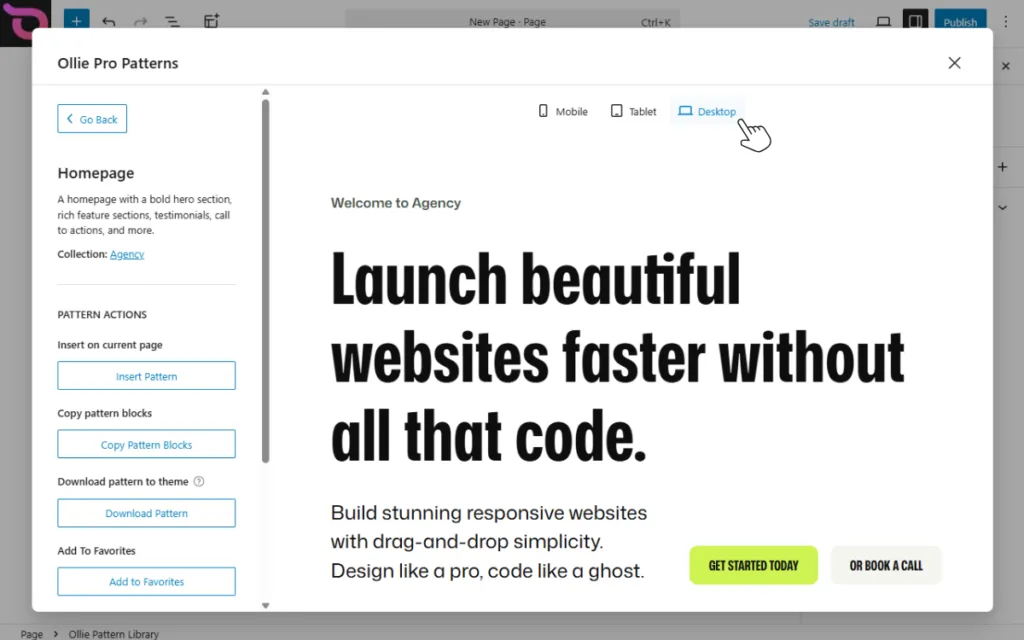
More design tools with Ollie Pro extensions
Although the Block Editor is powerful, it doesn’t give you everything you need to build the website you want. Ollie Pro improves the Block Editor by adding features for things you actually need to build a professional website.
These include:
- Responsive Controls for managing typography, spacing, and padding at specific breakpoints.
- Animation Designer for entrance animations, hover effects, and scroll-triggered motion.
- Smart Sync to apply style changes across all similar blocks in a layout at once.
- Menu Designer for building mobile menus, dropdowns, and mega menus without code.
- Class Manager for creating reusable custom CSS classes and managing hover and focus states directly in the editor.
- Video Modal for adding video playback to Cover and Button blocks.
- Advanced Grid Controls for custom responsive breakpoints in grid layouts.
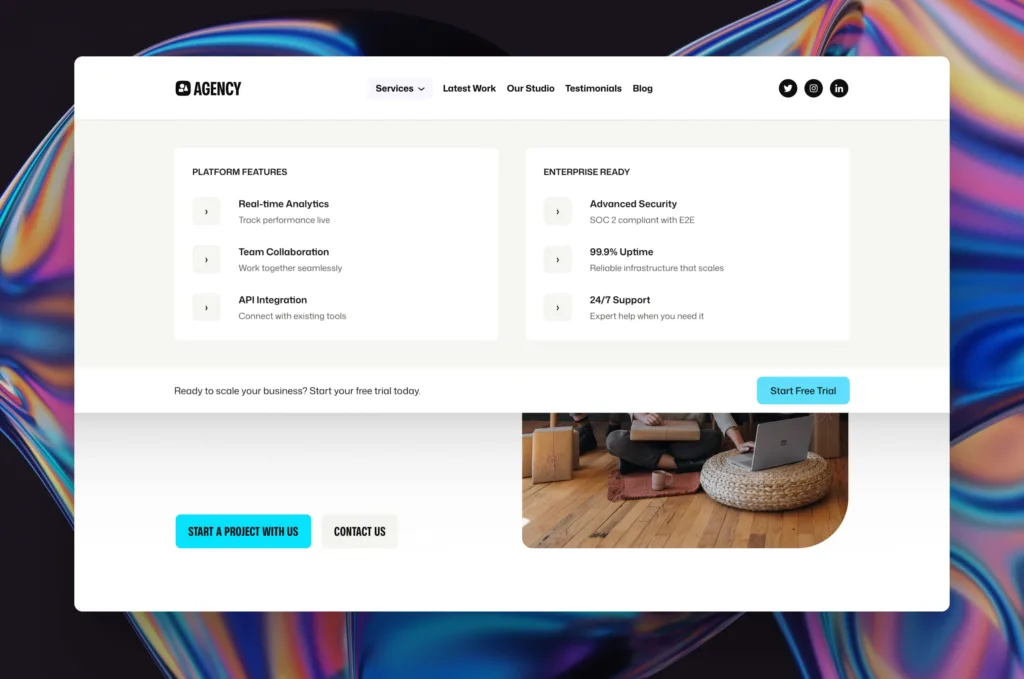
These extensions enhance your existing blocks and workflow. And, they do it without needing you to install dedicated plugins.
To summarize: Ollie improves what the Block Editor offers by default with premade templates, more customization options, and more design tools. This allows you to have everything you need to build a professional website using the Block Editor.
FAQs about WordPress block templates
What is a WordPress block theme?
This is a theme built specifically for the Block Editor and Full Site Editing. Block themes use blocks for everything in a WordPress site, including templates, headers, footers, and other site layouts. This allows users to customize both content and site structure visually through the Site Editor without needing to edit code.
How do I create a custom block template in WordPress?
To create a custom block template, go to Appearance → Editor → Templates and click Add Template. Choose the Create a Custom Template option at the bottom, then build the layout using blocks. Once you’re done, save it, then apply it to a page using the template setting in the Site Editor.
Can I use block templates without a block theme?
Not fully. While newer versions of WordPress allow some block editor features in classic themes, full block templates require a block theme. Block themes use HTML-based templates that can be edited in the Site Editor, whereas classic themes rely on PHP templates that cannot be managed the same way.
Can block templates replace page builders?
For many websites, yes. Block templates and the Site Editor provide many of the layout customization features that previously required a page builder WordPress plugin.
Start building with WordPress block templates
Block templates and template parts give you complete control over how your WordPress site looks and works, without touching any code. Once you understand how they fit together, the Site Editor starts feeling like the most natural and easy way to build a website.
The free Ollie theme gives you everything you need to get started with full site editing. And when you’re ready to build faster, design more professionally, and spend less time on the repetitive parts of launching a site, Ollie Pro is there to take the pressure away.
