
Want to get to grips with the WordPress site editor? You’re in the right place.
WordPress’s development is currently centered on the site editor and the block-based system. It’s now the standard way to build and customize a WordPress site.
If you’re coming from a page builder or you’re newer to WordPress, some of the terminology and workflow will look a little different. So, this guide will walk you through the site editor from the ground up, so you know exactly how it works and how to use it.
Here’s an outline of what we’ll cover:
- What the WordPress site editor is.
- How to access it.
- The main elements of the Site Editor.
- How it differs from page builders.
- How to use the WordPress site editor with the Ollie WordPress block theme.
What is the WordPress site editor?
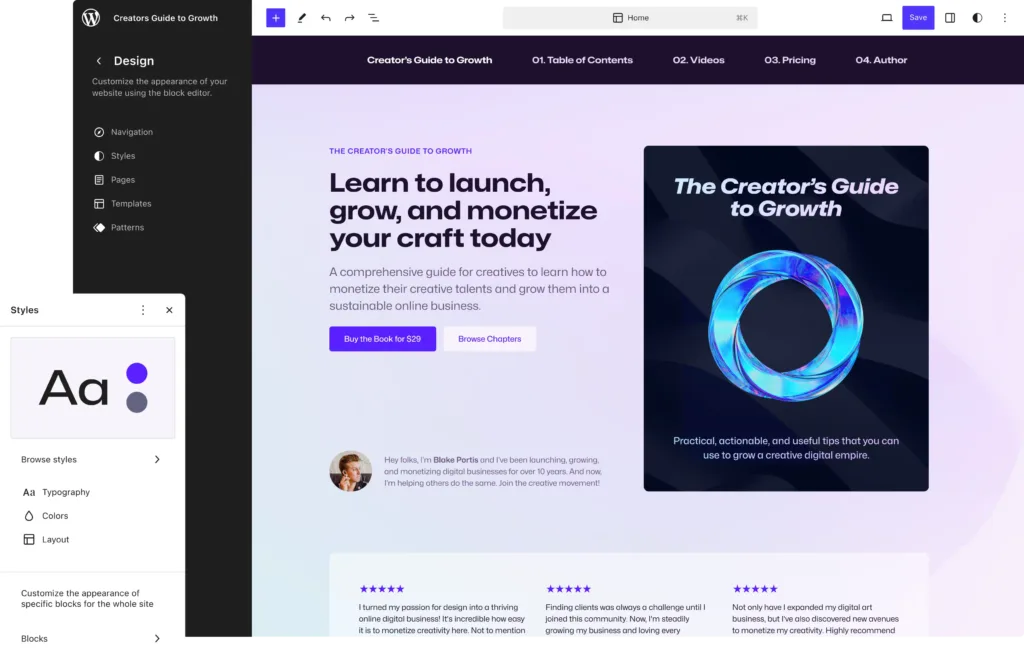
The site editor is WordPress’s visual interface for designing and customizing your whole site with blocks. That covers pages, templates, template parts, menus, and more, all from one screen, with no code involved.
It arrived in WordPress 5.9 in January 2022, alongside block themes, as part of Full Site Editing (FSE). FSE is what lets you customize every part of a WordPress site using blocks.
It grew out of the Gutenberg project and WordPress’s long-term push to bring block editing to every part of a site, rather than posts and pages only. Josepha Haden Chomphosy, WordPress’s former executive director, described the goal as editing every element of a site with Gutenberg blocks, including features already helping users move over to the block editor (Gutenberg Times).
Are the Site Editor and Block Editor the same thing?
It’s fairly common to hear the terms Site Editor and Block Editor used interchangeably, but they’re not quite the same thing:
- The Site Editor handles site-wide elements like templates and navigation, and also lets you edit individual pages from within it.
- The Block Editor is the writing and editing interface itself, the one you use for post and page content, and it’s the same block-based interface running inside the Site Editor, too.
WordPress is building around the Site Editor
Since its introduction, WordPress has steadily built around the Site Editor by:
- Shipping it with a default block theme. Twenty Twenty Five is the latest one.
- Adding new blocks in major releases. For example, version 7.0 shipped with the Icons and Breadcrumbs blocks.
- Laying the groundwork for AI in WordPress. Version 7.0 introduced native AI infrastructure, so plugins can connect to providers like OpenAI or Claude through a standard system built into core.
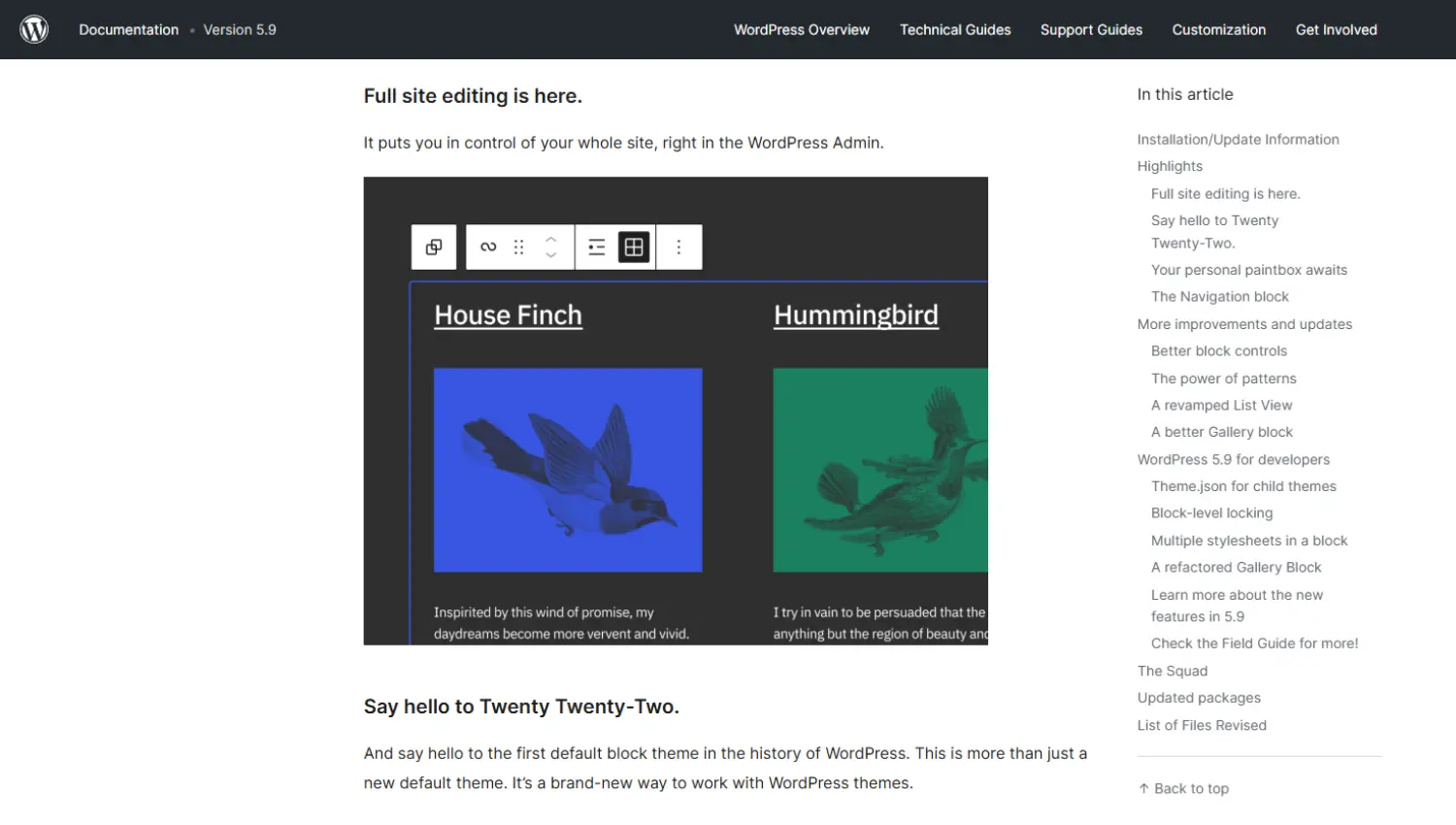
As a result of constant improvements and additions since its introduction, the Site Editor has matured significantly. It’s now a capable, stable editing environment.
So, let’s see how to access and start using it from your WordPress dashboard.
How to access the WordPress site editor
The Site Editor only works with block themes (like Ollie). You’ll generally have to install and activate one before you can access the Site Editor.
So, let’s say you have a block theme. Here are the steps you’ll follow to access WordPress full site editing:
- Log in to your WordPress dashboard.
- Go to Appearance → Editor. The Site Editor will open with a full-site preview and a left-hand sidebar containing several navigation options.
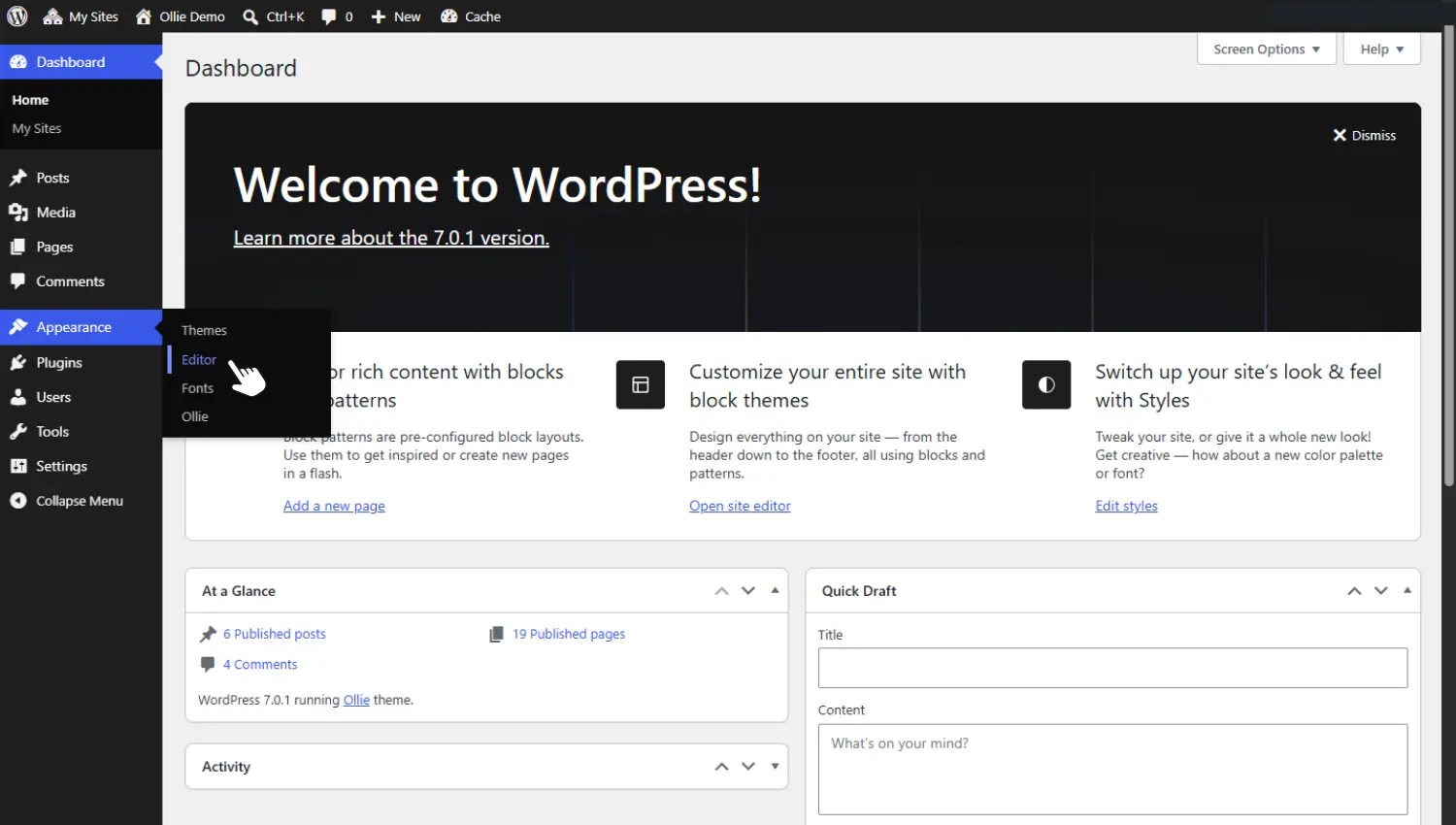
If the Appearance menu doesn’t show an Editor option, you’re likely using a classic theme rather than a block theme.
Note: As of WordPress 6.9, you can access the Command Palette from anywhere in the WordPress dashboard using Cmd+K or Ctrl+K, not just from inside the Site Editor.
Once you open the Site Editor, you’ll access several elements, such as the ones we’ll discuss next.
The main elements of the WordPress site editor
The elements of the Site Editor are what you’ll use to design and customize your site. Let’s look at the main ones, covering what they are, what they do, and how to use them. We’ll also highlight where Ollie adds to or improves the experience when using these elements.
Templates
Templates control the layout of different pages on your website. This includes single posts, archive pages, the homepage, error pages, and more.
When you edit a template, the changes apply to every page that uses it. Your category, tag, and author pages all use the archive template, for instance. Change the size of the featured image on that template, and the change shows up across all of them.
Block themes typically come with a default set of templates, like the ones mentioned above. You can also create new custom templates for specific pages or post types. A landing page for a marketing campaign is a good example.
How to access and edit templates
To access templates, click the Templates tab in the left sidebar of the Site Editor. Here, you’ll see all the default templates (single post, page, archive, etc.). If you want to create a new template, click on the Add Template button.
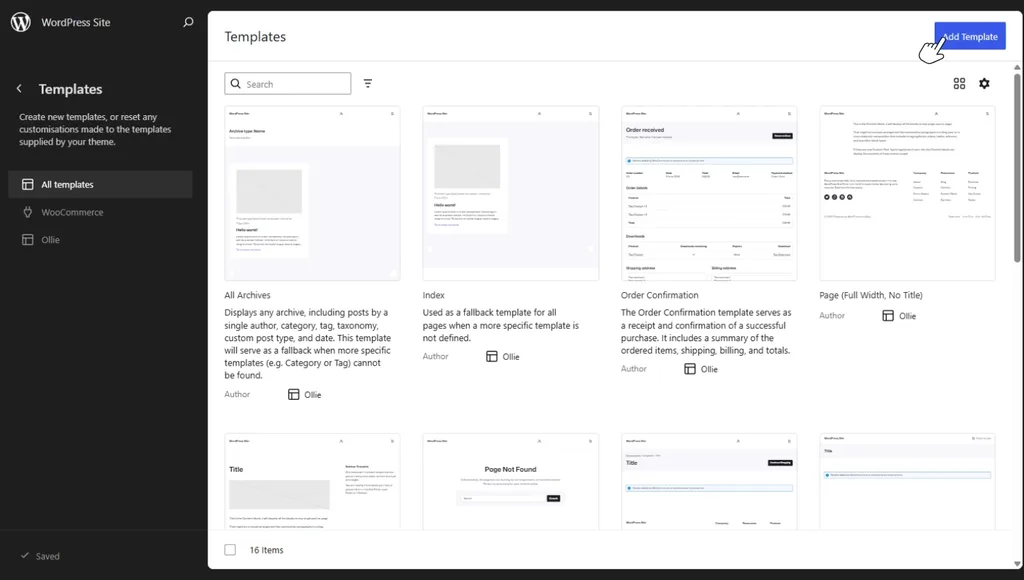
Templates are built entirely from blocks, so you’ll use the WordPress block editor to create custom ones. Once you’re done, save it and choose which page or post type it applies to.
Templates that come with the block theme Ollie
The free Ollie block theme ships with 7 full-page pattern layouts you can use as a starting point in the Site Editor.
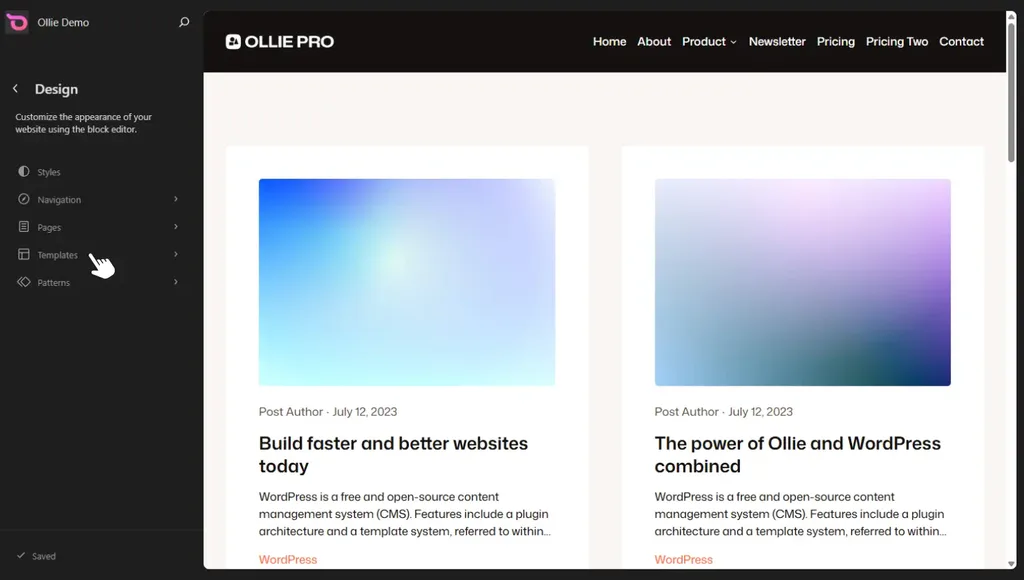
For a bigger library, Ollie Pro adds a cloud pattern library with over 30 full-page designs across several collections, including WooCommerce-ready layouts and sidebar variations. You can pick a design that’s close to what you want and adjust it, rather than starting from a blank page or a template that needs a lot of rework.
Template parts
Template parts are reusable sections that are shared across multiple templates. Headers, footers, and sidebars are the most common examples.
Like templates, when you edit a template part, the change applies across all templates using that part. But, unlike templates, you’ll access template parts under Patterns → All Template Parts and not Templates.
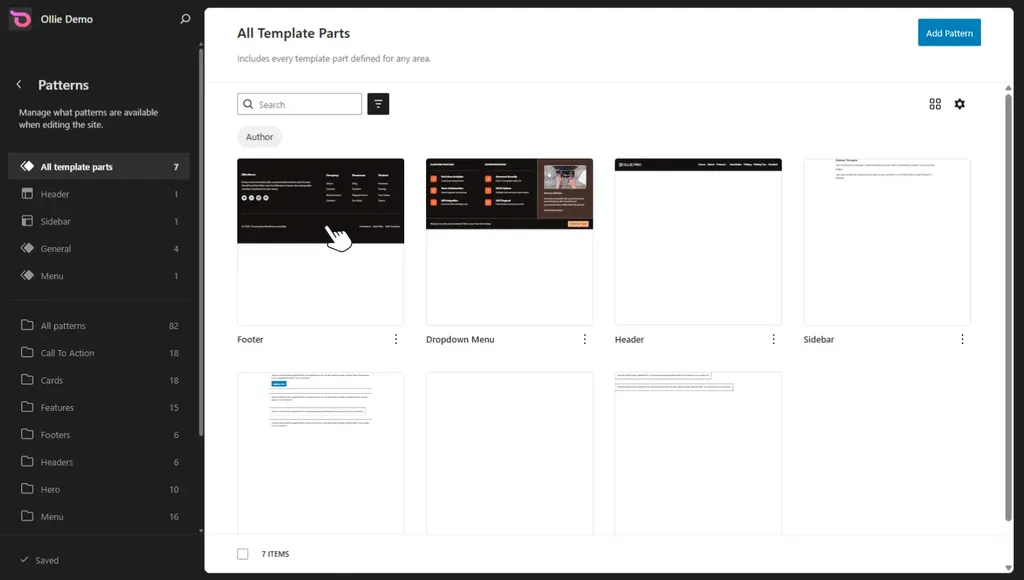
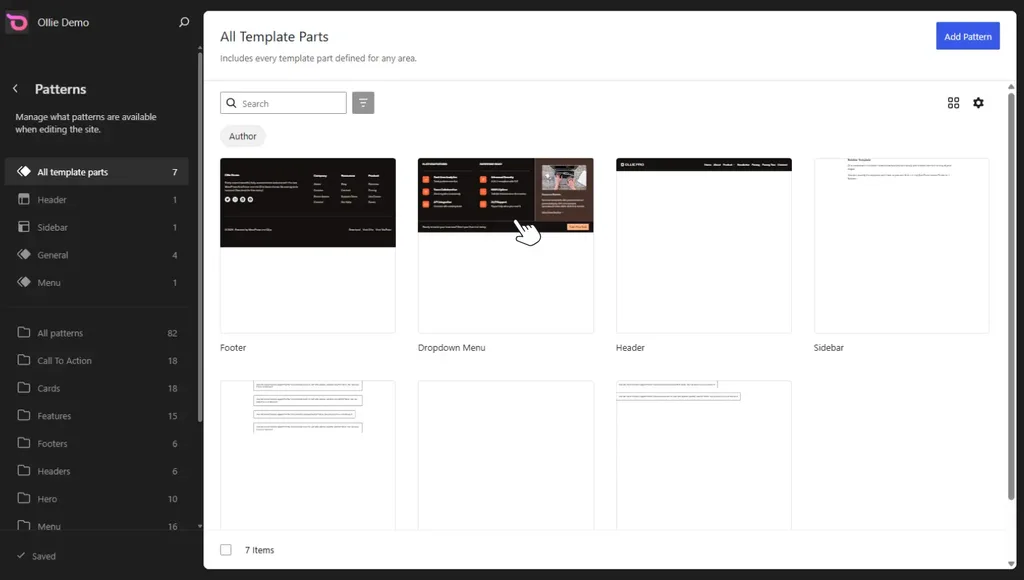
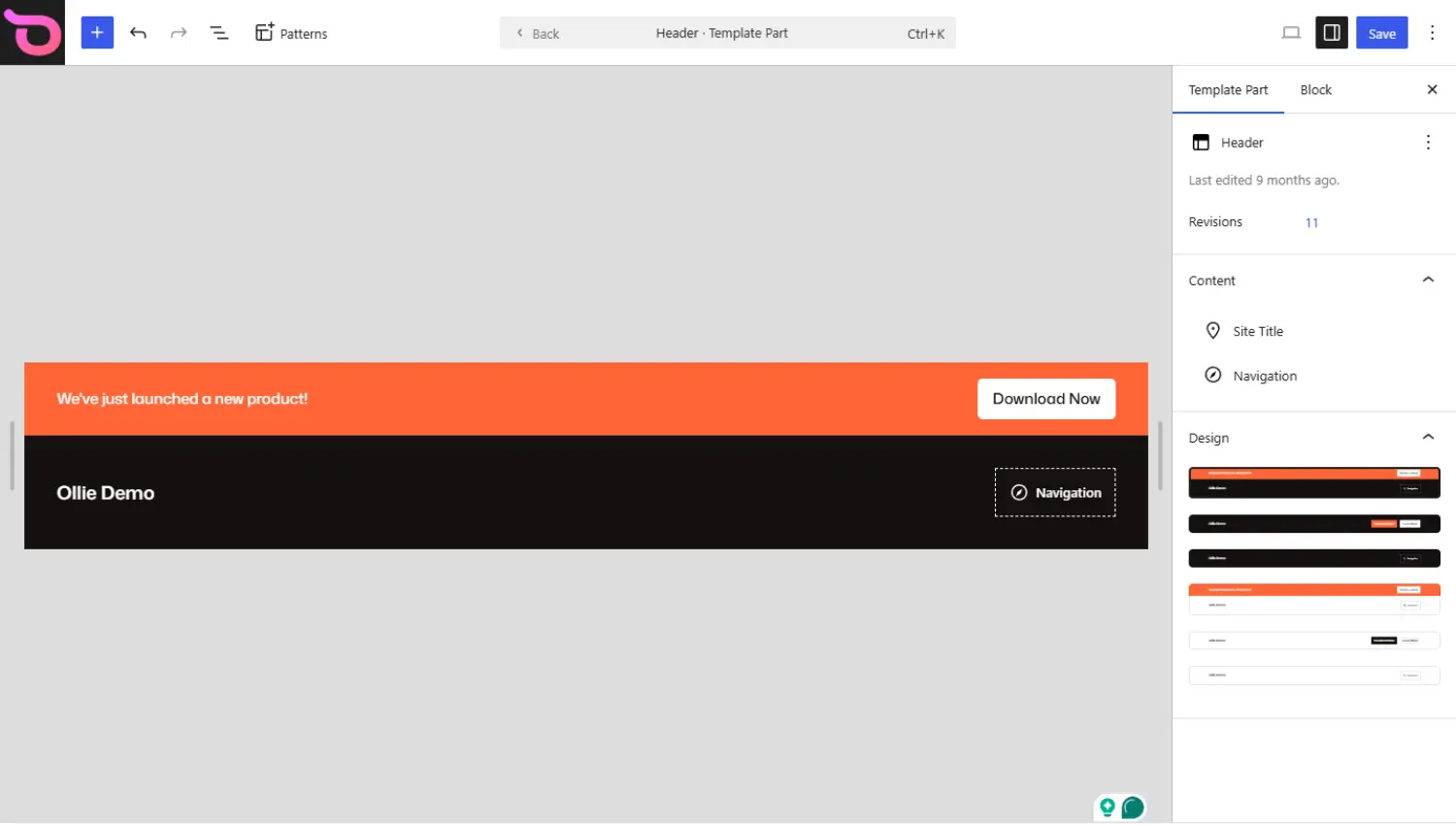
Ollie has design variations for different template parts
Ollie includes ready-made template parts for headers, footers, and other reusable layout sections, each with several design variations.
You’ll be able to pick the variation you like and start customizing it. Also, if you need to switch designs, you can do it quickly without rebuilding the template part from scratch.
Want to learn more about block templates and template parts? Check out our How to Use WordPress Block Templates and Template Parts guide.
Patterns
Block patterns are pre-designed collections of blocks that represent specific page sections, such as hero, CTA, testimonial, and FAQ. They’re basically reusable page sections. Instead of building a hero or testimonials section from scratch, you simply insert it where you want it on a page and then customize it.
WordPress ships with a few default patterns that you can access and browse inside the Site Editor. You can use these or create your own custom patterns for reuse across multiple pages.
Ollie Pro adds an extensive pattern library to your WordPress site
The Ollie Pro pattern library features hundreds of professionally designed patterns and full-page layouts to help you speed up site creation. In this library, you’ll find different patterns for different categories of websites.
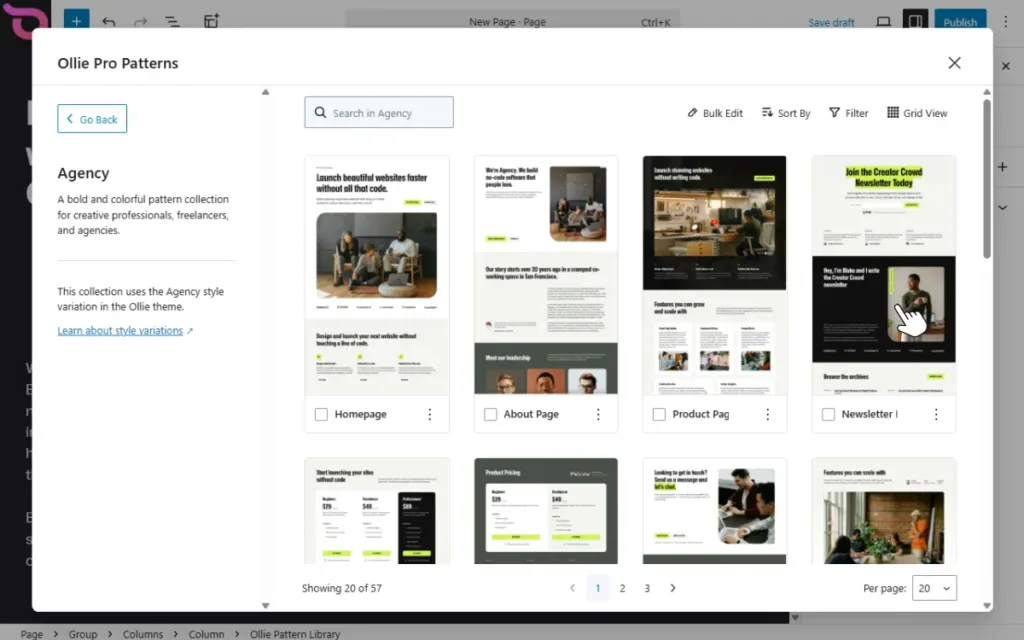
This includes patterns for Agency, eCommerce, Startup, Studio, and Creator websites. To help you use this pattern library, the Ollie Pro’s pattern library comes with:
- Advanced pattern browsing features. You can sort and filter patterns by collections, categories, and favorites to narrow your search. This way, you can find what you’re looking for with less effort.
- AI-powered design curation. This enables you to find patterns by describing what you need from Ollie AI in plain language. Once you do, Ollie AI searches the entire library and returns the best matches for you to choose.
With these features, you won’t have to spend too much time looking for patterns.
How to access and use block patterns
You can access patterns in the Site Editor under the Patterns tab. Here, you’ll see the default patterns as well as those added to your site by your block theme. With Ollie, there are two ways to access the pattern library.
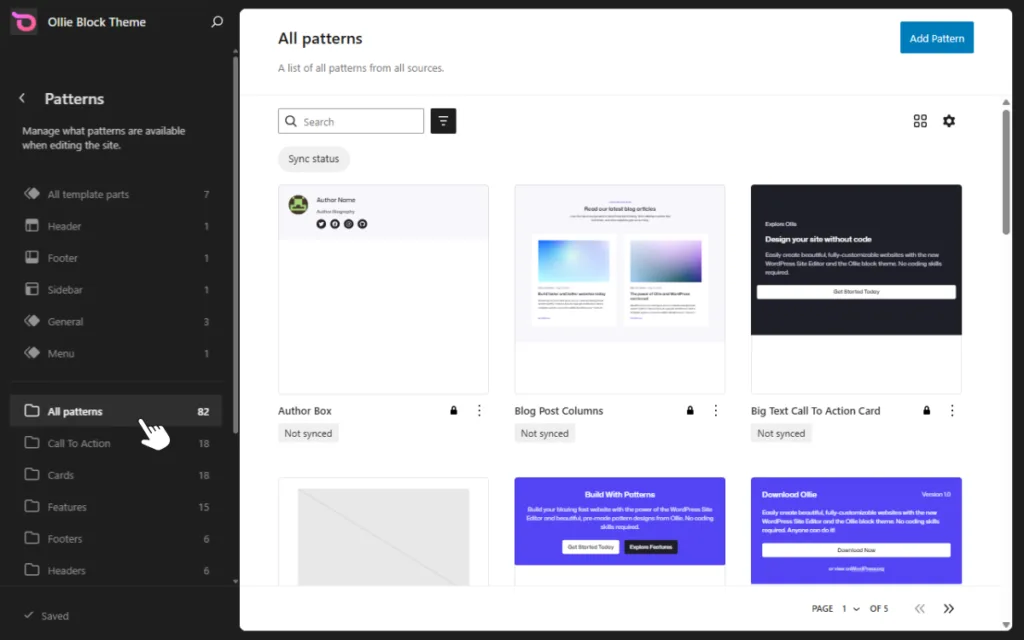
You can launch it from the Site Editor’s toolbar on any post or page or by typing ’/ollie’ anywhere in the WordPress block editor. Inserting a pattern is as simple as clicking on it and clicking the Insert Pattern button.
Global styles
With global styles, you control your website’s overall design from one place by customizing things like:
- Typography. Which font family you’ll use throughout your site.
- Colors. The colors you’ll use for elements like the default text, links, and buttons.
- Background. Whether you want to add a background image.
- General layout settings. For example, the main content area’s width, padding, and spacing between blocks.
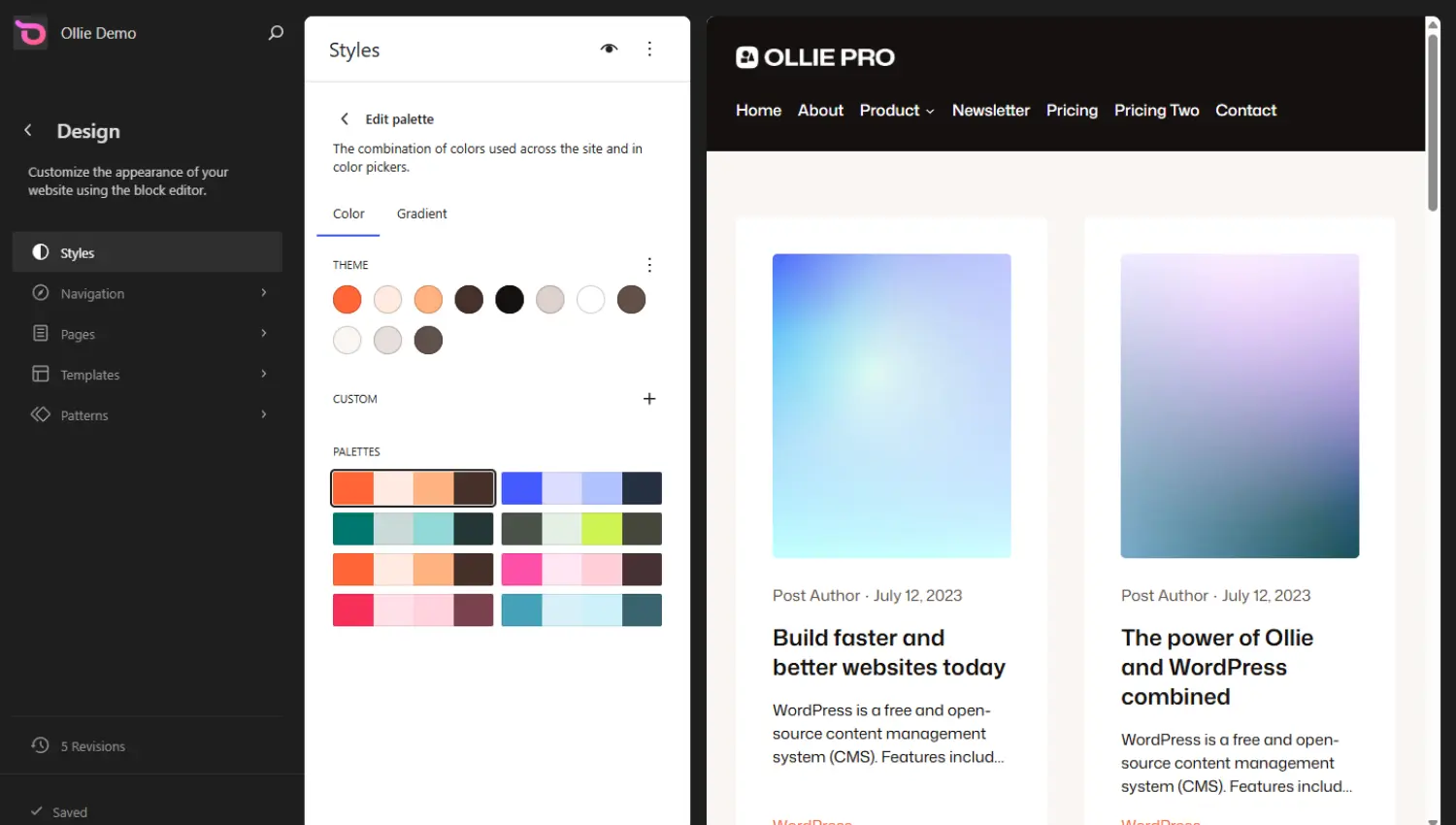
Global styles are useful because you won’t have to set all these up page by page. You do it once, and it applies site-wide. Like most of the elements we’ve covered here, you can access global styles inside the Site Editor under the Styles tab.
Note: Block settings (block-level styles) will, in most cases, override global styles for individual blocks.
Consistent, harmonious colors are among the things that make your site look professional. But getting colors right isn’t easy if you aren’t a designer. Ollie comes with a purpose-built color system that makes it easy for you to do this.
Ollie’s color palette makes it easy to set colors in your site
Ollie’s color palette consists of carefully selected color pairings organized into a system for your site’s colors. This allows you to have a wide range of colors that work harmoniously on your site.
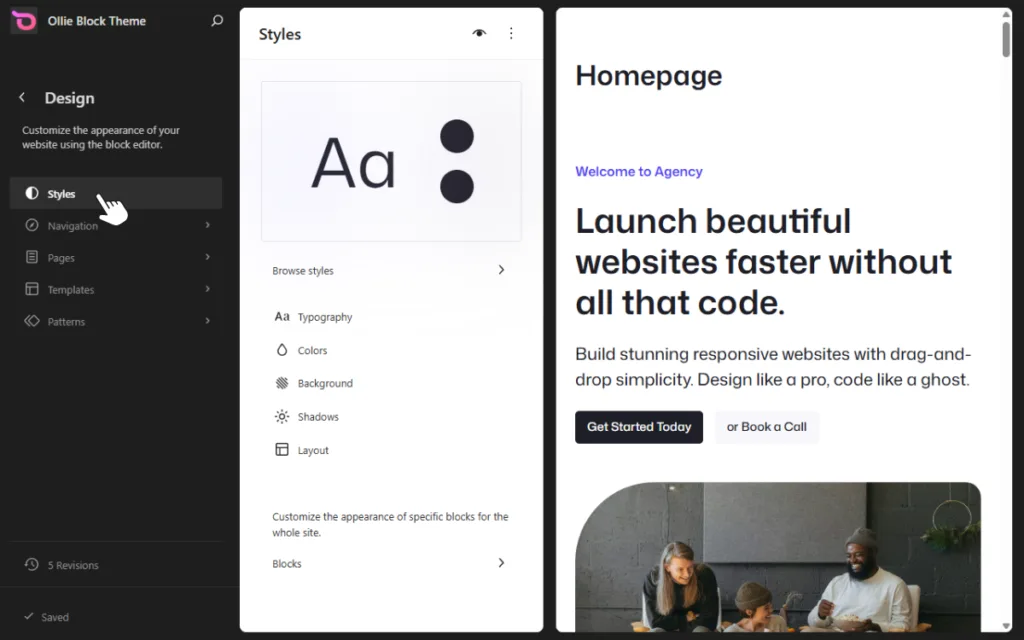
The color system has 11 slots:
- Four slots for the brand’s two main colors, each accompanied by an accent color.
- Seven other slots for neutral colors for things like page backgrounds, body text, and borders.
Although you get pre-selected color pairings, you’re free to edit them to suit your brand. Ollie also ships with several pre-designed style variations, so you can switch your site’s entire color palette in one click while keeping each color’s role consistent.
Navigation menus
The Site Editor has a navigation section for creating and managing menus. You can access your menus from Appearance → Editor → Navigation, or as a block on a page you’re editing. You can use this block to create new menus and display them where you want on the page.
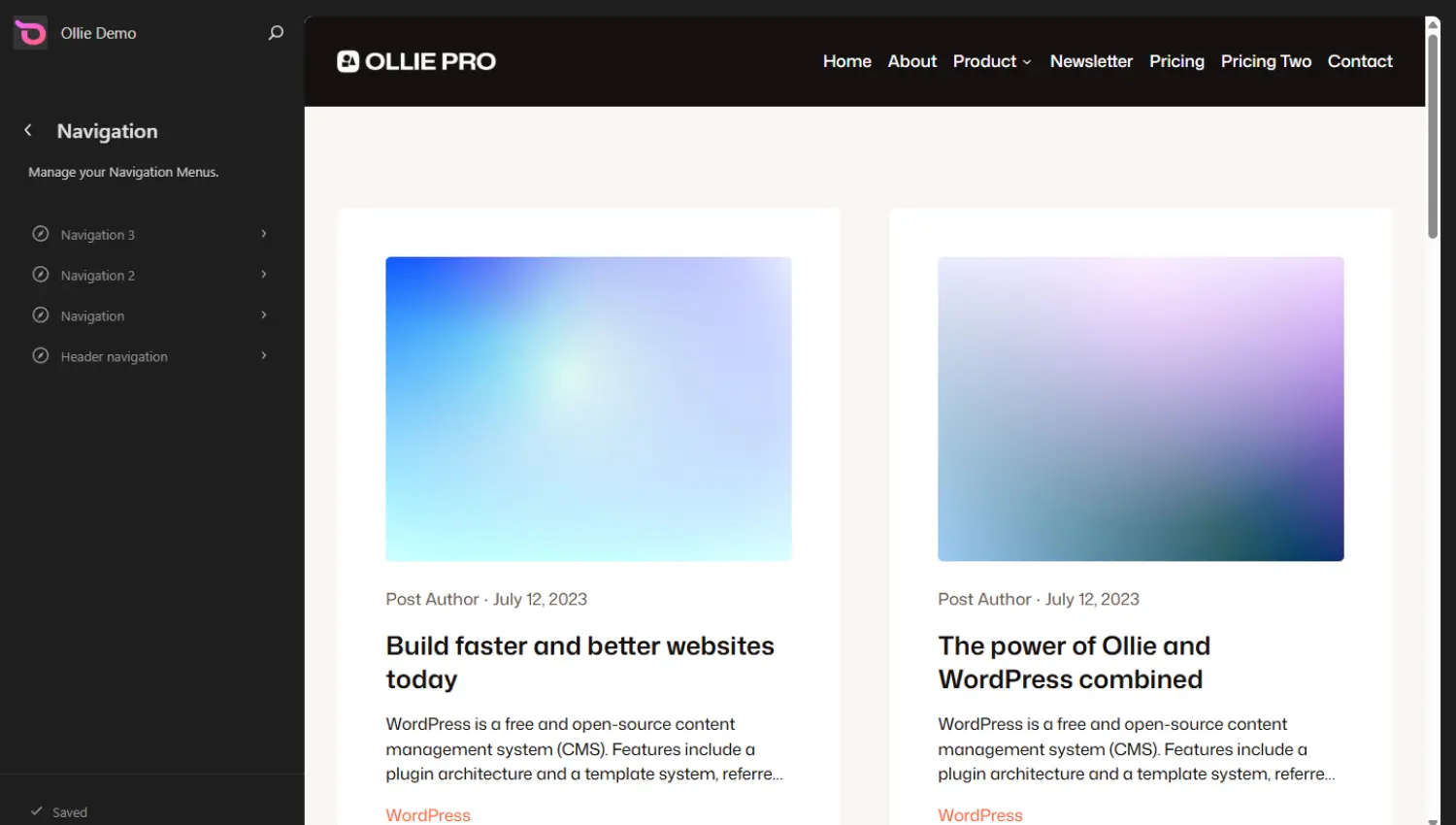
The navigation block has settings for:
- Adding pages or posts to your menus.
- Rearranging menu items to reorder them.
- Dragging and dropping items to nest them into dropdown menus.
Want more from your menus? Ollie Menu Designer is a free plugin that extends the navigation block with mega menus, richer dropdown designs, and enhanced mobile menus, all built with native WordPress blocks. It works with any block theme.
If you want an even bigger head start, Ollie Pro adds a library of hundreds of pre-designed menu templates and patterns you can drop in and customize, on top of what the free Menu Designer plugin already gives you.
Pages
This section of the Site Editor lists all pages in the site and allows you to edit them. You’ll access all pages here, including those you’ve published, those scheduled for publication, drafts, and private pages.
Keep in mind that the edits you make here will only apply to the page you’re editing. For example, if you’re editing the home page, your changes will apply only to this page, not to any other page.
Fonts
WordPress includes a dedicated fonts section for managing your fonts, called the Font Library. You can access it in the Site Editor under Styles → Typography → Fonts.
From this screen, you’ll be able to:
- See your font library.
- Install fonts from Google Fonts.
- Upload your own fonts.
To add to this, Ollie ships with 9 typography presets, each pairing fonts from the Mona Sans family with a specific set of sizes, line heights, and scale.
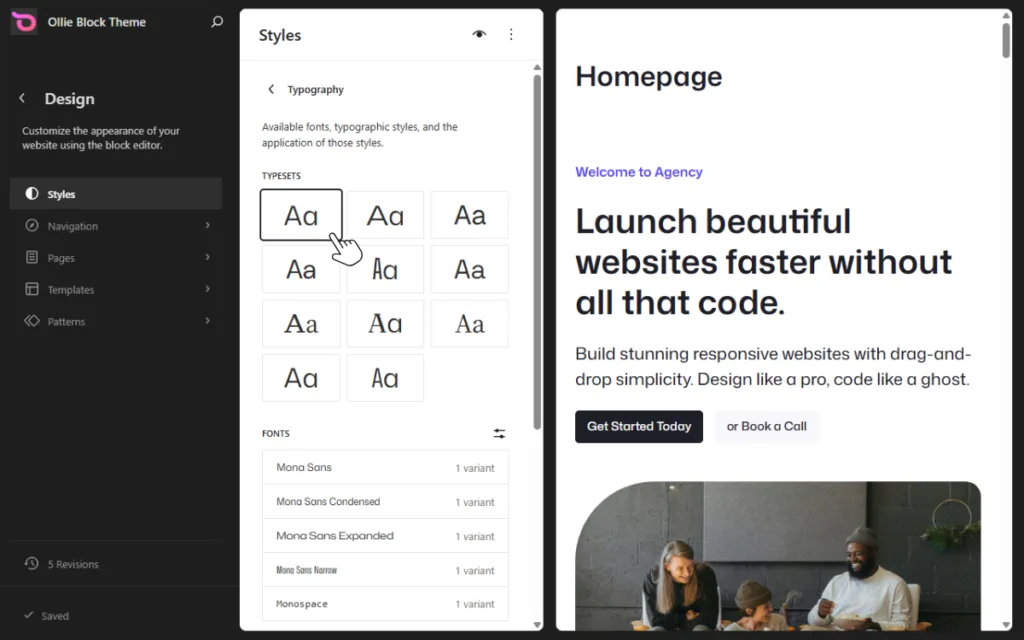
These presets allow you to set:
- Font families for different types of text (headings and body text).
- Font sizes.
- Line heights.
- Typography scales.
Once you select a preset, its settings apply consistently across your site. This way, it’s not just the font family that’s consistent, but the sizes, scales, line height, and so on.
Now, let’s move on to the Site Editor’s toolbar and see what you can use it for.
The WordPress site editor toolbar
This is the horizontal toolbar at the top of the Site Editor when editing a page, post, or template.
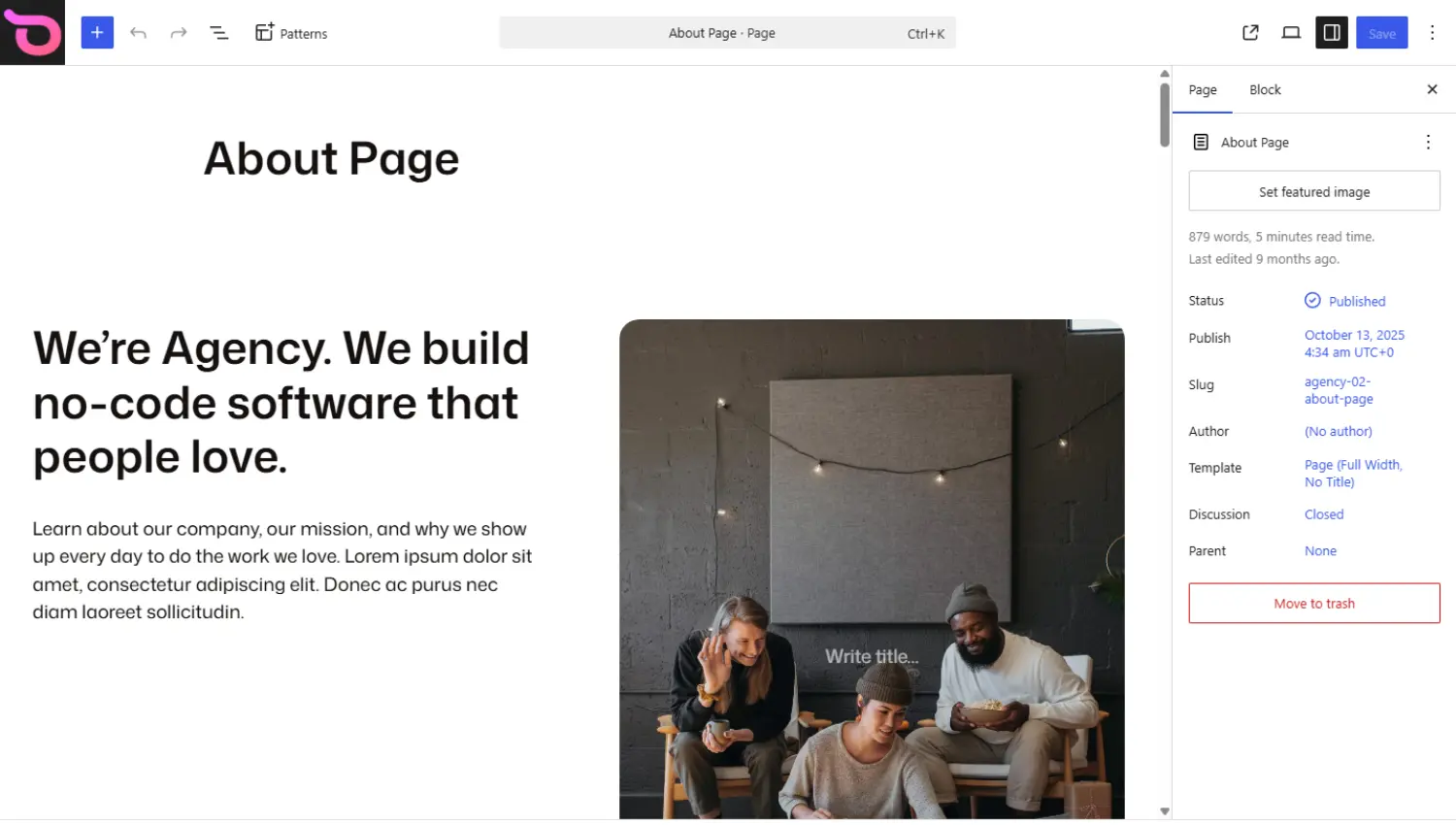
It gives you quick access to several tools, such as:
- The ‘W’ logo (or your site logo) on the far left, which you can click to return to the dashboard or switch sections of the Site Editor.
- A block inserter button that allows you to access all blocks.
- The undo and redo buttons, which undo and redo changes, respectively.
- A list view button to see all the blocks on the page and navigate between them.
- The command palette, which lets you search for commands and settings right from the editor.
- A view page button that allows you to quickly see what the page looks like, live on your site.
- A view button that allows you to preview your unpublished changes in desktop, tablet, or mobile view.
- The settings button, which opens up the right sidebar and allows you to customize both page and block settings.
- The save button, to save your changes.
- An options button that lets you access Spotlight mode, the code editor, and several other settings.
With Ollie installed, you can access the pattern library from this toolbar. The tools provided here are the ones you’ll use most when designing your site.
These are the elements you’ll use when building your site with the Site Editor. If you’re used to page builders, all of this will, obviously, be new to you. To make it easier, let’s compare page builders and the Site Editor to show what’s different when you use the Site Editor.
WordPress site editor vs page builder: what is the difference?
Page builders like Elementor and Divi are plugins that add a visual design layer on top of a classic theme. They let you visually design your pages using drag and drop. But how does this differ from working in the Site Editor? Here’s how they compare.
| WordPress site editor | Page builder (Elementor, Divi, etc.) | |
|---|---|---|
| Primary purpose | To build and customize the entire WordPress site using native blocks. | To build visually designed pages and, in many cases, entire websites. |
| Performance | Often lightweight because it uses WordPress core features. | Can add page load weight depending on how many features are active. |
| Design flexibility | Depends on the block theme’s capabilities, but the default setup is catching up. | Often more flexible for complex custom designs. |
| Theme customization | You can edit templates, template parts, global styles, navigation, and patterns. | Many builders allow you to edit the theme via a theme builder. |
| Ease of use | Familiar to WordPress users, but it has a learning curve around templates and site-wide editing. | Often designed for drag-and-drop ease with extensive visual controls. |
| Portability | Generally easier to switch between compatible block themes. Although theme-specific patterns may not carry over. | Moving away from a page builder may require redesigning pages. |
| Best suited for | Users who want to embrace WordPress’s native blocks system. | Users who need visual design tools not yet available in the Site Editor. |
Verdict: Page builders have more mature drag-and-drop interfaces in some areas, but the Site Editor has caught up significantly. It continues to improve with each release.
Start building with the WordPress site editor
The Site Editor gives you visual control over every part of your website: templates, template parts, navigation, pages, typography, and global styles. Once you know how these pieces fit together, you can put together a whole website without touching code or reaching for a page builder.
The free Ollie WordPress block theme makes this easier. It comes with professionally designed templates, 50+ patterns, and a proper typography and color system already worked out for you, all for free.
If you want more, Ollie Pro is a separate paid plugin on top of the free theme. It gives you a much bigger pattern library, a setup wizard, starter sites, and extensions for things like menus and animations.
Download Ollie free and get started, or get Ollie Pro if you want the full library and extensions from the start.
