
Want to know which updates in WordPress 7.1 are worth your attention as an Ollie user? This article will walk you through each one.
WordPress 7.1 is the second major release in 2026, after 7.0. It introduces several updates, including some of the most requested improvements and changes that didn’t make the cut in WordPress 7.0.
In this guide, we’ll only cover the updates that make a difference if you’re building sites with Ollie, which is quite a few.
What is WordPress 7.1?
Released on August 19, 2026, during WordCamp US in Phoenix, WordPress 7.1 is the latest major version of WordPress. It brings together features developed across Gutenberg plugin versions 22.7 through 23.6, with responsive styling as the headline feature. WordPress 7.1 also introduces new core blocks, enhanced design tools, a polished editing experience, and many other features.
If you’d like to explore them all, be sure to check out the WordPress 7.1 release announcement (link it once this is out). For this article, we’ll focus only on the changes that affect how you build your sites with Ollie.
The WordPress 7.1 updates that benefit Ollie users
WordPress 7.1 ships with several features that directly affect how you build sites with the Ollie theme and Ollie Pro.
A quick note on Ollie: Ollie has two separate products:
- The Ollie theme. A free block theme available on WordPress.org.
- Ollie Pro. A paid plugin that adds a pattern library, starter sites, and extensions such as Responsive Controls, a Class Manager, Keyboard Shortcuts, etc. It needs the Ollie theme to work.
Whether you’re using the Ollie theme or Ollie Pro, here are the WordPress 7.1 updates that you should know about.
Responsive styling is now built into WordPress
Responsive styling is now built into the block editor as of WordPress 7.1. This is the headline feature of this release because it is one of the most asked-for capabilities in the block editor.
“Responsive styling for blocks has been a long-requested feature, and 7.1 aims to be a big step towards more support.”
– Anne McCarthy, release lead for WordPress 7.1
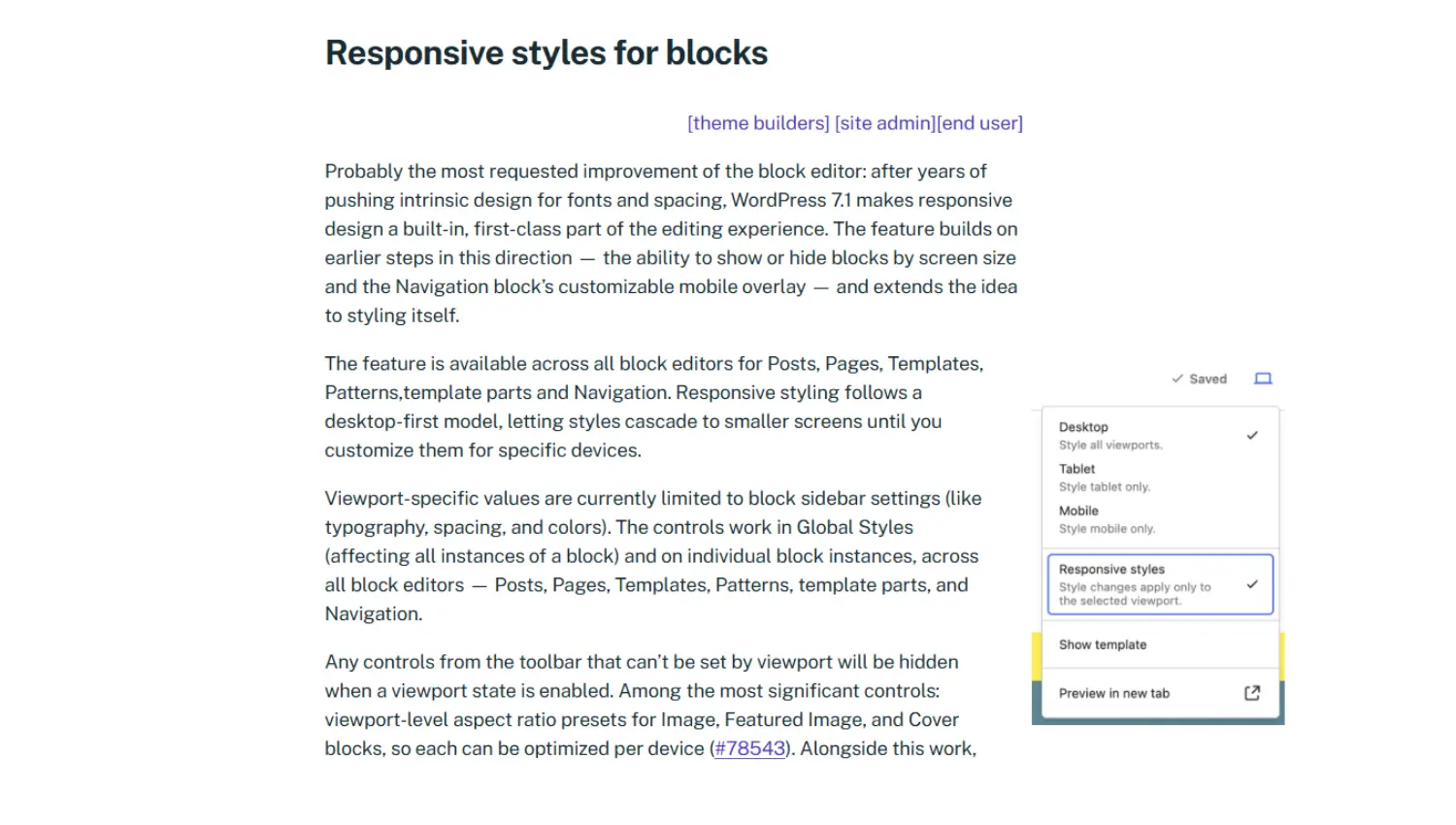
Instead of creating one design that scales automatically across every device, you can now customize how blocks look on desktop, tablet, and mobile individually. You can do this from the blocks sidebar without writing any custom CSS at all.
This means you can apply responsive styles, for example, different font sizes for your headings for mobile and desktop viewports (screens). Responsive styling works for spacing, colors, and more. For example, you can set a specific background color for mobile users and a different one for tablets.
How responsive styling works in WordPress 7.1
The styles you set for the desktop view are the default. Tablet and mobile viewports inherit these styles, but you can set specific styles for each to override the desktop styles. The desktop styles will remain intact in the desktop viewport.
The responsive styles control is under the device preview button in the Site Editor. Previously, you could only use this to preview how your site would look across different screen sizes. Now you can use the Responsive editing button to edit styles that apply only to a specific screen size.
This works across posts, pages, templates, template parts, patterns, and navigation for global styles and individual blocks.
Here’s our video walking you through how this works:
Viewport breakpoint customization
WordPress 7.1 also lets you define custom breakpoints in the theme.json file. This allows theme developers (and other advanced users) to specify the breakpoints for which responsive styling will apply.
You don’t have to go with the sizes WordPress sets for mobile, desktop, and tablet by default. You can set breakpoints that better match your design system.
How this works for Ollie users
If you’re using the free Ollie theme, you can start using native responsive styling immediately without installing a plugin. The Ollie theme is built for the Site Editor, and anything WordPress adds to it is available for you to use.
If you’re using Ollie Pro, the new responsive styling feature complements the Responsive Controls extension. You can use the default responsive styling to set the typography or colors that should apply across different screen sizes.
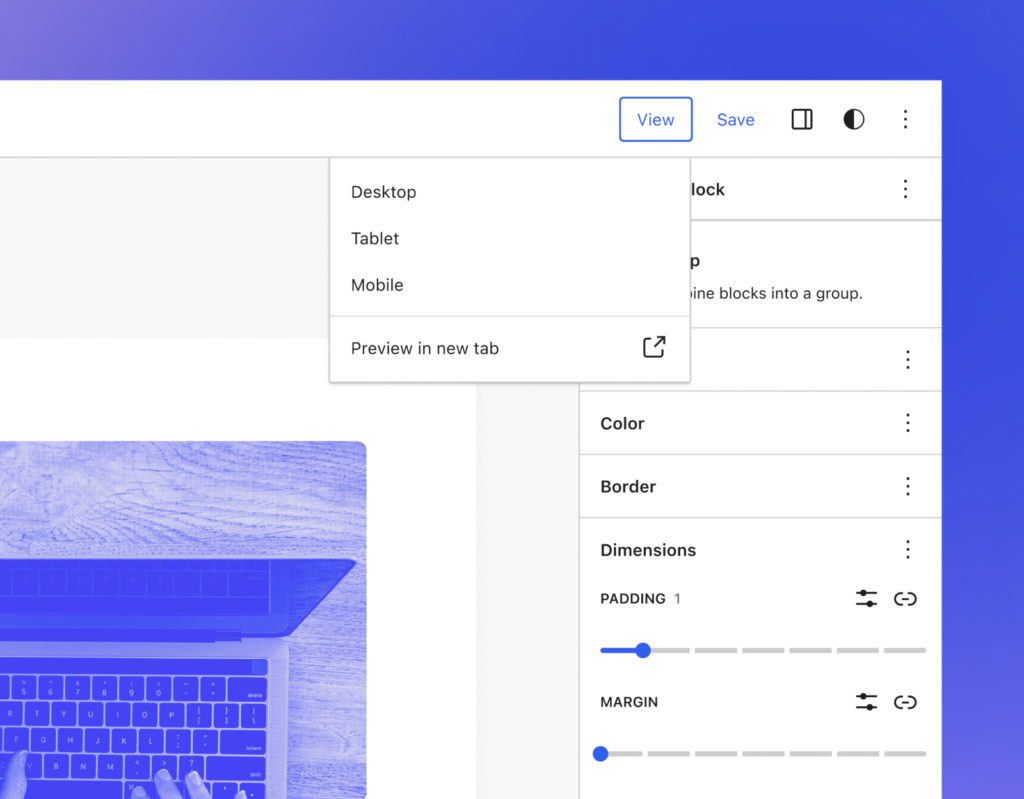
Then use the Responsive Controls in Ollie Pro to choose what happens to your column or grid layouts across desktop, tablet, and mobile.
For example:
- How your columns will stack on mobile or tablet.
- How the default WordPress grid behaves across these screen sizes.
You can also choose how you’ll set your custom viewport breakpoints. Ollie lets you do this visually from the blocks sidebar. With WordPress adding custom viewport breakpoints, you can choose to do this in the themes.json file.
Keep in mind that your AI agents (connected via the Ollie MCP) will be able to work with the new responsive tooling too.
Hover and focus state styling without CSS
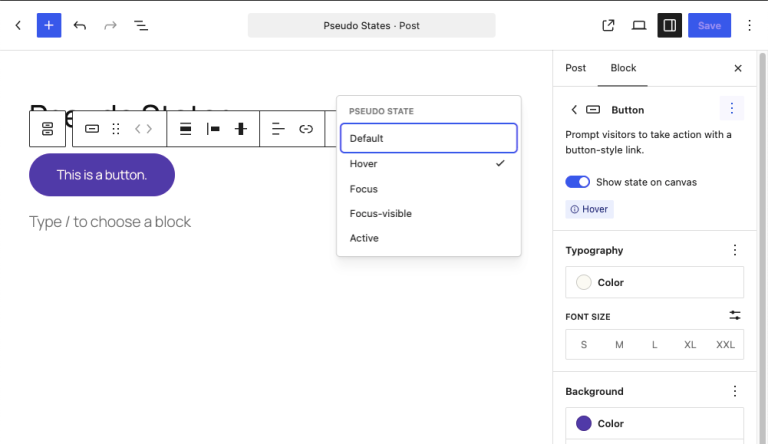
WordPress 7.1 brings hover, focus, and active state styling into the block editor. You can style these interactive states without writing custom CSS for two blocks: Button and Navigation Link.
For instance, you can set what happens when a user hovers over your buttons or clicks an input field.
Extend interactive state styling with Ollie Pro’s Class Manager
Ollie theme users benefit the most from this new addition. You can add styles for these interactive states when using the Button and Navigation Link blocks without adding a plugin. Keep in mind, you can only do it for the two blocks.
This new feature covers the most common hover and focus styling needs. But most of the time, you’re going to need custom styles that go beyond what the new feature can do.
Ollie Pro’s Class Manager extends this by giving you an intuitive interface for creating and managing pseudo-state classes (hover, focus, active, and disabled).
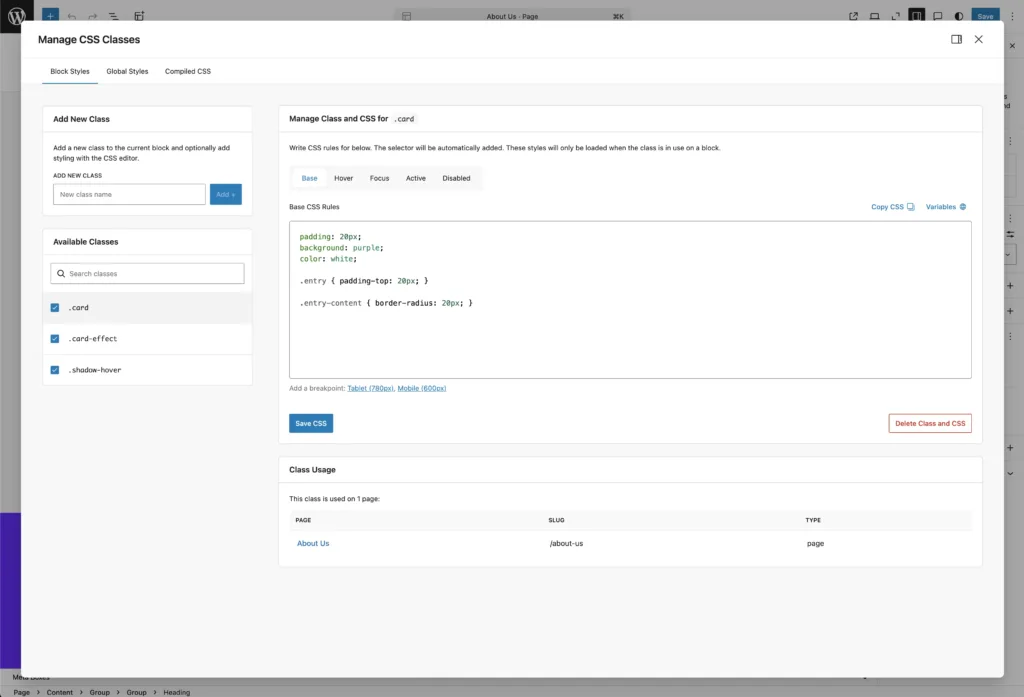
From this interface, you can:
- Create, edit, or delete pseudo-state classes.
- Add CSS for different interactive states (hover, active, etc).
- Search for available classes.
- See where each class is applied in your site.
So WordPress 7.1 allows you to add pseudo-state styling for the Buttons and Navigation Link blocks. And Ollie Pro’s Class Manager provides you with an interface that makes it easy to create and manage pseudo-classes.
Two new blocks: Tabs and Playlist
The core block library has expanded with two new additions: the Tabs and Playlist blocks.
Tabs block
This block lets you organize related content into separate tabbed panels. Your users can switch between different pieces of information by simply clicking a tab. The page doesn’t refresh to show this.
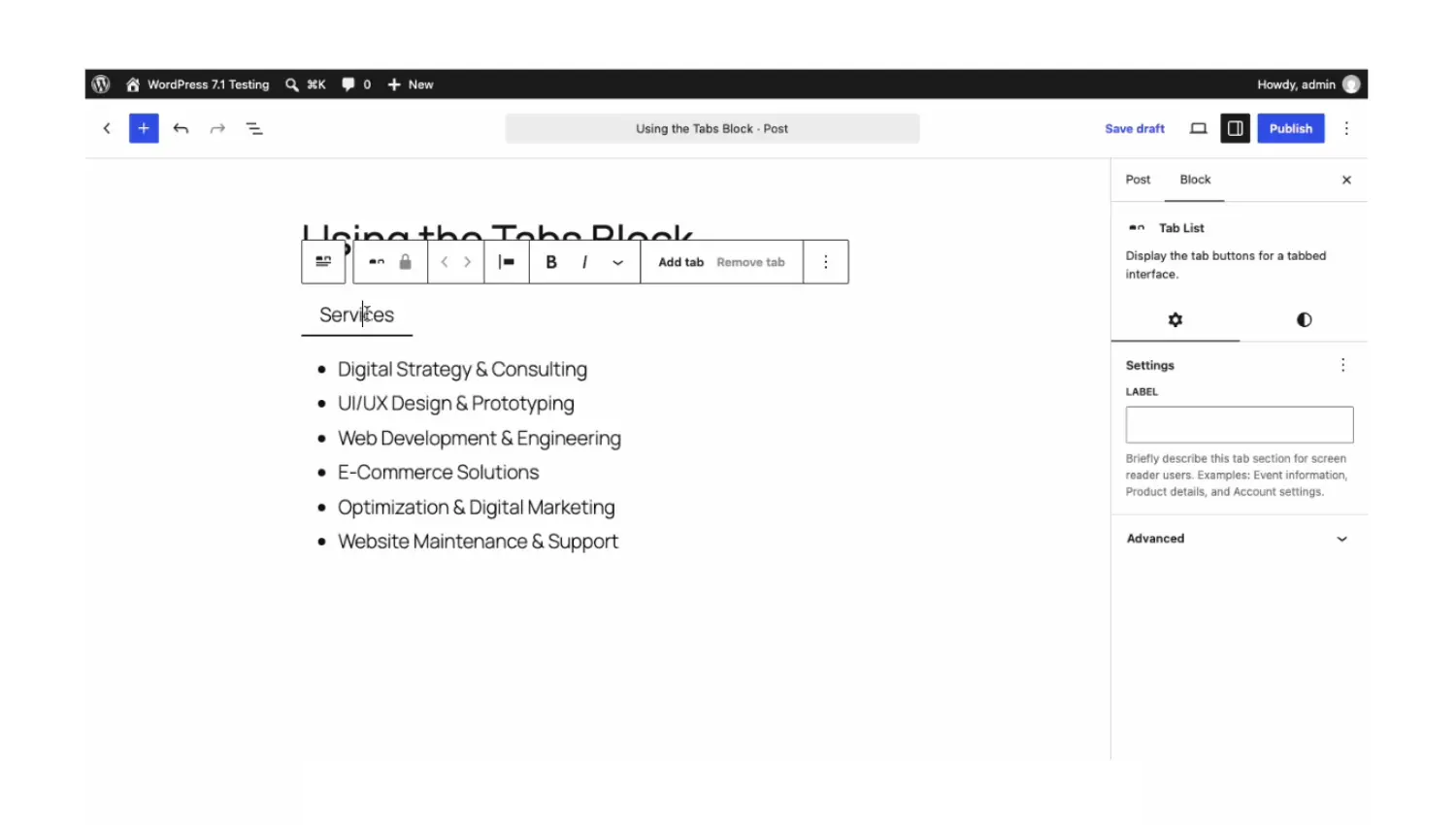
You can style each tab button by editing the typography, colors, spacing, etc., so that it matches your site’s design.
This block is useful for sections such as FAQs, product features, or when you want to show different prices for monthly and yearly plans.
Playlist block
The Playlist block allows you to publish audio playlists directly on your WordPress site. If you have podcast episodes, music, or any other audio content on your site, you’ll find this block very useful.
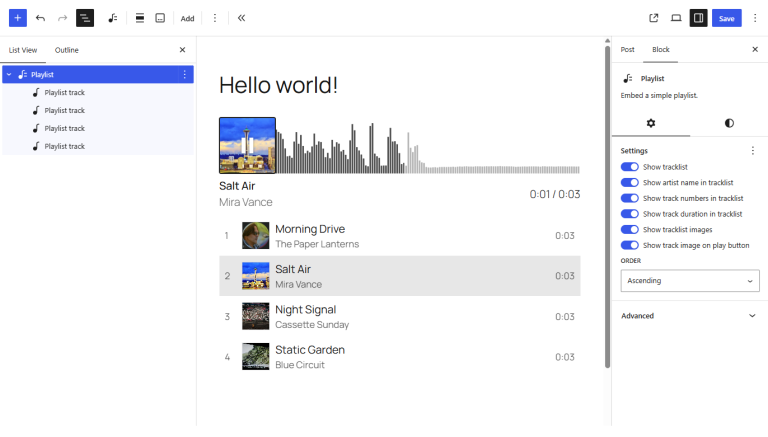
This block displays tracks in the playlist using a customizable waveform visualization. You can change the background color and typography to suit your site’s design.
Each track in the playlist also has metadata like artist name, track number, track length, and artwork. You can choose to show or hide this information using toggle switches in the Block Editor.
Background gradients for more blocks
More blocks now support layering a gradient on top of a background image without one overwriting the other. This means you can add a translucent color that washes over the background image, and you can do it without custom CSS.
In WordPress 7.1, this applies to the following blocks:
- Group.
- Verse.
- Accordion.
- Pullquote.
- Post Content.
- Quote.
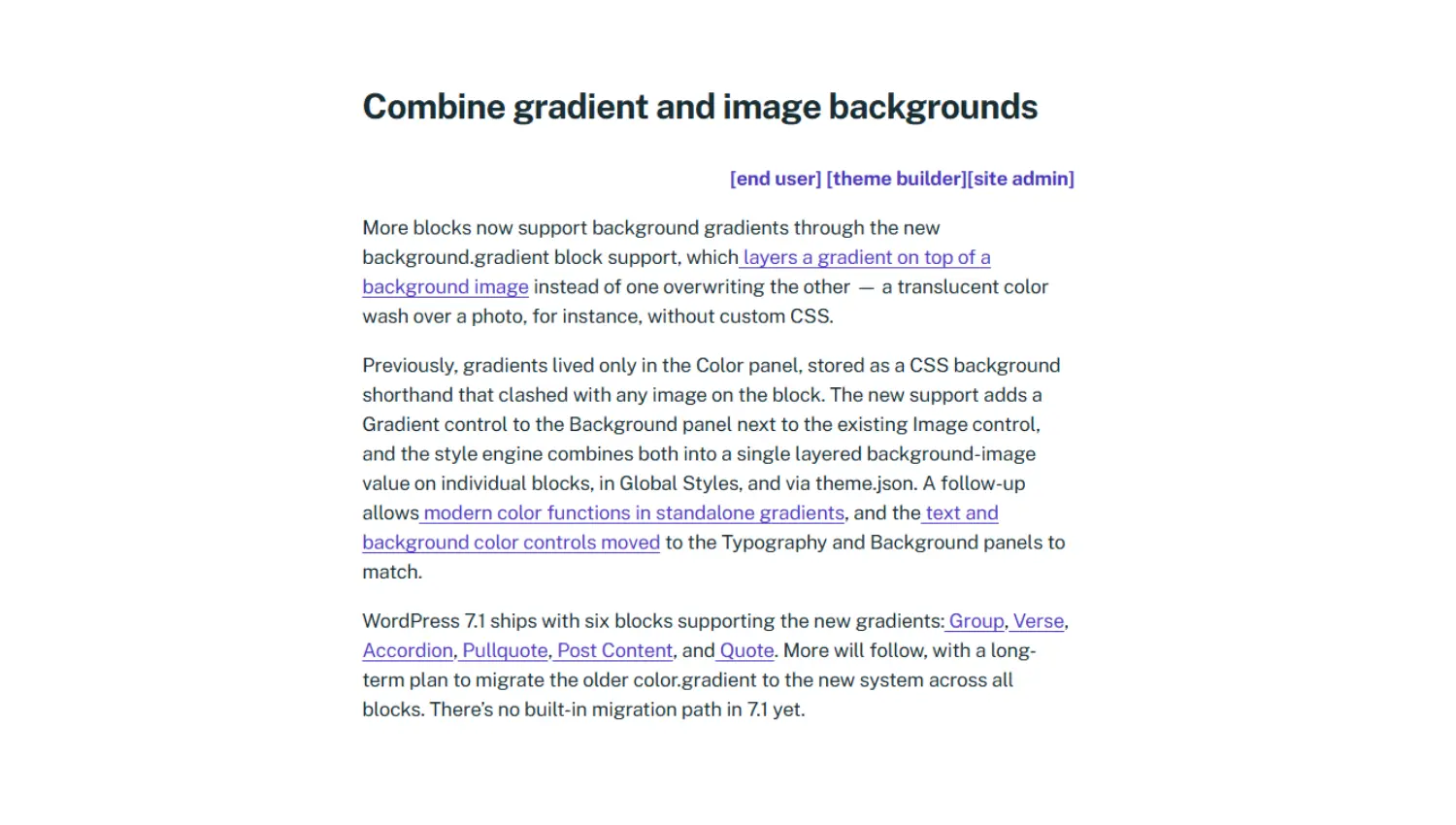
Previously, gradients were in the Color panel only and would clash with any image in the block. Now, you’ll see a Gradient control in the Background panel next to the Image control.
With this feature, you’ll have more creative freedom to design visually engaging sections using native WordPress tools.
How Ollie supports this new feature
Ollie’s color palette is made up of color pairings consisting of a main color and an accent color. This makes it easy to choose which colors to use for the gradient and text in the sections you design using this new feature. For example, you can have the main color as the gradient in the background and then use the accent color for text in the foreground. Or the other way around.
This will help you have consistent colors across your site as you design these visually engaging sections.
The Admin bar now follows you everywhere (Omnibar/persistent toolbar)
The WordPress admin bar now remains visible by default when you’re using the Block Editor. Previously, when you opened the block editor, the admin bar at the top would be hidden. You would have the W button to return to the WordPress dashboard.
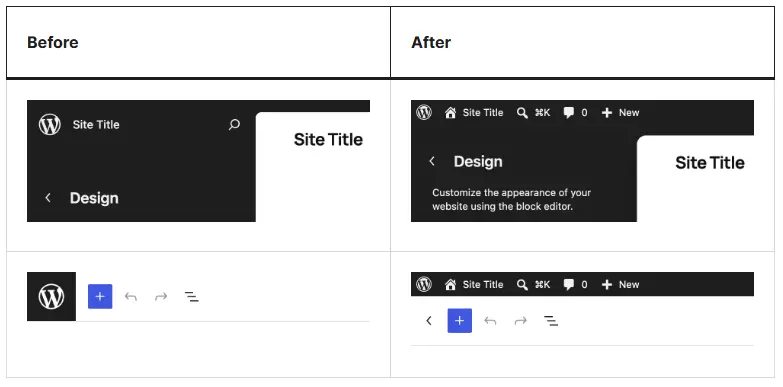
Now this admin bar follows you everywhere, including after you open the Block Editor. Along with this, the admin bar has received a design refresh where:
- It includes your site title, the W button, and the command palette shortcut.
- Your site’s icon replaces the home icon.
- Your profile avatar is circular.
These subtle changes make it easier to navigate your site regardless of where you are.
The Icon block gets third-party collection support
The Icon block was introduced in WordPress 7.0. This block adds native SVG icon support and an icon library to WordPress. During the 7.0 announcement, WordPress made it clear that the initial release didn’t allow registering third-party icon collections. This was planned for a future release in 7.1.
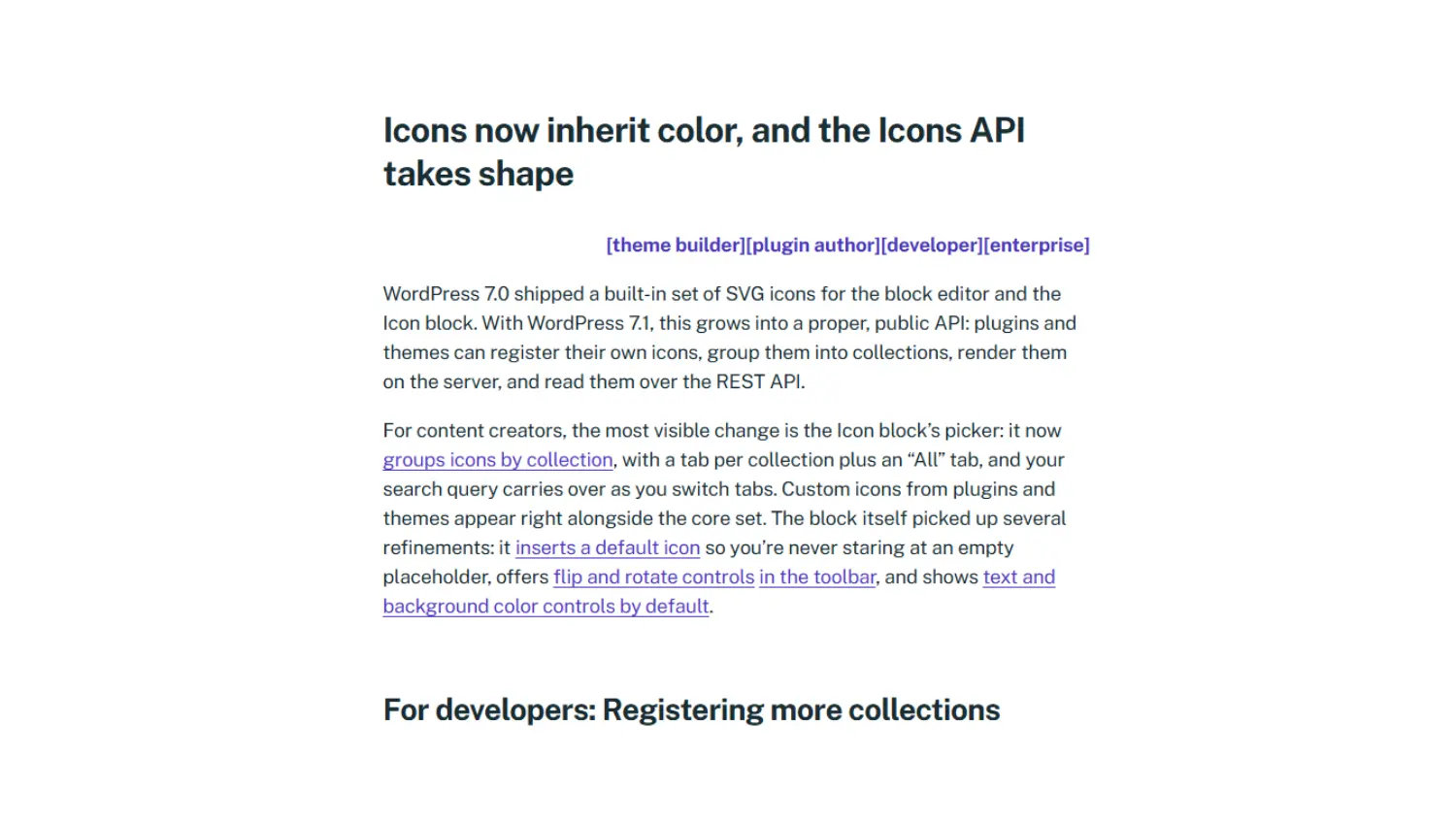
WordPress 7.1 now supports third-party icon collections. It opens the SVG icon API to third parties. Themes and plugins can now register their own icon libraries, which appear alongside the core icons in the block picker.
This means that if you don’t find the icons you want in the core library, you can use those from your theme or plugin.
The Icon block itself has also received some improvements:
- It groups icons by collection, making them easier to find.
- When you add this block, it inserts a default icon instead of an empty placeholder.
Media editing gets a proper modal
WordPress 7.1 ships with a new media editor modal that replaces the existing inline cropping tool in the Block Editor. You can now open images in a dedicated workspace where common editing tools are grouped in one place.
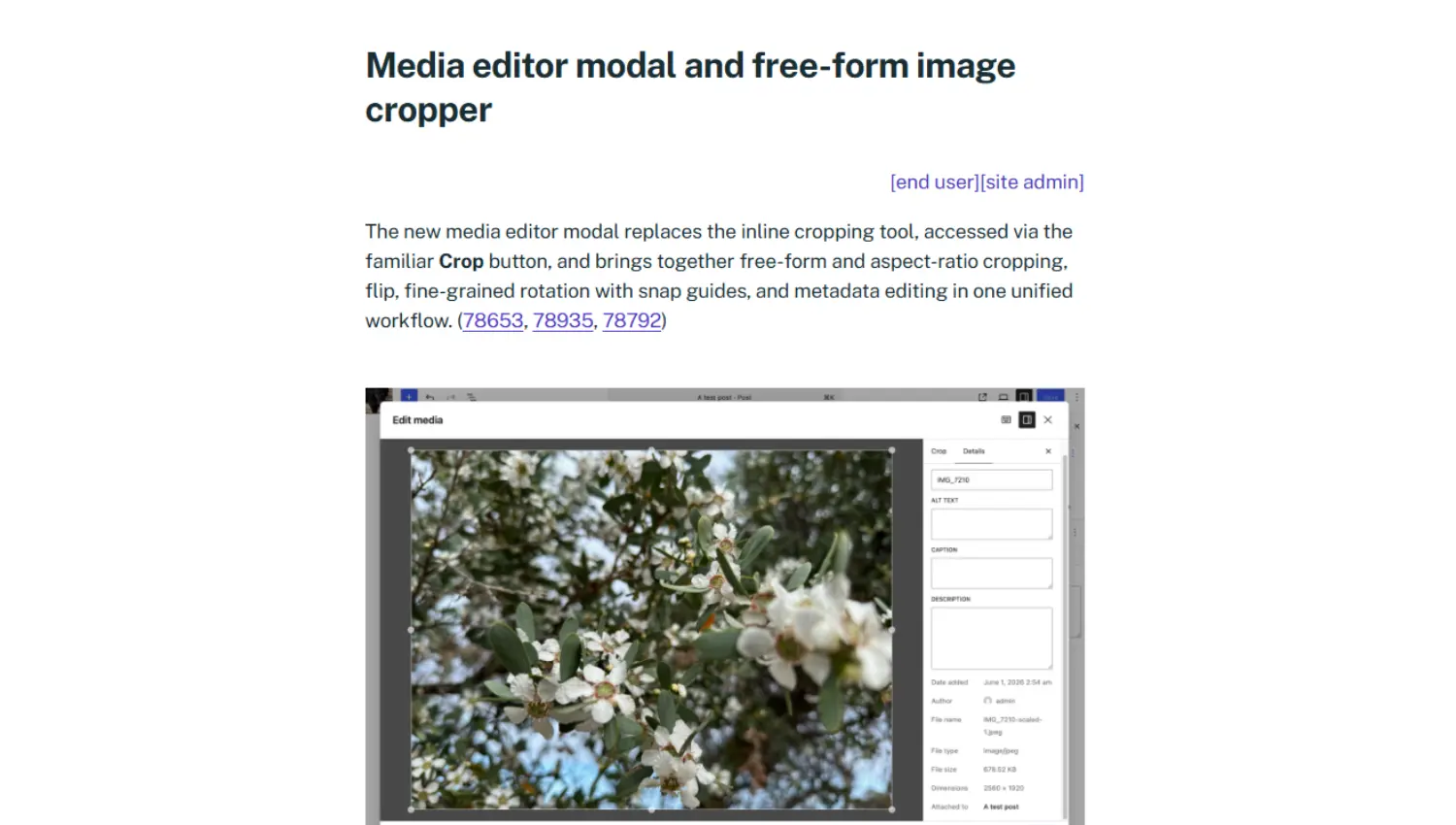
This modal supports media editing actions such as:
- Freeform cropping.
- Rotation.
- Flipping.
- Metadata editing.
With these features in native WordPress, you don’t have to turn to external tools for basic image editing. Whether you want to resize a product photo or crop a banner for a landing page, you can now do this in native WordPress.
That’s one less interruption in your workflow.
Improved client-side media processing
The browser handles image processing when you upload an image in the Block Editor. Instead of your server generating different image sizes, that work now happens in the browser using a WebAssembly image library.
Because of this, server-side image processing is reduced drastically, which is great if you’re on a resource-constrained server.
On top of that, this update supports more modern image formats. These include HEIC (the default format for iPhone photos), UltraHDR, AVIF, and WebP.
In short, this update means faster, more reliable uploads, broader format support, and better HDR support.
Pattern editing refinements
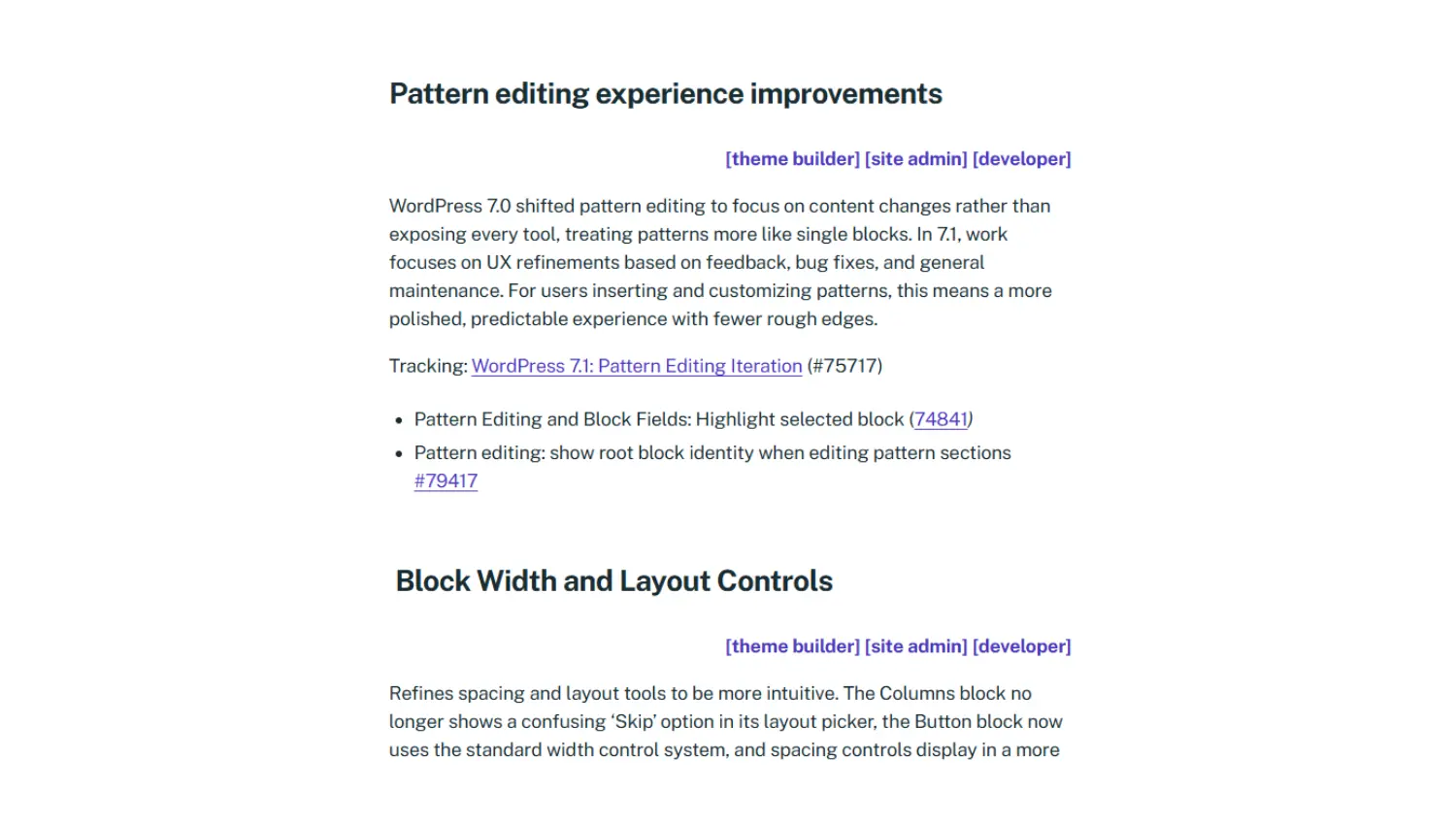
In 7.0, WordPress made pattern edits default to content-only. If you click to edit a pattern, WordPress only shows content editing controls by default rather than exposing every tool available for every block in a pattern.
7.1’s pattern editing updates focus on refining the user experience based on feedback, fixing bugs, and general maintenance. A more noticeable change is that the currently selected block is now clearly highlighted when you’re editing a pattern.
How this impacts Ollie users
If you use Ollie, this update will improve your experience as you edit your sites. First of all, the bug fixes and user experience refinements free you from some of the frustrations you would face otherwise. The Site Editor will feel more intuitive and predictable as you use it to edit patterns; a huge benefit for both Ollie block theme and Ollie Pro users.
Secondly, as an Ollie Pro user, you’ll have a better experience editing complex patterns from the Ollie Pro pattern library. WordPress will highlight the block you’re currently editing, making it easier to make the right edits when working with complex patterns.
Navigation block improvements
The Navigation block has received updates that give you more flexibility over what you can add to your menus and where you can edit them.
You can now nest the Login/Logout block inside submenus. As a result, you can tuck account actions into a dropdown instead of displaying them prominently in the main navigation.
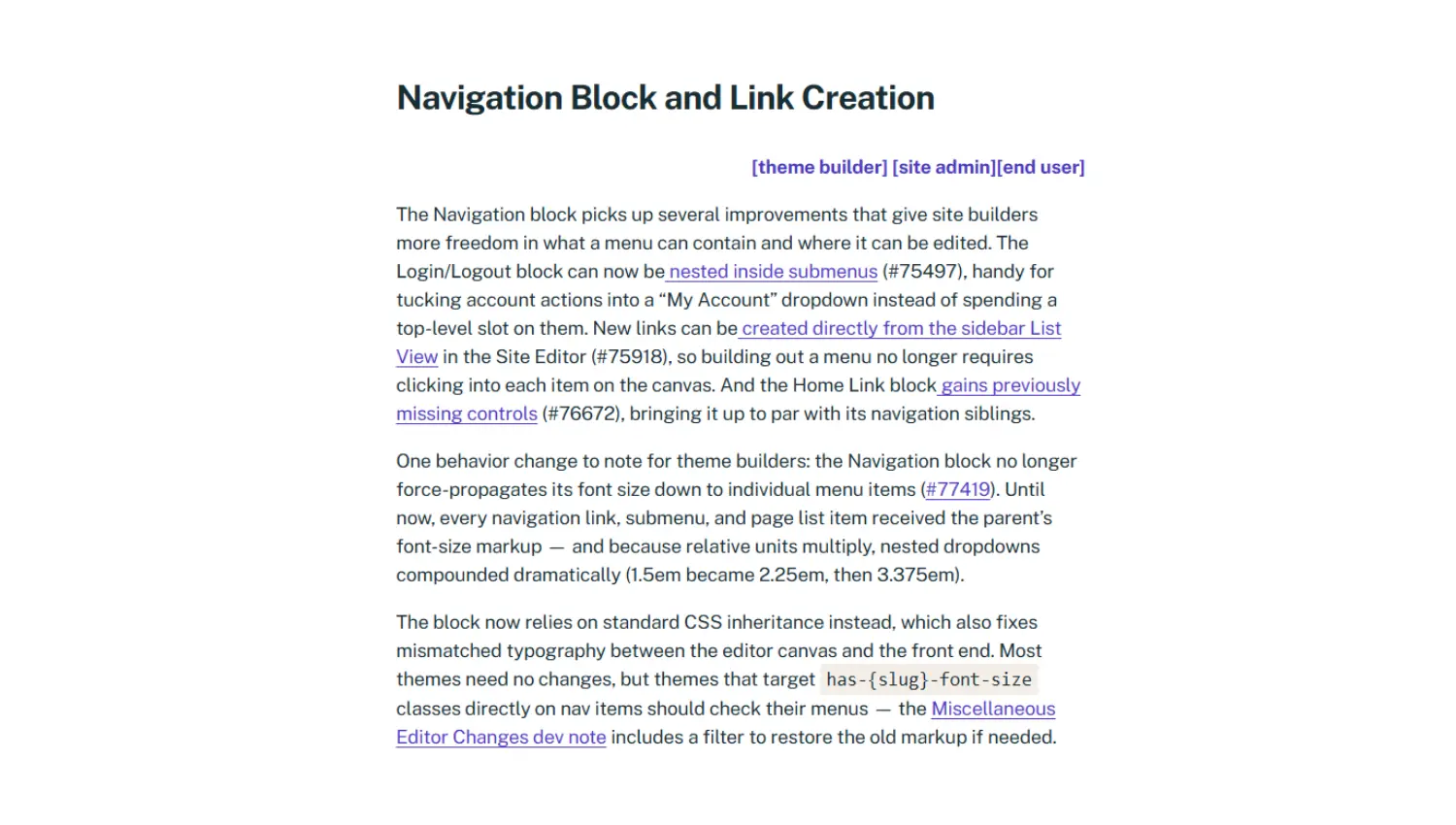
You can also create new navigation links directly from the Navigation List View in the Site Editor. At first glance, this feels like something that you can already do in previous WordPress versions, and rightly so.
This is because you could add links via the plus (+) button inside the Navigation block itself while editing a post, page, or template. But if you open the Navigation List View in the Site Editor, this option isn’t available.
As of 7.1, it has now been added. You can search and insert new links without dropping into canvas editing mode.
How this benefits you as an Ollie user
The navigation block is more capable out of the box. If you have the Ollie theme installed alone, you have more options for building your navigation menus.
Ollie Pro users can extend this using the Menu Designer. This plugin lets you create beautiful, responsive dropdown menus and mobile menus using the Block Editor.
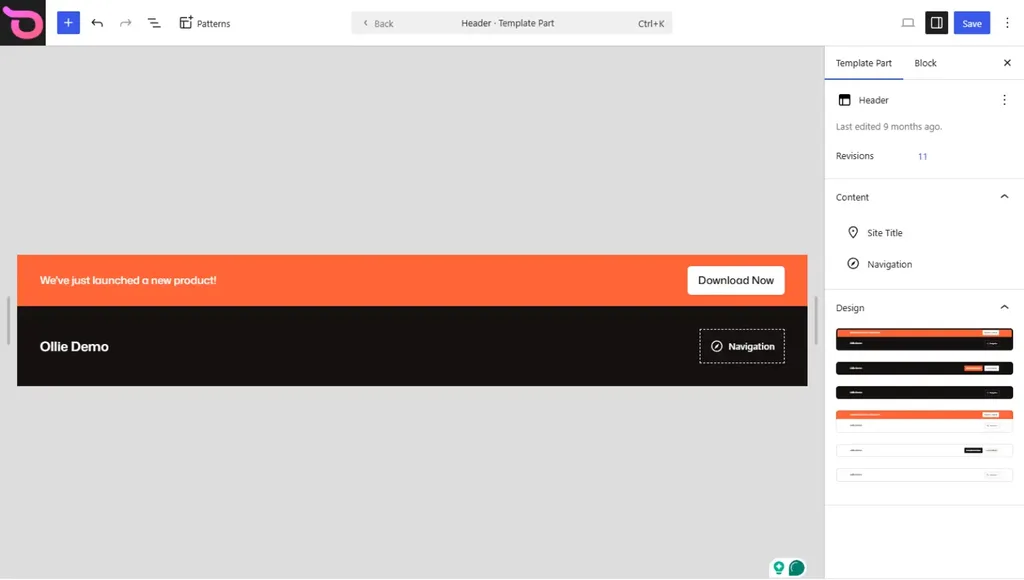
With Menu Designer, you can:
- Design content-rich mega menus. These are basically the big dropdown menus you’ll see on sites like Stripe.com. Mega menus let you add more content to your navigation menus, making them more useful.
- While WordPress 7.1 only allows you to add the Login/Logout block, with Menu Designer you can add any block here. This includes the custom patterns you’ve created.
- Design responsive mobile menus. Menu Designer comes with several well-designed menu patterns. You can select one, customize it, and have it ready in a few clicks.
If you feel the design doesn’t quite work for you, you can switch to a new pattern easily.
A note on Ollie AI
Ollie AI is in active development and is being built to take advantage of WordPress’s growing AI infrastructure.
In 7.1, there were two key additions:
- WordPress is giving plugin developers more control over the Abilities API. This means plugins get more control over AI abilities in WordPress.
- AI platforms can be authenticated via username and application password as an alternative to API keys.
WordPress’s AI infrastructure is expanding with each release, and Ollie is building around this. You can follow its progress for the latest updates on the Ollie AI page.
There we have it! The updates in WordPress 7.1 that affect how you build your sites with the Ollie theme and Ollie Pro. Now, let’s see how you can update your WordPress version to 7.1.
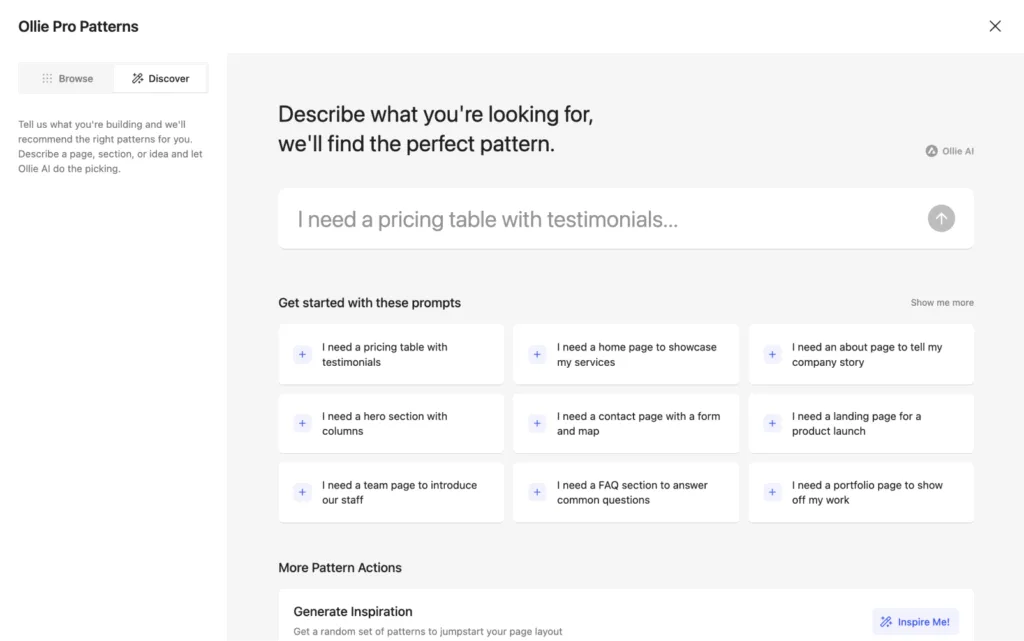
How to update to WordPress 7.1
Updating to 7.1 is as easy as clicking the Update to WordPress 7.1 button. But before you do that:
- Check the PHP version your site runs on. The absolute minimum is PHP 7.4, but PHP 8.2-8.3 or higher is the baseline recommended by the core team. If you’re already running WordPress 7.0, this shouldn’t be a problem because the minimum and recommended PHP versions are similar for 7.0 and 7.1.
- Confirm plugin compatibility. From your WordPress dashboard, go to Plugins → View Details. Look for where it says ‘Compatible up to: xx’. If the number is 7.1 or something close to it, you should be good to go.
- Back up your site and move it to a staging site. This way, you have a version to fall back on in case something goes wrong, and you can test your site freely.
After this is done, you can now update your WordPress version, which should take a few seconds to a few minutes to complete.
Start building with WordPress 7.1 and Ollie
WordPress 7.1 is a big release featuring responsive styling in core as the main addition. On top of that, this release adds features that give you more flexibility and improve how you work with the Block Editor. These include two new blocks, media editing and processing improvements, pattern editing refinements, and more block features.
This update lands at the right time for Ollie users because Ollie’s design system and Ollie Pro extensions are built to work with many of the new features released in 7.1.
It doesn’t matter if you’re using the free Ollie theme or Ollie Pro. You’ll find updates in this new version of WordPress that improve how you build sites with Ollie. And if you’re using Ollie Pro, it’s even better. You can extend the new tooling in core with more features and design options.
Get the Ollie theme and Ollie Pro and make the most of the updates in WordPress 7.1 to build better sites.
