
If you’re looking to add video to WordPress, this guide covers everything from methods to file types to displaying it.
Here’s what we’ll cover in this guide:
- The two main ways to add video to WordPress: direct upload and embedding.
- The pros, cons, and use cases for each method.
- How to use a block theme to display videos and make the most of them.
First, we’ll walk you through the different methods you can use to add videos to your WordPress site.
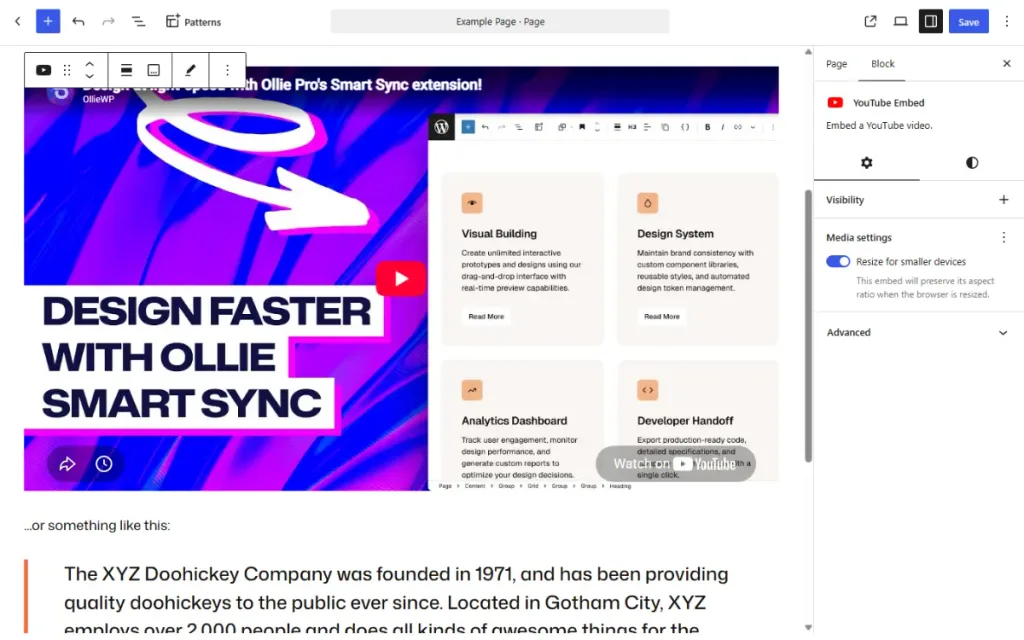
How can you upload video to your WordPress website?
WordPress is a pretty flexible platform; it allows you to add all kinds of media to your site in just a few steps. The best part? There are a few different methods you can use to do it that give you slightly different results. We’ll go through these next.
Upload video directly to the WordPress media library
The most straightforward method for adding video to WordPress is by uploading your video file directly to the WordPress media library, then inserting it into your page or post using the video block in the block editor.
Here’s how you can do it:
- From your WordPress dashboard, go to Media → Add New and upload your video file.
- Alternatively, you can do this directly on the page or post you’re editing. Add a Video block using the block inserter (+), and upload the file from there.
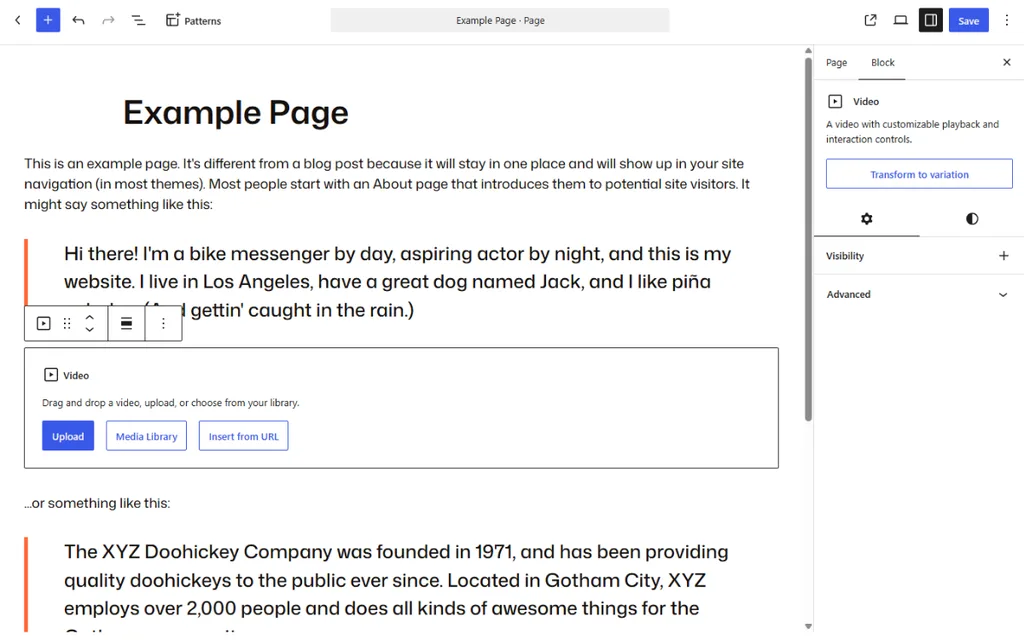
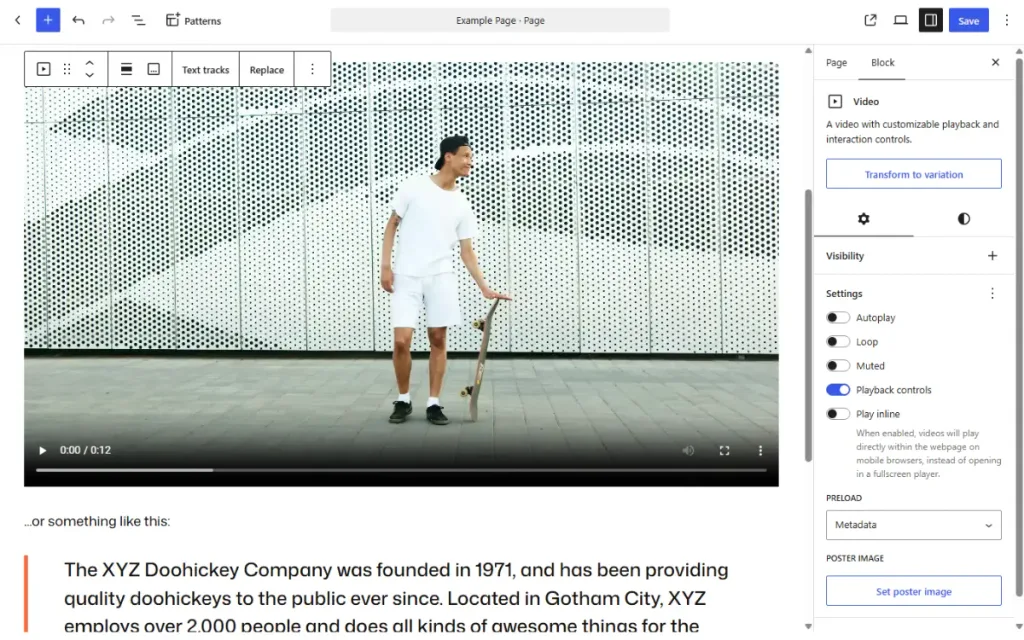
- Once uploaded, the video will appear inline on your page with the native video player inside WordPress.
What file formats should you use for uploading video to WordPress?
If you choose this method to add video to WordPress, it’s important to think about the file format and size of your video file.
Uploading a large video file directly to WordPress is one of the fastest ways to slow down and hurt the performance of your site.
Landing pages with video see up to 86% higher conversion rates. But this only happens if your video doesn’t slow down the page first.
So, if you’re looking to upload your own video, here’s what we recommend:
| Format | Browser support | Recommended file size | Notes |
|---|---|---|---|
| MP4 (H.264) | Universal | Under 50MB | Best all-round choice. Benefits from compression before uploading. |
| WebM | Modern browsers | Under 30MB | Smaller file sizes. Good for performance-focused sites. |
| MOV | Limited | Often 200MB+ | Avoid this one and convert to MP4 before uploading. |
| AVI | Very limited | Often 500MB+ | Avoid. Very large file sizes with poor browser support. |
Why you might choose this method to add video to WordPress
If you’re deciding between the two video upload options for WordPress, you might be wondering why this particular method might be worth it.
Here are a few scenarios:
- If you’re adding videos to WooCommerce product listings. Short looping clips can work really well in this context and don’t necessarily need an external source.
- If you’re looking for more control over your video player’s appearance and controls. When you embed video in WordPress, the video player itself often comes with the branding of that website. If you want more control over how it looks, playback controls, and more, adding self-hosted videos is probably a better option.
- You want to add members-only content or private content that’s hidden behind a login screen. While you can create private content on YouTube that’s then embedded on your site, it’s a little more cumbersome than uploading directly.
So now we know how to upload our own videos and host them on WordPress; let’s take a look at the alternative option.
Embed video that has been uploaded to an external source (like YouTube or Vimeo)
For a lot of websites, uploading your video to an external video hosting platform like YouTube, Vimeo, or even TikTok is a good option. This method requires you to host the video elsewhere and then embed it into your site using the block editor in WordPress.
Here’s how this works:
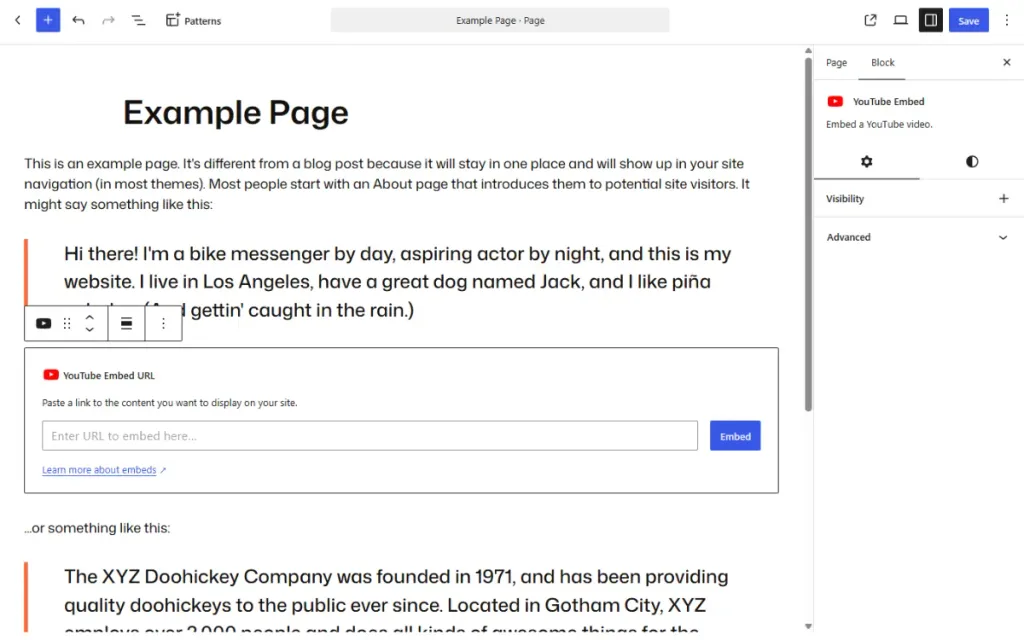
- Upload and publish your video on a video hosting platform. WordPress supports VideoPress, YouTube, Vimeo, Animoto, Dailymotion, TikTok, TED, and WordPress.tv currently.
- Copy the video URL from your browser.
- In the WordPress block editor for your page or post, use the block inserter (+) to add a dedicated block for that platform. Alternatively, paste the URL directly into the page, and WordPress will convert it into an embed. No need for an embed code.
The file size or format for these types of video are all set within the platform you’ve chosen to use. Depending on which platform it is, will depend on what these settings are.
Why you might choose the embed block to add video to WordPress
Compared to uploading your video directly to WordPress, using something like the YouTube block, or VideoPress block to add video to your WordPress site is a lot more efficient.
Here are some scenarios for why you might pick this method:
- You want to add long-form content like tutorials, interviews, or webinars to your site. These would have much larger file sizes and could easily slow down your site.
- You want the video you’ve created to benefit from the additional exposure you’d ideally get from uploading it to something like YouTube or even social media platforms.
- Your video could benefit from things the external platform provides natively. Things like closed captions/subtitles, better compression, easy playback controls, and even things like analytics and performance.
Both of these methods work well for different reasons, but let’s say you’ve picked one and you want something a little better than a standard video embed. This is where a block theme comes in.
How to add video to WordPress using Ollie Pro
If you’d like to make video a more prominent feature on your website, say on landing pages or as part of your overall website design, then simply embedding the video as a block might not be cutting it.
In this case, using a block theme can give you more flexibility to make the most of the videos you’ve put time into creating.
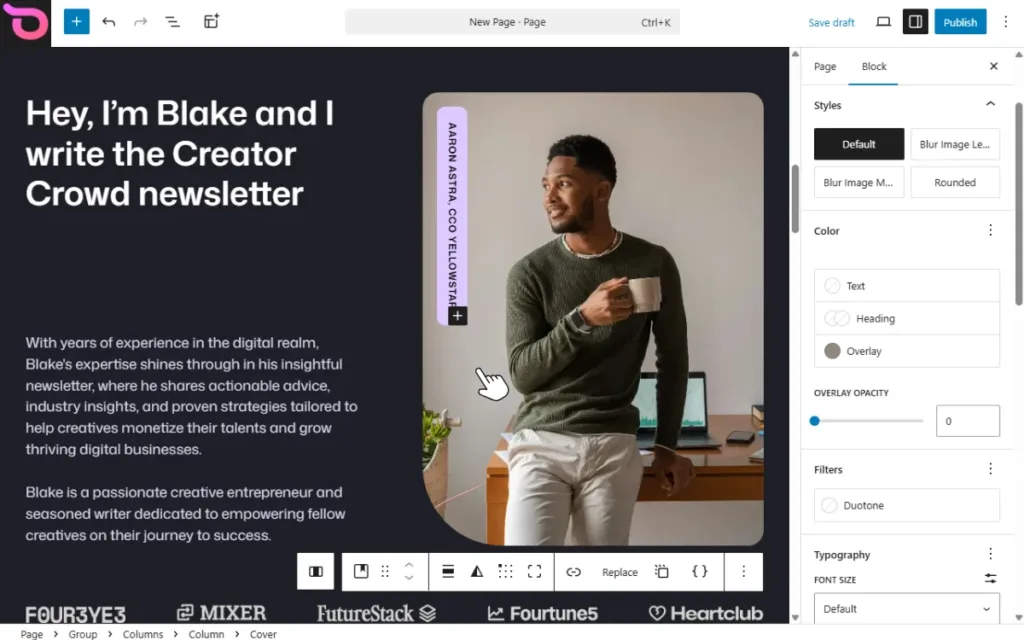
This is where the Ollie block theme comes in. Ollie is a free WordPress block theme designed to make building professional-looking sites faster and easier. The free Ollie theme gives you the foundation you need to build a beautiful, functional site fast. Ollie Pro then adds a whole host of extra blocks and tools to help your videos stand out.
These include a variety of video blocks and patterns that allow you to add video to WordPress via a video URL or by uploading directly. These patterns also give you control over video playback, play icons, cover/poster images, overlays, padding, screen reader text, and so much more. All of which is within your block theme and added Ollie Pro, no external video plugins needed.
How to add video blocks to WordPress with Ollie Pro
So now we know what Ollie Pro can do, let’s set up a video block section on our example website to show just how easy it is.
Step 1: Find and add your video layout
- With Ollie and Ollie Pro installed, from your WordPress dashboard, go to Pages → and click to edit the page you want to add video to.
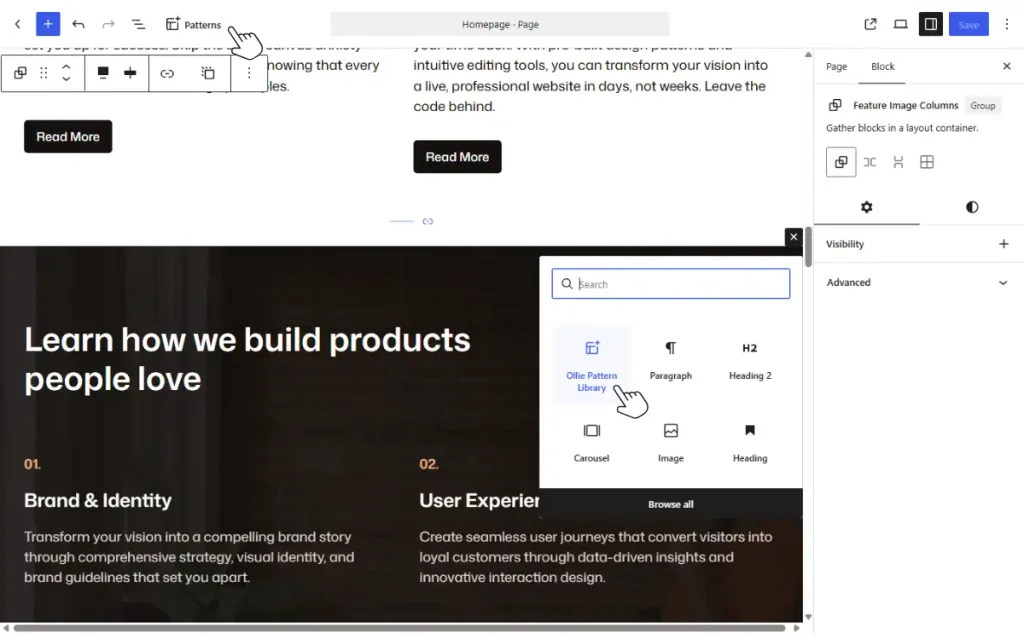
- Click the + block inserter on the page and search for or click on the Ollie Pattern Library. Alternatively, click the Patterns link at the top of the page edit screen. This will open up the Ollie Pattern Library.
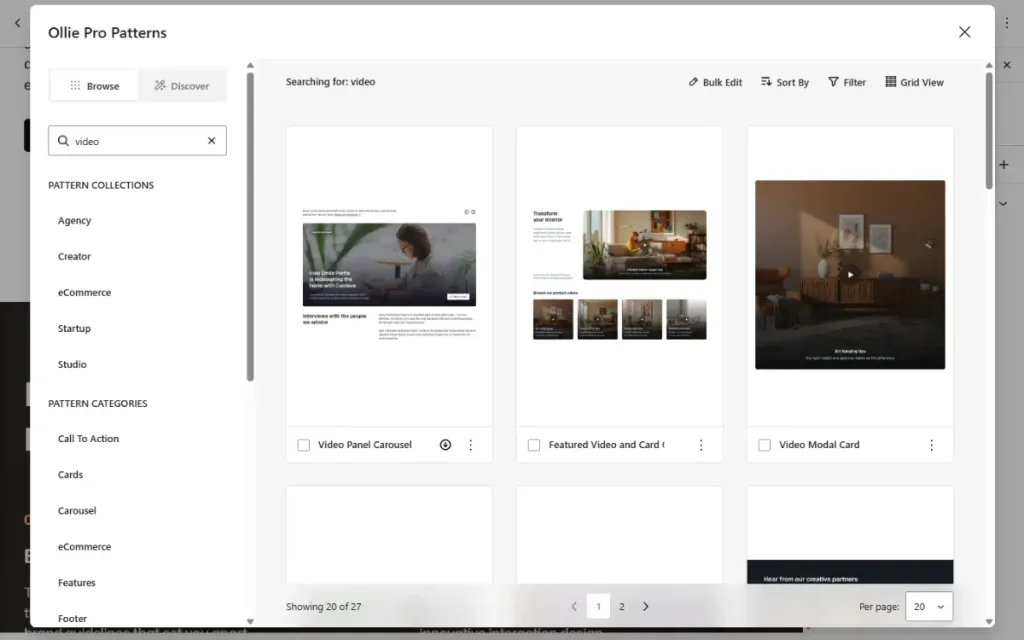
- Because we’re looking for patterns and blocks specific to video, we’ll add the search term ‘video’ in the search box.
- Select a pattern from this list that fits your layout. There are a variety of patterns here, from video modal cards to video carousels, and featured video modals.
- If you want to preview what these look like and how they work, you can click on each to get a preview.
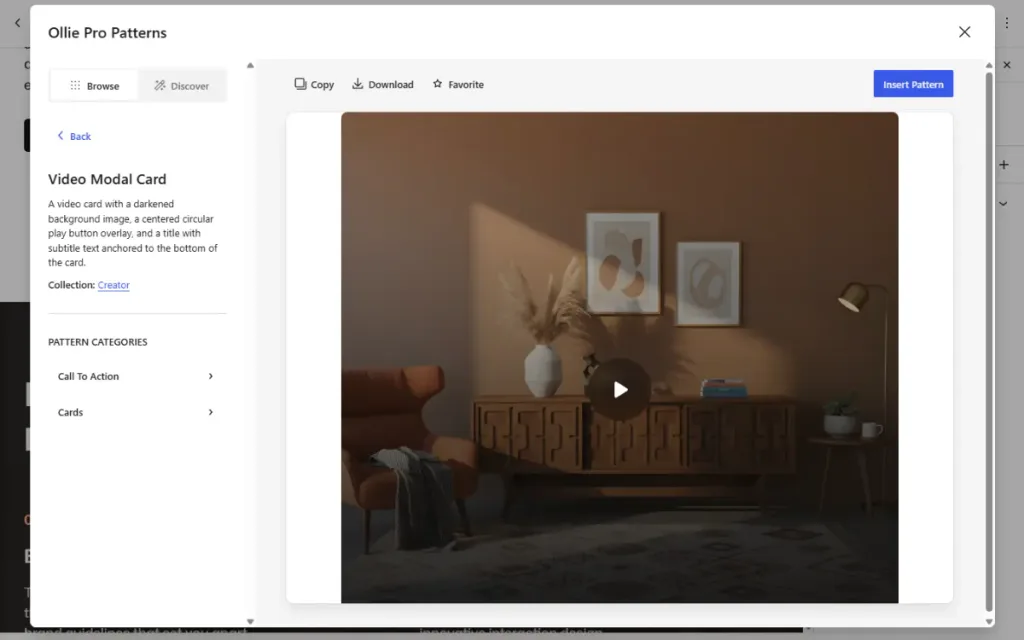
- Once you’ve made a selection, click the blue Insert Pattern if you’re previewing. Or, if you’re browsing on the general search page, click the three dots on the pattern and click Insert Into Page.
Step 2: Customize your video layout
Once the pattern has been added to your page, you can customize it.
- Click the video element itself, and you’ll see a range of settings pop up on the right of the screen.
- Scroll down to the Video Modal section and open it up by clicking on it. This is where you’ll either add the URL of a YouTube embed or add a self-hosted video via the Media Library.
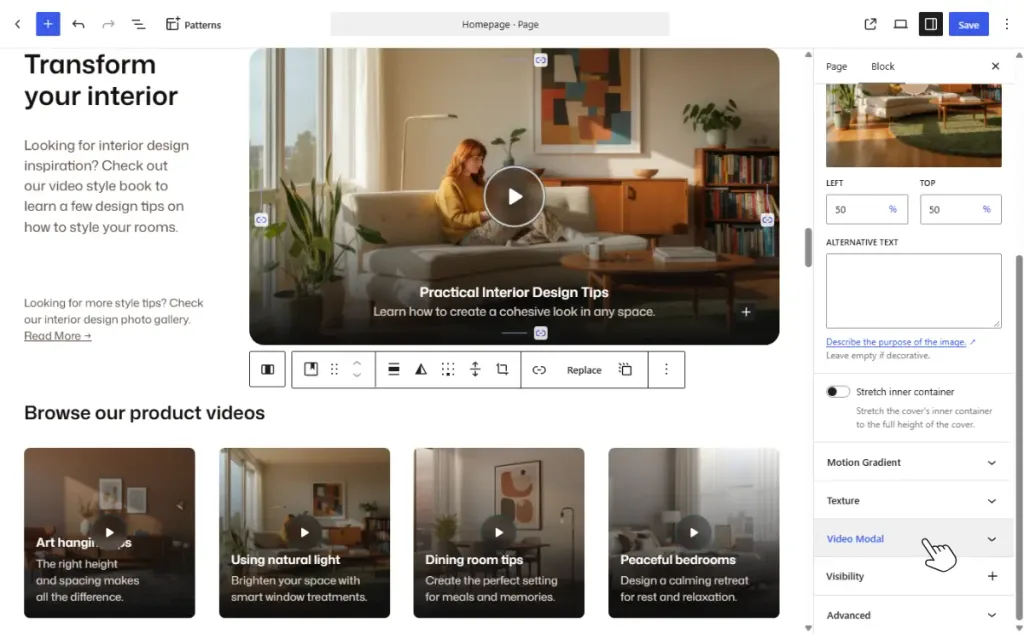
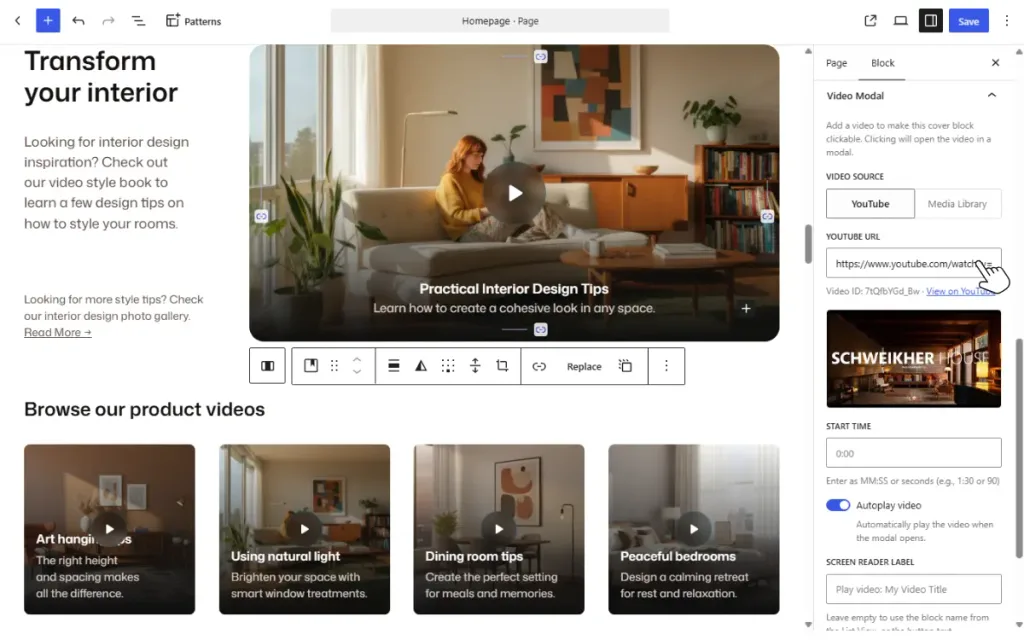
- To add the YouTube embed, copy the URL of your YouTube video and paste it into the URL field. To add the self-hosted video, click Select Video and upload your video or select one you’ve already uploaded to the Media Library.
- Depending on which you choose, you will have some additional options appear below. This includes things like autoplay, screen reader labels, and play icon controls. For a YouTube embed, you can also determine the start time of your video.
- Next, scroll up the settings, and you’ll see the cover image for your video. This is a static image you can select, which will make your video look professional, without the typical video controls you see in a classic video embed.
- To replace this, click the word Replace in the toolbar above the video. This will allow you to either upload something fresh or use something already in your Media Library.
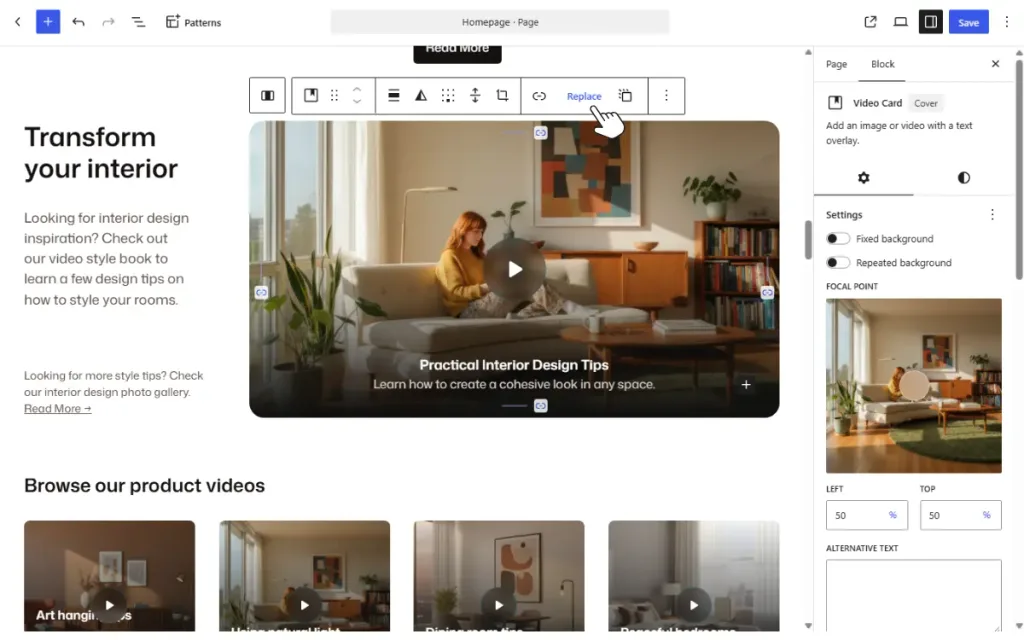
- Once done, you can customize everything else in the pattern, from text that sits above your video to padding, overlays, and more.
Embed videos in WordPress FAQ
Will adding video slow down my WordPress site?
If the video is hosted directly on your server and the file is large, or you embed more than a couple of videos onto a single page, then it can. If you opt for uploading directly, make sure to compress the file first.
Can I add video to WordPress without a plugin?
Yes. WordPress includes two built-in methods for adding video to your website. These include uploading directly to the Media Library and embedding by inserting a URL from an external site like YouTube or Vimeo.
Can you add video to WordPress using the classic editor?
If your site still uses the Classic Editor rather than Gutenberg or the block editor, you can still add video to your posts or pages. To do this, click inside the Visual tab in the Classic Editor, and on a blank line, paste your video URL. WordPress will automatically convert it to a visual player.
Add video to WordPress today
So there we have it: the best ways to add video to WordPress, with advice on upload methods, file types, and design.
Adding video to your WordPress site should be straightforward. Making it look good shouldn’t require installing a bulky one-use plugin just to customize one thing.
Instead, build your site using Ollie, make it even easier to build using Ollie Pro, and benefit from the video features that come pre-built.
