
If you’re looking to add a testimonial carousel to your WordPress website, this guide will help you get it done.
We’ll cover:
- Whether you need a separate plugin to add a testimonial carousel to WordPress.
- How to add a testimonial carousel to your WordPress site using Ollie Pro.
So, you might be wondering if you need a separate plugin to add this feature to your WordPress site. Let’s address that first.
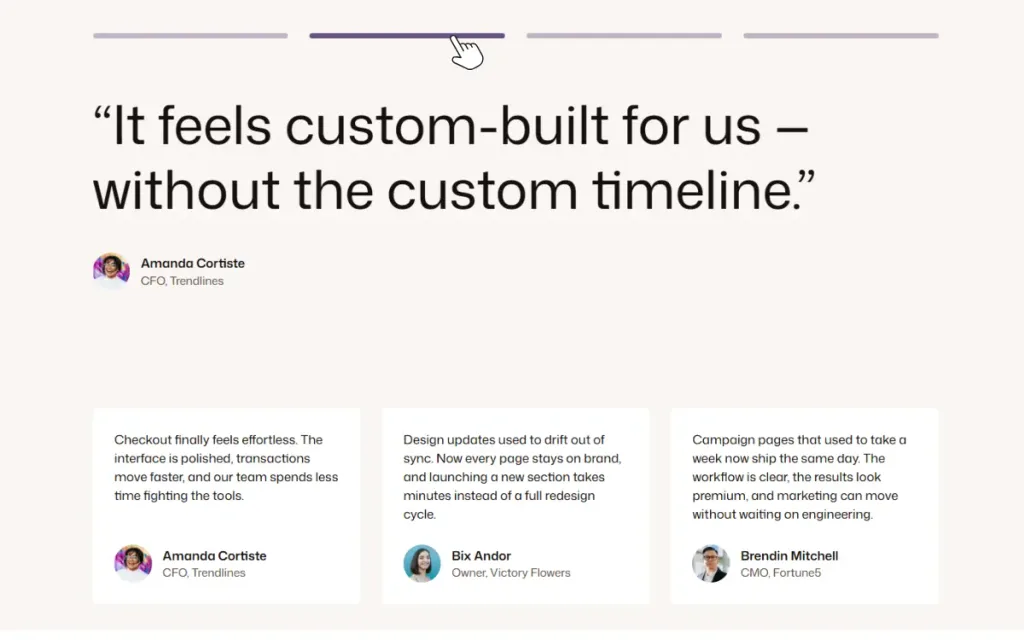
Do I need a separate plugin to add a testimonial carousel in WordPress?
To add a testimonial carousel to WordPress, you will almost certainly need an additional plugin to get it done.
WordPress doesn’t include a testimonial carousel block or slider by default, so it depends on the theme or setup you’re using:
- If you’re using a classic theme with a page builder, your page builder may include a testimonial carousel as a built-in widget or as an add-on. For example, the Elementor page builder has a testimonial carousel widget as a paid-for add-on.
- If you’re using a block theme with the block editor, you’ll most likely need a plugin to help you add it.
What’s the easiest way to add a testimonial carousel if you’re using a block theme?
If you’re using a block theme, the easiest way to add a testimonial slider to your WordPress site is to expand the blocks and patterns available to you. This way you’ll have a block with carousel slider functionality (which the default WordPress lacks). Plus, testimonial carousel patterns so that you don’t have to start building this section from a blank page.
The Ollie theme and Ollie Pro plugin add a carousel block and patterns, so you can build a testimonial carousel using the Block Editor.
How to add a testimonial carousel to WordPress using Ollie Pro
Ollie is a free WordPress block theme built to work with the native Site Editor and Gutenberg block editor. It’s built around WordPress’s Full Site Editing (FSE), meaning you can use blocks to design every part of your site. This includes your header, footer, and, of course, testimonial carousel.
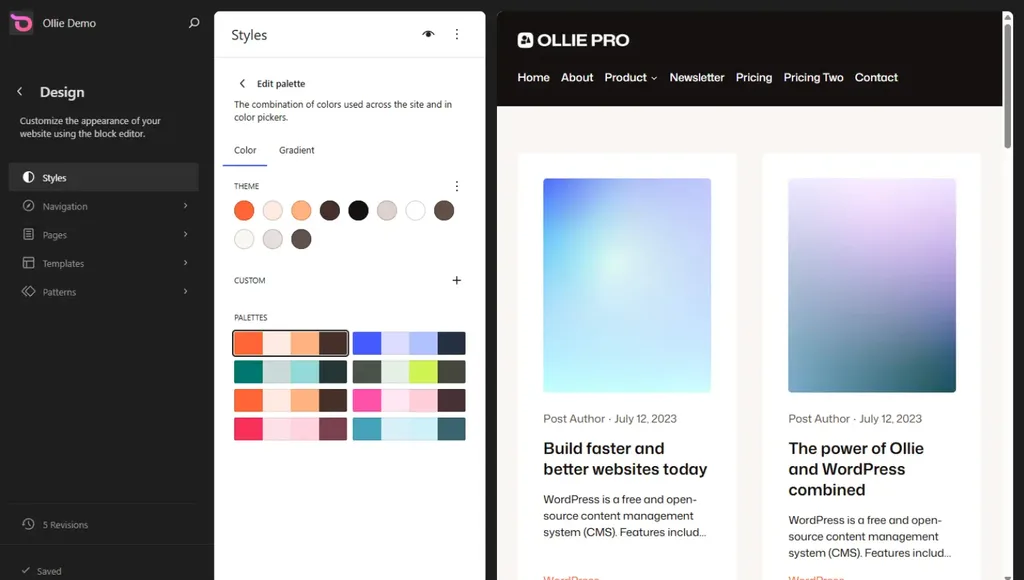
Ollie adds a complete design system to the Site Editor consisting of:
- Several starter sites and patterns to help you speed up designing your pages.
- Color, typography, and spacing systems to ensure your designs are consistent throughout your site.
- Style variations for templates and patterns so that you have different style options to choose from. Switching from one design variation to another takes only a single click.
- More customization options for native WordPress blocks. For instance, you can add custom CSS per block without needing to add classes.
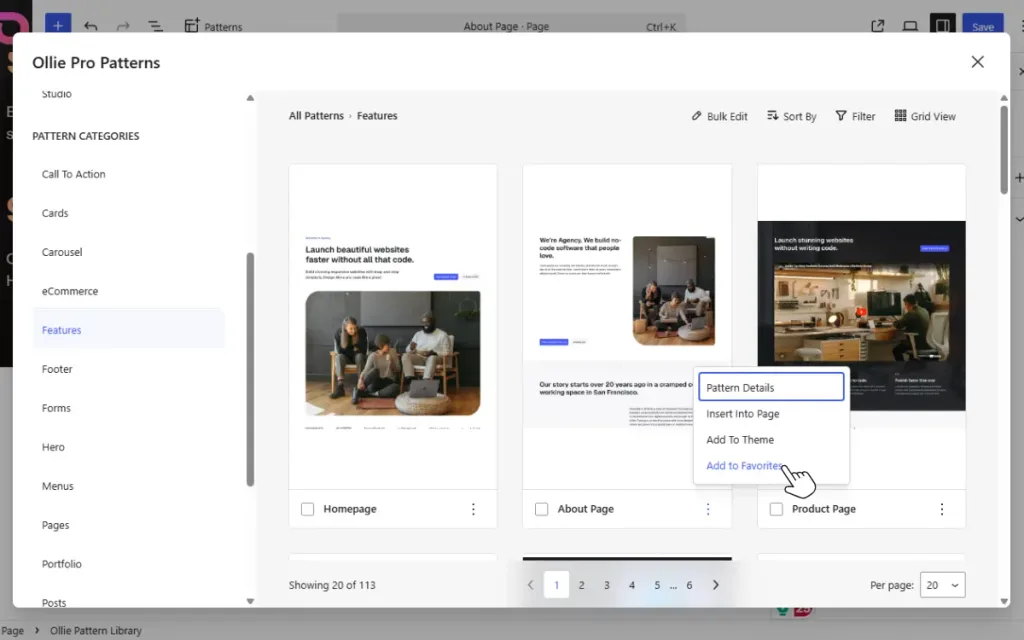
The Ollie Pro plugin extends the Ollie free theme
Ollie Pro builds on what the free Ollie theme offers. It adds features to help you design your WordPress site faster and better. These include:
- An extensive pattern library. Ollie Pro’s pattern library hosts hundreds of professionally designed block patterns that you can insert on your page in a single click.
- Powerful WordPress block editor extensions:
- Menu Designer. This helps you design mobile menus and mega menus.
- Animation Designer. This adds fade, zoom, and hover effects to blocks.
- Responsive controls. With these controls, you can customize your typography, spacing, alignment, etc. for specific breakpoints inside the Block Editor.
- Class manager. This extension helps you manage CSS classes if you’re using a lot of custom CSS across your site.
- Other extensions that improve your experience as you build with blocks, such as Smart Sync, Keyboard Shortcuts, etc.
Ollie Pro provides you with everything you need to create great-looking websites using the WordPress block editor and site editor.
Create a testimonial carousel using Ollie Pro’s Carousel Designer
Carousel Designer is a feature in Ollie Pro that lets you design fast and content-rich carousels for your WordPress site. You can use it to build hero sliders, logo marquees, self-updating post carousels, and testimonials.
With Carousel Designer, you don’t need to work with shortcodes or separate settings screens. Everything happens in the Block Editor you already know. You can add any block, pattern, or layout to any slide in the carousel and design it.
What are some of Carousel Designer’s key features?
Carousel Designer has several features that enable you to design your testimonial section the way you want.
You can choose what to add to each slide
Each slide is a blank canvas. You can add any block to it, for example, images, text, pull quotes, etc. Because of this, you can add things like star ratings and customer reviews to display social proof here.
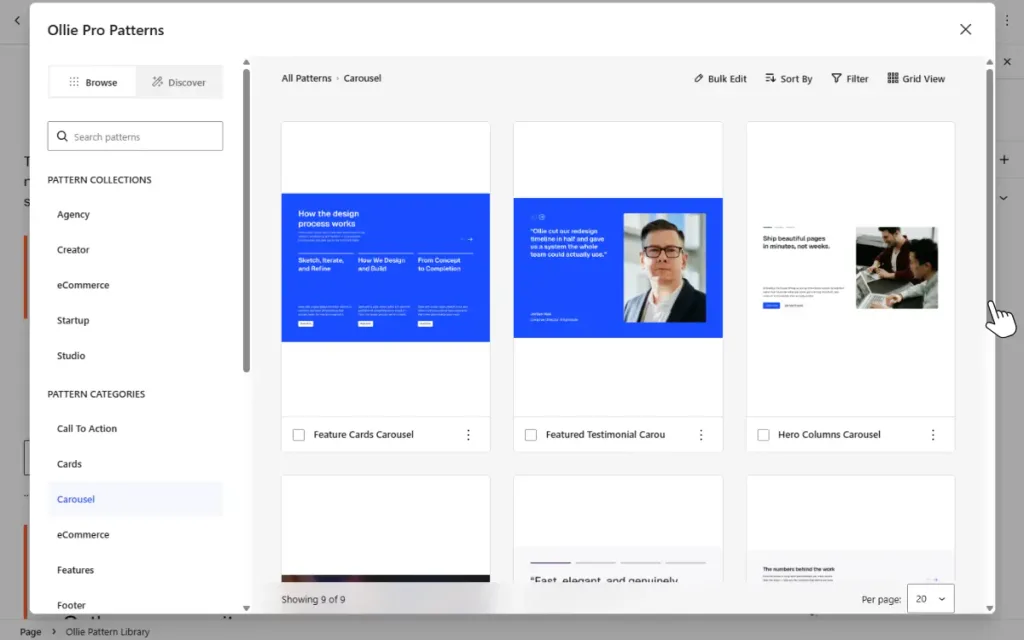
Pre-made designs in the Ollie Pro pattern library
Ollie Pro includes a collection of well-designed testimonial carousel patterns that you can select and customize. You don’t have to start from blank slides.
Design once with Smart Sync
Smart Sync is on by default for carousel slides. Instead of designing each slide one after another, you only do it once. Then the styles will apply to all the slides in the carousel. This saves you a lot of time.
Customize carousel controls
You can let site visitors use arrows, dots, bars, or scroll to move across slides in the carousel. Carousel Designer allows you to edit the design to suit your website.
Numerous design options
You can enable autoplay, where the carousel advances automatically after a few seconds, continuous scroll, fade out at the edges, endless looping, pause on hover, and more.
Like all other Ollie features, Carousel Designer is built for the Block Editor. If you already know how to build pages using the Block Editor, Carousel Designer makes it really easy to add a testimonial carousel to WordPress.
Next, let’s see how you can use Carousel Designer to add a testimonial carousel to your site.
How to add a testimonial carousel to WordPress step-by-step
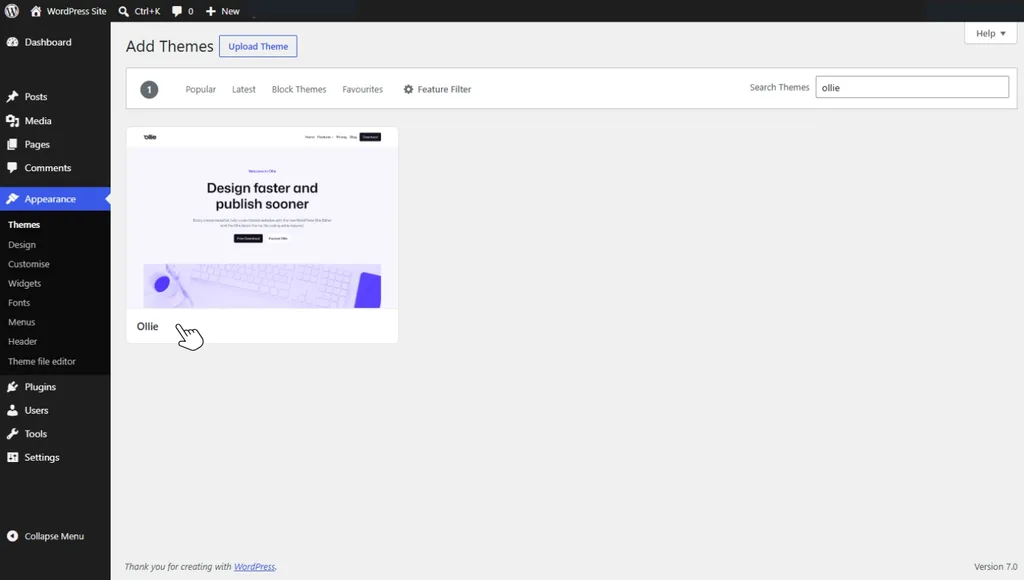
First, you’ll need to install the Ollie theme and Ollie Pro plugin. You can get the Ollie theme under Appearance → Themes on your WordPress dashboard. As for Ollie Pro, you can purchase it from the Ollie website: https://olliewp.com/pro/.
Installing Ollie Pro adds the carousel block to your site. You’ll use this block to create your testimonial carousel.
Step 1: Add the carousel block to your page
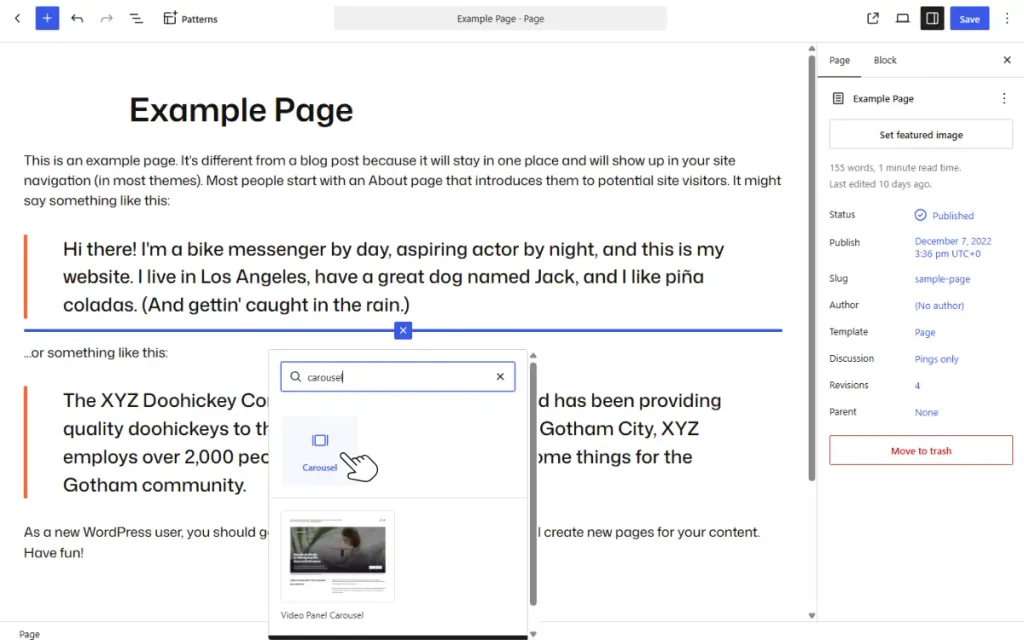
Open a page where you want to add the WordPress testimonials slider and use the block inserter to add the carousel block. Type ‘carousel’ and select it once it appears.
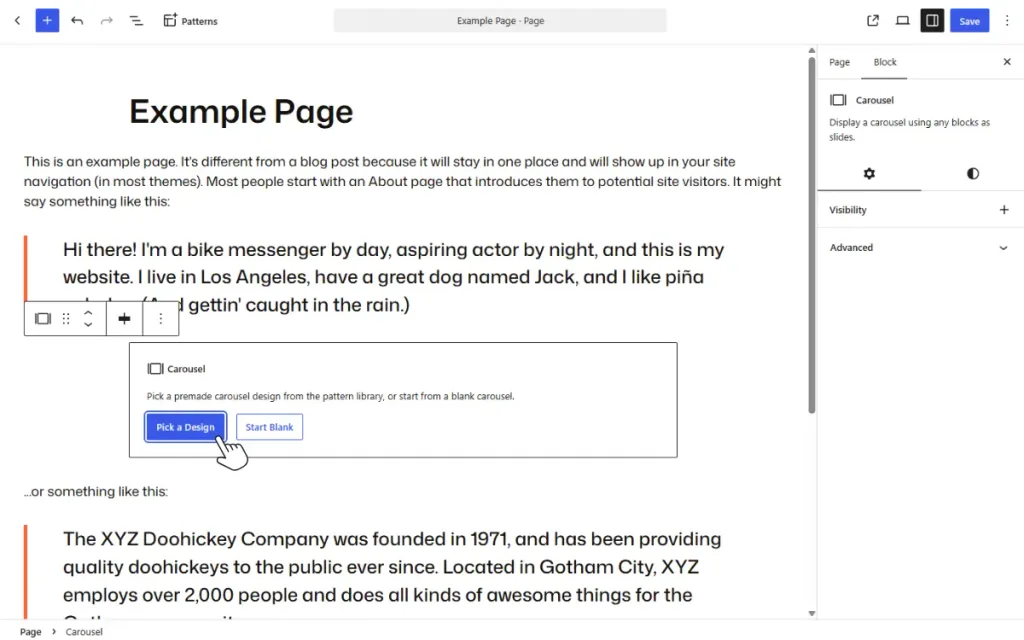
You’ll be presented with the option to Start Blank (build the carousel from scratch) or Pick a Design from the Ollie Pro pattern library.
Step 2: Choose a pattern to start with or start blank
If you prefer not to build the entire carousel from scratch, click on the Pick a Design button. This takes you to the pattern library where we have several carousel patterns.
- Look for testimonial carousel patterns on this page. Remember that you can click on a pattern and have a live preview. Some great patterns for a testimonial carousel are: Featured Testimonial Carousel, Testimonial Card Carousel, Testimonial Scroll Carousel, and Quote Testimonial Carousel.
- Once you find a pattern you like, click on it to preview and click Insert Pattern to add it to your page.

Suppose you want to build everything yourself. In this case, click on the Start Blank button. This adds an empty carousel block with controls. When you click on one of the slide blocks, a Choose Slide Design button appears on the right of the screen.

Clicking on this button opens the pattern library. You can choose a card design to use as your slide here so that you don’t start from scratch. Alternatively, you can still add blocks for each slide one by one if you want to.
Step 3: Customize your carousel settings
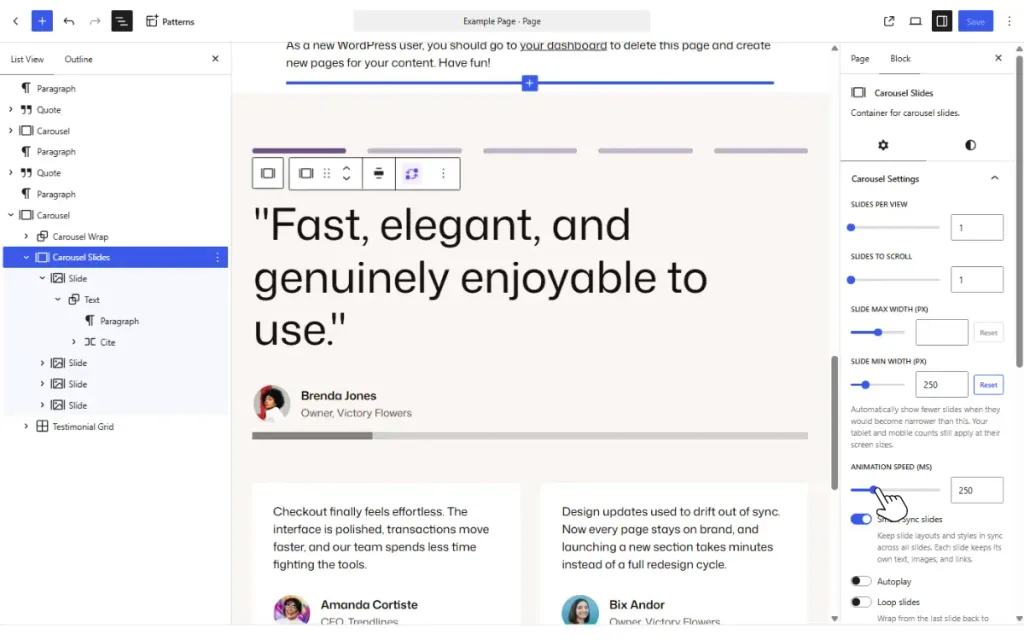
Click on the Carousel Slides block to reveal the carousel settings. Start by customizing the settings, which include:
- Slides per view. Here you pick how many slides to show at a time.
- Slides to scroll. How many slides will scroll when you click on the navigation.
- Slide max width. To set a maximum width for the slides.
- Animation speed. Set how fast the animation happens.
- and more
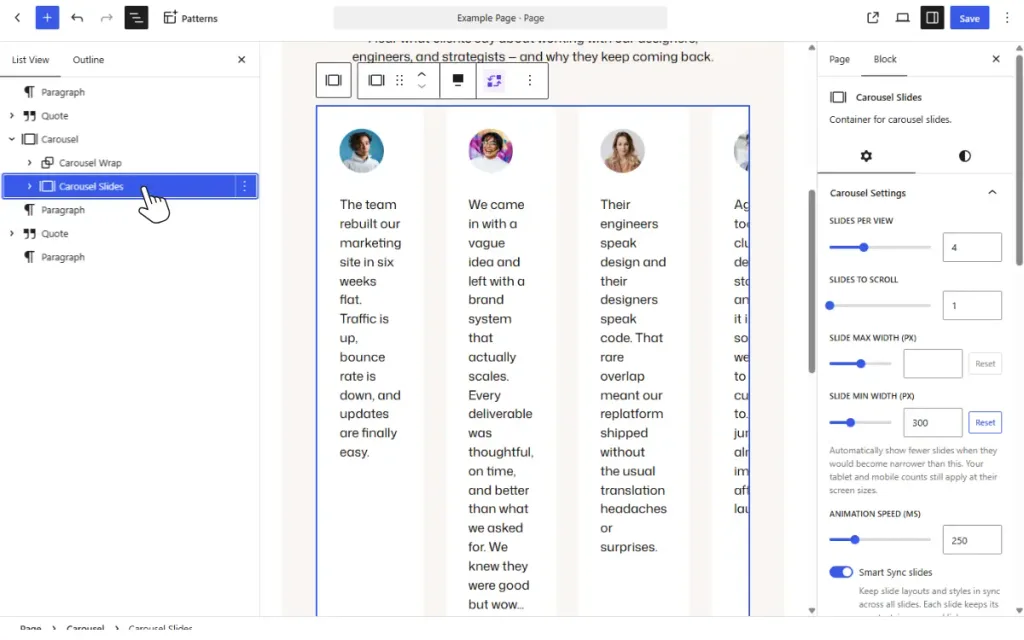
Smart Sync, which keeps the carousel layout and styles for each slide in sync, is on by default. You can choose to leave it that way.
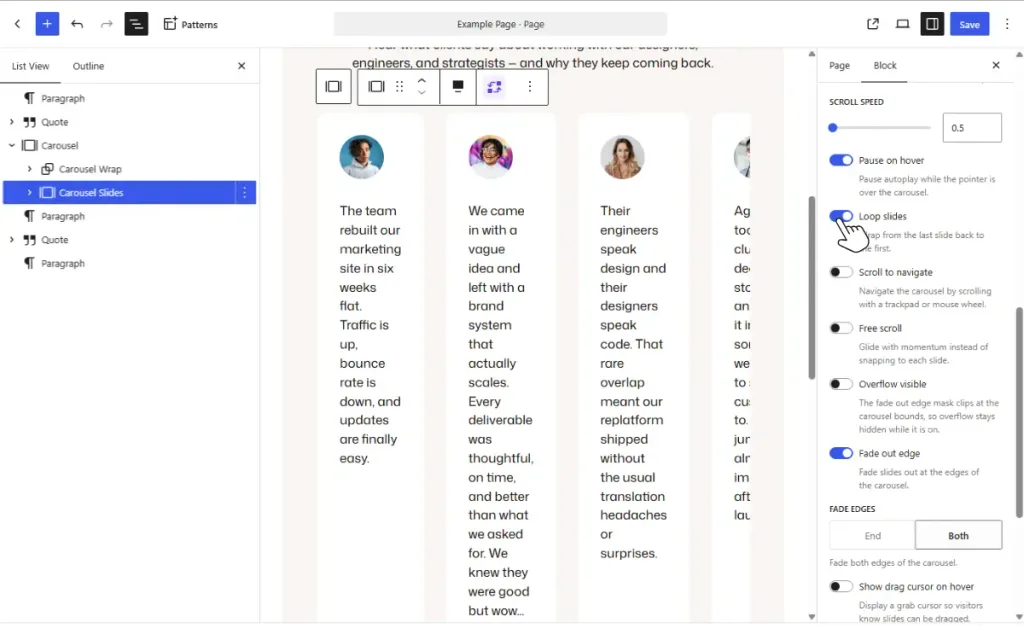
Next, move on to the settings that add some cool effects to your carousel, such as:
- Overflow visible. When you have this enabled, it makes the slides look like they’re disappearing off the page.
- Autoplay. When you turn this on, the slides advance on their own after a few seconds. You can set the autoplay speed in milliseconds.
- Loop slides. Slides move in an infinite loop.
- Fade out edge. The edges of the slides at the end of the carousel fade out.
- Show drag cursor on hover. A nice accessibility feature that shows a cursor letting users know they can drag the carousel.
- and more.
Step 4: Add new slides
Here’s what you can do to add new slides to your carousel:
- On the carousel edit screen, scroll to the last slide in the carousel. You’ll see two buttons here: Add New Slide and Duplicate Previous.
- To create a new blank slide that you can design, click on the Add New Slide button. Otherwise, click on Duplicate Previous to duplicate the previous slide.
Once you’re done with all these settings and you like how your testimonial carousel looks, click the blue Save button. Then, go to the site’s frontend to see how it will look and work for site visitors.

Start creating testimonial carousels in WordPress today
With the Ollie theme and Ollie Pro installed, you can create testimonial carousels easily using the WordPress block editor. Carousel Designer in Ollie Pro makes this easy.
It adds a carousel block and several carousel customization settings to the Block Editor. Plus, the Ollie Pro pattern library now includes several carousel patterns to choose from.
So whether you want to build your testimonial carousel from scratch or pick a pattern to customize, the choice is yours. Everything happens inside the Block Editor, no shortcodes or extra settings screen.
Get Ollie Pro and start creating customer testimonial carousels with the Block Editor today.
