
If you’re trying to understand WordPress patterns and how they differ from reusable blocks, you’ve come to the right place.
WordPress patterns and reusable blocks simplify how you build WordPress sites using the Site Editor. If you want to understand how they differ and when to use them, you’ll run into one problem: Reusable blocks are nowhere to be seen because WordPress renamed them to synced patterns.
In this guide, we’ll break down how WordPress patterns and reusable blocks (now called synced patterns) differ and work together at the same time.
We’ll also walk you through everything else to do with WordPress patterns, including:
- What the WordPress pattern directory is.
- How to create and save your own WordPress patterns.
- How patterns and templates differ in WordPress.
- How block themes such as Ollie relate to patterns.
Let’s start with the basics: what is a WordPress pattern?
What are WordPress block patterns?
A WordPress block pattern is a pre-designed layout made up of one or more blocks. You can insert patterns into a page or post in WordPress with a single click and then customize them.
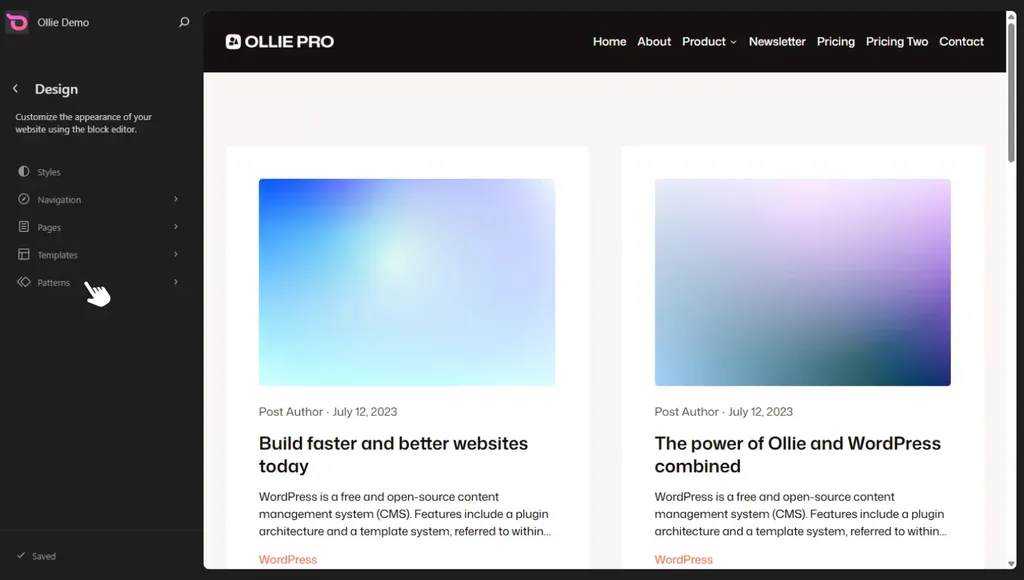
The basic idea is that WordPress lets you build your site using blocks. A pattern bundles several of these blocks together into a pre-arranged design, usually a page section such as:
- Customer testimonials.
- Hero section.
- CTA sections.
- Product features.
- Cards, and so on.
Instead of building these sections from scratch, you select a pattern and insert it into your page or post. Then, edit the text, images, etc., to your liking.
Some key characteristics of WordPress block patterns
Block patterns have these two main characteristics:
- They’re fully editable. After inserting a block pattern, you can rearrange, delete, or restyle the elements in the pattern freely.
- They’re reusable by design. You can insert the same pattern in multiple places, and each instance is independent. This means that when you edit one instance, the changes apply only to that instance.
Patterns are useful because they let you build your site’s pages faster. If you’re a beginner, block patterns help you create professional-looking pages without needing to understand every block.
Where do WordPress block patterns come from?
All the block patterns you find on your site come from three main sources:
- WordPress core. WordPress includes a collection of built-in patterns for common layouts such as CTAs, galleries, and text-and-image sections.
- Your theme or plugins. The theme or plugins you install can come with pattern libraries. They register these patterns, making them available for you to use.
- The WordPress pattern directory. A public pattern library that anyone can browse and insert into their site.
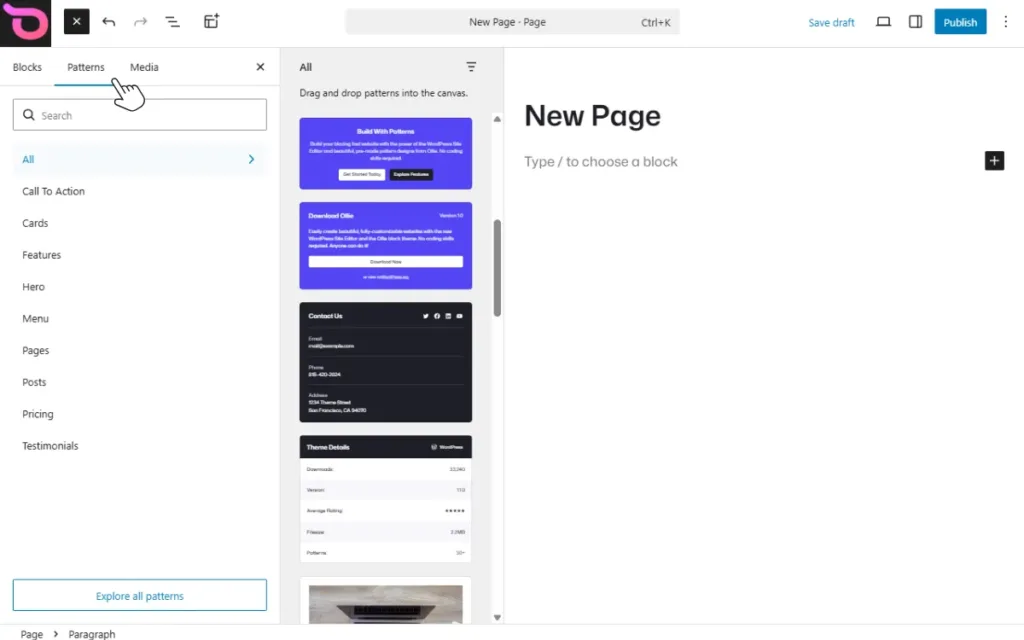
You can access all these patterns via the block inserter under the Patterns tab.
What is the WordPress pattern directory?
The WordPress pattern directory is a free, public library of block patterns created by the WordPress community. It lets you access numerous block patterns (2300+ at the time of writing), browse them, and add them to your site.
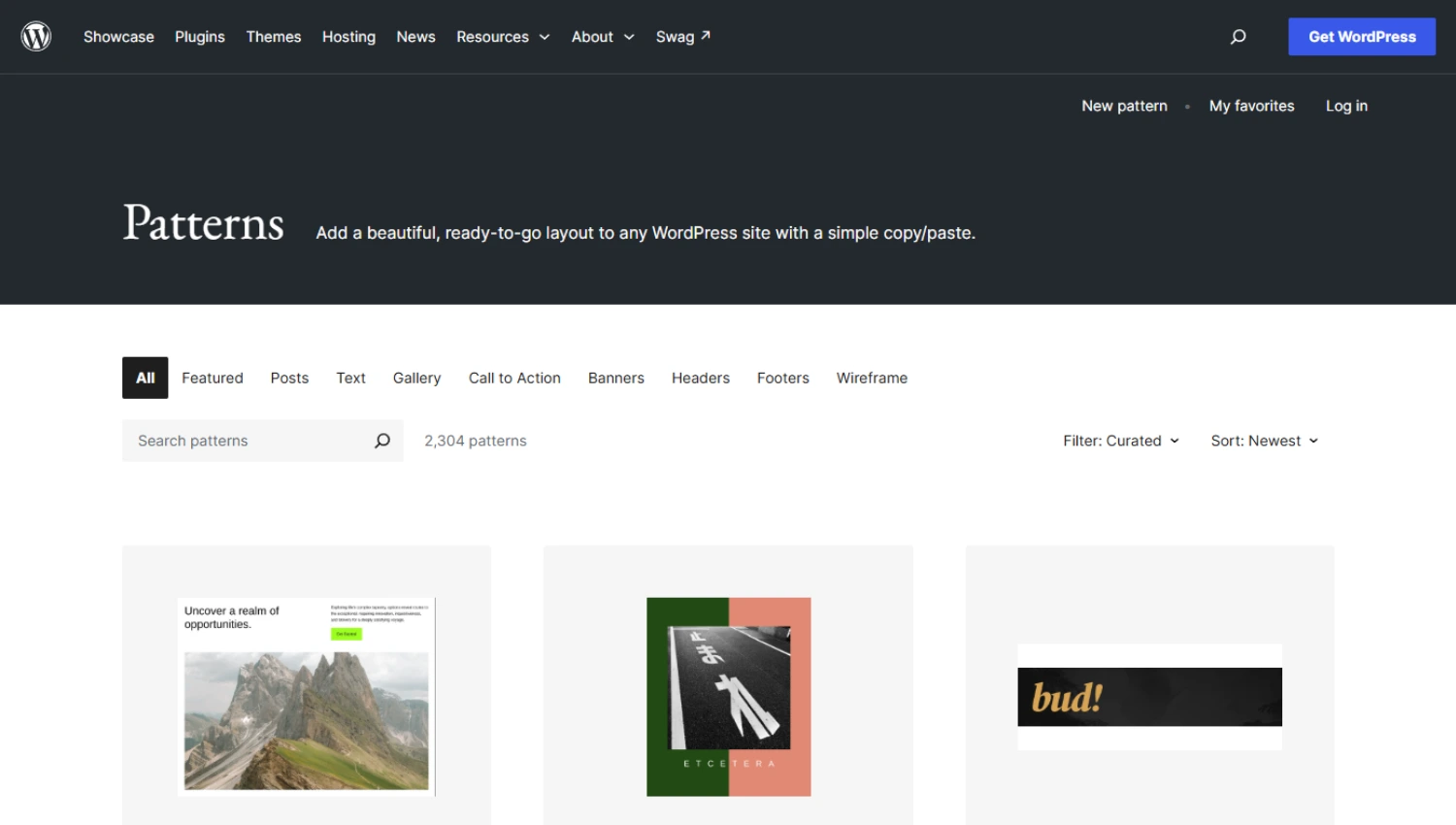
It’s much like the WordPress theme and plugin directories, except it is for block patterns alone. In this library, you’ll find patterns for various page sections, including CTAs, hero, banners, text- and image-based patterns, gallery, etc.
You can search for specific patterns, sort, or filter to find what you’re looking for. Once you do, you can preview it and see how it looks across different screen sizes. Then, copy the pattern and paste it anywhere in your site.
So that’s what block patterns are. What about synced patterns?
What are synced patterns, and what happened to reusable blocks?
If you’re looking for reusable blocks, you won’t find them anywhere in the Site Editor. They still exist, but WordPress renamed them to synced patterns in version 6.3 (August, 2023).
They still work the same; only the name changed to bring them in line with the broader patterns system. So what exactly are synced patterns?
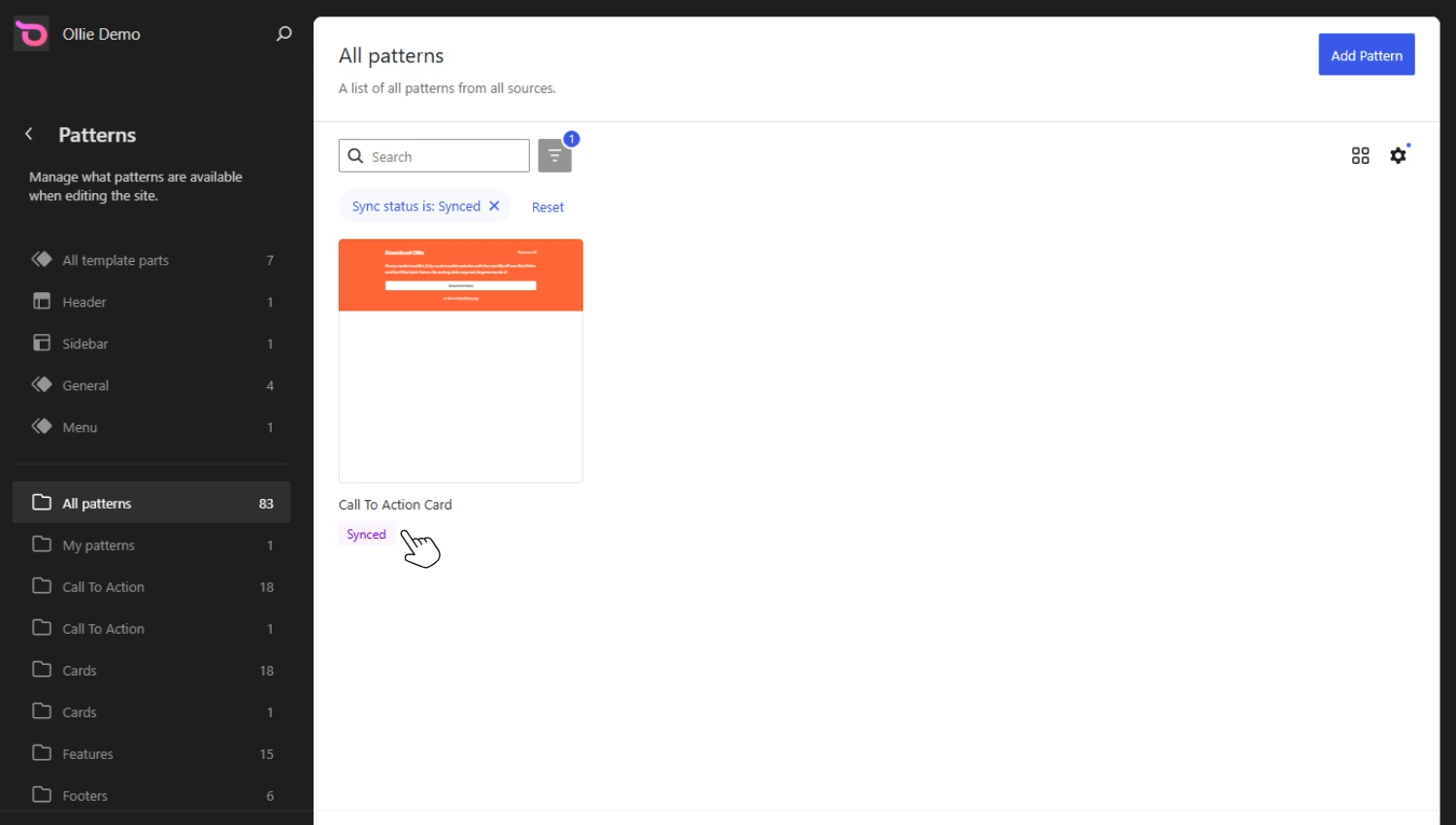
Synced patterns let you save a block or a group of blocks once and then reuse it across your site. You can insert it across multiple posts, pages, or templates.
When you edit a synced pattern in one place, the changes you make apply everywhere the pattern is used on your site. For example, if you change the headline, button text, or background color, WordPress automatically applies those changes everywhere the pattern appears. This is the “synced” behavior.
Where do you use synced patterns?
Synced patterns are an underused but powerful feature in the WordPress blocks system. Most WordPress users don’t even know they exist or how useful they can be.
Synced patterns are ideal for content that needs to be identical everywhere it appears. Especially content that changes periodically. You update it once, and it applies site-wide.
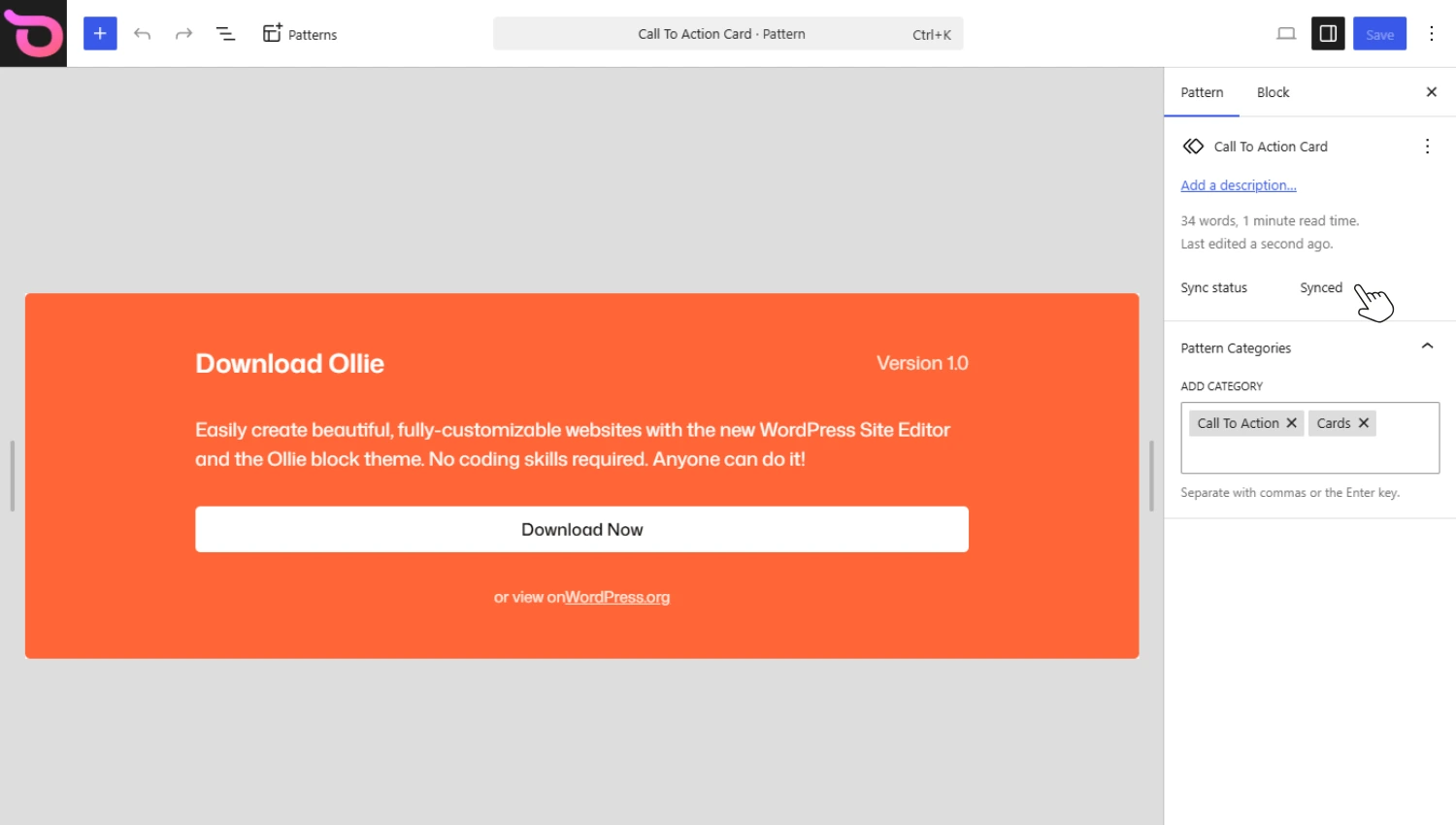
Here are some good use cases:
- Site-wide notices or announcements. For example, a shipping delay notice or a holiday closure message that appears on multiple pages.
- Author bios. A standard bio block reused at the end of every blog post.
- Promotional banners. A sale banner such as Black Friday or Cyber Monday that you want to update or remove at once when the promo ends.
- A Call-To-Action. A recurring “Subscribe to Our Newsletter” or “Book a Consultation” block used across many posts or pages.
Synced patterns make it easy for you to update these sections on your site. You do it once, and the change applies everywhere the pattern is used. Here’s our synced patterns walkthrough video that is worth watching if you want to see how they work in practice.
Partially vs fully synced patterns
What we’ve described so far are fully synced patterns. For fully synced patterns, every instance is identical everywhere. Editing any one updates all of them.
If you don’t want this to be the case all the time, you can opt for partially synced patterns. With partially synced patterns, you can mark specific blocks in a synced pattern as “overridable”. This means they can be edited in one instance, and other instances remain intact.
Let’s say you have a team member card pattern. You can allow the name, photo, and bio text to be overridden per instance. This way, each team member’s card can have unique content as the design remains intact.
Now WordPress block patterns and synced patterns are all part of the blocks system, and they work together rather than instead of each other.
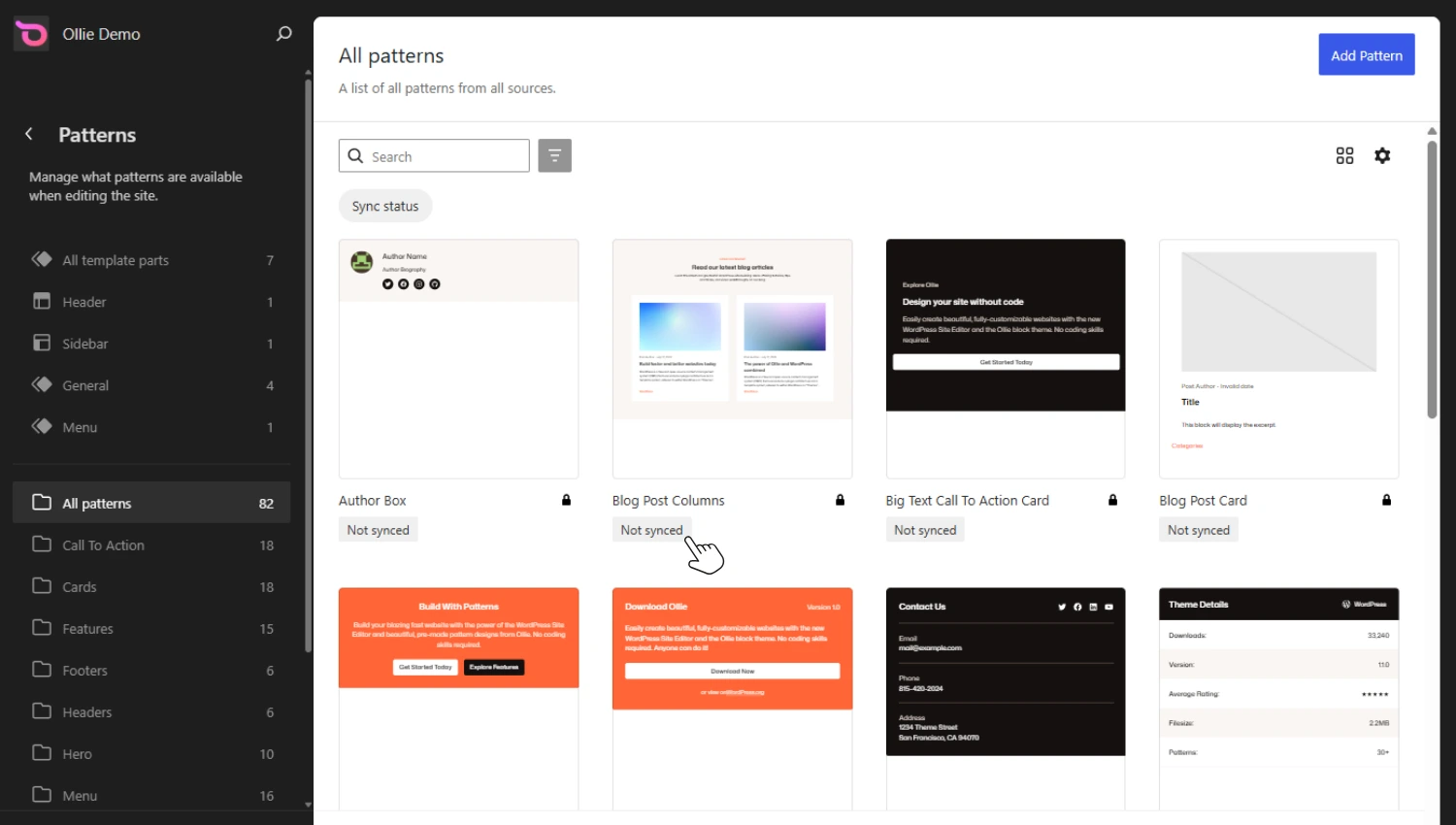
Block patterns and synced patterns: how they work together
By now you’ve probably noticed that block patterns and synced patterns have a lot in common. They both help you reuse pre-made designs in your WordPress site, but they do it in different ways:
- Block patterns help you build pages faster by giving you ready-made layouts that you can customize.
- Synced patterns help you keep repeated content consistent by letting you update it everywhere from one place.
This is why the two aren’t competing options, and you would typically use both in your WordPress site.
For example, you might use a block pattern to quickly insert a pre-designed hero section on your homepage and customize it to suit that page. Elsewhere in your site, you might use a synced pattern for a newsletter sign-up that appears on several pages.
You benefit from using both. But these two have differences that you should understand if you want to use them effectively.
Block patterns vs synced patterns: how they differ
| Feature | Block patterns | Synced patterns |
|---|---|---|
| What they are | Pre-designed collections of blocks that create reusable page sections. | Blocks or groups of blocks you save for reuse across your site. |
| Where they come from | The WordPress Core, Pattern Directory, and your theme or plugins. | Created by you from content you’ve already built. |
| How editing works | Once inserted, each instance becomes an independent copy which you can edit freely. Editing one instance doesn’t affect other instances where the same pattern has been used. | Every instance is connected, so editing the pattern updates everywhere it’s used. |
| Best for | Dropping in a designed section and customizing it for that page. | Content that must stay consistent everywhere on the site. |
| Use cases | Hero sections, testimonials, pricing tables, FAQs, and other page layouts. | Promotional banners, newsletter signups, contact CTAs, and any content that should remain identical across multiple pages. |
| Availability | Can be shared through the WordPress Pattern Directory or bundled with themes and plugins. | Exist only on the website where they were created. |
When used together, block patterns and synced patterns make building and maintaining your WordPress site much faster. Block patterns reduce repetitive design work, while synced patterns reduce repetitive updates.
Once you understand when to use each one, you’ll spend less time on repetitive design work. Next, let’s look at how to create block patterns and synced patterns.
How to create and save your own WordPress patterns
You can save any block or group of blocks as a pattern and reuse it on your site. To save a pattern, you’ll have to create it first.
You can either build the pattern yourself by combining blocks one after the other and styling them, or use a pre-made pattern by following these steps:
- Click the blocks inserter (plus button), then Browse All, and then the Patterns tab.
- Browse and click on the pattern you want to add to the page to insert it.
- You can then customize this pattern to fit the page.
After creating your pattern, you can now save it as a regular pattern or a synced pattern. To save your pattern:
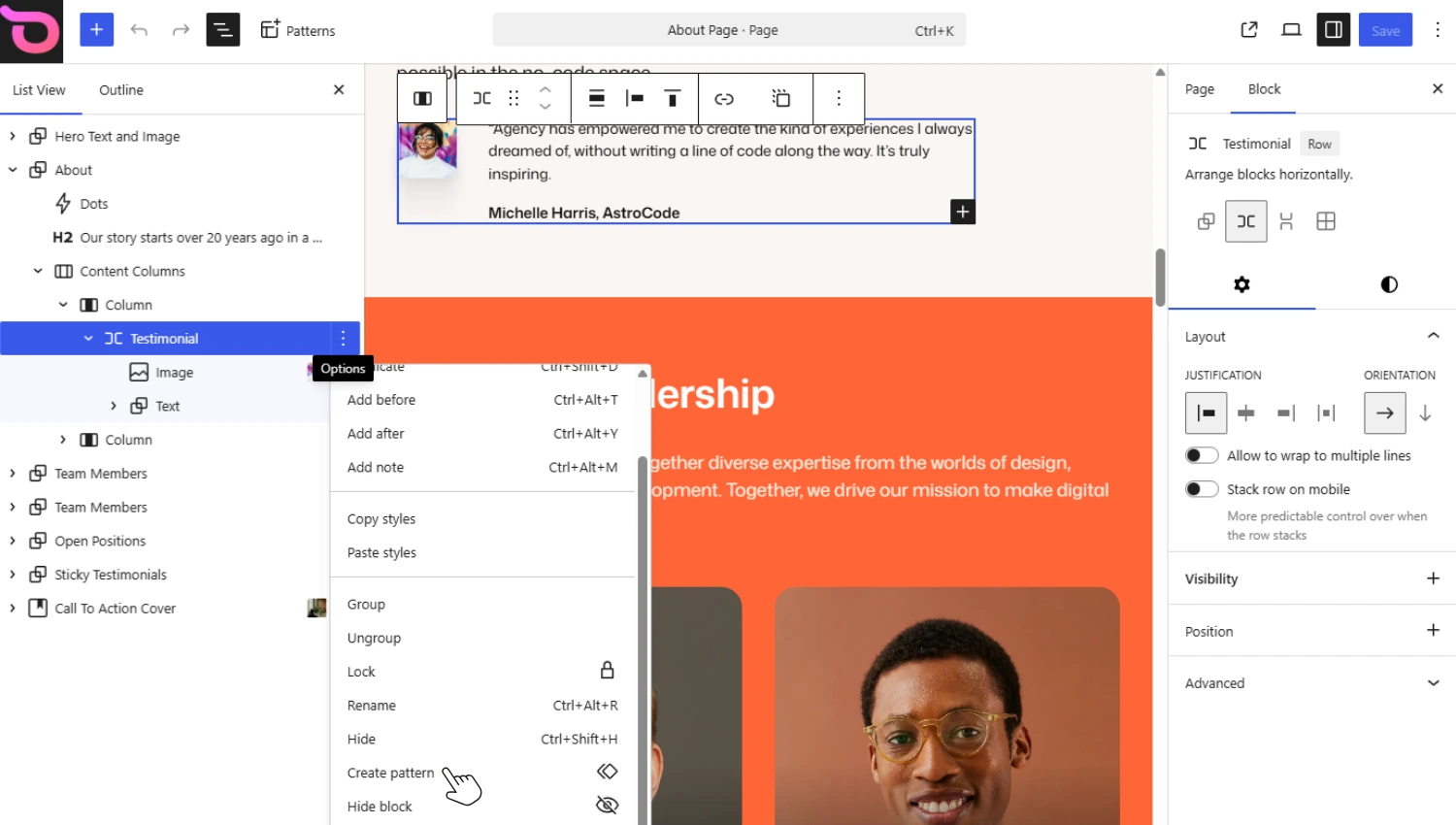
- Click on the pattern to select it.
- Next, click on the Options menu (three dots) in the toolbar on the left.
- Choose Create pattern in the options that pop up.
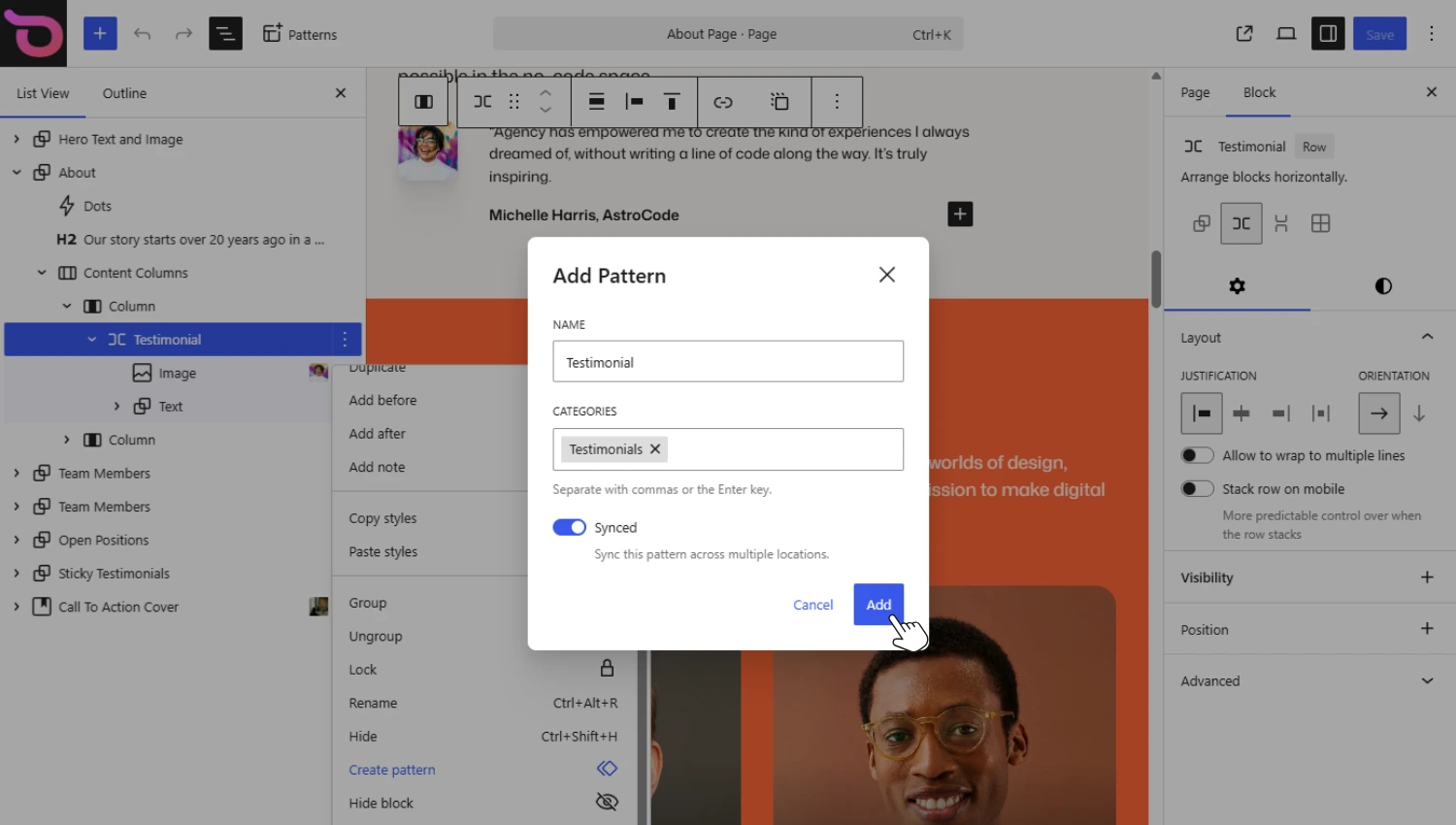
- Give your pattern a name (preferably a descriptive name that will make it easier to find).
- Click the toggle switch to decide if it should be synced or remain unsynced.
- Click Add to save your pattern.
Now you can insert this pattern anywhere on your site using the block inserter under the patterns tab. Saved patterns appear under the My patterns category in this tab.
Before moving forward, let’s first clarify how patterns are different from another similar WordPress feature: templates.
What is the difference between patterns and templates in WordPress?
Patterns and templates are similar in many ways. They can be a point of confusion, though, especially if you’re new to WordPress.
Patterns and templates both:
- Provide pre-designed layouts and are reusable.
- Are made from blocks and can be edited in the Site Editor.
- Can be provided by a theme.
The difference is that templates define the overall layout structure of specific pages in your site. This includes where the major elements of the page, for example, the header, footer, sidebar, and main content area, are positioned.
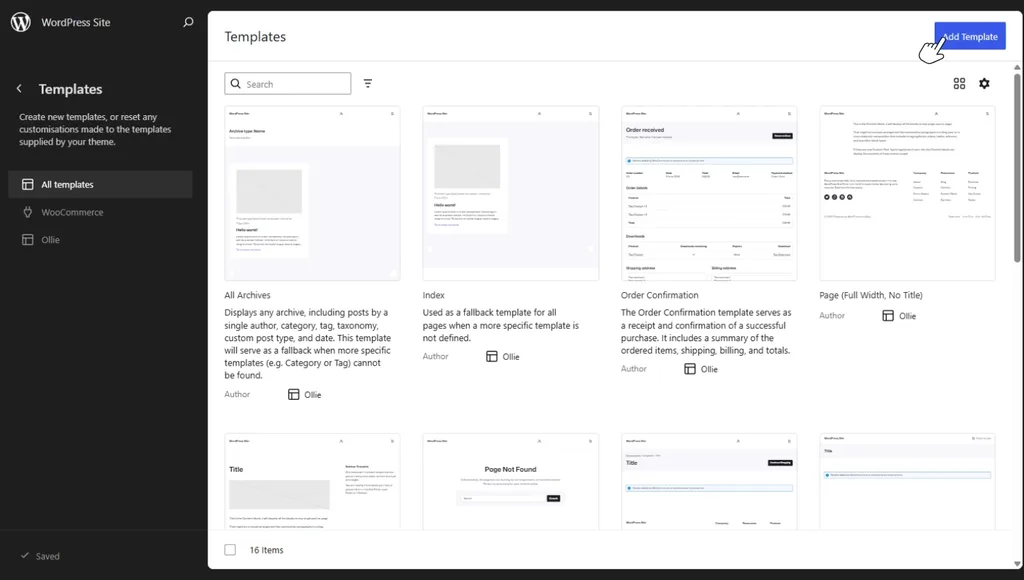
Because templates define how pages look, there are different templates for different pages. For example, a single post template for single posts, a standard page template, and ecommerce-specific templates such as the checkout page template.
On the other hand, a pattern is a predesigned section that sits inside a page or a template. They help you build individual sections, not control the entire page. From this, you can already see that patterns cover a smaller scope and that they can be a part of templates.
What about template parts?
Templates have reusable sections, such as headers and footers, called template parts. While they are reusable like patterns, they’re intended for your site’s structural elements rather than flexible content sections.
Templates work together with patterns. You’ll use templates to define the overall structure of the page and then patterns to design specific sections of the page.
Here’s a summary of how these two compare.
| Templates | Block patterns |
|---|---|
| Define the overall structure of a page or post. | Create individual sections within a page. |
| Apply to every page using that template. | Can be inserted wherever you need them. |
| Control the placement of elements like headers, content areas, and footers. | Contain groups of blocks such as hero sections, testimonials, FAQs, or pricing tables. |
| Usually edited in the Site Editor. | Inserted from the block inserter and customized on the page. |
Edits to a template apply to every page where the template is used. This is also the case for synced patterns, but for regular patterns, the changes will only apply on the specific page or section you’re editing.
Want to learn more about templates and template parts? Check out our How to Use Block Templates and Template Parts guide.
Block patterns, synced patterns, and templates all make your experience easier as you build your WordPress site with blocks. But the experience you get largely depends on the block theme you’re using.
What is a WordPress block theme and what does it have to do with patterns?
A WordPress block theme is a theme that uses blocks for every part of your website. It allows you to visually edit your content and site’s overall layout through the Site Editor.
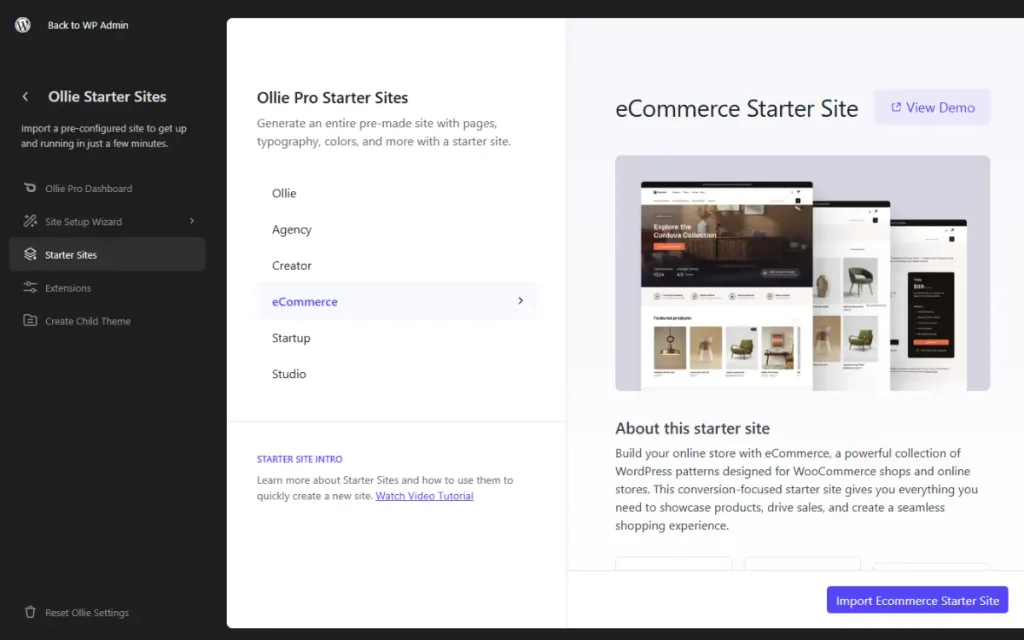
Block themes give you visual control over your entire site, including headers and footers. These themes support WordPress’s Full Site Editing (FSE), and represent the general direction WordPress is taking.
Block themes work natively with the patterns system. Classic themes, on the other hand, have limited or no pattern support at all (depending on the classic theme you’re using).
With a block theme installed, you can add any pattern available to you to any page you want. You can customize them freely using the WordPress block editor. Then, save your custom block patterns and reuse them later.
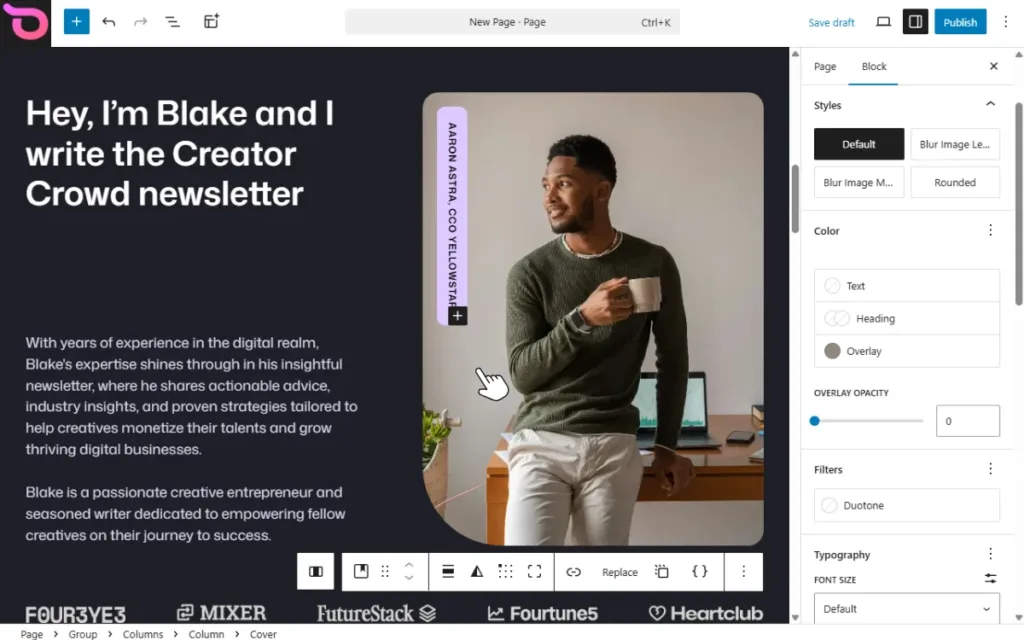
On top of that, block themes add more patterns to your WordPress site. Some include a few basic patterns, while others can add a comprehensive library of professionally designed patterns for you to use.
Ollie offers both options: a block theme that adds several patterns to your site and a pro plugin that comes with a comprehensive pattern library.
Ollie: a block theme for patterns
Ollie is a powerful solution that adds a design system and a website builder toolkit to the Site Editor. It is designed to make WordPress patterns the foundation of how you build sites in WordPress.
The Ollie theme (free)
The Ollie block theme is a free theme available from the WordPress.org theme directory. Ollie is WordPress-native. This means it’s built entirely using WordPress’s native blocks and APIs. As a result, it works seamlessly with the Site Editor and supports everything inside it. This includes blocks, FSE, and patterns.
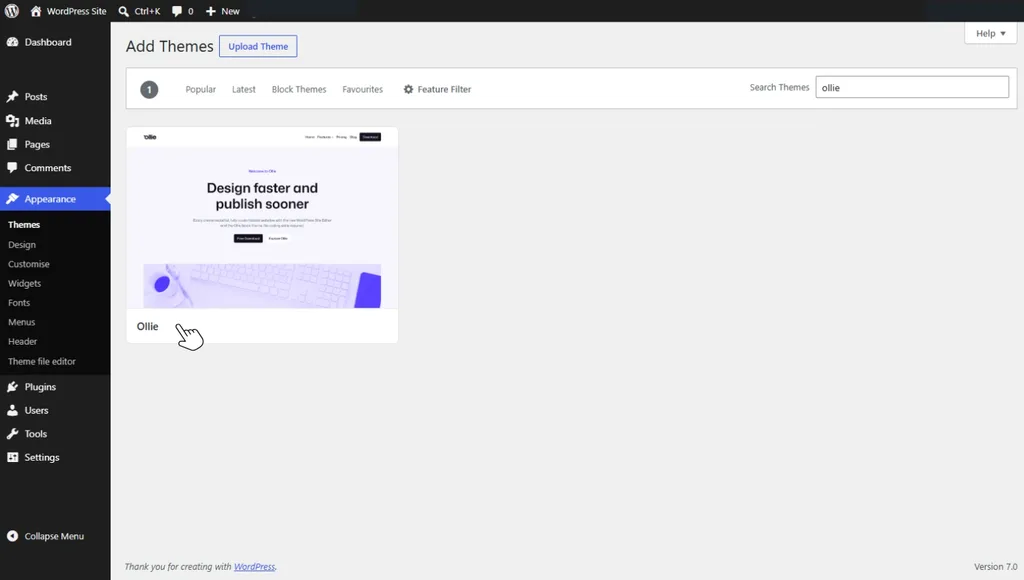
The free Ollie theme includes 50+ patterns for common page sections, such as hero sections, testimonials, calls to action, and more. Once you install and activate Ollie, these patterns will be available for you to use directly from the block inserter.
Ollie’s design system makes it easy to work with patterns
Ollie has a built-in design system that simplifies customizing patterns. It includes:
- A built-in color system. This system ensures that colors in your site are harmonious and always on brand. You only select your main brand color, and Ollie will create a color palette for you to use across your site.
- A typography system that is made up of high-quality typography pairings that are responsive from the outset.
- One-click style variations. Ollie’s patterns have design variations that you can switch to in a single click. This way, it is easier to switch to a pattern that better suits your design after selecting one that you feel doesn’t.
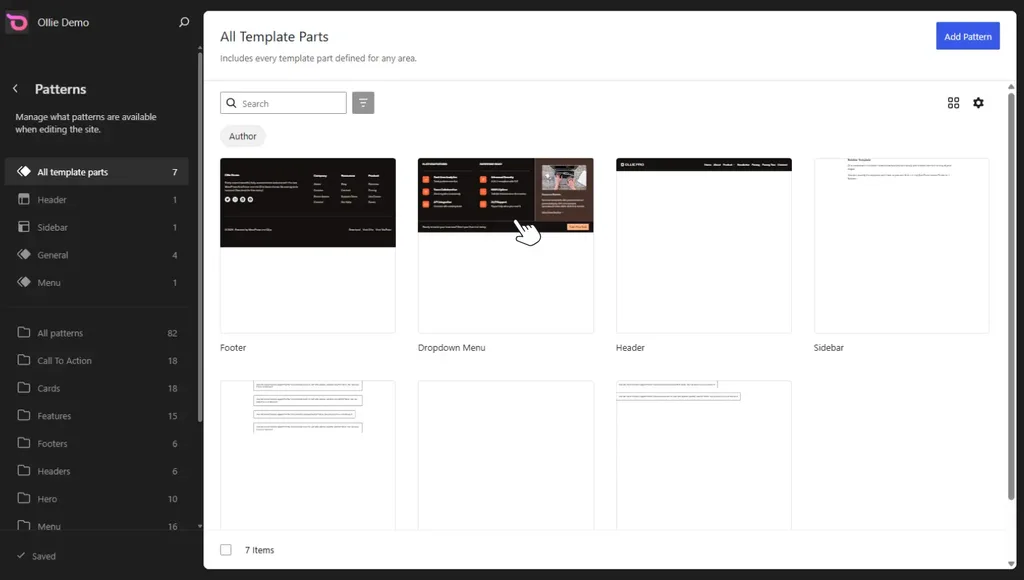
Ollie Pro (paid plugin)
Ollie Pro is a paid plugin that adds powerful building tools to the Ollie block theme. These include:
- Responsive controls.
- Advanced styling features (an animation designer, interactive state styling, and a CSS class manager).
- A menu designer for mega menus and mobile menus.
- Ollie AI.
- WooCommerce blocks.
- An extensive pattern library.
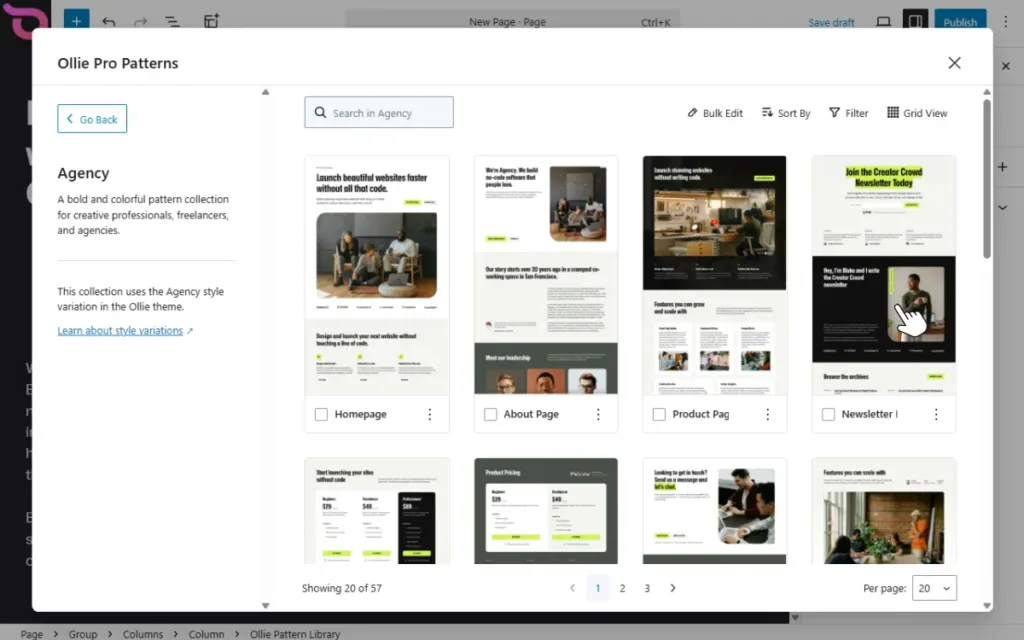
The Ollie Pro pattern library
The pattern library is one of Ollie Pro’s best features, made up of a growing collection of expertly designed patterns. It houses hundreds of patterns for several page sections, such as services, testimonials, pricing sections, forms, etc.
Because this library is extensive, it comes with several features to help you navigate it, explore patterns, and add the right ones to your site.
A well-organized pattern library
Patterns are organized into collections and categories. Clicking on a collection or category only shows the patterns in that collection or category, making it easier to find the designs you’re looking for.
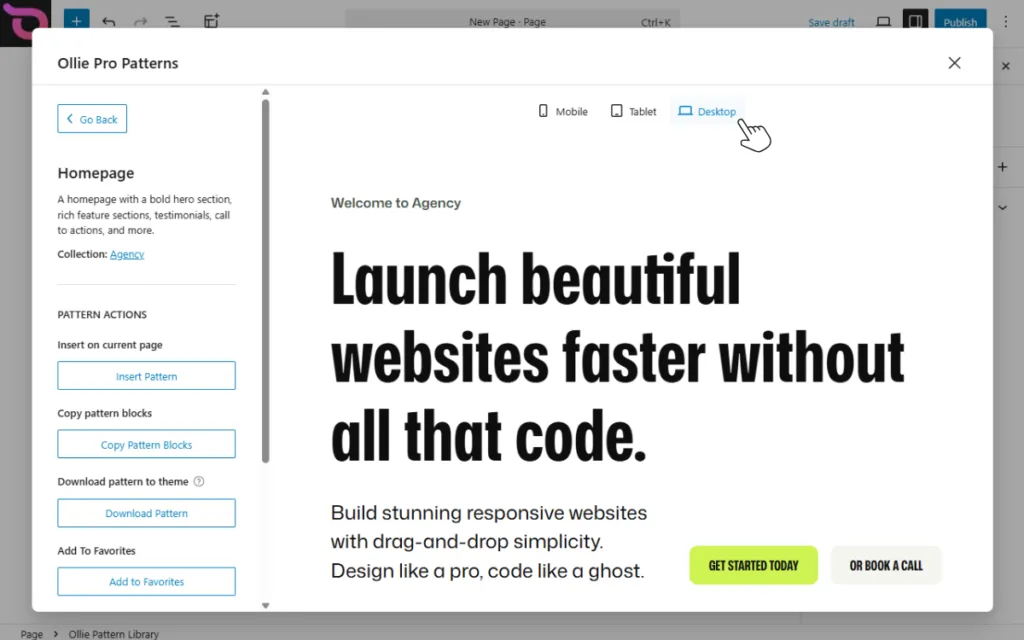
Search, sort, and filter options
These features help you browse patterns and narrow down your options to specific patterns or types.
- The search is live, and patterns start to appear as soon as you start typing.
- You can filter and stick with your favorites (the patterns you use most or those you simply mark as your favorites).
- The sorting option lets you sort by ascending or descending order, or by the latest patterns.
These help you find what you’re looking for.
Quick actions and live previews
There are quick actions you can perform on each pattern, for example, inserting it or adding it to favorites. Clicking on each pattern reveals a live preview. You can scroll the pattern and preview how it would look across different devices.
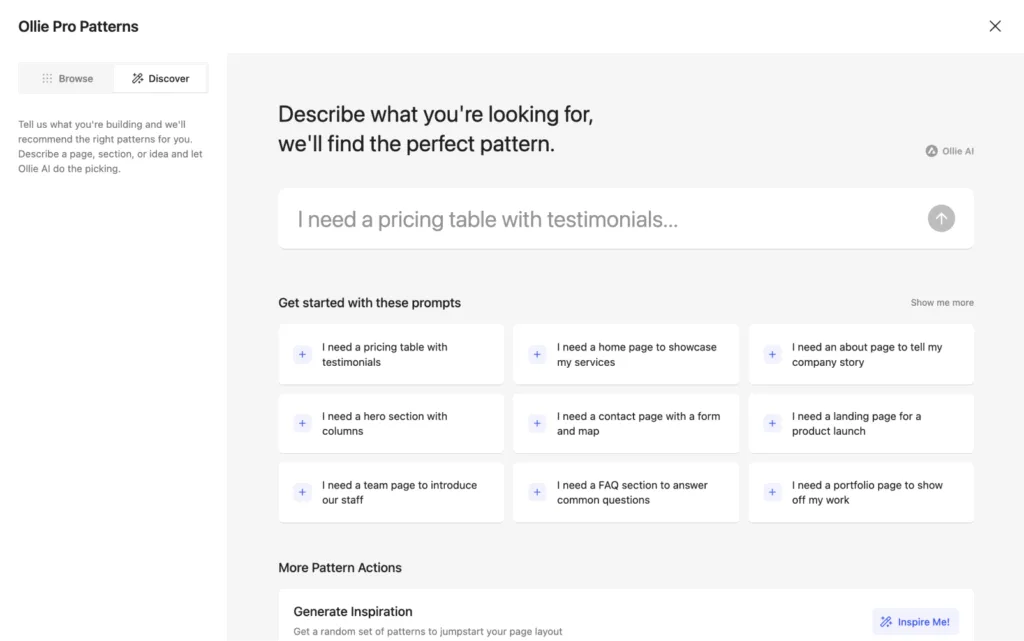
Discover patterns with Ollie AI
The Discover feature in the Pattern Library lets you use natural language to search for patterns. You describe what you’re looking for, something like “I need a pricing table with testimonials and ratings”.Ollie AI will search through the library and return three of the best matches for you to choose from.
If you’re not sure of how to describe what you want, you can use the premade prompts to get some ideas. Alternatively, you can also use the Inspire Me! button to help you find patterns and combinations you may not have thought of.
After installing the Ollie Pro plugin, you can access the pattern library by typing /ollie on a page. This adds the pattern library block, where you can click the Open Ollie Pattern Library block.
Start building with WordPress patterns
WordPress uses the term ‘patterns’ for two related but different things. Block patterns are pre-designed sections you can insert and customize. The edits you make will only apply to the instance you’re editing, not anywhere else. Synced patterns are like block patterns, but they stay connected. Any edit you make on a synced pattern will be applied everywhere else the pattern is used.
Both block and synced patterns enable you to build your WordPress site quickly. But your experience with them largely depends on the block theme you’re using.
The Ollie block theme comes with several pre-made patterns ready for you to insert in your site and customize them. The Ollie Pro plugin adds an extensive pattern library, full of hundreds of expertly designed patterns and controls to browse and add them to your site.
Grab the Ollie theme and the Ollie Pro plugin and start building your site with WordPress patterns.
