
Looking for the best patterns in the WordPress pattern library? This guide will show you how to find them.
Block patterns give you pre-made sections for your pages, which saves you from building every section from scratch. WordPress has thousands of patterns, so you’ll likely want to know how and where to look to find the best ones for your website.
In this guide, we’ll walk you through finding the best patterns in the WordPress block pattern library.
We’ll cover:
- What the WordPress pattern library is.
- Where to find WordPress patterns.
- How to find the best patterns in the WordPress pattern library.
What is the WordPress pattern library?
The WordPress pattern library is a collection of ready-made layouts that you can add to your website and customize to fit your site’s design.
These layouts are called patterns, and they’re pre-made designs for common page areas like:
- Hero sections.
- Testimonials.
- Calls-to-action (CTA).
- Pricing tables.
- Services sections, etc.
Patterns are made from core blocks. This means that once you add them to your page, you can customize them using the WordPress Gutenberg editor (Block Editor).
So patterns are the pre-designed layouts themselves, and the pattern library is the collection where you can find, browse, preview, and choose patterns to use on your site.
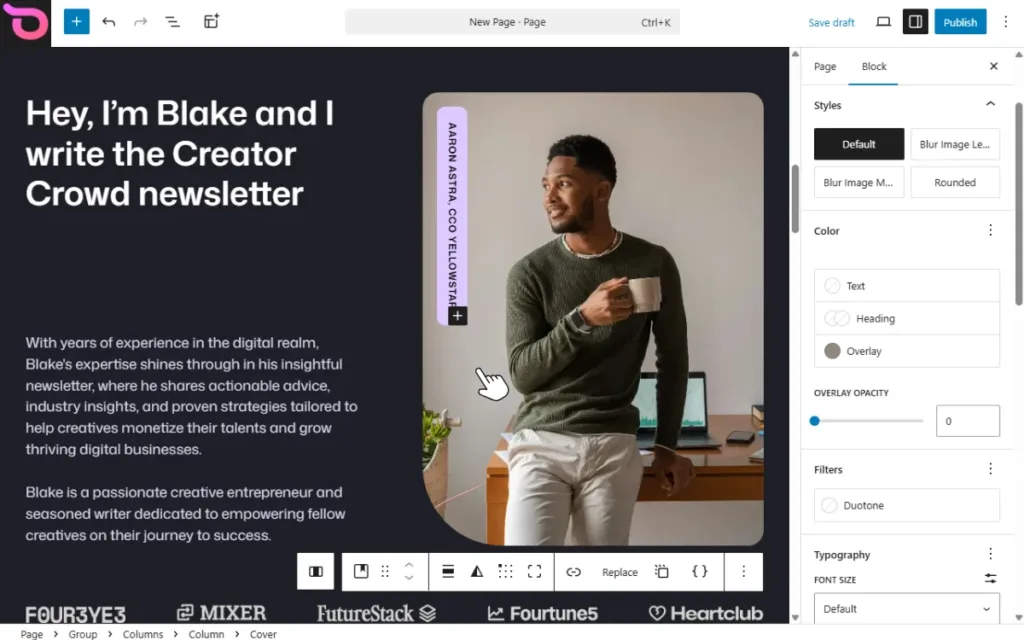
Why use patterns?
Block patterns simplify creating your WordPress site’s pages. Without patterns, you would have to build every section on your page one block or element after another. This can be tedious. It’s even harder if you don’t have a design idea in mind.
Block patterns provide you with pre-designed blocks for common page sections such as the ones we’ve mentioned above. You don’t have to build these sections from scratch. You simply insert a pattern in a single click, adapt its design to your site, and then fill it with your content.
In short, patterns make building these sections of your website so much easier.
Because WordPress is becoming more block-based with each release, you have access to numerous patterns. This is great because you have so many options, but at the same time, it makes it a little harder to find the best patterns for your site. To understand how to do this, let’s first see where you can find these patterns.
Where to find WordPress patterns
The term ‘WordPress pattern library’ doesn’t refer to one place because patterns can come from several places in the WordPress ecosystem. Basically, anywhere where you can find, browse, and choose patterns to use in your WordPress website can be called a pattern library.
This includes:
The WordPress block pattern directory
The WordPress Pattern Directory is the public collection of patterns available at WordPress.org/patterns. Here, you’ll find a large selection of pre-made designs you can browse and use for your own pages. At the time of writing, there are over 2,300 patterns in this directory.
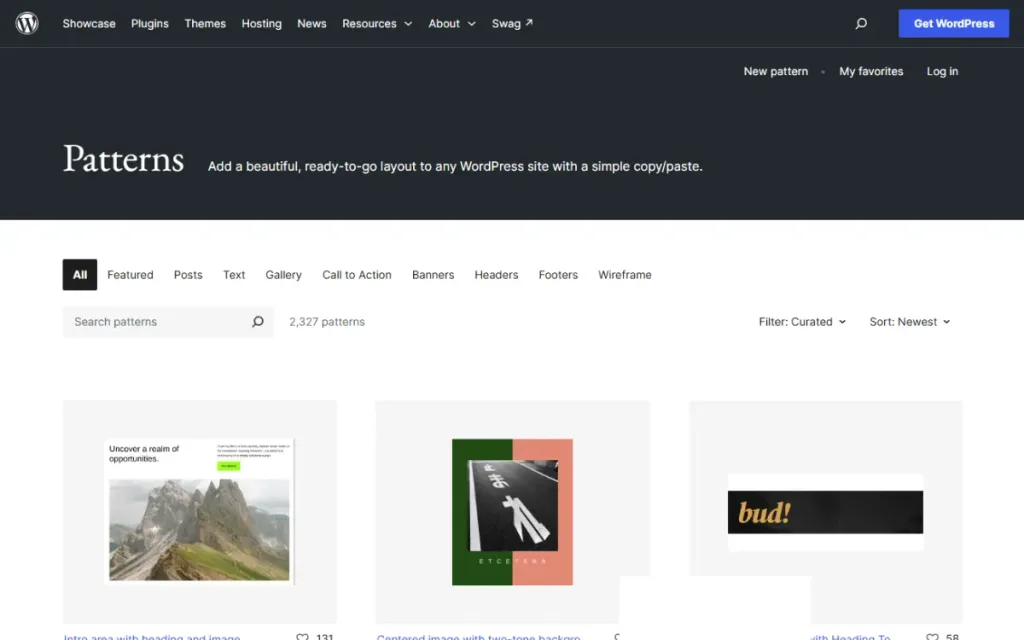
The block pattern directory has two types of patterns:
- Core-bundled (curated) patterns. These are patterns that ship with WordPress itself. They’re picked by the core team as the best of what’s available for you to use.
- Community patterns. WordPress allows individual designers and contributors to submit their own patterns so that they can be publicly available in the WordPress.org pattern directory. These patterns aren’t officially bundled with the core WordPress, but you can still use them for free.
Who can submit patterns to the WordPress pattern directory?
Anyone, including designers, site builders, and site owners. They can add their best designs to the block pattern directory. These designs will then be reviewed before being made public.
To submit a pattern, you must have the legal rights for the content and the images used. Plus, it must meet the content standards and guidelines set by the core team.
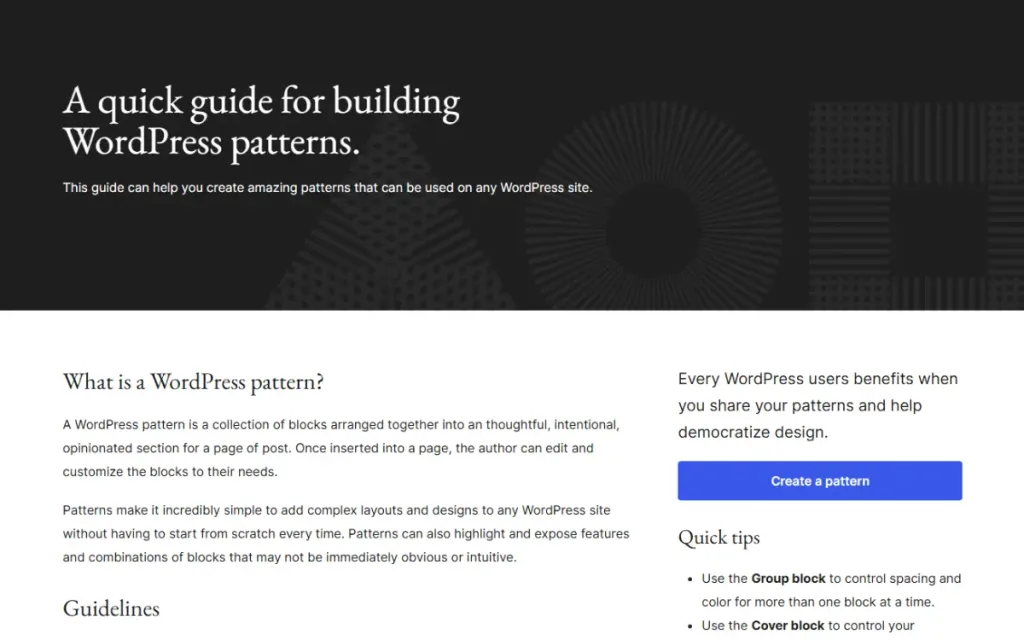
The pattern directory is a good place to look for the best WordPress patterns because it contains patterns handpicked by the core team and some of the best designs from the WordPress community.
Patterns in your WordPress block theme
Block themes ship with a collection of patterns designed to work with the theme’s design system. In this collection, you’ll find a curated set of patterns that represent how the theme developer intends different sections of your site to look when you’re using that theme.
Because they’re built to work with the theme’s design system (typography, color system, spacing, etc.), they slot into your designs well. In fact, they tend to look better for your website than patterns you get from elsewhere, for instance, the WordPress pattern directory.
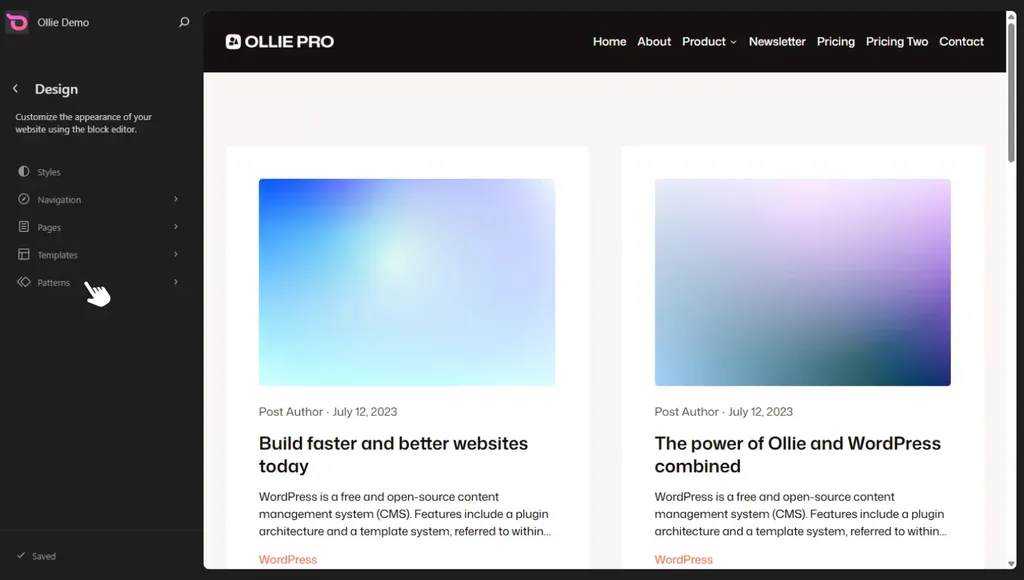
You can find these patterns using the block inserter or by navigating to Appearance → Editor → Patterns. You’ll see All Patterns just below All template parts.
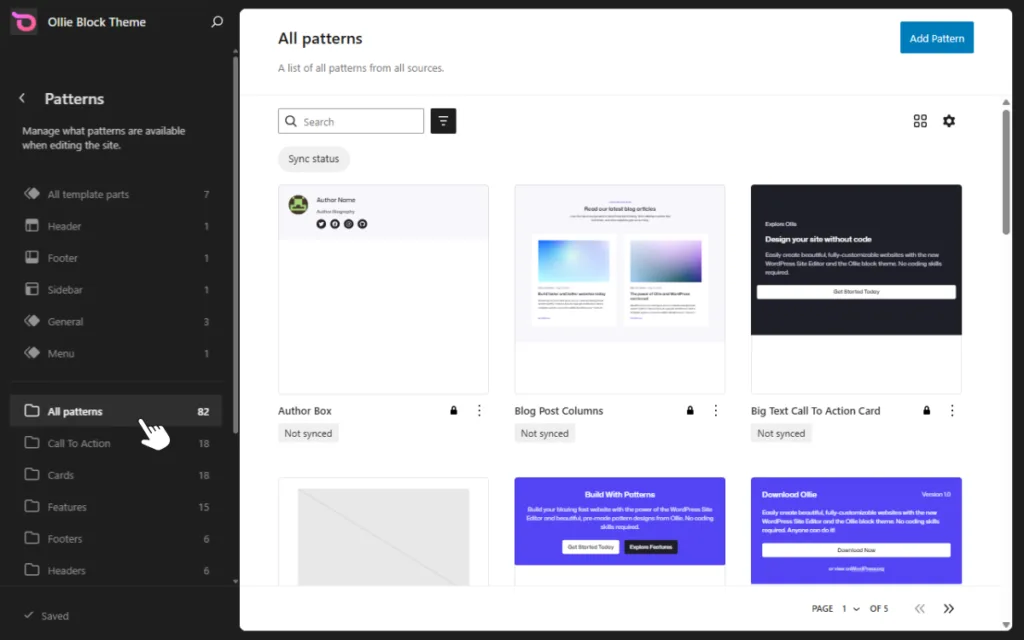
The Ollie block theme comes with its own pattern library
The Ollie theme ships with more than 50 professionally designed patterns for several page sections such as pricing sections, posts, testimonials, etc. It offers style variations for many patterns in the library. You can swap between these variations in a single click.
This means that you have different options for different sections and that you get to choose the one you like best. The patterns are built using Ollie’s design system. Because of this, they fit well with the rest of the design once you insert them.
Patterns via a WordPress plugin
Plugins can also provide their own pattern libraries. Different types of plugins do this:
- Block library plugins. On top of adding individual blocks to WordPress, many block library plugins also include their own pre-designed pattern collections.
- Dedicated pattern library plugins. These plugins focus on giving you a collection of ready-made patterns.
- Premium theme extension plugins. These add a dedicated pattern library that builds on a specific block theme. One such plugin is Ollie Pro, which adds a pattern library and additional design tools to enhance the Ollie block theme.
Patterns that come with a plugin are useful because you get more options and more specialized layouts beyond what you already have with your block theme.
The Ollie Pro pattern library
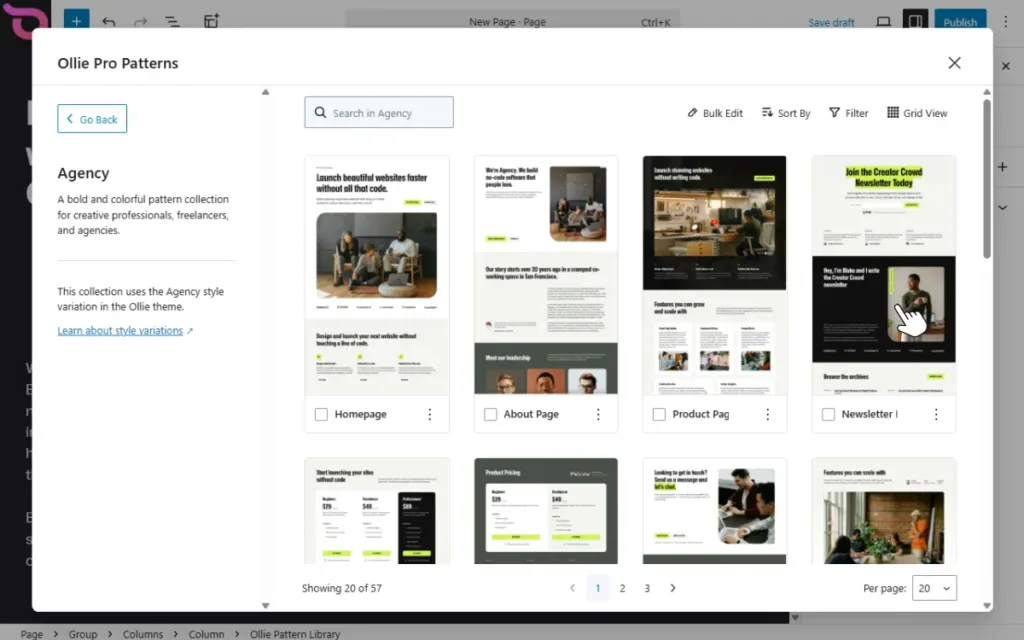
The Ollie Pro plugin adds an extensive, cloud-based pattern library to your WordPress website. This pattern library contains hundreds of professionally designed patterns and full-page layouts.
Inside it are numerous pattern collections for different types of websites such as ecommerce, studio, startup, and creator websites. Plus, several patterns for both common and special page sections like carousels, product cards, forms, posts, etc.
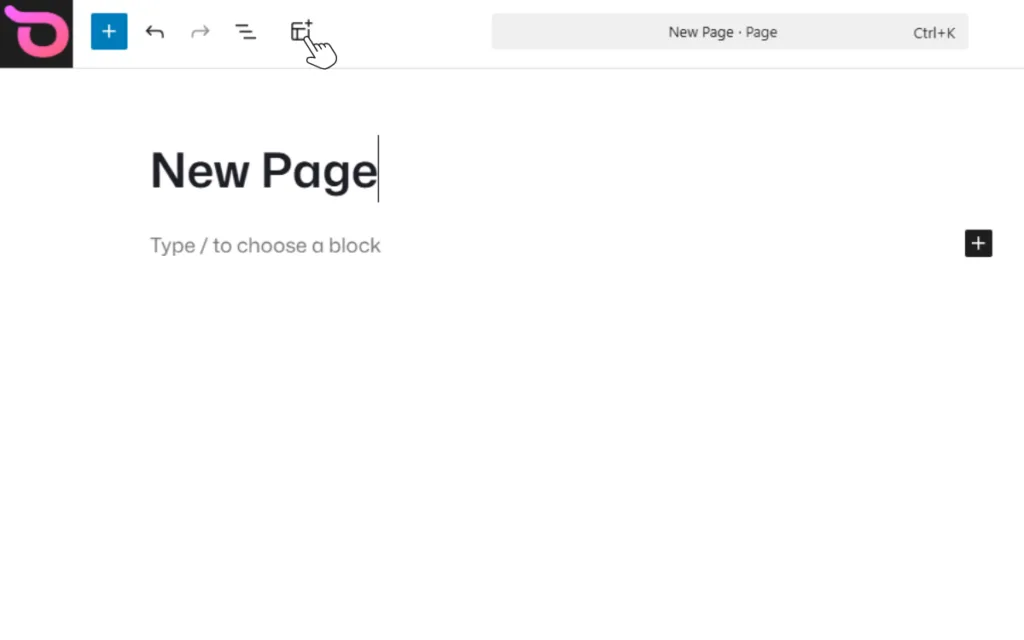
Launching it is easy. You can do it by clicking the Patterns button in the toolbar on any post or page.
The pattern library contains several pattern browsing features to help you explore and find the patterns you’re looking for. We’ll cover them in detail later.
Patterns you save yourself
After designing a section you know you might want to reuse, you can save it as a pattern. For example, you can design a CTA section the way you want and then save it as a pattern. You may do it from scratch or edit a pre-designed pattern.
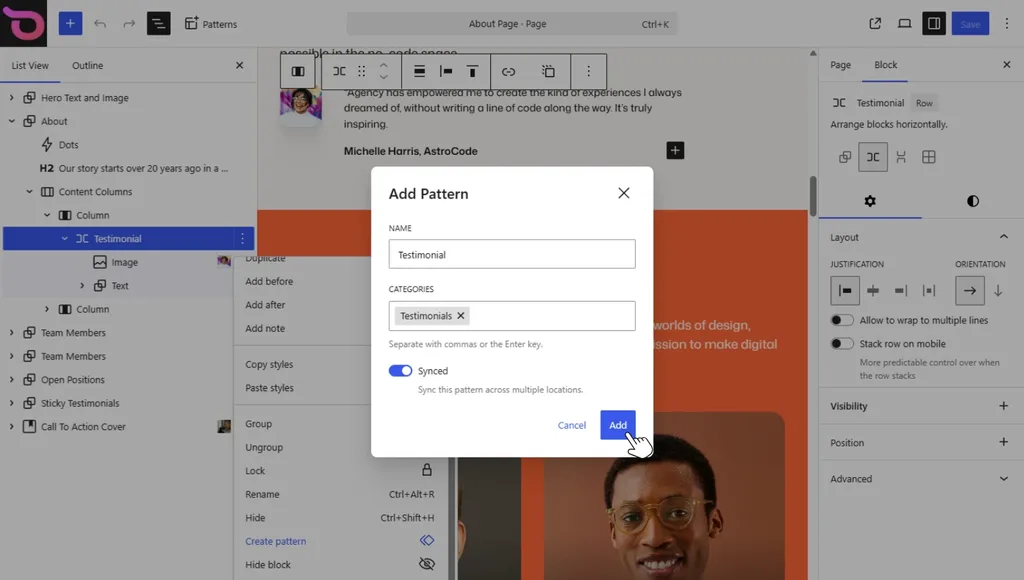
Note: When saving patterns, you can choose to make them synced or leave them as unsynced. Synced patterns are a type of pattern where, when you edit it in one place, the changes apply everywhere you use the pattern on your site.
Want to learn more about WordPress synced patterns and how they differ from other patterns? Read our guide on WordPress Patterns vs Reusable Blocks.
Then, you can insert them into other pages using the block inserter when you need to use them. Over time, you can have a library full of custom block patterns that you’ve designed yourself.
Now you know patterns can come from different sources. Let’s look at how to make the most of your pattern library by finding the best patterns for your site next.
How to find the best patterns in the WordPress pattern library
With patterns available in your theme, plugin, the WordPress pattern directory, and your own collection, it’s easy to find yourself scrolling through numerous layouts looking for the best one. This takes time and can lead to decision fatigue. The more options you scroll through, the harder it is for you to pick.
What’s more, if you’re pulling patterns from different sources, your design may look inconsistent. You need a way to find patterns that isn’t as tedious. A few simple techniques can make this process faster and easier.
We’ll break down these techniques and how they work for each source of WordPress patterns.
Use search, sort, and filter
Search, sort, and filter help to reduce the number of patterns you have to consider, but they do it differently.
- Search. This helps you find patterns based on what you’re building. If it’s a hero section, you simply search for ‘hero’. To use search, you must know or at least have some idea of the pattern you’re looking for.
- Filter. Using filters narrows down your options further based on specific characteristics. For example, patterns created by the WordPress community versus those picked by the core team. Or patterns belonging to a specific category.
- Sort. This lets you determine which results you want to see first. For example, newest patterns first.
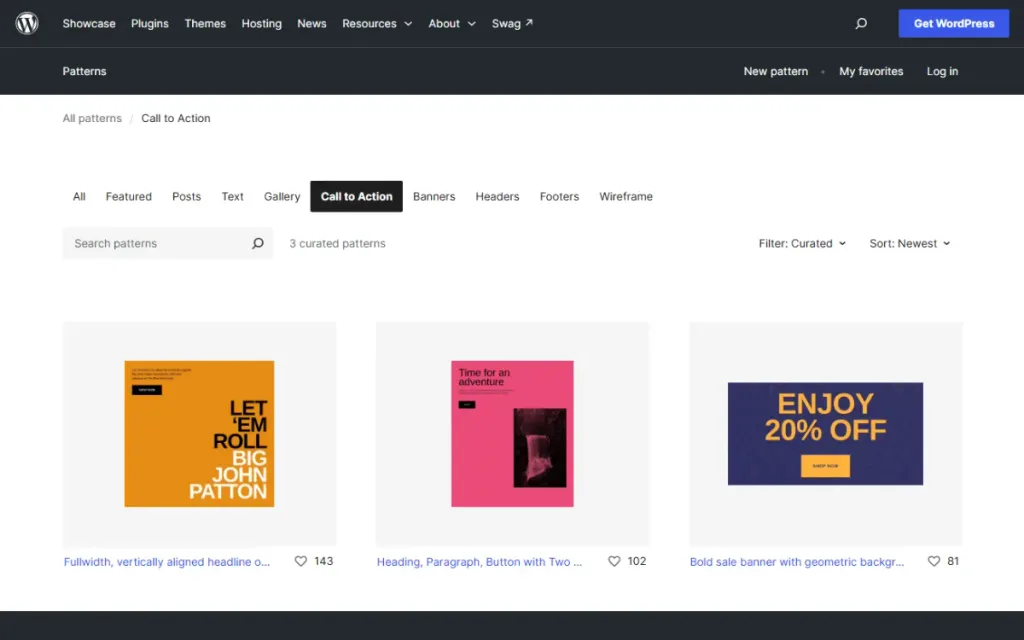
You’ll use these three together to simplify finding the best patterns. Wherever you look for patterns, ensure you utilize the available searching, sorting, and filtering options.
Now let’s look at how you can apply these techniques for each of the WordPress pattern sources we’ve highlighted, starting with the WordPress pattern directory.
WordPress Pattern Directory
Searching, sorting, and filtering are simple in the Pattern Directory because these controls are at the top of this page. Let’s say you’re looking for a banner for your site. Here’s how you can make the most of these controls to find the best patterns.
Don’t rely on search alone
Performing a pattern search gives you a direct route to what you’re looking for. It’s fast and convenient, but you shouldn’t rely on it alone when looking for patterns in the WordPress Pattern Directory.
Search only looks for patterns that match your search term. So if you search for “banner”, the patterns that appear are those that have the term banner in their title or searchable text.
Some banner patterns won’t appear in the search results because they don’t have this text anywhere in the title or text. In other cases, you may get no results even if the pattern is available in the library. The bottom line is that search works if you search for the right terms. For this reason, it shouldn’t be the only way you look for patterns in this directory.
Make use of the category filters
Category filters can surface patterns even if they don’t necessarily have the word “banner” in the title or searchable text. When you click on the banner filter, it surfaces all the patterns placed in that category. This helps you find patterns you might otherwise miss with search.
You can also take it further by filtering the patterns to either keep community-designed patterns or those that are picked by the core team (curated). Just because patterns are curated doesn’t mean they’re the best ones. Community-designed patterns are also worth looking at.
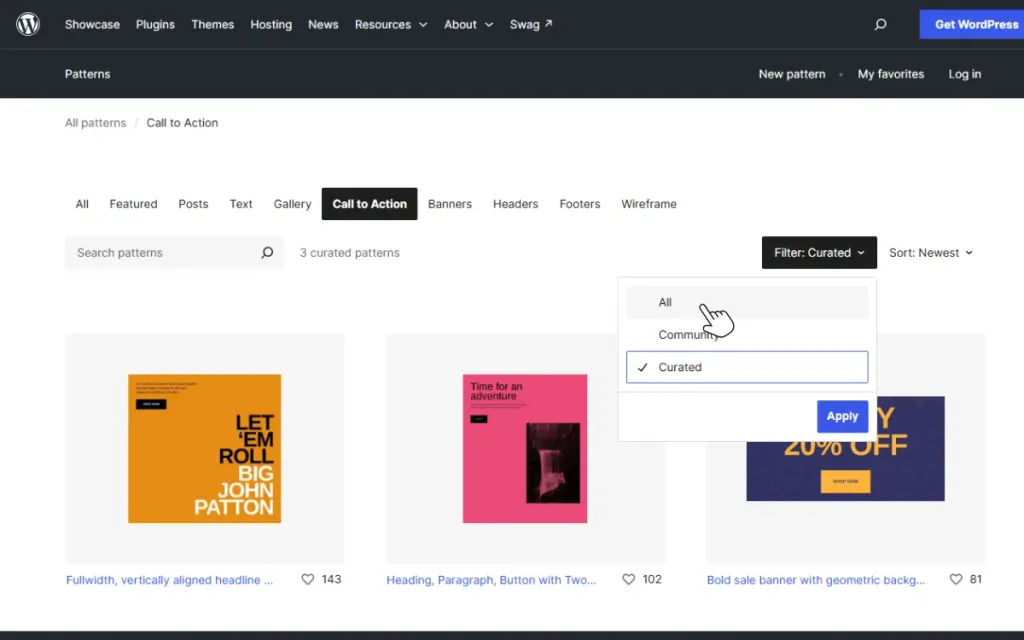
Sort to see the most popular, newest, or oldest patterns first
The Pattern Directory allows you to sort patterns going from:
- The most popular to the least. This is useful if you want to see the patterns the WordPress community likes best.
- Newest to oldest and vice versa. The oldest patterns may have some gems that are usually overlooked for the new ones.
A good pattern to consider from this directory
A pattern from this directory that we like a lot is the Cover Image with Bold Heading and Button, Left.
- It has a clear visual hierarchy. The heading immediately establishes what the banner is about, while the CTA sits below it. So a user’s eye will naturally focus on the heading first to understand what the section is about before moving to the CTA.
- The image supports the main content rather than competing with it.
- The bold, large font-size heading makes it immediately noticeable, and the CTA is clear.
This makes it useful for promotional banners and hero sections. You can find many other similar patterns in this directory by using the banner category filter and then sorting the results.
Ollie theme patterns
The Ollie theme organizes its patterns in the Patterns section of the Site Editor. It has category filters and a search box to help you explore this library. Here’s how to make the most of them to find the best patterns.
Attempt searching for combined sections
The Ollie theme has several patterns that combine multiple, related page sections. For example, this pricing table with testimonials pattern. This way, instead of searching for separate patterns for each section, you search for one pattern that includes both. You don’t have to waste time looking for separate patterns.
Explore different categories when looking for a pattern for a specific section
Like the WordPress Pattern Directory, the Ollie theme’s pattern library has category filters for sections like hero, pricing, CTAs, etc. Just because you’re building a specific section, let’s say a hero, you shouldn’t only explore the patterns in the hero category.
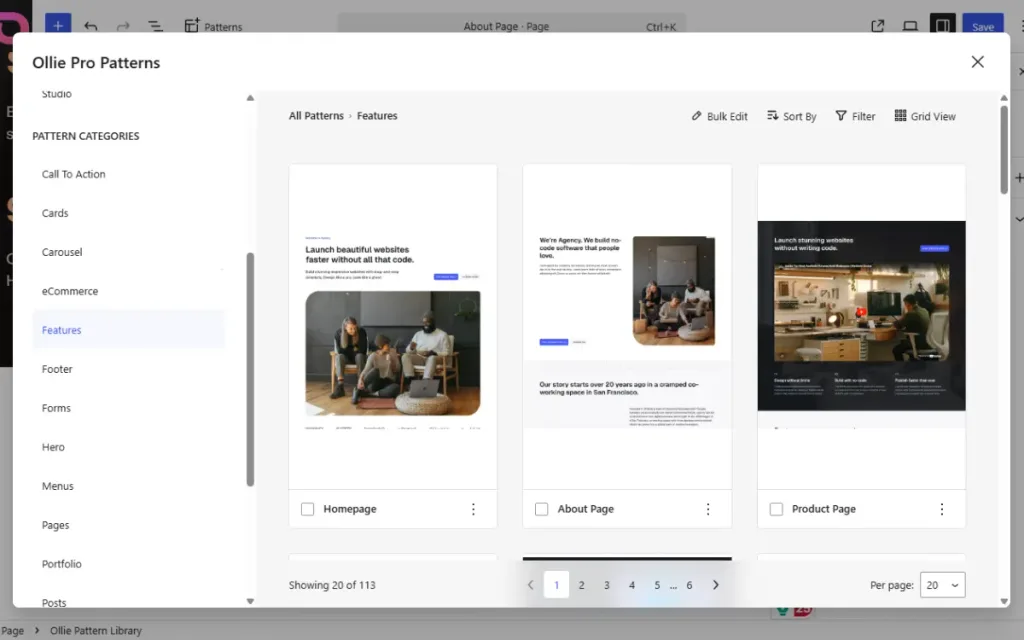
CTA and Card categories have well-designed patterns you can use for your hero. For example, the Lead Magnet and Text and Details cards can work well for your hero. We especially like the Text and Details card because of how modern it looks.
Take a look at the pattern variations
Ollie has style variations for its pattern. For example, if you’re looking for a hero pattern, you’ll see:
- Light versus dark mode versions of the hero.
- Versions with and without a background image.
Explore them all when deciding which pattern fits your design. If you’re building a dark-themed website, this Hero Dark pattern could be a great fit. Otherwise, you can use the Hero Light pattern.
Patterns you create yourself
The Ollie block theme stores the patterns you create yourself inside your site. You can access them in the Site Editor under My Patterns. Clicking this category filter filters out every other pattern, leaving only those you’ve created yourself.
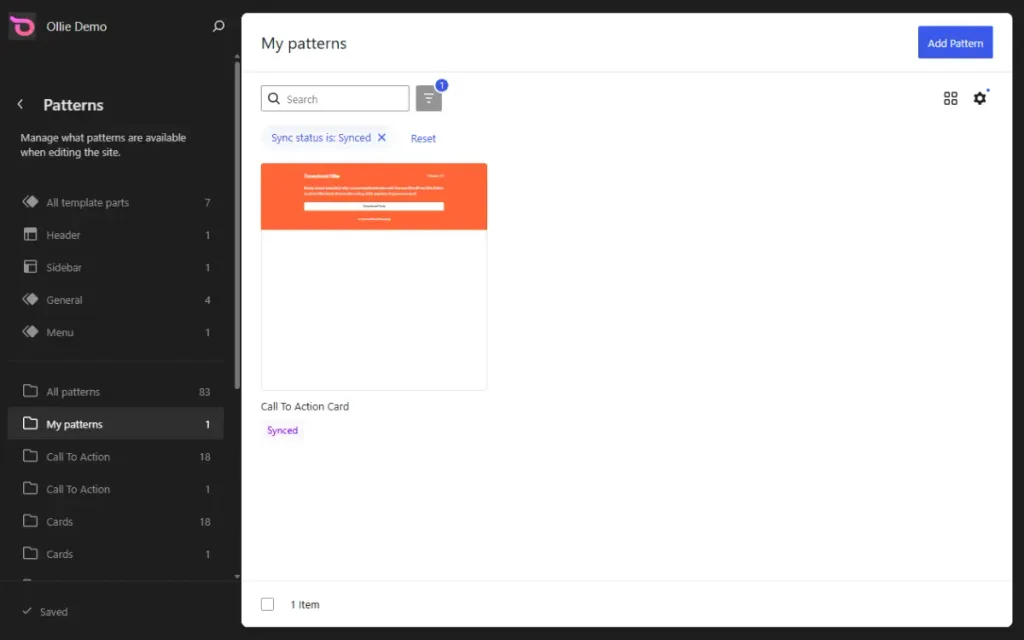
Ollie Pro pattern library
The Ollie Pro pattern library offers two main ways to find patterns:
- A Browse tab for searching, sorting, and filtering patterns.
- A Discover tab where you use Ollie AI to find patterns.
Here are some tips on using them to find the best patterns.
Filter patterns by collection
The Ollie Pro pattern library lets you filter patterns by collections and by category. When you filter by collection, you narrow your options to patterns created for the specific type of website you’re building. This means you’ll likely spend less time finding suitable patterns.
For example, if you’re building an agency website, clicking on the agency collection filter ensures you only see patterns created for agency websites. You can do this for creator, ecommerce, startup, and studio websites too.
Build a shortlist of your favorite patterns
If you come across several patterns you like while browsing and might want to use later, you can add them to your favorites using the quick actions (three dots) button. Then, when you want to use them, use the My Favorites filter to only show the patterns you added to your favorites.
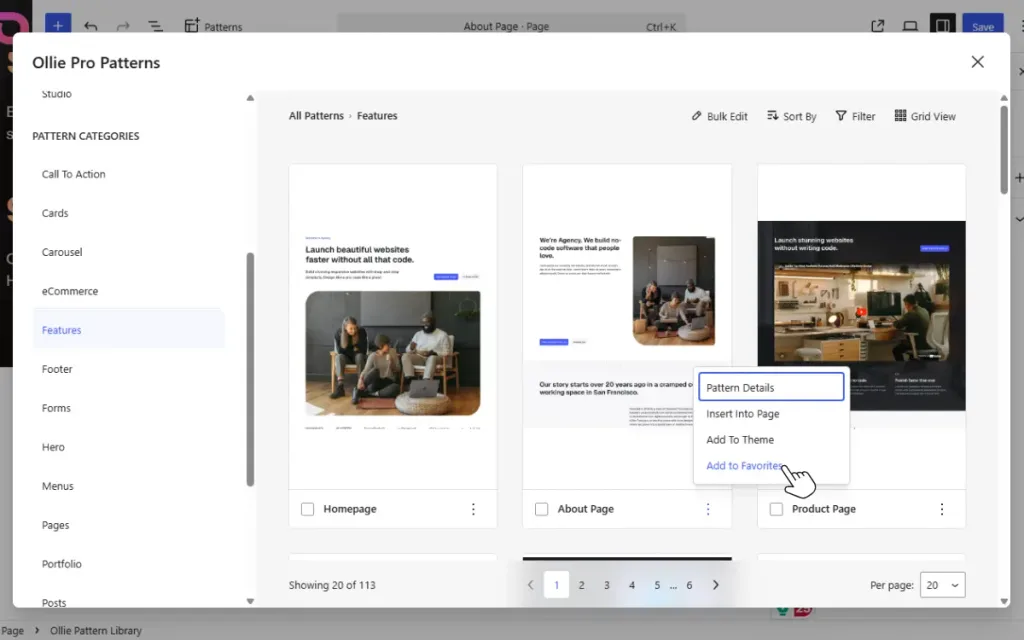
You don’t need to decide what’s best for your site right away. You can browse for inspiration first, save anything that looks promising, and then come back to it once you have a clearer idea of what you need.
Note: Browse the Ollie Pro pattern library here to see what’s in store for you.
Use Ollie AI to find specific patterns
We’ve covered how the WordPress pattern directory won’t surface a pattern if the search term you use doesn’t match the title or searchable text. Ollie Pro’s pattern library is different.
It lets you use natural language to search for patterns. You can search for something specific, for instance, ‘I need a home page to showcase my services’. It includes several pre-made prompts to get you started if you don’t know what to type in the prompt box.
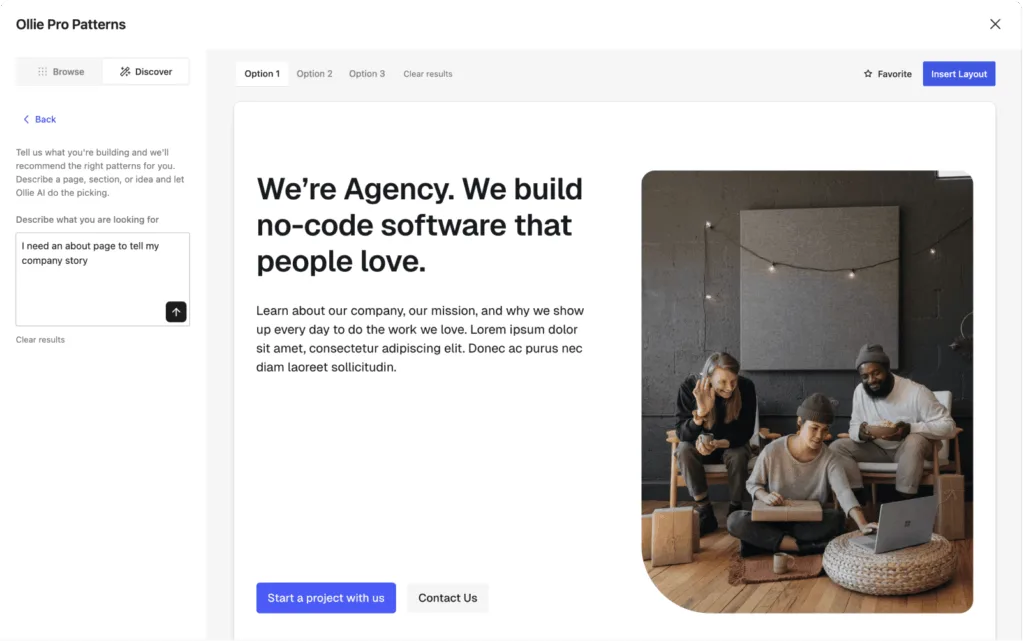
Type your prompt and click Search, and Ollie AI will search the entire pattern library and return three of the best matches.
Then insert the option you like into your page or add it to your favorites. This makes searching for patterns easier.
Preview before you add
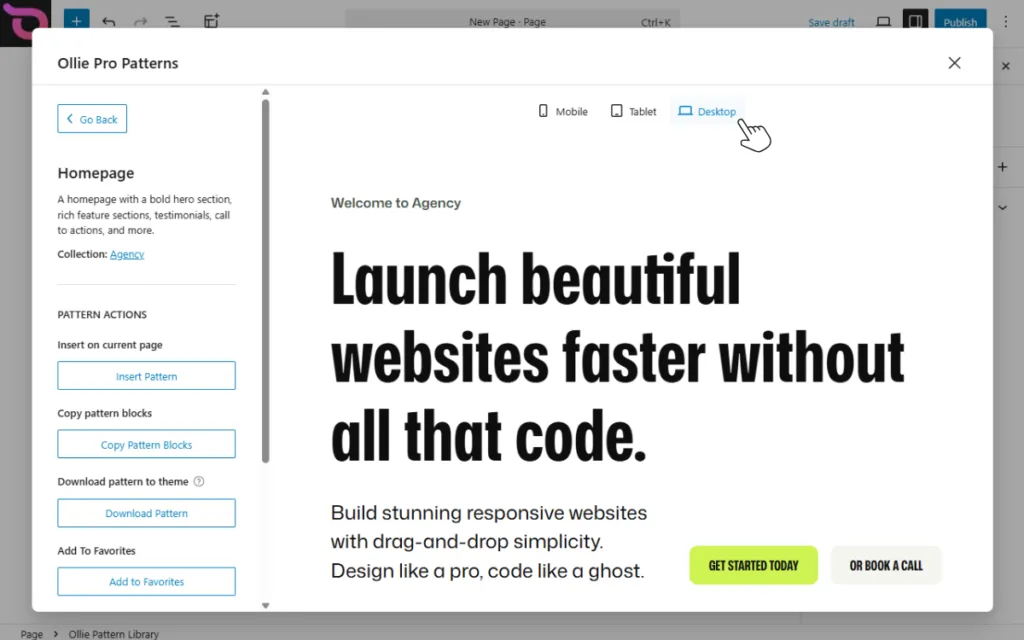
After finding a pattern you like, preview it before you add it and start customizing it. The thumbnail doesn’t show you everything. So click it and pay attention to its structure.
Consider asking questions such as:
- Does the layout suit your content? If you want to present four equally important services, a three-column layout won’t be particularly useful.
- Does it have a clear visual hierarchy? Like how we highlighted in this pattern.
- How much customization will it need? Here, design variations can help. You’ll pick the variation that is closest to what you want the final version to look like.
Get to grips with the WordPress pattern library today
The WordPress patterns you use can come from different pattern libraries. From the Pattern Directory, your theme, and plugins, to the ones you save yourself.
No matter where you’re looking for patterns, start by narrowing your options. Once you find a pattern you like, preview it to see if it’s a good fit, then check how it looks on mobile screens.
The Ollie block theme and Ollie Pro plugin provide you with the tools to do this. Ollie Pro’s pattern library takes it further by letting you search for patterns using natural language and letting Ollie AI pick a full-page layout to inspire your design.
Install the Ollie theme and Ollie Pro to utilize different ways to find the best patterns in the WordPress pattern library.
